

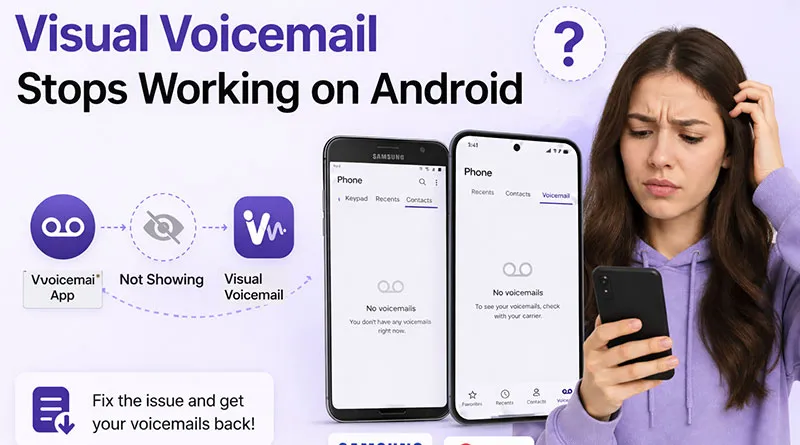
When you set up your voicemail on Android, most of the carriers allow you to use visual voicemail, where you can see a list of received voicemails, click on them to listen or read voicemail transcripts if they’re available. Unlike traditional voicemail, where you need to call and listen to them.
But sometimes it’s frustrating to see missing voicemail notifications or “Visual Voicemail not working” on your Android phone. With Android 16+ and carrier updates, this common issue affects Samsung, Pixel, and MVNO users alike.
This guide includes tested fixes for major carriers and devices, a diagnostic flowchart, and alternatives others miss—get your visual voicemail working in minutes. Follow the guide VM Not working on Wifi if you are able to use Visual voicemail on mobile data only.
To Fix Visual Voicemail Isn’t Working
- Toggle Visual Voicemail OFF and ON.
- Toggle “Voicemail to text” or “Transcriptions,” OFF and ON.
- Check Battery settings for Unrestricted (not “Optimized” or “Restricted”).
- Force LTE only.
- Toggle Wi-Fi calling OFF/ON.
- Force IMS registration.
- Disable RCS Chat.
- Move to Google Voice.
Why Visual Voicemail Stops Working on Android?
Visual voicemail (VVM) pulls messages directly to your Phone app via carrier servers, skipping dial-ins. But it breaks when apps crash, networks glitch, or policies change.
Common culprits:
Outdated Phone app on Android 16 and later, disabled background data for voicemail services, VoLTE handoffs failing on 5G, eSIM misconfigs, or voicemail spam filters blocking transcripts. Carrier outages hit MVNOs hardest – like Mint Mobile lacking native Pixel support.
Read More: Setup Visual Voicemail on Android-All Carriers and Devices.
Visual Voicemail Not Working: Diagnosis
Visual Voicemail failure isn’t one problem. It’s nine different problems, and the fix depends entirely on your carrier, your Android version, whether you’re using 5G Standalone, and even if you have an eSIM or physical SIM.
So, it’s a wise idea to identify the problem and follow the specific steps to fix the VM error quickly.
- Can you access traditional voicemail by dialing your number? (If no → Carrier issue.)
- Is mobile data on and working?
- Any error like “Activating…” or “Can’t connect”?
- Recent OS or app update?
Now you have a diagnostic flow, not a random list of fixes. Start with the symptom, follow the path, and you’ll have Visual Voicemail working again in minutes, not hours. Check out the guide Android Voicemail Missing After SIM Change? If you find your voicemail missing after SIM change.
Fix Visual Voicemail Not Working: Identify the System.
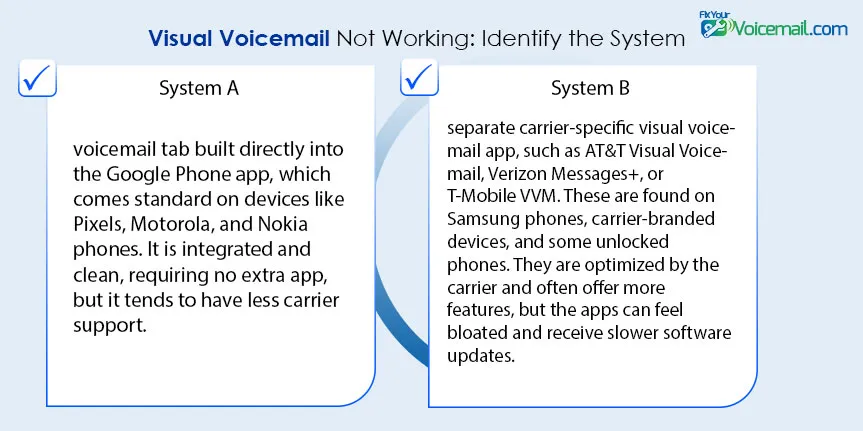
Before we fix anything, understand this: There are TWO completely different Visual Voicemail systems on Android. This system helps you to jump to the exact solution rather than trial and error.
The Two Systems: Visual Voicemail App vs. Phone App Voicemail Tab
| System A: Phone App Voicemail Tab | System B: Carrier Visual Voicemail App | |
|---|---|---|
| What it is | Built into Google Phone app (Pixel, Moto, Nokia). | Separate app from AT&T, Verizon, T-Mobile, Samsung. |
| How to find it | Open Phone app → Voicemail tab. | Look for “AT&T Visual Voicemail,” “Verizon Messages+,” “T-Mobile VVM”. |
| Who has it | Pixel, OnePlus, Motorola, Nothing. | Samsung, carrier-branded phones, some unlocked devices. |
| Pros | Clean, integrated, no extra app. | Carrier-optimized, more features. |
| Cons | Less carrier support. | Bloated, slower updates. |
Which system do you have?
- No separate voicemail app → You’re on System A (Phone app tab)
- You have a carrier voicemail app → You’re on System B (carrier app)
Fix accordingly. Instructions for System A won’t fix System B problems.
Methods To Fix Visual Voicemail Not Working on Android?
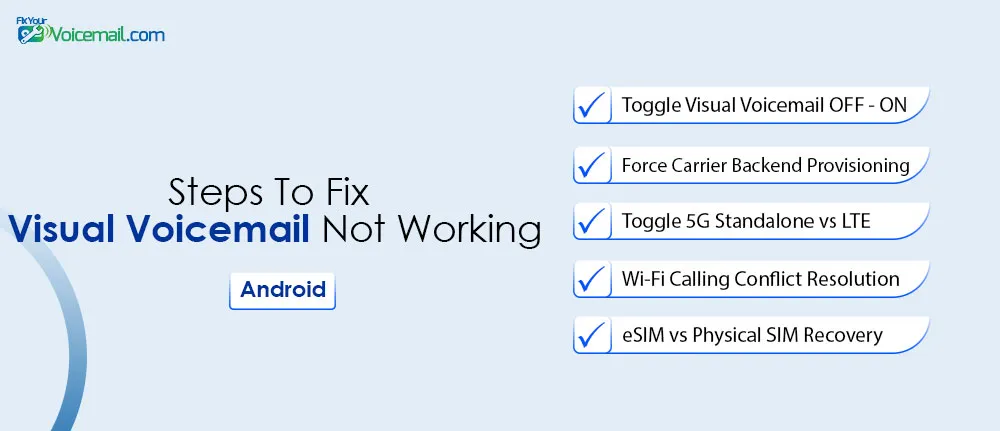
Here are the working methods that fixed most of the visual voicemail errors for me.
Fix #1: Toggle Visual Voicemail OFF – ON
System A (Phone app tab)
This fix works if you are using Phone App to access the Visual Voicemail Tab.
Google Pixel & Stock Android (Android 13-16):
- Open the Phone app.
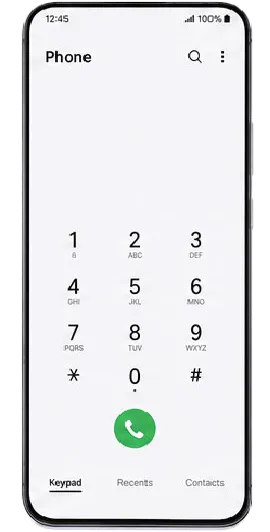
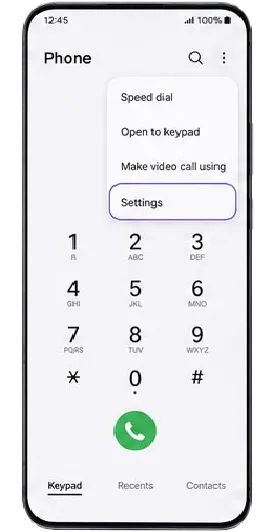
- Tap the three-dot menu (⋮) → Settings.
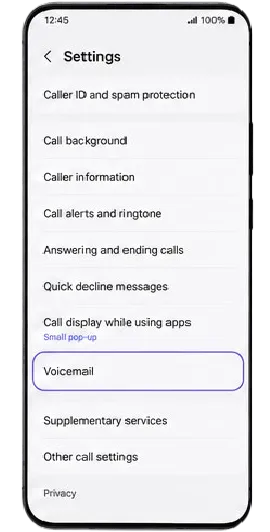
- Tap Voicemail.
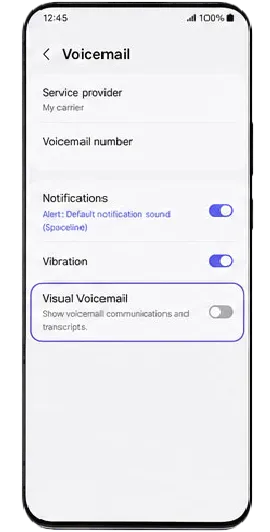
- Toggle Visual Voicemail OFF.
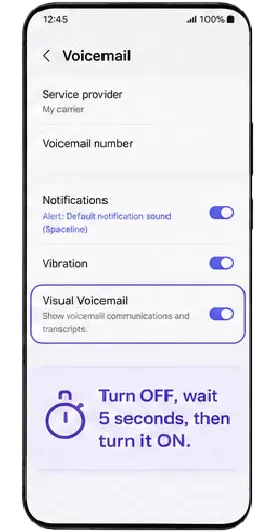
- Wait 10 seconds (critical — lets the carrier deregister you).
- Toggle Visual Voicemail ON.
- Call your own number and leave a 3-second test voicemail.
- Wait 60 seconds. Check the Voicemail tab.
Why this works: Toggling forces your phone to send a new registration request to your carrier’s IMS (IP Multimedia Subsystem) core. The test voicemail confirms the connection.
System B (Samsung + Carrier Apps):
Samsung Galaxy (One UI 6.0/7.0):
- Open the Phone app → Keypad tab.
- Tap the Visual Voicemail icon (tape reel, bottom right).
- Tap three-dot menu (⋮) → Settings.
- Toggle Visual Voicemail OFF → WAIT 10 seconds → ON.
- If you see “Voicemail to text” or “Transcriptions,” toggle those OFF and ON as well.
- Exit settings. Call yourself. Leave a test voicemail.
AT&T Visual Voicemail app:
- Open app → Menu → Settings → Toggle “Visual Voicemail” OFF/ON.
Verizon Messages+:
- Open app → Settings → Voicemail → Toggle “Visual Voicemail” OFF/ON.
T-Mobile Visual Voicemail:
- Open app → Menu → Settings → “Reset voicemail” (different wording, same function).
Fix #2: Carrier Backend Provisioning
Sometimes, Visual Voicemail is active on your phone and active on your account, but the connection between them is broken. This is called a provisioning failure.
To force a carrier backend reset:
Method A: Text codes (fastest)
| Carrier | Code | What to text |
|---|---|---|
| Verizon | Text “REG” to 900080010001 | Resets VVM profile |
| AT&T | Text “VVM” to 754 | Refreshes VVM activation |
| T-Mobile | Dial #686# and press call | Resets voicemail entirely |
| Google Fi | Dial ##344636## | Forces Fi VVM refresh |
Method B: The support script (when codes don’t work)
Call your carrier’s support line. When the agent answers, say this exact script:
“I need to escalate to Tier 2 technical support. My Visual Voicemail is provisioned on my account, but my device is not receiving the IMS registration signal. I’ve already toggled the feature on my phone. Can you please check my IMS registration status and reprovision Visual Voicemail on the backend?”
Why this works: “IMS registration” and “reprovision” are technical terms that tell Tier 1 you need Tier 2. Tier 2 can see exactly why your phone isn’t connecting to the voicemail server.
What Tier 2 will do:
- Check if your device is registered on the IMS core.
- Send a “refresh” command to your phone.
- If that fails, completely remove and re-add the VVM feature.
After they reprovision, restart your phone. Call yourself and leave a test voicemail. Wait 2 minutes. Visual Voicemail should appear.
Fix #3: Android 16 Voicetimeout API Fix
Android 16 introduced a new Voicetimeout API that aggressively limits how long background processes can sync voicemail. The result? Visual Voicemail works perfectly for a few hours, then silently stops.
How to fix (Android 16+ only):
- Open Settings on your Android.
- Go to Apps.
- Select Phone App.
- Tap Battery.
- Select Unrestricted (not “Optimized” or “Restricted”).
Also check:
Settings → Battery → Background usage limits → Find Phone app → Set to Never auto-sleep.
For Samsung One UI 7.0 (Android 16):
- Open Settings on your Samsung.
- Go to Battery and device care → Battery.
- Tap on Background usage limits.
- Select Never sleeping apps and add Phone app and Visual Voicemail app.
Why this works: The Voicetimeout API is disabled for apps marked “Unrestricted.” Your voicemail sync process can now run freely.
Testing the fix:
- Apply Unrestricted battery setting.
- Restart phone.
- Don’t open voicemail for 2 hours (let API try to kill it).
- Check voicemail — should still work.
Fix #4: Toggle 5G Standalone vs LTE
If your Visual Voicemail works on LTE but fails on 5G, this is your fix.
Carriers are rolling out 5G Standalone (5G SA) — 5G that doesn’t rely on 4G LTE for core functions. Voicemail IMS registration often fails on 5G SA networks, especially on T-Mobile (launched Jan 2026) and Verizon (Dec 2025 rollout).
How to force LTE only (temporary fix):
Google Pixel (Android 16):
- Settings → Network & internet → SIMs → Preferred network type
- Select LTE (not 5G or 5G Recommended)
Samsung Galaxy (One UI 7.0):
- Settings → Connections → Mobile networks → Network mode
- Select LTE/3G/2G (auto connect)
OnePlus (Oxygen OS 15):
- Settings → Mobile network → SIM 1 → Preferred network type
- Select LTE
Test: After switching to LTE only, restart your phone. Check Visual Voicemail. If it works, the problem is 5G SA compatibility.
Permanent fix (carrier-specific):
T-Mobile users: T-Mobile knows about this issue (internal tracking ID VVM-5GSA-2026). Call 611 and say:
“My Visual Voicemail fails on 5G Standalone. Please add the ‘LTE Voicemail Fallback’ feature to my line.”
Verizon users: No permanent fix as of Feb 2026. Stay on LTE mode until Verizon updates its 5G SA implementation.
Fix #5: Wi-Fi Calling Conflict Resolution
Visual Voicemail often fails when Wi-Fi calling is enabled. The voicemail registration gets confused about whether to route through Wi-Fi or cellular.
Diagnosis:
- Does VVM work when you turn OFF Wi-Fi?
- Does VVM fail when you’re connected to Wi-Fi?
Fix:
Option A: Toggle Wi-Fi calling OFF/ON
- Settings → Network & internet → SIMs → Wi-Fi calling
- Toggle OFF → Wait 30 seconds → Toggle ON
Option B: Change Wi-Fi calling preference (Samsung/OnePlus)
- Settings → Connections → Wi-Fi calling
- Change from “Wi-Fi Preferred” to “Mobile Network Preferred” or “Cellular Preferred”
Option C: Disable Wi-Fi calling permanently (if VVM is critical)
- Some carriers (especially T-Mobile) have ongoing VVM + Wi-Fi calling conflicts. The only reliable fix is keeping Wi-Fi calling disabled.
Fix #6: eSIM vs Physical SIM Recovery
eSIM users have unique Visual Voicemail problems that physical SIM users don’t face.
Common eSIM issues:
- VVM works after initial setup, then breaks after carrier update.
- “Unable to activate” even though everything looks correct.(refer: Visual Voicemail Says “Unable to Activate)
- VVM works on physical SIM but not eSIM on same carrier.
Fix for eSIM users:
Step 1: Delete and redownload eSIM (does NOT erase contacts or data)
- Open Settings on your Android.
- Go to Network & internet → SIMs → eSIM → Delete.
- Scan carrier QR code again to redownload eSIM.
- Restart phone.
Step 2: Force IMS registration (eSIM specific)
- Dial ##4636## (Testing menu).
- Tap Phone information.
- Tap Trigger IMS registration.
- Wait 30 seconds.
Step 3: If still broken, request eSIM reprovision from carrier
Same script as Fix #2, but add: “I’m using an eSIM. Please delete and regenerate my eSIM profile on your backend.”
Why eSIM breaks: eSIM profiles store IMS registration data. When carriers push updates, the profile can become corrupted. A fresh download fixes it.
Fix #7: Disable RCS Chat Interference (Google Messages)
Diagnosis:
- Disable RCS (Settings → Google Messages → RCS chats → Turn off).
- Test Visual Voicemail.
- If VVM starts working, RCS is the conflict.
Fix (permanent):
Option A: Keep RCS disabled (not ideal, but works)
Option B: Change Messages app permission.
- Settings → Apps → Messages → Permissions.
- Set Phone permission to Deny (Messages doesn’t need this for RCS).
- Keep RCS on.
Option C: Switch to a different SMS app.
- Use Textra, Pulse, or Samsung Messages instead of Google Messages.
- These don’t interfere with VVM registration.
Why this happens: Both RCS and Visual Voicemail try to register with carrier IMS services using the same port. They conflict. Google and carriers are working on a fix expected mid-2026.
New for 2025-2026: Google Messages’ RCS (Rich Communication Services) can interfere with Visual Voicemail registration on some carriers — especially AT&T and Google Fi.
Fix #8: After Carrier Switch Recovery
Switching carriers often permanently breaks Visual Voicemail on your phone — even after you update APN settings and carrier apps.
Why this happens?
Your phone retains the previous carrier’s IMS registration data. The new carrier’s VVM system sees the old registration and rejects the new one.
Step-by-step recovery:
Step 1: Clear all carrier data
- Settings → Apps → Phone → Storage → Clear cache AND Clear storage (you’ll lose call logs).
- Settings → Apps → Carrier Services → Storage → Clear cache.
- Settings → Apps → Your new carrier’s VVM app → Storage → Clear data.
Step 2: Remove old carrier SIM profiles
- If you kept the old SIM: remove it physically.
- If you use eSIM: delete the old carrier’s eSIM profile entirely.
Step 3: Network settings reset
- Settings → System → Reset options → Reset Wi-Fi, mobile & Bluetooth.
- This removes all old carrier network configurations.
Step 4: Fresh VVM setup
- Restart phone.
- Open your new carrier’s VVM app (or Phone app voicemail tab).
- Follow on-screen activation.
- Call yourself and leave a test voicemail.
If still broken after these steps: Use Fix #2 (carrier reprovisioning script). Tell them: “I switched carriers recently. Please remove any previous carrier’s IMS registration from my device profile and provision fresh.”
Carrier-Specific Deep Dives
AT&T (Postpaid & Prepaid)
| Issue | Fix |
|---|---|
| VVM says “Network error” | Fix #4 (5G Standalone) |
| VVM works, then stops after a few hours | Fix #3 (Android 16 API) |
| “Unable to activate” after SIM swap | Fix #2 with script + text “VVM” to 754 |
AT&T specific: Use the AT&T Visual Voicemail app (not Phone app tab) for best results.
Verizon
| Issue | Fix |
|---|---|
| VVM fails on 5G but works on LTE | Fix #4 (stay on LTE) |
| eSIM VVM broken after update | Fix #6 (redownload eSIM) |
| VVM works on Wi-Fi only | Fix #5 (Wi-Fi calling conflict) |
Verizon specific: Verizon Messages+ app has better VVM stability than Phone app tab.
T-Mobile
| Issue | Fix |
|---|---|
| VVM fails on 5G Standalone | Fix #4 + call 611 for LTE Fallback feature |
| VVM stopped working after Jan 2026 update | Fix #2 (dial #686#) |
| Visual Voicemail app crashes | Fix #4 (clear app data) |
T-Mobile specific: The T-Mobile VVM app is being deprecated in 2026. Switch to Phone app tab or Google Voice.
Google Fi
| Issue | Fix |
|---|---|
| Fi VVM works intermittently | Fix #3 (Android 16 API) |
| VVM shows “Carrier not supported” | Fi uses Google Voice for VVM — switch apps |
| After carrier switch to Fi | Fix #8 (fresh setup) |
Google Fi specific: Fi’s Visual Voicemail is actually powered by Google Voice. Use the Google Voice app for Fi voicemail, not the Phone app tab.
Visual Voicemail Not Working- When to Give Up And Move to Google Voice
Let me be honest: Sometimes carrier Visual Voicemail is hopelessly broken.
If you’ve tried:
- All fixes above for your specific system.
- Carrier reprovisioning (Fix #2) twice.
- 5G/LTE toggles (Fix #4).
- eSIM redownload (Fix #6).
But VVM still doesn’t work consistently; stop wasting your time.
The 10-minute solution: Google Voice
Google Voice provides FREE Visual Voicemail that works on any Android phone, any carrier, any Android version.
Setup (under 10 minutes):
- Download Google Voice from Play Store.
- Sign in with your Google account.
- Choose a free Google Voice number.
- Link your existing mobile number.
- Open Google Voice → Menu → Settings → Voicemail.
- Toggle “Get voicemail via email” ON.
- Forward missed calls to your Google Voice number (carrier-specific codes).
After setup:
- All voicemails appear in Google Voice app with full transcriptions.
- Visual Voicemail always works (no carrier dependencies).
- You can search, share, and copy transcripts.
Downside: Voicemails go to Google Voice, not your carrier’s system. But for most users, that’s a feature, not a bug.
Use Google Take A Message:
Your carrier’s voicemail handles missed or declined calls when your phone is off or out of network. If you set a custom greeting, this greeting plays for all callers.
To respond to your missed and declined calls, you can use Take a Message. A transcription and audio of the caller’s message appear in the Home tab.
Take a Message can also detect spam among messages left by missed or declined calls from non-contact numbers.
Frequently Asked Questions
Why does Visual Voicemail say “Unable to activate” on Android 16?
Android 16’s Voicetimeout API is killing the activation process. Enable Unrestricted battery under Settings> App> Phone App> Battery.
Does factory reset fix Visual Voicemail not working?
Rarely. Factory reset often makes it worse because you lose carrier provisioning data. Visual voicemail is a carrier-oriented service and it has nothing to do with your phone memory or data.
Why does my Visual Voicemail work on Wi-Fi but not 5G?
Your carrier’s 5G Standalone network doesn’t support IMS registration for voicemail. Use force LTE method to fix the issue.
I switched from iPhone to Android. Why is Visual Voicemail broken?
Your carrier still has your line provisioned for iPhone Visual Voicemail (different system). Call them and say: “Please remove iPhone Visual Voicemail provision and add Android Visual Voicemail.”
Does Visual Voicemail work on prepaid plans like Cricket or Metro?
Most prepaid plans do not include Visual Voicemail. Switch to Google Voice (free) instead.
Final Words
Visual voicemail problems on Android are usually caused by carrier syncing issues, corrupted app settings, or Android updates disrupting voicemail permissions. Fortunately, most issues can be fixed quickly using the troubleshooting steps above.
Start with simple fixes like restarting your phone, clearing the Phone app cache, and checking mobile data. If those don’t work, advanced fixes like resetting network settings or reprovisioning voicemail through your carrier typically restore functionality.
Samsung Galaxy, Google Pixel, Motorola, and OnePlus devices all handle voicemail differently, so device-specific troubleshooting is often the key to fixing the problem permanently.
RELATED: