

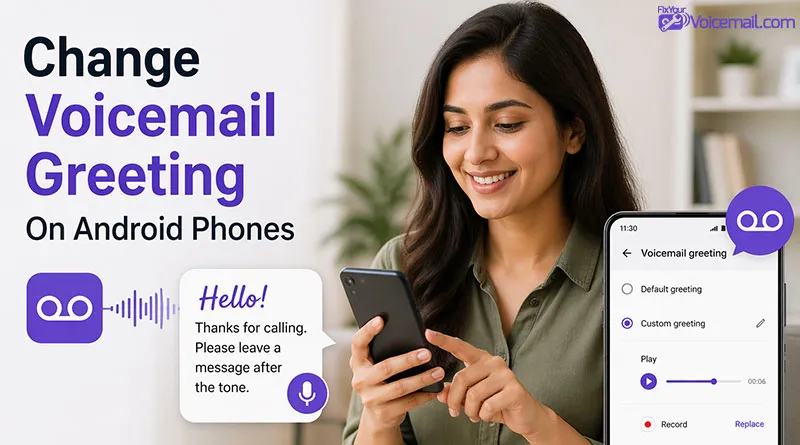
Changing your voicemail on Android should take 30 seconds, but between Android 16’s new menus and carrier-specific apps, it’s easy to get lost.
Whether you’re on a Samsung Galaxy S26, a Pixel 10, or a budget Motorola, this guide covers the new UI shifts and the ‘secret’ carrier codes you actually need.
Quick Fixes to Try First
- Open your Phone app.
- Open the Keypad.
- Press and hold the “1” key (or dial *86 if you are on Verizon).
- Enter your voicemail PIN if prompted.
- Listen to the automated menu (usually Option 3 or 4 for “Greetings” or “Setup”).
- Follow the voice prompts to Record, Review, and Save.
How To Change Voicemail Greeting On Android?
You’ve had the same voicemail greeting for years. Maybe it still says “Hey, it’s [name], leave a message” in a voice you barely recognize. Or worse—it’s still the robotic default greeting that makes callers hesitate before leaving a message.
There are three ways to change your voicemail on Android and they are not complicated, but with Android 16 and later, One UI 8.6, and Pixel’s Call Screen features, the settings have moved.
Here’s exactly where to find them on your Android phone.
Method 1: Change Voicemail by Dialing In ‘1’.

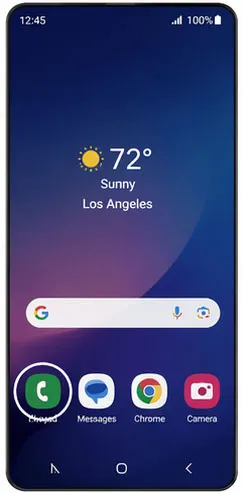
Step 1: Open your Phone app (the green icon you use to make calls).
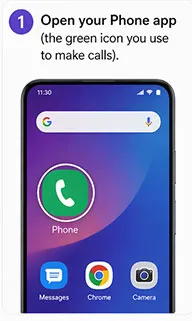
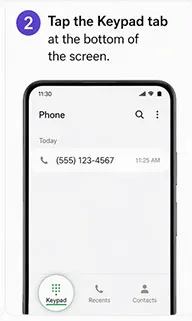
Step 2: Tap the Keypad tab at the bottom of the screen.
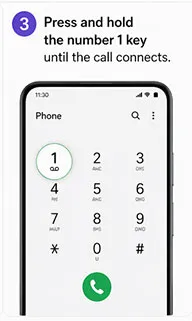
Step 3: Press and hold the number 1 key until the call connects.
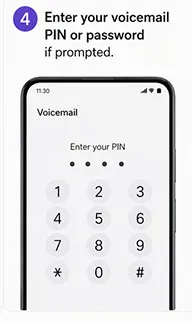
Step 4: Enter your voicemail PIN or password if prompted. (If you’ve never set one, your carrier may have a default—often the last 4 digits of your phone number.)
Step 5: Listen to the menu options. Look for something like:

- “Change personal greeting.”
- “Manage voicemail settings.”
- “Greeting options”
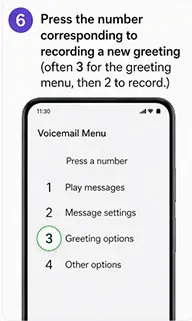
Step 6: Press the number corresponding to recording a new greeting (often 3 for the greeting menu, then 2 to record.)
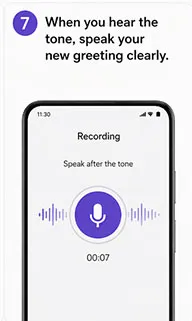
Step 7: When you hear the tone, speak your new greeting clearly.
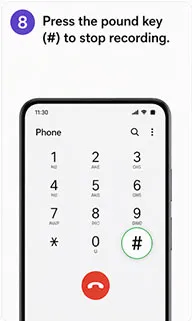
Step 8: Press the pound key (#) to stop recording.
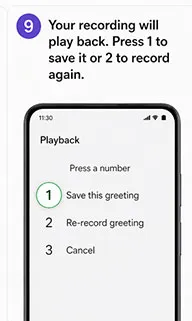
Step 9: Your recording will play back. Press 1 to save it or 2 to record again.
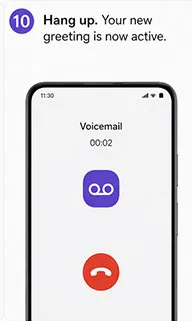
Step 10: Hang up. Your new greeting is now active.
Changing the voicemail greeting using this method works on every Android phone, regardless of Android version, carrier or device manufacturer (Samsung, Google Pixel, Oppo, Vivo, Motorola, etc)
Note: Different carriers use slightly different menu numbers. If 3 then 2 doesn’t work. Listen carefully to the prompts—they’ll tell you which numbers to press.
What If Pressing 1 Doesn’t Work?
If holding 1 doesn’t connect to voicemail:
- Your voicemail may not be activated yet. Call your own phone number from your phone and follow the setup prompts.
- Your carrier may use a different voicemail access number. Contact them for the correct number.
- Try dialing *86 (common for many US carriers) or your own full phone number.
Method 2: Change Voicemail via Phone Settings(visual Voicemail).

If your phone has Visual Voicemail enabled, you can change your greeting directly through the Phone app without dialing in. This method is faster and gives you more control.
For Most Android Phones (Stock Android/Android 16+)
Step 1: Open the Phone app.
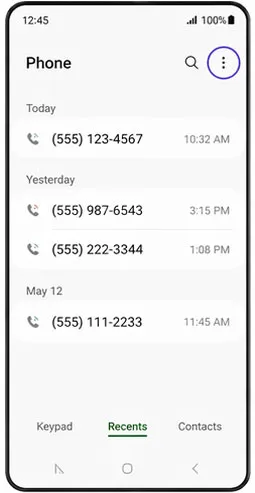
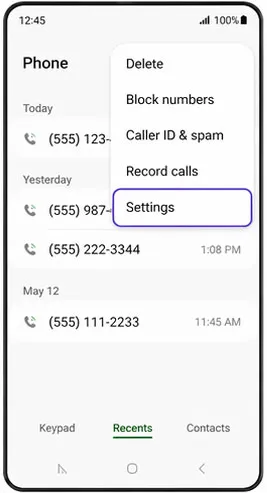
Step 2: Tap the three-dot menu icon in the top-right corner.
Step 3: Select Settings from the dropdown menu.
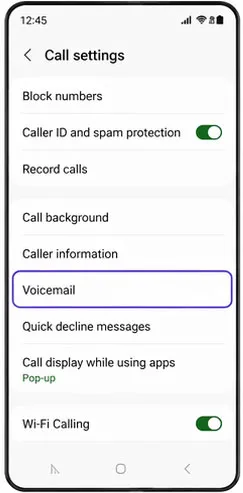
Step 4: Scroll down and tap Voicemail.
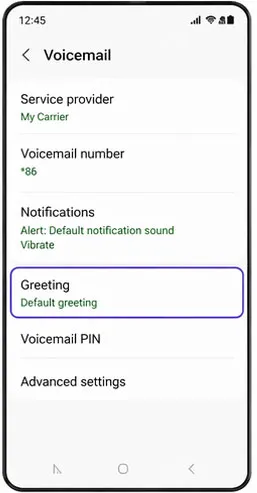
Step 5: Tap Greeting or Voicemail greeting.
Step 6: Choose either:
- Default (automated greeting)
- Custom (record your own)
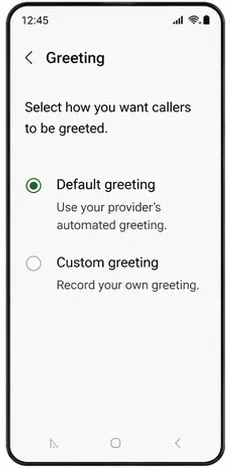
Step 7: If recording custom, tap Record and speak your message.
Step 8: Tap Save or Done when finished.
Step 9: Your new greeting is now active.
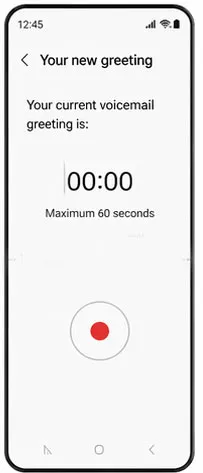
Change Voicemail Greeting on Samsung Galaxy (One UI 8.6 / Android 16)
Samsung’s One UI places voicemail settings inside the call options panel. Here’s exactly where to look on your Galaxy S25, S25+, or S25 Ultra:
1. Via Phone App
- Open the Phone app.
- Tap the Voicemail tab at the bottom (envelope icon).
- Tap the three dots > Settings.
- Tap Voicemail Greeting.
- Record your new message.
2. Via Visual Voicemail App
- Open the Visual Voicemail app (pre-installed on Samsung devices).
- Tap the Menu icon (three horizontal lines or three dots).
- Select Settings.
- Tap Greetings or Voicemail Greeting.
- Tap Record a new greeting.
- Follow the prompts to record and save.
Tip: One UI 8.6 introduced a “Direct Voicemail” feature that can automatically send calls to voicemail. If your greeting isn’t playing for callers, check this setting under Phone > Settings > Direct Voicemail.
Change Voicemail Greeting on Google Pixel
Pixel phones run stock Android but have unique voicemail features through Google’s Phone app.
- Open the Phone app.
- Tap the Voicemail tab at the bottom-right corner.
- Tap the three dots > Settings.
- Scroll down and tap Voicemail.
- Tap Greeting (may be labeled “Voicemail greeting”).
- Choose Custom to record your own greeting.
- Tap Record and speak clearly.
- Tap Save when satisfied.
Tip: Google’s Call Screen feature can intercept calls before they reach voicemail. If your greeting isn’t playing for certain callers, check Call Screen settings under Phone > Settings > Call Screen.
Troubleshooting: Can’t Change Your Voicemail Greeting?
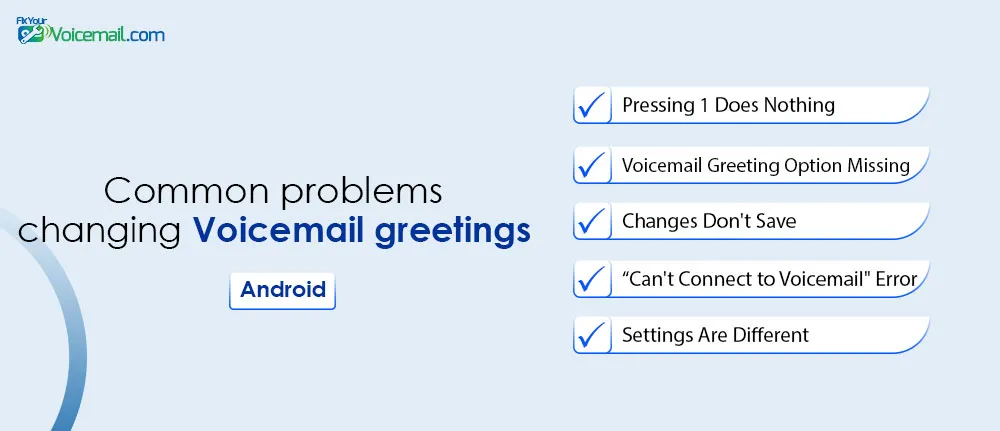
1. Pressing ‘1’ Does Nothing
If you’re following the steps above and nothing is working, try these fixes.
2. Visual Voicemail Greeting Option Is Missing
Visual Voicemail may be disabled. Go to Phone > three dots > Settings > Voicemail and toggle Visual Voicemail ON. If your carrier doesn’t support it, use Method 1 (Dial-In) instead. Follow the guide to fix visual voicemail problems.
3. Changes Don’t Save
Clear your Phone app cache. Go to Settings > Apps > Phone > Storage & cache > Clear cache. This won’t delete your contacts or messages. You can also use this method if you find voicemail not working on your Android.
4. “Can’t Connect to Voicemail” Error
Toggle Airplane Mode on and off to refresh your network connection. Then try again.
5. After Android 16 Update, Settings Are Different
Android 16 moved some voicemail settings. Look under Phone > Settings > Calling accounts > [Your SIM] > Voicemail instead of the main Voicemail menu.
Best Voicemail Greeting Best Practices
Now that you know HOW to change your greeting, here’s WHAT to say.
For Professional Use (Work, Business, Job Hunting)
“You’ve reached [Your Name] at [Company Name]. I’m either on the other line or away from my desk. Please leave your name, phone number, and a brief message, and I’ll return your call within [time frame]. Thank you.”
Tips:
- Speak slowly and clearly
- Include your name and company
- Set expectations for callback time
- Keep it under 20 seconds
For Personal Use
“Hey, you’ve reached [Your Name]. I can’t get to the phone right now, but leave a message and I’ll call you back as soon as I can. Thanks!”
Tips:
- Keep it friendly and natural
- Don’t include personal details (address, schedule)
- Update it when you’re on vacation
Voicemail Recording Tips(for personal & professional)
- Write it down first to avoid awkward pauses.
- Use a quiet room with no background noise.
- Hold the phone 2-3 inches from your mouth.
- Smile while recording—it makes your voice sound warmer.
- Record at midday when your voice is most relaxed.
This was the complete guide to changing voicemail on Android using the traditional dialing method that works on all Android phones. Although for devices running on Android 16 and later, the UI and settings may look different, but the process is identical. For other Android voicemail-related queries, you may see the Android voicemail archive here.
Change Voicemail Greetings-FAQ
How do I change my voicemail greeting on Android without calling voicemail?
Use Visual Voicemail. Open the Phone app > Voicemail tab > Settings > Greeting > Record. No dialing required.
Why can’t I find voicemail settings on my Android?
Different Android versions place voicemail settings in different locations. Try: Phone app > three dots > Settings > Voicemail. If not there, check Settings > Apps > Phone > Voicemail.
Will changing my voicemail greeting delete my saved messages?
No. Your saved voicemails are stored by your carrier and remain in your inbox.
How do I change voicemail on a dual-SIM Android phone?
Go to Phone > three dots > Settings > Calling accounts. Select the SIM you want to change, then tap Voicemail. Each SIM has its own voicemail settings.
What’s the difference between changing greeting via dial-in vs. settings?
Dial-in works on every phone and carrier but requires navigating voice menus. Settings (Visual Voicemail) is faster but only works if your carrier supports Visual Voicemail.
How long should my voicemail greeting be?
15-20 seconds is ideal. Callers lose attention after 30 seconds.
How do I change my voicemail greeting on Android 16?
The process is the same as stock Android: Phone > three dots > Settings > Voicemail > Greeting. Android 16 moved some settings under Calling accounts, but the main path remains unchanged.
Wrapping Up:
Use the dial-in method (hold 1) for universal access. Use Phone settings if you have Visual Voicemail. Use the manufacturer-specific sections for Samsung or Pixel devices. And if you’re locked out of your voicemail password, your carrier can reset it.
Tried everything and still stuck? A quick call to your carrier’s support line will solve the remaining 5% of cases. Most people fix it right here.
Never let another caller hear an outdated greeting again. Bookmark this page for the next time you need to update.
You now know every way to change voicemail on your Android phone—whether you have a Samsung Galaxy S25, Google Pixel 9, or any other Android device.
RELATED: