

If your Android voicemails suddenly stopped syncing after a recent Google Phone app update, you’re not alone. In October 2024, users reported version 148.x breaking visual voicemail entirely.
By 2026, the issue persists across Pixel, Samsung, and Motorola devices, especially on MVNO carriers like US Mobile.
This voicemail fixing guide tests fixes on Android 15/16, covers carrier-specific solutions, and includes the exact Phone app versions that work.
Quick Fix Summary
- Restart your phone – A simple reboot clears temporary cache and re-registers your device on the network.
- Toggle Visual Voicemail off and on – Open Phone app → 3-dot menu → Settings → Voicemail → Toggle Visual Voicemail.
- Clear Phone app cache – Settings → Apps → Phone → Storage → Clear cache (not Clear data).
If these don’t work within 5 minutes, continue with the detailed fixes below, sorted by likelihood of success.
Android Voicemail Not Syncing: What does it mean?
Voicemail not syncing on your Android simply means missing a voicemail that is more than an inconvenience; it could mean missing a job offer, a medical update, or a family emergency.
If your Android device is failing to sync voicemails, you may get a delayed voicemail notification, and this applies to both traditional and Visual voicemail as well.
Why Sync Fails
- Background data blocked: Phone app needs unrestricted mobile data for initial sync.
- Wi-Fi only: Most carriers require mobile network for first download.
- Low storage: T-Mobile and Verizon block sync under 15% free space.
- Outdated carrier settings: After updates, provisioning drops.
- Network provisioning glitches between your phone and carrier servers.
- App cache and data corruption in the Phone or Visual Voicemail app.
Voicemail Not Syncing: Is It Your Phone, App, or Carrier?
Before trying fixes, identify your problem type. This saves hours of trial and error.
| Symptom | Likely Cause | Fix |
|---|---|---|
| Voicemails stopped working immediately after an update. | Google Phone app bug | Downgrade the Google Phone App. |
| Voicemails work on cellular but not on WiFi. | WiFi calling conflict | Disable WiFi Calling. |
| Voicemails show online but not in app. | Syncing issue | Clear Cache and Force/Reinstall Your Voicemail App. |
| “This carrier may not support visual voicemail” error. | Carrier provisioning | See Carrier-Specific Solutions. |
| Voicemail says full but no messages exist. | Deletion sync issue | Enable Airplane Mode and Delete voicemails while offline. |
| Only voicemails older than a year appear. | App data corruption | Clear Voicemail App Data. |
How To Fix Android Voicemail Not Syncing Error?
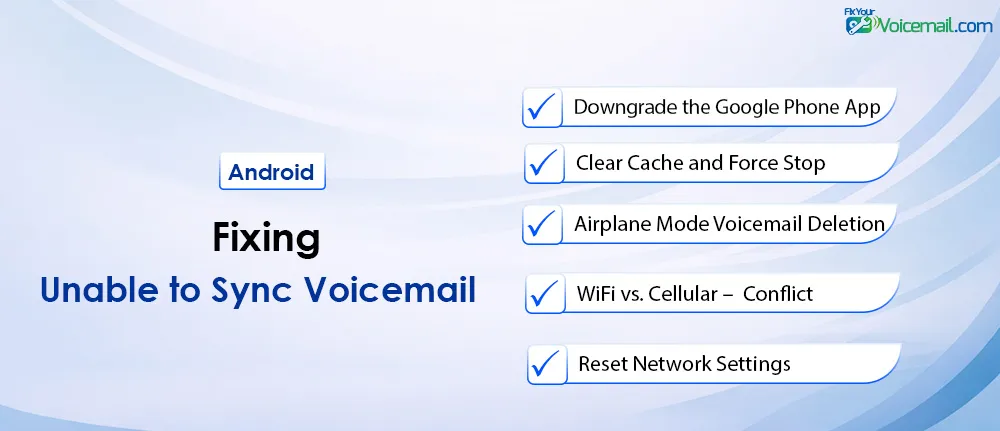
To fix Android voicemail not syncing, try these solutions in order:
Fix #1: Downgrade the Google Phone App
This is the fix that actually works for most of the VM sync issues.
- Versions 127-128 – break VVM when WiFi is enabled on Motorola devices.
- Version 125.x – confirmed working.
- Version 148.x (October 2024) – completely breaks VVM on US Mobile and other carriers.
Why this works: Google frequently breaks visual voicemail in Phone app updates. Community testing has identified specific broken versions:
Step-by-Step Downgrade Instructions
Step 1: Check your current version
- Open Settings → Apps → Phone app → App info.
- Scroll to the bottom to see the version number.
Step 2: Uninstall updates.
- On the same App info screen, tap the three dots (⋮) in the top right.
- Select Uninstall updates.
- Confirm when prompted.
Step 3: Verify voicemail is restored.
- Open the Phone app and tap the Voicemail tab.
- Your messages should reappear within 30 seconds.
Step 4: Prevent auto-update (critical!).
- Open Google Play Store.
- Search for “Google Phone”
- Tap the three dots (⋮) → Enable auto-update (uncheck).
- Important: Do not tap “Update” manually.
Working Version Reference
| Phone App Version | Status | Notes |
|---|---|---|
| 100.x | Working | Stock version on many devices. |
| 125.x | Working | Confirmed by multiple users. |
| 127.x | Broken | WiFi-related failures on Motorola. |
| 128.x | Broken | Same as 127.x. |
| 148.x | Broken | Carrier provisioning errors. |
| 149.x+ | Unknown | Test before updating. |
Fix #2: Clear Cache and Force Stop (Fastest Fix)
If downgrading isn’t an option or you want to try a less drastic fix first, clearing the app cache removes corrupted data that prevents voicemails from syncing.
For Google Phone App (Native Voicemail)
Android 15/16+ Path:
- Open Settings → Apps → See all apps.
- Find and tap Phone (Google Phone app).
- Tap Storage & cache.
- Tap Clear cache (not Clear storage – that erases data).
- Go back and tap Force stop.
- Reopen the Phone app.
For Third-Party Voicemail Apps (YouMail, Visual Voicemail by Carrier). Follow the same path but select your voicemail app (YouMail, Verizon VVM, T-Mobile Visual Voicemail, etc.)
- Tap Storage & cache → Clear cache.
- Tap Force stop.
- Reopen the app and sign back in if needed.
Pro tip: After clearing cache, swipe down on the voicemail inbox to force a manual refresh.
Fix #3: The Airplane Mode Voicemail Deletion Trick.
This fix addresses the bizarre “voicemail full but no messages” issue – when your carrier’s server thinks your mailbox is full, but your phone shows nothing to delete.
Why this works: When you delete voicemails normally, the deletion doesn’t always sync to your carrier’s server. By disconnecting from the network first, you force a clean deletion that the server can’t interfere with.
Steps:
- Enable Airplane Mode.
- Swipe down from the top of your screen.
- Tap the airplane icon.
- Verify WiFi and cellular are disconnected.
- Delete voicemails while offline.
- Open the Phone app → Voicemail tab.
- Delete any messages you see (even old ones).
- Check for “deleted” or “trash” folders and empty them.
- Disable Airplane Mode.
- Tap the airplane icon again to reconnect.
- Test with a new voicemail.
- Call your phone from another line.
- Leave a test message.
- Check if it appears within 2 minutes.
Fix #4: WiFi vs. Cellular – The Hidden Conflict.
A significant number of users report that visual voicemail works perfectly on cellular data but fails when connected to WiFi.
This affects:
- Motorola devices (G Stylus, Edge series) with Android 13+
- Google Pixel devices on certain carriers
- Phones with WiFi Calling enabled
The Fix
Option A: Disable WiFi Calling (Temporary Test).
- Open Settings → Network & internet → Calls & SMS.
- Tap WiFi Calling.
- Toggle it OFF.
- Test voicemail while on WiFi.
Option B: Allow Background Data for Phone App.
- Settings → Apps → Phone → Mobile data & WiFi.
- Enable Background data (may be called “Allow background data usage”).
- Enable Unrestricted data usage if available.
This can also fix the delayed notification problem on Voicemail.
Option C: The Proven Workaround.
If you’re on a Motorola device with Phone app version 127-128, downgrade using Fix #1. Multiple users confirmed this resolves the WiFi conflict permanently.
For advanced users: The technical root cause appears to be how the Phone app handles the ACTION_SYNC_VOICEMAIL broadcast intent over WiFi connections. The downgrade reverts to a version with working broadcast receiver implementation.
Fix #5: Carrier-Specific Solutions.
Generic “contact your carrier” advice is useless. Here’s exactly what to say to each carrier.
US Mobile (Warp/Verizon Network)
Problem: US Mobile users on Verizon’s network report the Google Phone app shows “This carrier may not support visual voicemail” after version 148.x .
Fix:
Downgrade Phone app to version 125.x (see Fix #1)
If that doesn’t work, ask support to reprovision visual voicemail on your line.
Reference this exact error: “Phone app shows carrier may not support visual voicemail after October 2024 update.”
Verizon (Postpaid & Prepaid)
Fix:
- Open Verizon Messages+ or Verizon Visual Voicemail app.
- Complete initial setup (even if you prefer Google Phone app).
- Then open Google Phone app → Voicemail → toggle Visual Voicemail off and on.
If still broken: Dial *73 to disable call forwarding, then *90 to re-enable
T-Mobile / MetroPCS
Fix:
- Download Visual Voicemail by T-Mobile from Play Store.
- Set it up once.
- Uninstall it (this leaves the proper carrier settings).
Google Phone app voicemail should now work.
Google Fi
Fix:
- Open Google Fi app.
- Tap Account → Manage carrier settings.
- Tap Fix voicemail issues.
The app will reprovision your line automatically.
AT&T / Cricket
Fix:
- Keep AT&T Visual Voicemail app installed.
- Disable its notifications:
- App info → Notifications → Off.
- Use Google Phone app as normal – it will read from the same carrier data.
Note: AT&T aggressively pushes its own Visual Voicemail app. You may need to keep it installed (but can disable notifications).
MVNOs (Mint, Visible, Boost, etc.)
Universal fix:
- Request carrier reprovisioning for visual voicemail.
Exact script: “My visual voicemail stopped working after a phone app update. Can you reset the visual voicemail feature on my line and confirm the feature is properly provisioned?”
Carrier-Specific Provisioning Codes
| Carrier | Action | Code to Dial |
|---|---|---|
| Verizon | Reset VVM | Dial *86, then follow prompts. |
| T-Mobile | Reset Call Forwarding | Dial ##004# then Call. |
| AT&T | Account Refresh | Dial 611 and ask for “Voicemail Reset”. |
| Visible/Mint | Network Reset | Dial ##CHECKIN## |
Fix #6: Reset Network Settings Without Losing Everything.
A network settings reset fixes carrier provisioning conflicts but wipes saved WiFi passwords. Here’s how to prepare.
Before You Reset:
- Backup WiFi Passwords.
- Go to Settings → Network & internet → WiFi.
- Tap Saved networks (or “Saved Wi-Fi networks”).
- Screenshot or write down networks you’ll need.
Reset Network Settings
Android 15/16 and later Path:
- Settings → System → Reset options → Reset Wi-Fi, mobile & Bluetooth.
Confirm
Warning: This removes all saved WiFi networks, Bluetooth pairings and resets mobile network settings. It does NOT delete personal data like photos or voicemails.
After Reset
- Reconnect to WiFi (enter passwords from your screenshots).
- Restart your phone.
- Open Phone app → Voicemail – it should reprovision automatically.
Fix #7: Check Call Forwarding Settings.
Visual voicemail requires proper call forwarding to the voicemail server. If forwarding is broken, voicemails go nowhere.
How to Check (Android 15/16)
- Open Phone app → three dots (⋮) → Settings.
- Tap Call forwarding (may be under “Calling accounts” then your carrier).
- Verify When unanswered, When busy, and When unreachable are set to your carrier’s voicemail number.
Typical numbers: *86, +1[area code]XXX-XXXX, or carrier-specific.
Quick Reset
- Dial ##004# (GSM carriers like T-Mobile/AT&T) to reset all forwarding to default.
- Dial *73 (Verizon) to disable, then *90 to re-enable.
Fix #8: Clear Voicemail App Data (Nuclear App Option).
If clearing cache didn’t work, clearing all app data resets the voicemail feature completely. You won’t lose saved voicemails (they’re stored on carrier servers), but you’ll need to re-setup visual voicemail.
Step-by-step:
- Settings → Apps → Phone → Storage & cache.
- Tap Clear storage (may be called “Clear data”).
- Confirm.
- Open Phone app → Voicemail tab.
- You’ll be prompted to set up visual voicemail again.
- Follow the on-screen prompts.
For third-party apps (YouMail):
- After clearing data, you’ll need to sign back in.
Fix #9: The Voicemail Contract Manual Sync (For Advanced Users).
Android includes a hidden broadcast intent for forcing voicemail sync. App developers use ACTION_SYNC_VOICEMAIL to request all voicemail sources synchronize with their remote servers.
What this means for you: While you can’t directly trigger this intent without a specialized app, you can force the same behavior.
Force Manual Sync
- Toggle Airplane Mode on and off (forces network reconnection).
- Open Phone app → three dots → Settings → Voicemail.
- Toggle Visual voicemail OFF.
- Wait 10 seconds.
- Toggle ON.
- Restart your phone – this sends the ACTION_BOOT_COMPLETED intent, which triggers voicemail providers to check for new messages.
Fix #10: Reinstall Your Voicemail App.
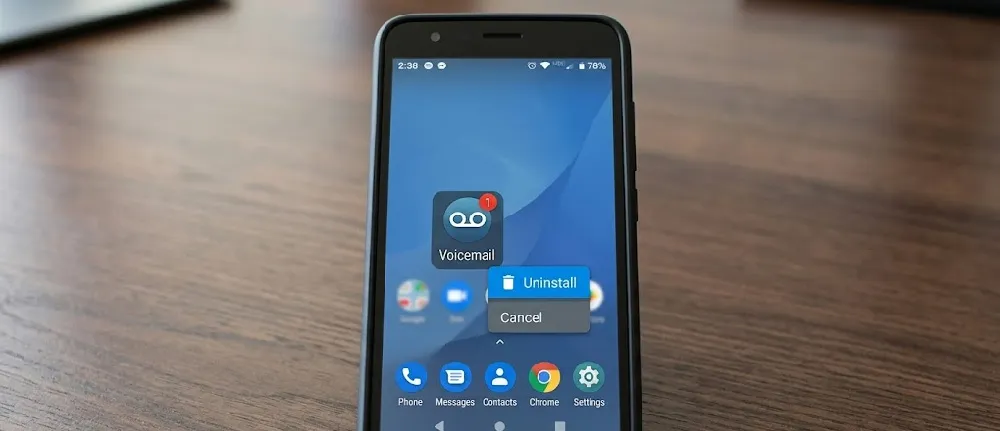
If you’re using a third-party visual voicemail app like YouMail, a clean reinstall often resolves syncing issues.
Proper Reinstall Process
- Force stop the app (Settings → Apps → App name → Force stop).
- Clear cache (not storage yet).
- Uninstall the app.
- Restart your phone.
- Reinstall from Google Play Store.
- Sign in and allow all requested permissions.
According to YouMail support, “Your account and voicemail data remain intact” during this process.
Fix #11: The Factory Reset (Last Resort).
If literally nothing else works, a factory reset can resolve deep system-level conflicts. Do this only after trying every other fix.
Before Factory Reset – Complete Backup Checklist
- Photos/videos – Back up to Google Photos.
- Contacts – Verify sync with Google account (Settings → Accounts → Google → Contacts sync ON).
- SMS/MMS – Use SMS Backup & Restore app.
- WhatsApp – Manual backup to Google Drive.
- Authenticator apps – Save backup codes (critical!).
- WiFi passwords – Screenshot saved networks.
- Call history – Apps like “Call History Backup” can export.
How to Factory Reset (Android 15/16)
- Go to Settings → System → Reset options.
- Tap Erase all data (factory reset).
- Confirm with your PIN/password.
- Wait 10-15 minutes for the reset.
- After Reset – Restore and Test.
- Set up as new device (or restore from backup).
- Before installing any updates, test voicemail.
- If voicemail works, gradually update apps while testing after each.
If voicemail fails on the fresh reset, the issue is carrier-side.
Fix #12: Escalate to Your Carrier (With This Script).
When all else fails, carrier support can resolve issues you can’t access.
Before Calling – Gather This Info
- Your phone model and Android version (Settings → About phone).
- Google Phone app version (Settings → Apps → Phone → App info).
- Exact error message (screenshot it).
- Date the problem started.
- What you’ve tried (mention downgrading, cache clearing, etc.)
The Script
“I’m having an issue with visual voicemail on my [Phone Model] running Android [version]. My voicemails are not syncing to the Google Phone app. I’ve tried clearing cache, resetting network settings, and even downgrading the Phone app. Can you check if visual voicemail is properly provisioned on my line and confirm there are no outages or known issues with [Carrier Name] visual voicemail servers?”
Ask for These Specific Actions
- Reprovision visual voicemail on your line.
- Reset voicemail PIN/password (sometimes resets sync).
- Check for carrier-side voicemail storage limits.
- Escalate to tier 2 support if tier 1 can’t help.
Your voicemail sync issue is solvable with the right steps. Start with the quick fixes, use device-specific instructions for your Samsung or Pixel, and don’t overlook battery optimization as the hidden culprit. Most users resolve this within 10 minutes without calling their carrier.
Android Voicemail Sync Error – FAQs
How long does voicemail sync take?
Normal sync takes 10-30 seconds. If stuck on “syncing” for more than 2 minutes, you have a settings issue, not a server issue.
Why do I see the transcript but can’t play the audio?
This is a data-rate issue. Transcripts are tiny text files, but audio requires a stable 5G/6G connection. Ensure “Data Saver” mode is turned off in Settings > Battery.
Does Android 17 support third-party voicemail apps?
Yes, but apps like YouMail or Google Voice require Conditional Call Forwarding to be enabled. If sync stops, dial *72 (followed by the number) to re-enable forwarding.
My voicemail only syncs when I’m on Wi-Fi. Why?
Your carrier settings may have “Background Data” restricted. Go to Settings > Apps > Visual Voicemail > Mobile Data and ensure “Allow background data usage” is toggled ON.
Final Words
Voicemail sync issues on Android are almost always fixable without a factory reset. The most effective solution is downgrading the Google Phone app to a known working version like 125.x.
If you’re on US Mobile, Verizon, or have a Motorola device, pay special attention to Fix #1 and Fix #5 – these carrier-specific issues won’t be solved by generic “clear your cache” advice.
One last tip: After fixing your voicemail, disable auto-updates for the Google Phone app in the Play Store. Future updates may break it again.
Reference Links
- Google Phone App Community Support – Voicemail not working (Pixel 8, Android 15, US Mobile).
- Google Phone App Community – Voicemail issues on WiFi with latest versions (Motorola).
- YouMail Help Center – Why voicemails are not showing in the app.
- How-To Geek – Visual Voicemail Not Working on Android Fixes.
- Android Developers – VoicemailContract API Reference.