

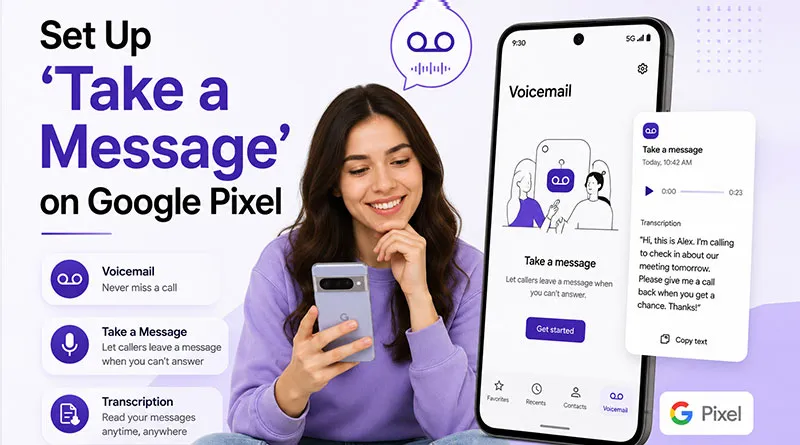
You’ve heard about it, Take a Message, the Pixel-exclusive feature that answers missed calls for you, transcribes what callers say, and lets you read messages instead of listening to voicemail. But when you open your Phone app settings, you can’t find it. Or you found it, turned it on, but aren’t sure it’s working.
Take a Message setup isn’t one-size-fits-all. What works on a Pixel 10 running Android 16 differs from a Pixel 6 on Android 14. And if conditional call forwarding is enabled? Your setup will fail, and no one explains why.
On Fixyourvoicemail.com this is the master reference guide for every compatible Pixel (6, 7, 8, 9, 10 and later). You’ll get a 3-minute quick setup, advanced customization (custom greetings, transcript management), a troubleshooting flowchart for when it breaks, and the comparison table vs. carrier voicemail.
How to set up Take a Message on Google Pixel:
- 1. Open your Phone app (blue icon with white handset).
- 2. Tap the three-dot menu (⋮) in the top right, then select Settings.
- 3. Scroll to and tap “Take a Message.”
- 4. Toggle the switch to ON. You’re now ready to receive transcribed messages from missed calls.
What Is Take a Message? (And Why Use It Over Carrier Voicemail)
Take a Message is a Pixel-exclusive feature in the Google Phone app. When you miss or decline a call, it:
- Answers the call on your behalf (no carrier voicemail involved).
- Plays a greeting (default or your custom recording).
- Transcribes the caller’s message live as they speak.
- Saves both transcript and audio in your Phone app’s Home tab.
How it’s different from carrier voicemail:
- On-device: No Wi-Fi or mobile data used. Everything runs locally via the Phone by Google app.
- Instant transcripts: You see words appear live, not after the fact.
- AI next steps: After the call, Take a Message creates AI-generated summaries like Call Notes.
- Spam filter: Uses the same spam detection model as Call Screen, so junk calls get screened before they leave a message.
The “why” matters:
Unlike carrier voicemail, where you dial in, listen, and mentally note details, Take a Message lets you read what callers said in seconds. You can also join the call live if you change your mind mid-message.
Take a Message turns missed calls into actionable info without touching your carrier. Set it up once, record a greeting that sounds like you, and let your Pixel handle the rest.
Compatibility Check: Does Your Pixel Support Take a Message?
Take a Message isn’t available on all Pixels or in all regions. Check both requirements before troubleshooting.
Take a Message Supported Pixel Devices:
| Pixel Generation | Support Status | Notes |
|---|---|---|
| Pixel 6, 6 Pro | ✅ Full support | Requires Android 14+ |
| Pixel 6a | ✅ Full support | Requires Android 14+ |
| Pixel 7, 7 Pro | ✅ Full support | Works on original Android 13, update recommended. |
| Pixel 7a | ✅ Full support | Works on original Android 13, update recommended. |
| Pixel 8, 8 Pro | ✅ Full support | Optimized for Android 14+ |
| Pixel 8a | ✅ Full support | Optimized for Android 14+ |
| Pixel 9, 9 Pro | ✅ Full support | Enhanced for Android 15+ |
| Pixel 9 Pro Fold | ✅ Full support | Works on inner and outer displays. |
| Pixel 10, 10 Pro | ✅ Full support | Optimized for Android 16 + custom greetings. |
| Pixel 10 Pro Fold | ✅ Full support | July 2026 enhancements. |
| Pixel Tablet | ❌ Not supported | Phone app on tablet lacks a feature. |
| Pixel Watch (any) | ⚠️ Limited | Phone app on tablet lacks a feature |
Supported Regions: Is Take A Message available in your region?
Take a Message officially works only in these 5 countries:
- Australia.
- Canada.
- Ireland.
- United Kingdom.
- United States.
If you’re outside these countries: The “Take a Message” option will not appear in your Phone app settings. No workaround exists. Use Google Voice instead.
If you’re traveling outside these countries: Take a Message may not work when roaming (see Troubleshooting section below).
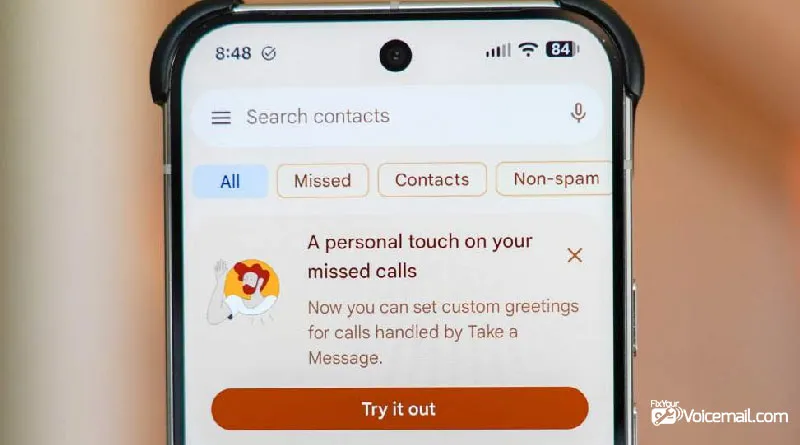
Quick Setup: Get Take a Message Running in 3 Minutes.
This setup works for all supported Pixel 6-10 and later devices. Takes less than 3 minutes.
Step 1: Update the Phone App
Open the Google Play Store → Search “Phone by Google” → Tap Update if available.
Why this matters: Take a Message was added in Phone app version 129.0+. Older versions don’t have the option.
Step 2: Navigate to Take a Message Settings
- Open the Phone app (blue icon with white handset).
- Tap the three-dot menu (⋮) in the top right corner.
- Tap Settings.
- Scroll down to find “Take a Message” (between “Caller ID & spam” and “Assistive calls” on most Pixels).
Step 3: Toggle On & Test
- Tap “Take a Message” to enter its settings screen.
- Toggle the switch to ON (blue position).
- Test immediately: Ask a friend or family member to call you.
- When the call comes in, tap Decline (red button).
- You should see a silent notification: “Taking a Message” appears in your notification shade.
Success indicator: After your friend leaves a message, open the Phone app → Home tab. You’ll see the call with a message icon and a partial transcript preview.
Follow the guide here to set or change Voicemail greetings on Android phones using traditional voicemail.
Step 4: Troubleshooting the Test
| What happens | What it means | Fix |
|---|---|---|
| Call goes to carrier voicemail | Conditional call forwarding active. | See Fix #1 in Troubleshooting. |
| No “Take a Message” in Settings | Region or Pixel not supported. | Check the compatibility table above. |
| Toggle won’t stay ON | Carrier blocks feature. | Check the compatibility table above. |
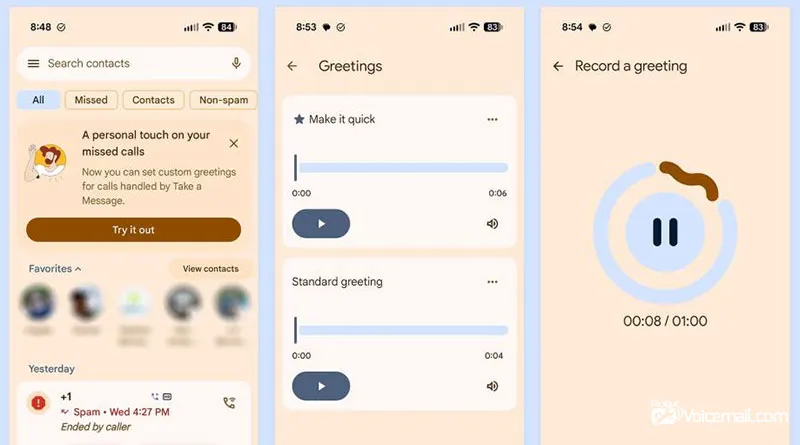
How to Setup Custom Greeting On Take A Message?
The default greeting is generic: “The person you’re trying to reach is unavailable. Please leave a message after the tone.” Here’s how to record a personal greeting.
Step 1: Record Through Carrier Voicemail (Required First Step).
- Open the Phone app → Voicemail tab.
- Tap the three-dot menu → Settings → Voicemail.
- Tap “Voicemail greeting” or “Record greeting.”
- Follow prompts to record a custom greeting (typically 30-60 seconds).
- Save the recording and set it as default.
Critical: Take a Message uses your carrier voicemail greeting if one exists. It does NOT have a separate recording interface.
Step 2: Verify Take a Message Uses Custom Greeting.
- Decline an incoming call from a different phone.
- Listen carefully; your custom carrier greeting should play.
- If the default generic greeting still plays, restart your phone and test again.
Greeting recording tips:
- Keep it under 30 seconds (shorter messages = faster transcription).
- Speak clearly at a moderate pace.
- Avoid background noise.
- Include what you want callers to say: “Hi, I can’t answer right now. Please leave your name, number, and reason for calling, and I’ll read your message.”
What Callers Hear: Default vs. Custom
Default greeting: “The person you’re trying to reach is unavailable. Please leave a message after the tone.” (Robotic, generic)
Custom greeting example: “Hey, this’s Alex. I’m in meetings until 3 PM. Leave your name, number, and what you need — I’ll read your message and text you back. Thanks!” (Personal, actionable).
Advanced Take A Message Features: Live Transcript View, Joining Mid-Call & Spam Detection.
Here are some advanced features that “Take A Message” offers exclusively on Google Pixel devices that other carriers fail at:
Reading Transcripts Live (While Caller Speaks)
When you decline a call and see the “Taking a Message” notification:
- Tap the notification to open the live transcript view.
- You’ll see words appear in real-time as the caller speaks.
- Important: Opening this view will pause any playing media (videos, music, podcasts).
Joining the Call Mid-Message
This is Take a Message’s superpower — no other voicemail system lets you do this.
While viewing the live transcript, if you realize the call is urgent, tap the Answer button (green phone icon). You’ll be connected to the caller immediately, even if they’re mid-sentence.
Use case: You decline a call thinking it’s spam, but the live transcript shows: “Hi, this is Dr. Miller’s office with your test results —” Tap Answer immediately.
Spam Detection
Take a Message identifies suspected spam calls among missed/declined calls from numbers not in your contacts.
- Spam calls are marked with a red exclamation mark icon in the Home tab.
- The label “Spam” appears below the number.
- Limitation: Not all spam or robocalls are detected. Google’s system improves over time, but it isn’t perfect.
Important privacy note: Take a Message transcript and audio data are never saved to your Google Account, Call Assist Activity, or Web & App Activity. It stays locally on your device.
Take a Message vs Carrier Voicemail vs iPhone Live Voicemail: Quick Comparison.
| Feature | Take a Message | Carrier Voicemail | iPhone Live Voicemail |
|---|---|---|---|
| Processing | On-device | Carrier server | On-device |
| Data use | None | Uses minutes | None |
| Real-time transcript | Yes | No | Yes |
| Custom greetings | Yes, 1 min | Yes, varies | Yes |
| Spam screening | Yes | No | Yes |
| Works phone off | No | Yes | No |
| AI next steps | Yes | No | No |
Verdict: If your Pixel is on, Take a Message beats carrier voicemail. Keep carrier voicemail as a fallback when you’re unreachable.
Take A Message: Privacy, Storage & Data Use.
- Data: Take a Message doesn’t use Wi-Fi or mobile data. All transcription and AI steps run on your Tensor chip.
- Storage: Audio + text saved in /data/data/com.google.android.dialer. Not accessible via Files app. Clear via Phone app. Each 1-min greeting ≈ 1 MB.
- Sharing: Transcripts stay on-device unless you tap Share. Google doesn’t upload them.
- Deletion: Phone > Recents > message > Delete.
- For greetings: Manage greetings > three dots > Delete.
Your next step: Open your Phone app right now. Check Settings for “Take a Message.” If it’s there, toggle it on and test with a friend’s call. If it’s missing, verify your region and Pixel model against the compatibility table.
For those who are new to the voicemail world, take a quick tour to our guide setup and access Voicemail on an Android phone on any carrier or region.
Troubleshooting Take A Message Errors
1. Take A Message Not Working:
If you are experiencing issues where callers cannot leave voicemails, you may be dealing with a Take A Message not working error. This typically occurs when notification permissions are disabled, carrier settings are outdated, or Do Not Disturb mode is active.
Before troubleshooting further, check our dedicated guide on Take A Message not working to identify the specific cause on your device model, as the solution often involves resetting network settings or reinserting the SIM card.
2. Take A Message Not Showing:
When you miss a call but do not see the option to screen or respond via a voicemail prompt, the problem is often that Take A Message not showing on your screen after the call ends.
This happens when visual voicemail is disabled, your carrier does not support the feature on your current plan, or you have recently switched to a prepaid service.
To understand exactly why Take A Message not showing occurs and how to restore the button, refer to our step-by-step troubleshooting article that covers both iPhone and Android settings.
3. Call Forwarding Is Blocking Take a Message:
A common conflict that prevents voicemail from working properly is when Call Forwarding is blocking Take a Message without you realizing it.
When unconditional call forwarding (often called “Always Forward” or “Immediate Forward”) is enabled, all incoming calls are rerouted to another number before your voicemail system ever gets a chance to answer.
To resolve this, learn how Call Forwarding is blocking Take a Message and which forwarding codes (like ##002#) to dial on your network to disable the interference while keeping conditional forwarding intact for missed calls.
4. Bluetooth Headset Conflicts
If you decline a call using a Bluetooth headset (pressing the button on your earbuds), Take a Message will NOT activate. The call goes to carrier voicemail instead.
Workaround: Decline calls using the Phone app screen (red button) when using Bluetooth headsets.
5. Roaming Behavior
Take a Message may not work when you’re roaming internationally, even within the 5 supported countries.
Official Google note: “Missed and declined calls will be processed by your carrier’s voicemail when your phone is roaming.”
No workaround: When roaming, carrier voicemail takes over. Take a Message reactivates when you return to your home network.
6. Check APN Settings for Mobile Data
Take a Message works without data, but carrier provisioning requires initial data handshake. If you’re on a limited data plan or custom APN:
- Settings → Network & internet → SIMs → Access Point Names.
- Ensure your APN type includes
default,supl,fota. - If missing, add it → Save → Restart phone → Toggle Take a Message OFF/ON.
Navigate Fix APN Settings to Make Android Visual Voicemail Work for device and carrier-specific solutions.
Take A Message-FAQs
Can I use Take a Message on my Pixel 6 if I’m in Japan?
No. Regional support is limited to Australia, Canada, Ireland, UK, and US. The option won’t appear in settings. Use Google Voice instead.
Does Take a Message work on Wi-Fi only (no cell service)?
Yes and no. Transcription is on-device and works without internet. But receiving calls requires cell service. You can’t forward Wi-Fi calls to Take a Message.
Why did Take a Message stop working after the Android 16 update?
Android 16 introduced stricter background process limits. Fix: Settings → Apps → Phone → Battery → Unrestricted.
Can I use Take a Message with Google Fi?
Yes, Fi works like any other carrier in supported regions. Conditional call forwarding must be disabled.
Does the caller know Take a Message is answering?
No special message. They hear your greeting (default or custom) and a beep, just like regular voicemail.
Can I set different greetings for different callers?
No. One greeting for all callers. Use carrier voicemail groups if you need per-contact greetings.
Does Take a Message work when my phone is in Do Not Disturb mode?
Yes, missed calls during DND trigger Take a Message normally.
Can I disable Take a Message temporarily without deleting settings?
Yes. Phone app → Settings → Take a Message → Toggle OFF. Toggle back ON when needed.
Is Take a Message available on Pixel Tablet?
No, Phone app on Pixel Tablet doesn’t support the feature, even when paired with a Pixel phone.
Final Words
Take a Message is one of the most underrated Pixel features, but only if you set it up correctly. Now you have the master guide that covers every step: from quick setup on any Pixel 6-10, to recording custom greetings, to troubleshooting conditional call forwarding conflicts that break the feature.
And if conditional call forwarding is blocking you? Use the carrier script in this guide; it’s saved hundreds of users hours of frustration.
Take a Message won’t replace your carrier voicemail for every scenario (roaming, phone off), but for daily call screening? It’s transformative. No more dialing in, no more missed details, just transcripts you can read and act on instantly.