


Your voicemail inbox is full. That annoying notification won’t go away. Or you just want to clear out old messages from an ex‑boss or a telemarketer. Deleting voicemail messages on Android isn’t always straightforward, especially now with Android 16 and One UI 8.6. Some carriers hide the delete button; others make you dial in.
Delete Voicemail Messages on Android- 3 Quick Steps
- Open your Phone app and tap the Voicemail tab (envelope icon).
- Tap the voicemail message you want to delete.
- Tap the trash can icon (or “Delete”), confirm if prompted.
If you are trying to delete voicemail messages on Android, you’ve likely found that simply hitting the trash icon doesn’t always do the trick. With the rollout of Android 16 and AI-driven “Live Voicemail” features, the process has become more layered.
This guide provides a comprehensive walkthrough to delete voicemail messages for every Android user, from Google Pixel and Samsung Galaxy owners to those using carrier-specific dial-in systems.
But before you jump to the steps, have a look at the table and consider the best method for clearing the voicemail inbox on your Android.
Which Deletion Method Should You Use?
| Your situation | Best method |
|---|---|
| You see a “Voicemail” tab in your Phone app | Method 1 (Visual Voicemail) |
| You have a Samsung Galaxy S25 or newer | Jump to Samsung section |
| You have a Google Pixel 9 or newer | Jump to Pixel section |
| You only hear voicemail when you press & hold 1 | Method 2 (Dial‑in) |
| You want to delete every message at once | Method 3 (Bulk delete) |
Once you have picked up the right method, you can navigate to the related heading, or I recommend you go through the entire article for an in-depth tutorial.
How To Delete Voicemails by Dialing “I”?
Use this if your phone does not have a Visual Voicemail tab, or if you prefer the classic method.
To delete a specific message after listening:
- Open Phone app > Keypad.
- Press and hold the
1key to call your voicemail. - Enter your PIN if prompted.
- Listen to the menu options. The key to delete a message is almost always
7after listening. - Play a message you want to delete (usually
1to play). - After it finishes (or during playback), press
7to delete. - The system will often confirm: “Message deleted. Press 7 to delete, or press any other key to save.”
- Hang up when done.
How to delete all voicemails by dial‑in:
Most carriers do not allow bulk deletion via dial‑in. You must delete messages one by one. If your mailbox is full, call your carrier’s support – they can sometimes purge it remotely.
Delete Voicemails by Dialing “I” on Samsung One UI
- Launch the Phone app
- Long press 1 to call your Voicemail
- Tap on Keypad
- After listening to the options, choose the number linked to deleting the voicemail message
- The voicemail prompts and option numbers are determined by each mobile network provider and may differ between services. If you are unsure which number to select, check with your network provider for the correct menu options.
- Once you’ve finished deleting your Voicemail messages, tap the End call button
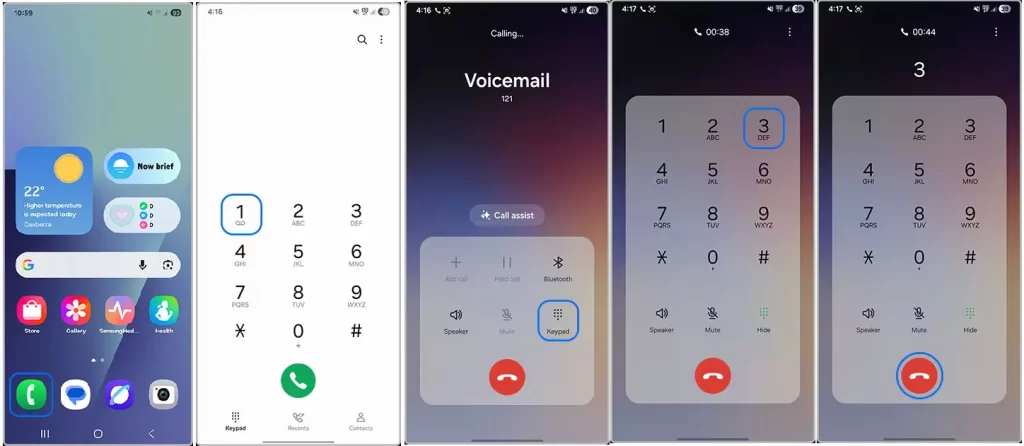
Samsung support pages recommend holding 1 for traditional access. On 2026 models, One UI offers improved transcription and bulk actions.
Delete Voicemails by Dialing “I” on Google Pixel
- Open the Phone app.
- Tap the Voicemail icon at the bottom right.
- Select the message you wish to remove.
- Tap the Trash icon.
- Crucial 2026 Update: To ensure privacy, Android 16 now requires you to tap “Clear Trash” in the settings menu to remove the audio file from the local cache.
Delete Voicemails by Dialing “I” on nePlus / OxygenOS, Xiaomi / HyperOS
Steps are similar but the Phone app UI varies. If no dedicated tab appears, use the keypad method or check carrier app settings. Test both approaches.
How To Delete Voicemails Using Visual Voicemail?
Visual Voicemail shows your messages as a list. This is the quickest way to delete individual messages.
To delete messages one by one:
- Open the Phone app (green icon).
- Tap the Voicemail tab at the bottom right.
- You’ll see a list of messages with the caller’s name/number, date, and duration.
- Tap the message you want to delete – a menu or trash icon appears.
- Tap Delete (sometimes a trash can or “Remove”).
- Confirm “Delete” if asked.
To delete multiple messages at once:
- Look for Edit or Select at the top of the Voicemail list.
- Tap the checkboxes next to each message.
- Tap the trash icon at the bottom, then confirm.
Carrier note: On Verizon Visual Voicemail, deleted messages stay in a “Trash” folder for 14 days. On T‑Mobile, they’re gone immediately. See the “recovery” section below.
For Samsung Galaxy (One UI 8.0):
- Launch the Visual Voicemail app (or Phone > Voicemail).
- Tap the three-dot menu (vertical ellipses).
- Choose Edit.
- Select the messages and tap Delete.
Quick recap:
- Visual Voicemail users: tap the message > trash icon.
- Dial‑in users: press & hold
1> listen > press7. - Samsung & Pixel users: use the device‑specific sections above.
- Can’t delete? Check for locked messages, full mailbox, or dual‑SIM confusion.
- Recovery: Verizon & Google Voice have trash folders; others delete permanently.
Still stuck? Your carrier’s customer service can delete messages remotely, dial *611 and ask for help.
How to Delete All Voicemail Messages at Once?

If your inbox is at 99% capacity, deleting one by one is a waste of time.
- Open your Voicemail app.
- Long-press on any single message. This activates Multi-Select Mode.
- Look for a “Select All” checkbox or icon (usually at the top).
- Tap Delete and confirm.
- Empty the “Recently Deleted” or “Trash” folder to immediately free up carrier storage.
Troubleshooting: When You Can’t Delete Voicemail Messages
Deleted but notification won’t go away
To clear the voicemail notification that won’t go away on Android
- Restart your phone.
- Go to Settings > Apps > Phone > Storage > Clear cache (and Clear data if needed). This resets the app but not your actual voicemails.
- Pull down the notification shade and long-press the voicemail alert → Turn off notifications temporarily.
- Check for system updates.
For the step-by-step solution, refer to the guide: get rid of voicemail notifications.
Voicemail is full but messages won’t delete:
Listen to and explicitly delete old messages via keypad. Some carriers require you to delete from the server side. Contact support and ask them to clear the inbox.
No Voicemail tab or can’t select messages:
Enable Visual Voicemail in carrier settings or app. Alternatively, use the keypad method.
Bulk delete not working:
Long-press one → tap the three-dot menu → “Select all” or similar. If unavailable, delete in batches or use keypad to clear the box.
For persistent problems, a factory reset of the Phone app or checking for Android 16 bugs (rare but possible on early updates) can help.
Password issues or locked out:
Reset voicemail password via carrier account portal or by calling customer service.
You’re in the wrong voicemail system (dual‑SIM)
- Solution: On dual‑SIM phones, each SIM has its own voicemail. Swipe down the notification shade and check which SIM’s voicemail you’re accessing. Switch SIMs in Phone app > Settings > Calling accounts.
Visual Voicemail sync failure
- Solution: Toggle Airplane mode on/off. Then clear Phone app cache: Settings > Apps > Phone > Storage & cache > Clear cache. Delete again. Read here to fix visual voicemail issues on Android.
Carrier restriction (e.g., AT&T keeps deleted messages for 30 days)
- Solution: Deleted messages may still appear in a “Trash” or “Archive” folder. Empty that folder separately (see next section).
Prevention Tips & Best Practices
- Regularly check and clear your inbox or set a calendar reminder.
- Change your voicemail greeting and password for security.
- Use transcription features to quickly decide what to keep.
- On devices with limited storage, deleting voicemails helps indirectly by reducing app cache buildup.
- Consider third-party visual voicemail apps only from trusted sources if the stock option is insufficient.
Following these habits prevents the “voicemail full” frustration that affects many Android users.
FAQ: Delete Voicemail Messages on Android
Why is there no delete button on my voicemail?
You’re likely using the old dial‑in system. Press and hold 1, listen to a message, then press 7 to delete. Or enable Visual Voicemail in Phone > Settings > Voicemail.
How do I delete all voicemail messages at once on Samsung?
Open Phone > Voicemail tab > three dots > Edit > Select All > Trash icon.
Can I delete a voicemail message without listening to it?
Yes, in Visual Voicemail, long‑press the message (or tap the checkbox) and hit delete without playing.
Will deleting voicemail messages free up storage on my phone?
Voicemails are stored on your carrier’s servers, not on your phone’s internal storage. Deleting them does not free up phone storage, but it does clear the voicemail notification.
How do I delete a voicemail from a blocked caller?
Blocked callers’ voicemails often go to a separate “Blocked messages” folder. Check your Phone app > Settings > Blocked numbers > Voicemail from blocked callers.
How do I delete visual voicemail messages on Android 16?
Same as stock Android: Phone app > Voicemail tab > swipe left or right on a message, or tap Edit > select > Delete.
Final Words:
Keeping your voicemail clean not only frees up mental space but also ensures you never miss important new messages. Bookmark this guide and refer back whenever your inbox gets overwhelming or share it with friends still struggling with stuck notifications. Your Android experience just got a lot smoother.