

If your visual voicemail works fine on mobile data but shows nothing on home Wi-Fi, it is by design.
AT&T’s app listing states clearly: “AT&T Visual Voicemail does not work on a Wi-Fi-only connection.”
T-Mobile support tells you to “Turn off Wi-Fi to ensure you’re using the T-Mobile network.” Freedom Mobile says it “cannot be accessed via Wi-Fi only.”
KEY TAKEAWAY:
- Users have reported visual voicemail not syncing or loading new messages when the device is connected to wi-fi.
- Visual Voicemail needs to authenticate using the SMS services.
- Visual Voicemail needs stable internet access to work properly.
Why? Visual Voicemail authenticates using a hidden SMS sent over the cellular network. Without mobile data, the carrier cannot verify your SIM.
This guide provides tested solutions for major devices and carriers. Follow these steps to restore functionality without constantly toggling Wi-Fi.
Why Visual Voicemail Doesn’t Work on WiFi (The Real Reason).
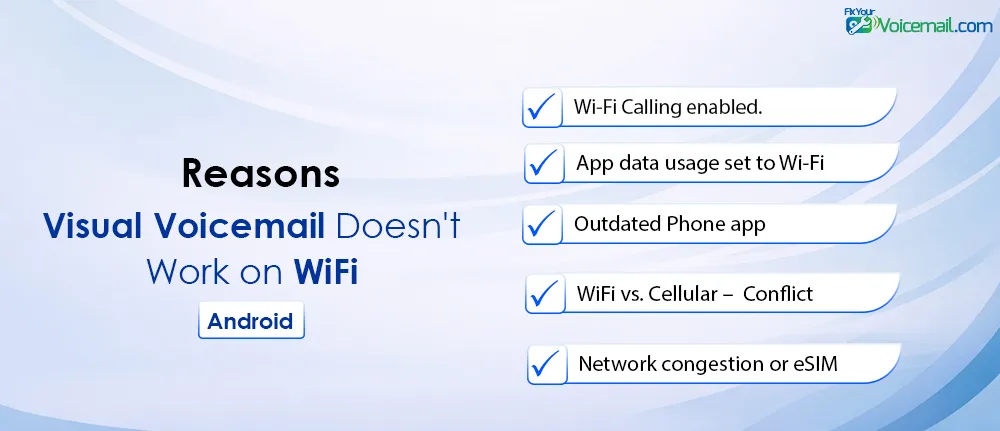
Visual Voicemail (VVM) needs a stable internet connection, typically preferring cellular data for carrier integration. When Wi-Fi is active, Android may route VVM traffic through it, causing VM sync failures if the Wi-Fi lacks proper carrier provisioning or conflicts with VVM protocols.
Common triggers:
- Wi-Fi Calling enabled.
- App data usage set to Wi-Fi preferred.
- Outdated Phone app or carrier provisioning.
- Network congestion or eSIM issues.
Visual voicemail relies on data to fetch transcripts and messages, but many devices and apps struggle when both Wi-Fi and cellular are active, especially with Wi-Fi Calling enabled.
This is often not a “bug” but a configuration mismatch.
Visual Voicemail Not Working on WiFi? 10 Fixes That Actually Work.
Visual voicemail on Android doesn’t work on WiFi alone because it requires cellular data to function. Keep WiFi enabled but ensure cellular data is turned on, and if you’re using WiFi Calling, disable it or enable “Mobile Data Always Active” in Developer Options to resolve the conflict.
How to Make It Work
- Turn Off Wi-Fi for Initial Sync Go to Settings > Wi-Fi > off.
- Open Phone > Voicemail > pull to refresh. Messages download in seconds. You can turn Wi-Fi back on after.
- Allow Mobile Data Only (Android 15/16)
- Samsung: Settings > Connections > Data usage > Mobile data only apps > enable Phone and Visual Voicemail.
- Pixel: Settings > Network > Data Saver > Unrestricted data > enable Phone. This lets VVM use mobile data even when Wi-Fi is on.
- For Wi-Fi Calling Users
- O2 UK and EE now support VVM over Wi-Fi Calling as of 2024. Check with your carrier. If supported, enable Wi-Fi Calling in Settings > Connections.
- No Mobile Data Plan?
- Prepaid users without data cannot use visual voicemail. T-Mobile community users fixed this by unblocking data in account settings, then reinstalling app. You need at least a small data allowance for the authentication SMS.
If this doesn’t fix your visual voicemail over wi-fi, follow the detailed steps guide:
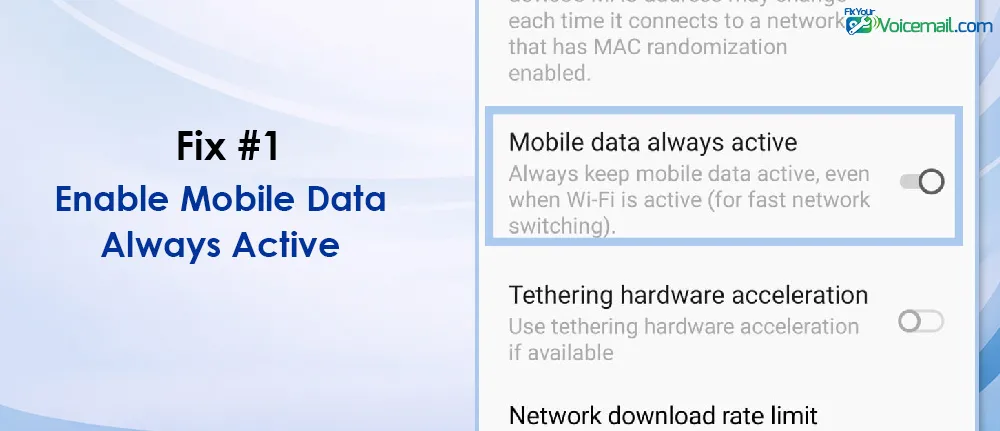
Fix #1: Enable Mobile Data Always Active.
Enabled “Mobile Data Always Active” in Developer Options keeps cellular data active even when WiFi is connected, allowing visual voicemail to work properly.
Step 1: Enabling Developer Option.
Developer Options are hidden by default. Here’s how to unlock them:
- Open Settings on your Android phone.
- Scroll to About Phone.
- Tap Build Number 7 times rapidly.
- You’ll see “You are now a developer” message.
- Return to Settings main menu.
Step 2: Enable Mobile Data Always Active.
For Samsung Galaxy (OneUI):
- Go to Settings > System > Developer Options.
- Scroll down to Networking section.
- Find Mobile Data Always Active.
- Toggle it ON.
- Restart your phone.
For Google Pixel (Stock Android):
- Go to Settings > System > Developer Options.
- Scroll to Networking.
- Tap Mobile Data Always Active.
- Enable the toggle.
- Reboot your device.
For OnePlus (OxygenOS):
- Open Settings > System Settings > Developer Options.
- Find Mobile Data Always Active under Network section.
- Turn it ON.
- Restart the phone.
Users who enabled this setting reported visual voicemail working on and off WiFi immediately.
What This Setting Does?
When enabled, your phone keeps cellular data active in the background even while WiFi handles internet traffic.
Visual voicemail can then use cellular data for carrier communication while WiFi handles apps, streaming, and browsing.
Fix #2: Toggle Visual Voicemail Off and On.
Reset the feature by turning it off, waiting, then re-enabling it.
Samsung Galaxy:
- Open Phone app.
- Tap three dots (menu) in top-right.
- Select Settings.
- Tap Visual Voicemail.
- Toggle OFF.
- Wait 60 seconds.
- Toggle ON.
- Wait for “Activating” to complete.
Google Pixel:
- Open Phone app.
- Tap three dots > Settings.
- Tap Visual Voicemail.
- Turn OFF.
- Wait 1 minute.
- Turn ON.
- Wait for activation.
Fix #3: Force Stop and Clear Phone App Cache.
Samsung Galaxy S23/S24/S25:
- Go to Settings > Apps.
- Tap Phone (Google Phone app).
- Tap Force Stop (this step is critical).
- Tap Storage.
- Tap Clear Cache.
- Tap Clear Data.
- Restart phone.
- Open Phone app and reconfigure visual voicemail.
Google Pixel:
- Settings > Apps > Phone.
- Force Stop.
- Storage & Cache.
- Clear Cache.
- Clear Storage.
- Restart device.
Force stopping and clearing cache of phone app deletes the previous corrupt session, forcing the app to work again. This is essential for Samsung OneUI.
OnePlus:
- Settings > Apps & Notifications > Phone.
- Force Stop.
- Storage > Clear Cache.
- Clear Data.
- Reboot.
Fix #4: Check for System and App Updates.
Outdated software causes 60% of visual voicemail issues.
System Update:
- Settings > Software Update (Samsung) or System > System Update (Pixel).
- Tap Download and Install.
- Install if available.
- Restart phone.
Phone App Update:
- Open Google Play Store.
- Search for Phone or your carrier’s voicemail app.
- Tap Update if available.
- Restart phone.
Outdated apps cause crashes and activation failures. Keep both system and app updated.
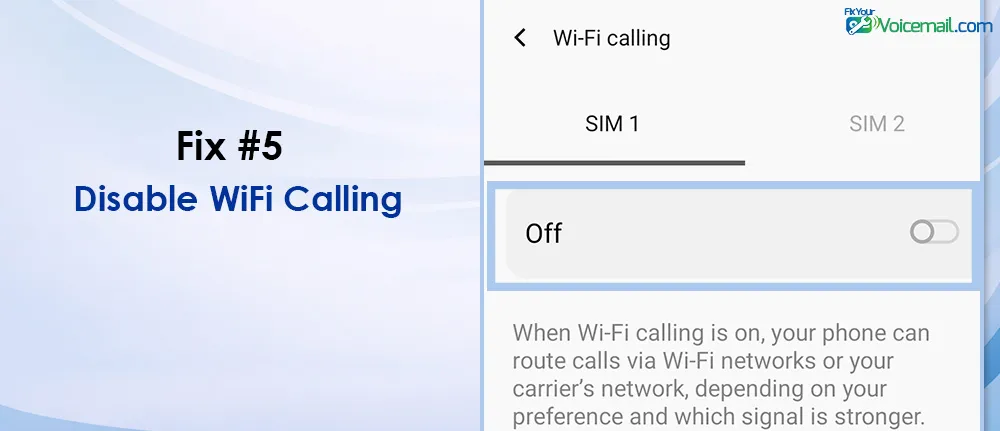
Fix #5: Disable WiFi Calling (Resolves Conflicts)
WiFi Calling is convenient but creates visual voicemail conflicts on most carriers.
Which Carriers Have WiFi Calling Conflicts?
| Carrier | WiFi Calling Conflict? | Solution |
|---|---|---|
| Verizon | YES | Disable WiFi Calling or use Mobile Data Always Active |
| T-Mobile | YES | Disable WiFi Calling temporarily during setup |
| AT&T | YES | Disable WiFi Calling, re-enable after voicemail setup |
| Xfinity | YES | Disable WiFi Calling, use cellular data |
| Visible | YES | Disable WiFi Calling, visual voicemail doesn’t work on WiFi |
| US Mobile | YES | Enable Mobile Data Always Active in Developer Options |
When to Keep WiFi Calling Disabled
Keep WiFi Calling disabled if:
- You primarily use visual voicemail over WiFi.
- You have poor cellular signal but strong WiFi.
- Visual voicemail works on cellular but fails on WiFi.
When WiFi Calling Is Safe to Enable
You can enable WiFi Calling if:
- You enable “Mobile Data Always Active” in Developer Options.
- You rarely use visual voicemail.
- You have strong cellular data coverage.
- Your carrier confirmed compatibility (some newer plans support both).
After disabling, test visual voicemail. If it works, you’ve confirmed the WiFi Calling conflict.
How to Test WiFi Calling Compatibility
- Enable WiFi Calling.
- Connect to WiFi.
- Ensure cellular data is ON.
- Enable “Mobile Data Always Active” if available.
- Test visual voicemail.
- If it fails, disable WiFi Calling.
Fix #6:Reset Network Settings (Not Factory Reset)
- Go to Settings > System > Reset Options.
- Tap Reset Wi-Fi, mobile & Bluetooth.
- Confirm Reset Settings.
- Phone restarts.
- Reconnect to WiFi.
- Re-enable cellular data.
- Test visual voicemail.
This resets WiFi, mobile data, and Bluetooth without deleting your personal data, fixing APN mismatches, causing 25% of carrier issues.
Fix #7: Check Background Data Permissions.
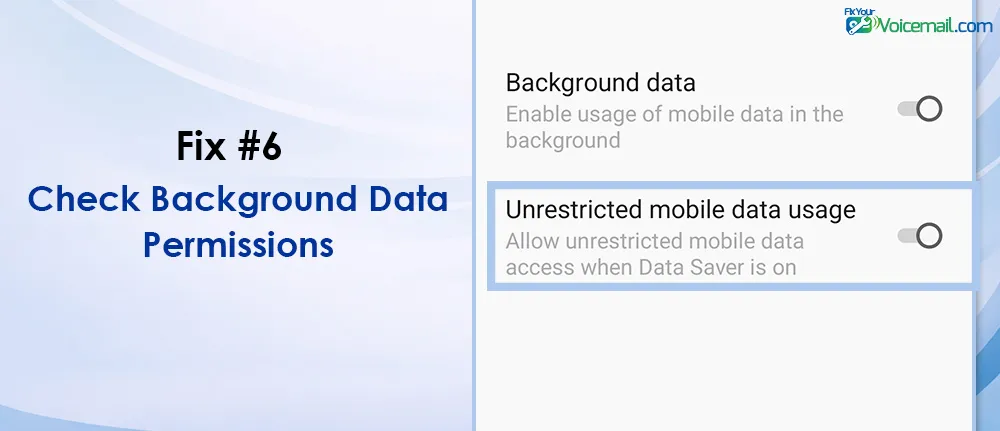
Samsung:
- Settings > Apps > Phone.
- Tap Mobile Data.
- Enable Allow Background Data Usage.
- Enable Allow Data Usage While Data Saver On.
Pixel:
- Settings > Apps > Phone.
- Mobile data & Wi-Fi.
- Toggle Unrestricted Data ON.
- Toggle Allow Background Data ON.
Visual voicemail needs background data to receive messages. Allowing the unrestricted background data resolves the issues. The method is also effective when you are unable to activate visual voicemail.
Fix #8: Verify Voicemail Number Is Correct.
An incorrect voicemail number prevents activation.
- Open Phone app.
- Tap three dots > Settings.
- Tap Voicemail.
- Tap Voicemail Number.
- Enter your correct number (usually your own number).
- Tap OK.
- Test visual voicemail.
Fix #9: Factory Reset Phone App.
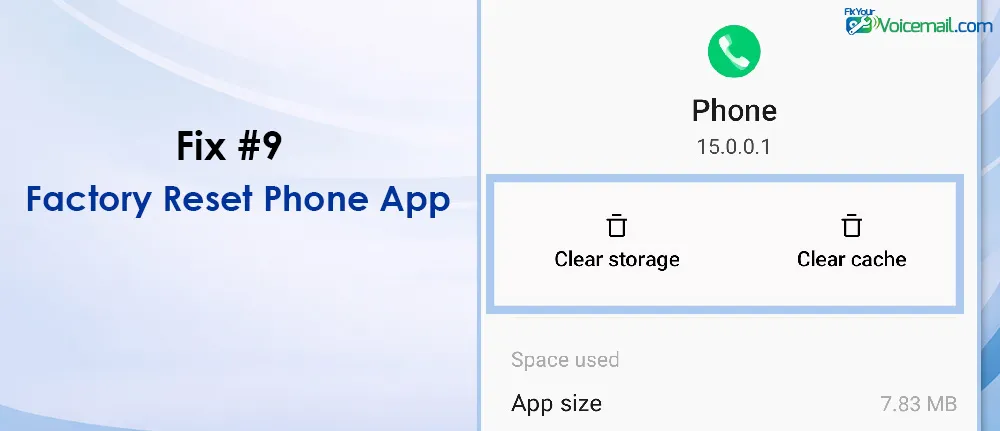
Samsung:
- Go to Settings > Apps > Phone.
- Tap Storage.
- Tap Clear Data.
- Tap Clear Cache.
- Restart your phone.
- Reconfigure visual voicemail from scratch.
How To Set Up Visual Voicemail on Android? Samsung & Pixel Carrier Guide
If this fails, consider a full factory reset (backup first).
Fix #10: Check Access Point Names (APN) Settings.
If your Visual Voicemail works flawlessly on Wi-Fi for days but suddenly breaks after a system software update, your APN type flags may have reverted to default factory values.
This prevents the operating system from splitting MMS, IMS, and internet data traffic into their appropriate cellular categories.
- Go to Settings ➔ Network & Internet ➔ SIMs.
- Select the SIM(in case of dual SIM).
- Go to Access Point Names.
- Tap your active configuration profile.
- Scroll down to the field labeled APN Type.
A standard carrier profile usually contains parameters like default,supl. If your visual software is failing to pull audio recordings while on a local router, add the explicit voicemail marker directly to the text string:
default,supl,vvm
Note: Ensure there are no spaces after the commas. Tap the three vertical dots in the upper right-hand corner of your screen and select Save to lock in your changes. Navigate Fix APN Settings to Make Android Visual Voicemail Work for device and carrier-specific solutions.
Visual Voicemail Wifi Conflict: Carrier-Specific Solutions.
Different carriers have unique visual voicemail requirements. Find your carrier below.
| Carrier | Visual Voicemail App | WiFi Works? | Key Fix | Reference |
|---|---|---|---|---|
| Verizon | Google Phone app or Verizon Visual Voicemail | NO | Must use cellular data; disable WiFi Calling | |
| T-Mobile | T-Mobile Visual Voicemail app | PARTIAL | Update app, clear cache, enable VoLTE | |
| AT&T | AT&T Visual Voicemail or Google Phone | NO | Disable WiFi Calling, enable cellular data | |
| Xfinity | Google Phone app | NO | Force stop, clear data, reset mobile network | |
| Visible | Google Phone app | NO | Disable WiFi, use cellular only | |
| US Mobile | Google Phone app | PARTIAL | Enable Mobile Data Always Active | |
| Mint Mobile | Google Phone app | NO | Requires cellular data, not WiFi | |
| Google Fi | Google Phone app | YES | Works on WiFi with data enabled |
Note: Verizon users report Error 9004 most frequently.
What if still not working?
10-Second Fix That Works for Most Samsung Phones
If you have a Samsung Galaxy (S21, S22, S23, S24, S25, or S26), this is likely your solution. Multiple Samsung community users have confirmed this works.
Here’s exactly what to do:
Step 1: Open Settings.
Step 2: Tap Connections.
Step 3: Tap Data usage.
Step 4: Tap Allowed networks for apps (on some One UI versions, this is called “Allowed networks for apps” or “Network permissions”).
Step 5: Scroll down to Visual Voicemail (or just “Voicemail”).
Step 6: Tap it and select Mobile data preferred.
Step 7: Force close your Phone app and reopen it.
What this does: It tells your phone “when the visual voicemail app needs data, use mobile data instead of WiFi.” Your WiFi stays on for everything else. Your visual voicemail finally works.
The Google Phone App Problem (Versions 127 and 128)
In May 2024, a Google Phone app user discovered something critical: Phone app versions 127 and 128 broke visual voicemail on WiFi for many Android devices.
Check Your Phone App Version
- Open Settings > Apps.
- Find and tap Phone (or your visual voicemail app.)
- Scroll to the bottom to see App version.
How to Roll Back Phone App Updates.
If you’re on version 127, 128, or a version that’s causing problems:
- Open Google Play Store.
- Search for Google Phone (or your carrier’s visual voicemail app).
- Tap Uninstall (this removes updates, reverting to factory version).
- Go to Play Store settings (tap your profile picture > Settings).
- Tap Network preferences > Auto-update apps > Select Don’t auto-update apps
This permanently prevents the broken version from reinstalling.
Warning: Some carriers force Phone app updates through system updates. If this happens, you’ll need to use the “Mobile data preferred” method above as your primary fix.
Real user confirmation: "I have a Samsung Galaxy S21 Ultra. This is what worked for me. Settings > Connections > Data usage > Allowed networks for apps > Scroll to Visual Voicemail and make sure Mobile data preferred is checked. After that, my Visual Voicemail was updated and works just fine. Turned out I had both Mobile data or Wi-Fi checked.
Source: -https://us.community.samsung.com/t5/Galaxy-S22/Visual-voicemail-is-not-working-no-solution-from-Samsung-or-AT/m-p/3312111#M103689
For Non-Samsung Android Phones (Pixel, Motorola, OnePlus)
The setting exists but may be in a different location:
- Google Pixel: Settings > Network & internet > Internet > Network preferences > Advanced > Mobile data always active (toggle this ON).
- Motorola: Settings > Network & internet > Mobile network > Advanced > Mobile data always active.
- OnePlus: Settings > WiFi & network > SIM & network > Mobile data always active.
Note: The exact menu path varies by Android version. If you can’t find it, search Settings for “mobile data always active.”
Real user confirmation: "I have a Motorola G Stylus 5G 2023 running Android 13 and either version 127 or 128 of the Phone app that will not receive voicemail notifications while connected to ANY Wi-Fi network. Under version 127 I would get a 9004 error. In version 128 it would simply say it was Activating Visual Voicemail but would never actually activate. Any voicemail left during this time would only appear immediately upon disabling Wi-Fi. If I uninstalled all updates to the Phone app to revert back to stock version 100, the issue completely disappeared."
Source: - https://support.google.com/phoneapp/thread/273823992/unable-to-receive-visual-voicemail-or-vm-notifications-while-on-wi-fi-with-latest-phone-app-versions?hl=en
When to Contact Your Carrier (Red Flags)
Don’t waste time troubleshooting if the problem is on your carrier’s end. Contact them if:
- Service outage: Check carrier’s status page or social media for outages.
- Account issue: Visual voicemail suddenly stopped after plan change.
- SIM problem: “No service” persists after restart and network reset.
- Provisioning error: Visual voicemail never worked since activating SIM.
- Error persists: After trying all fixes above.
What to Ask Your Carrier
When you call, ask these specific questions:
- “Is there a known outage affecting visual voicemail in my area?”
- “Was my visual voicemail properly provisioned on my account?”
- “Does my plan include visual voicemail?”
- “Can you reset my voicemail from your end?”
- “Are there any carrier settings updates I should install?”
Preventing This Issue After System Updates.
Once you have visual voicemail working on WiFi again, here’s how to keep it that way.
Before updating your phone’s OS:
- Note your current Phone app version.
- Test visual voicemail on WiFi (baseline).
- Update, then immediately retest.
- If broken, use “Mobile data preferred” fix first.
Before updating the Phone app:
- Disable auto-updates for the Phone app specifically.
- Read update reviews/comments from other users.
- Update manually only after confirming no issues.
When buying a new phone:
- Prepaid/MVNO users: Ask about visual voicemail support specifically.
- Samsung users: Test visual voicemail on WiFi within the return window.
- Dual SIM users: Test with both SIMs active AND with only your primary SIM.
Does visual voicemail work over WiFi Calling?
Generally, no. Visual voicemail requires carrier data handshake. WiFi Calling routes voice calls over WiFi, but visual voicemail is a data service that typically needs mobile data. Some carriers (Google Fi) handle this better than others (Verizon, AT&T).
Why does my visual voicemail work when I turn WiFi off?
Because your phone switches to mobile data, which is what visual voicemail was designed to use. The fix is to tell your phone “use mobile data for this specific app even when WiFi is on.”
Will the “Mobile data preferred” setting use my cellular data?
Yes, but visual voicemail uses very little data—measured in kilobytes per message. A year of visual voicemail uses less data than loading one Instagram reel.
What if I don’t have a “Allowed networks for apps” setting?
This setting exists on Samsung One UI 4.0 and later. For other phones, look for “Mobile data always active” in Network settings. If that doesn’t exist, you’ll need to manually toggle WiFi off when checking voicemail, or use the Phone app rollback method.
Does this affect iPhone users?
No. This is an Android-specific issue. iPhones handle visual voicemail differently through Apple’s push notification system.
Final Words
Visual voicemail needs cellular authentication, not just internet. Turn off Wi-Fi for the first sync, allow mobile data in background, and your inbox will stay updated even at home.
- For advanced developer details regarding Android’s underlying OMTP visual infrastructure configurations, review the official Android Open Source Project Visual Voicemail Carrier Architecture Guidelines.