

Tired of staring at an empty voicemail tab on your Android phone? Whether it’s visual voicemail not working after an update or the entire feature vanished, even on a properly configured voicemail. This comprehensive guide delivers tested fixes for Android 17 on Samsung Galaxy S26, Pixel 10, and more.
Missing voicemail notifications on Android can be incredibly frustrating. Sometimes the voicemail icon disappears completely. Other times, new messages never appear even though callers successfully leave voicemails.
Why is my voicemail not showing on Android? Try these fixes:
- Open Phone app > three dots > Settings > Voicemail > Toggle Visual Voicemail off and on.
- Check Notification Settings: Settings → Apps → Phone → Notifications. Make sure:
- Voicemail notifications are enabled
- Notification categories are not muted
- Call your own number and leave a test voicemail to force refresh.
- Clear Phone app cache: Settings > Apps > Phone > Storage > Clear Cache.
- Contact your carrier to reprovision voicemail service.
The problem has become more common with Android 15, Android 16, Samsung One UI 8, carrier Visual Voicemail updates, and stricter background app permissions. If you are not able to access your voicemail, follow the steps here voicemail not working on Android to resolve it.
Here on Fixyourvoicemail, find a 5-minute diagnostic flow that pinpoints exactly why your voicemail isn’t showing, and how to fix the error to get your voicemail back whether you’re on Android 16 with a Pixel 10 Pro or Android 13 with a Samsung Galaxy S24.
Why Is My Voicemail Not Showing on Android?
Voicemail disappears due to app glitches, carrier sync fails, or post-update bugs, especially on Android 17 released early 2026 .
Weak signals prevent downloads, while spam blockers silently divert calls. Prepaid users on Mint or Visible often face provisioning issues ignored in generic advice.
Reports say outages hit AT&T hardest , delaying visual voicemail transcription. If notifications aren’t coming either, it’s likely cache buildup or forwarding conflicts.
Voicemail Not Showing on Android: Quick Diagnostic
So before we dive into the detailed guide, let’s identify the error that can be helpful to follow the exact methods quickly:
- No Voicemail tab/icon in Phone app: Often an app update or toggle issue.
- Tab shows but no messages: Sync/network/carrier.
- Notifications missing: Permission or Do Not Disturb.
- After recent update: Cache or feature conflict.
Is Your Voicemail Actually Missing or Just Hiding?
| Diagnosis | Problem | Method |
|---|---|---|
| No voicemail tab at all in Phone app. | Visual Voicemail disabled or carrier not provisioning. | Toggle Visual Voicemail. |
| Voicemail tab exists but shows “0” (and you have messages). | Sync or notification failure. | Carrier Provisioning Reset. |
| Voicemail worked, then stopped after update. | Android version or app conflict. | Factory Reset or Android Update. |
| Voicemail worked, then stopped after factory reset. | Provisioning lost. | Factory Reset or Android Update. |
| Voicemail shows in carrier app but not Phone app. | Two different systems; you’re fine, use carrier app. | Device-specific section. |
| You’re on prepaid (Cricket, Metro, etc.) | Different rules. | Prepaid section. |
Why did my voicemail icon disappear?
Your voicemail icon can disappear on Android for several reasons, and in most cases, the voicemail system itself still works; only the notification or Visual Voicemail interface is broken.
Here are the most common causes:
- Phone app glitch or cache corruption: After Android updates, the Phone app cache may become corrupted, causing the voicemail tab or icon to disappear.
- Visual Voicemail got disabled: Some carriers or updates automatically turn off Visual Voicemail settings.
- Notification permissions were reset: Android sometimes disables voicemail notification categories after a system update or app update.
- Carrier sync issue: Your carrier may fail to sync voicemail status with your phone, so the icon never appears.
- Battery optimization blocked voicemail syncing: Samsung, Xiaomi, OnePlus, and other Android brands aggressively restrict background apps, which can stop voicemail notifications.
- Phone app update bug: A buggy update to the Google Phone app or Samsung Phone app can temporarily remove voicemail UI elements.
- SIM or network registration issue: If your phone loses proper carrier registration, voicemail notifications may stop appearing.
Now you have been diagnosed and are aware of all potential errors that may cause the voicemail icon to disappear.
It’s time to know the methods to fix the error and reclaim that voicemail icon back right on your phone. Follow the guide here to fix visual voicemail errors specifically.
Fix #1: The Visual Voicemail Toggle(Works 60% of the Time)
This is the single most effective fix. Your phone has Visual Voicemail disabled, either accidentally or after an update.
For Google Pixel & Stock Android (OnePlus, Moto, etc):
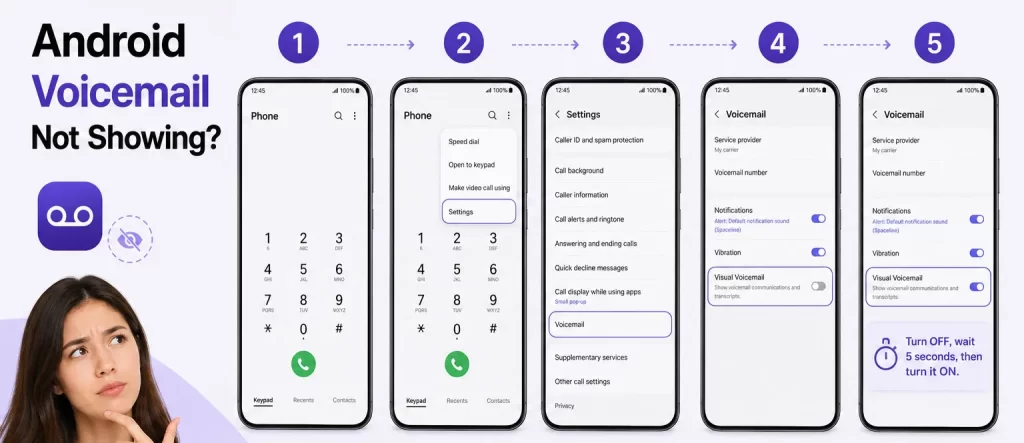
- Open the Phone app.
- Tap the three-dot menu (⋮) in the top right.
- Tap Settings.
- Tap Voicemail.
- Look for Visual Voicemail and toggle it OFF, wait 5 seconds, toggle it ON.
- Critical step: Call your own phone number and leave a 3-second test voicemail. Hang up. Wait 60 seconds. Check the Voicemail tab.
For Samsung Galaxy (One UI 6.0 and later):
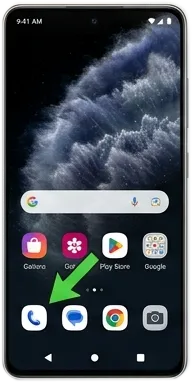
- Open the Phone app.
- Tap the Keypad tab.
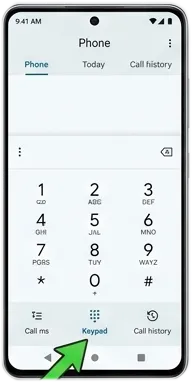
- Tap the Visual Voicemail icon (looks like a small tape reel on bottom right corner).
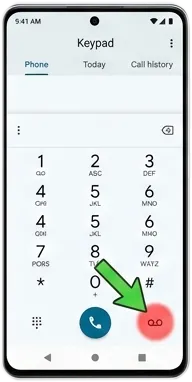
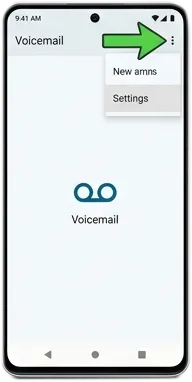
- Tap the three-dot menu (⋮) → Settings.
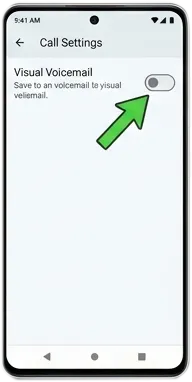
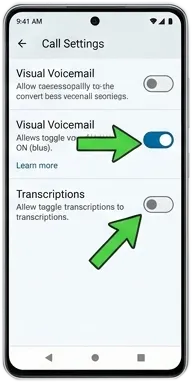
- Toggle Visual Voicemail OFF → ON.
- If you see “Transcriptions” toggle, turn it OFF and ON as well.
By the way, don’t forget to check our post to turn voicemail into text, AKA Voicemail transcription.
Why This Works:
Your carrier periodically sends a “provisioning signal” to your phone. Toggling Visual Voicemail forces your phone to request a fresh signal. The test voicemail confirms the connection is working.
Pro tip: If the toggle is grayed out or missing, your carrier plan doesn’t include Visual Voicemail. Scroll to the Prepaid section below.
Fix #2: Force a Carrier Provisioning Reset(The Hidden Fix)
Sometimes your account has Visual Voicemail active, but the “flag” on your line is stuck.
This is especially common after:
- Switching phones (even on the same carrier)
- Porting your number
- A carrier network upgrade
How to Force a Provisioning Reset (3 Methods):
Method A: Text a code (fastest)
- Verizon: Text “REGISTER” to 900080010001
- AT&T: Text “VVM” to 754 (AT&T Mobility)
- T-Mobile: Dial
#686#and press call (resets voicemail) - Other carriers: Search “[Carrier name] Visual Voicemail reset code”
Method B: Use carrier app refresh
- AT&T: Open AT&T Visual Voicemail app → Menu → Refresh
- T-Mobile: Open T-Mobile Visual Voicemail app → Settings → Reset voicemail
- Verizon: Open Verizon Messages+ → Settings → Voicemail → Sync now
Method C: Call support with this exact script (skip the generic “my voicemail isn’t working” runaround)
The word “reprovision” tells support exactly what to do. Without it, they’ll walk you through restarting your phone.
Fix #3: Clear App Cache & Data (Without Losing Voicemails)
Safe: Clear Only Cache
- Go to Settings → Apps → Phone (or your dialer app).
- Tap Storage & cache.
- Tap Clear cache (NOT Clear storage).
- Restart the Phone app.
What this does: Deletes temporary files. Your voicemails, call logs, and contacts are not affected.
Dangerous: Clear Storage (Only as Last Resort)
Clearing storage resets the Phone app completely. You will lose:
- Call history (all past calls)
- Dialer settings
- Visual Voicemail pairing (you’ll need to set up again)
Only do this if:
- You’ve tried every other fix
- You don’t care about call history
- You’re comfortable re-entering voicemail settings
If you proceed: Settings → Apps → Phone → Storage → Clear storage → Confirm → Restart phone → Re-enable Visual Voicemail.
Fix #4: The “Leave Yourself a Voicemail” Trick (Under 60 Seconds)
- From your Android phone, call your own phone number.
- When voicemail picks up, say “Test” and hang up.
- Wait 60 seconds (do not check immediately).
- Open your Phone app → Voicemail tab.
- The new test voicemail appears — and often, all your missing voicemails reappear with it.
This sounds too simple. It works shockingly often.
Why it works:
Your phone’s voicemail system enters a “sleep” state after periods of inactivity. The carrier’s server stops pushing new message counts. Leaving a new voicemail acts like a “wake-up call” — the server processes the new message, realizes there are others, and pushes the correct count.
This sounds too simple. It works shockingly often.
Pro tip: Repeat 2-3 times if it doesn’t work the first time. Some carriers require multiple “wake-up” signals.
Fix #5: Check Your Network & APN Settings (The Overlooked Fix)
Visual Voicemail requires a specific type of data connection. If your APN (Access Point Name) settings are wrong, voicemail won’t load even if everything else works.
When to suspect APN issues:
- You manually changed APN settings (for MMS or hotspot)
- You’re using a phone not originally sold by your carrier (unlocked phone)
- You’re on an MVNO (Mint, Visible, Cricket)
How to check APN settings:
- Settings → Network & internet → Mobile network → Access Point Names (APN).
- Tap the active APN (has the blue dot).
- Scroll down to APN type.
- It must include fota or ims for Visual Voicemail to work.
Correct APN type entry should look like: default,supl,mms,fota,ims
If fota or ims is missing:
- Tap APN type and add ,fota,ims (don’t remove what’s already there)
- Tap the three dots → Save
- Restart your phone
No idea what your APN should be? Google “[Your carrier] APN settings 2026” — carriers publish official settings. Navigate Fix APN Settings to Make Android Visual Voicemail Work for device and carrier-specific solutions.
Fix #6: After Factory Reset or Android Update (Special Case)
This is the #1 complaint on Reddit that no official guide addresses.
The problem: Your carrier still has Visual Voicemail active on your account. But after a factory reset or major Android update (13→14, 14→15, 15→16 or later), the “handshake” between your phone and the carrier fails.
Step-by-Step Recovery:
Step 1: Confirm account-level provisioning
- Log in to your carrier app or website.
- Navigate to “Manage add-ons” or “Services.”
- Confirm Visual Voicemail is still listed as active.
- If it’s gone, add it back (may cost extra on T-Mobile).
Step 2: Run the provisioning reset
This is critical after factory resets. The text codes or carrier app refresh usually work.
Step 3: If still broken, uninstall updates to the Phone app
- Settings → Apps → Phone → Three dots → Uninstall updates.
- This rolls back the Phone app to the factory version.
- Restart, then update from Play Store again.
Step 4: Last resort — Factory reset AGAIN (yes, really)
- Back up your data first.
- Factory reset, but this time do NOT restore from backup during setup.
- Set up a new phone temporarily.
- Test voicemail; if it works, restore your backup.
Why this works: Some corrupted settings get backed up and restored. Starting fresh breaks the corruption.
Fixing The Voicemail Missing Icon- Device-Specific Guide.
Different manufacturers handle voicemail differently. Here’s what’s unique about each.
Google Pixel (Android 13–16)
- Voicemail location: Inside the Phone app → Voicemail tab
- Unique quirk: Pixel’s voicemail tab disappears if Visual Voicemail is toggled off in settings (Fix #1 always works)
- Android 16 specific: New “Doze” mode aggressively sleeps voicemail sync. Add Phone app to Unrestricted battery settings
Samsung Galaxy (One UI 6.0/7.0)
- Voicemail location: TWO places — Phone app → Keypad → Visual Voicemail icon OR separate Visual Voicemail app
- Unique quirk: Samsung phones sometimes show voicemail in the Visual Voicemail app but NOT in the Phone app. Check both.
- Fix if missing: Some S25 series users report success by enabling “Caller ID and spam protection” in Phone app settings
OnePlus (Oxygen OS 14/15)
- Voicemail location: Phone app → Voicemail tab (bottom right)
- Unique quirk: OnePlus’s aggressive RAM management kills the voicemail background process
- Fix: Settings → Apps → Phone → Battery usage → Set to “Don’t optimize”
Motorola (My UX)
- Voicemail location: Phone app → Voicemail tab (may need to enable in settings first)
- Unique quirk: Moto phones often ship with carrier voicemail apps DISABLED by default
- Fix: Enable the carrier visual voicemail app (even if you don’t use it) — this activates the backend service
Nothing Phone (1, 2, 3, 3a)
- Voicemail location: Google Phone app (Nothing uses stock Android dialer)
- Unique quirk: Nothing OS 3.0 (Android 15) introduced a bug where voicemail only shows after restarting the Phone app
- Fix: Force stop Phone app (Settings → Apps → Phone → Force stop) then reopen.
Prepaid & MVNO Users (Cricket, Metro, Boost, Mint, Visible)
Prepaid and MVNO users (Visible, Mint, etc.) frequently face provisioning issues. Contact carrier to re-provision voicemail. Verify data is enabled. Reset network settings as last resort (backs up Wi-Fi passwords first).
Important: Prepaid plans often do not include Visual Voicemail at all. This is the #1 reason your voicemail “isn’t showing”, the feature literally doesn’t exist on your plan. Check if your prepaid carrier includes Visual Voicemail.
Alternatives: When your prepaid carrier doesn’t support Visual Voicemail.
Option 1: Use Google Voice (free, works on any carrier)
- Download Google Voice → Get a free number → Forward missed calls
- Google Voice transcribes voicemails AND shows them in the app
- This is the best workaround for prepaid users
Option 2: Use a third-party app (YouMail, Voxist)
- YouMail has a free tier with visual voicemail.
- Set up call forwarding to YouMail’s servers.
- Works even if your carrier doesn’t support it.
Option 3: Use Gemini Take a Message
Have you seen the new “Take a Message“ option in the Phone app‘s Settings? It’s kind of like Assistant (or Gemini) taking a voicemail for you before your carrier’s voicemail service kicks in. It might be worth trying Take a Message and see if that helps notify you of new messages, until you can figure out this voicemail issue. However, this is a good alternative if visual voicemail stops working on your Android(Pixel & Samsung).
Now you have a diagnostic flow, not a random list. Start with the symptom, follow the path, and you’ll have your voicemail back in minutes, not hours.
Frequently Asked Questions
Why did my voicemail tab disappear after the Android 16 update?
Android 16 introduced stricter background process limits. The Phone app’s voicemail sync service is getting killed. Fix: Settings → Apps → Phone → Battery → Unrestricted.
My voicemail shows “0” but I know I have messages. What gives?
Your phone’s notification cache is corrupted. Use Fix #4 (leave yourself a voicemail) — it forces a sync 90% of the time.
I’m on Cricket. Why don’t I have a voicemail tab at all?
Cricket’s basic plans don’t include Visual Voicemail. You only get audio voicemail (dial in to listen). Use Google Voice as a workaround.
Voicemail works on Wi-Fi but not on mobile data. Why?
Your carrier’s APN settings are missing ims. See Fix #5 to add it.
I just switched from iPhone. Where’s my voicemail?
Android handles voicemail differently. You need to set up Visual Voicemail fresh. Follow Fix #1, then call your carrier to ensure your line is provisioned for Android (not iPhone Visual Voicemail).
Does factory reset delete my voicemails?
Yes, if they were stored on your phone (rare). Most voicemails are stored on your carrier’s server. After reset, they’ll reappear once Visual Voicemail reconnects. But leave yourself a test voicemail to force the sync.
Can a bad SIM card cause voicemail not to show?
Yes. The SIM card stores carrier provisioning data. If your SIM is old (3+ years), request a replacement from your carrier. Newer SIMs support better voicemail protocols.
Final Words
Voicemail issues on Android are usually fixable with the right targeted steps, don’t let a missing tab disrupt your communication. Apply the diagnostic approach above, and you’ll have reliable access again in minutes. Bookmark this guide for future updates, and consider Google Voice for ultimate reliability.
RELATED POSTS: