

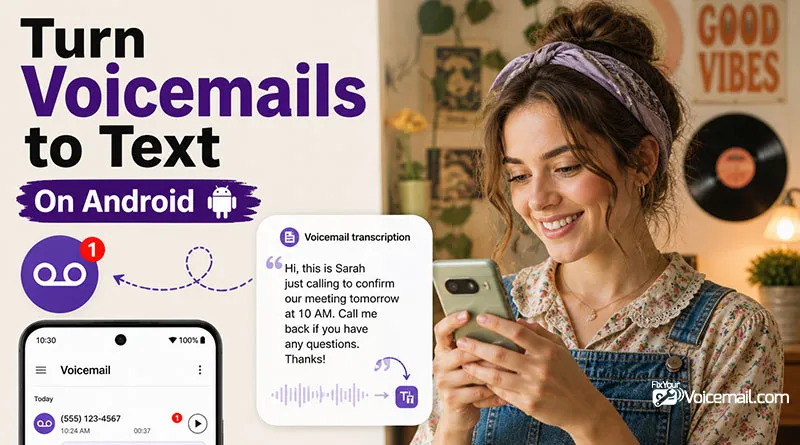
Turning your voicemails into readable text on Android isn’t just a convenience; it’s a massive productivity unlock. You can scan messages in seconds during meetings (without headphones), search your voicemail history like an email inbox, and respond faster than ever before. if you are new, follow the guide here to setup and access voicemail on Android.
The problem? Inconsistent manufacturer and carrier support leaves most Android users frustrated. What works on a Google Pixel may fail on a Samsung Galaxy.
Your T‑Mobile Visual Voicemail app might show a “transcription” toggle or it might not. And no single website explains all your options.
This is the only guide that covers every method to turn voicemail to text on any Android phone: native Pixel transcription, Samsung’s hit‑or‑miss Visual Voicemail, Google Voice, carrier apps, third‑party AI services, and even manual export‑and‑transcribe workarounds.
How to turn voicemail to text on Android (Google Phone app):
- Open the Phone app (Google Phone version).
- Tap the Voicemail tab at the bottom right.
- Select any voicemail message.
- Read the transcription below the audio player.
On Visual Voicemail:
- Open the Phone app.
- Tap the three-dot menu (top right) > Settings.
- Tap Voicemail.
- Toggle on Visual Voicemail.
- Once Visual Voicemail is on, look for the Voicemail Transcription toggle and switch it to On.
What is voicemail‑to‑text, and how does speech recognition work?
Voicemail transcription uses speech recognition to convert audio into text, displayed alongside or instead of the recording. Benefits include faster scanning (reading is ~25-50% quicker than listening), searchability, easy sharing, and better accessibility for hard-of-hearing users.
Native support depends on your device manufacturer, carrier plan, and Android version. Android 16 brings improved on-device processing for better privacy and speed on supported models.
What Is Voicemail to Text and Why Use It?
Voicemail to text (also called voicemail transcription) is a feature that automatically converts an audio voicemail message into written text. Instead of dialing into your voicemail and listening to a recording, you can read the message as soon as it arrives, just like an email or SMS.
How It Works
- A caller leaves a voicemail.
- The audio is processed by Automatic Speech Recognition (ASR) technology.
- The system transcribes the spoken words into text, often adding punctuation and capitalisation.
- The transcript appears in your Phone app, Visual Voicemail, or a third‑party app (e.g., Google Voice).
Why Use Voicemail to Text?
- Speed & efficiency: Reading is ~25% faster than listening. Scan a 60‑second voicemail in 15 seconds.
- Discreet access: Read messages during meetings, in libraries, or on public transport without headphones.
- Searchability: Search past voicemails for names, numbers, or keywords that is impossible with audio.
- Shareable: Copy and paste a transcript into a note, email, or chat without replaying audio.
- Accessibility: Helps users who are deaf or hard of hearing access voicemail content independently.
By enabling voicemail to text on Android, you reclaim your time and ensure you never miss a critical detail hidden in a long-winded message. If the native settings fail you, don’t hesitate to switch to a third-party provider like Google Voice to force the feature into working.

Methods To Turn Voicemail to Text: Quick Comparison
| Method | Cost | Accuracy | Languages |
|---|---|---|---|
| Google Pixel (native) | Free | Good | Limited |
| Samsung Visual VM | Free* | Fair/Good | Limited |
| Google Voice | Free | Very Good | Multiple |
| AT&T Visual VM | Included | Good | English |
| Verizon Visual VM | Included | Good | English |
| T‑Mobile VVM | $4/mo | Mixed | Multiple |
| Third‑party apps | Free‑$10/mo | Good/Very Good | 70+ |
| Manual export | 0.25‑1.50 | 99%+ | Multiple |
| AI assistants | Free | Good | 12‑100+ |
1. How do I enable voicemail transcription on my Google Pixel?
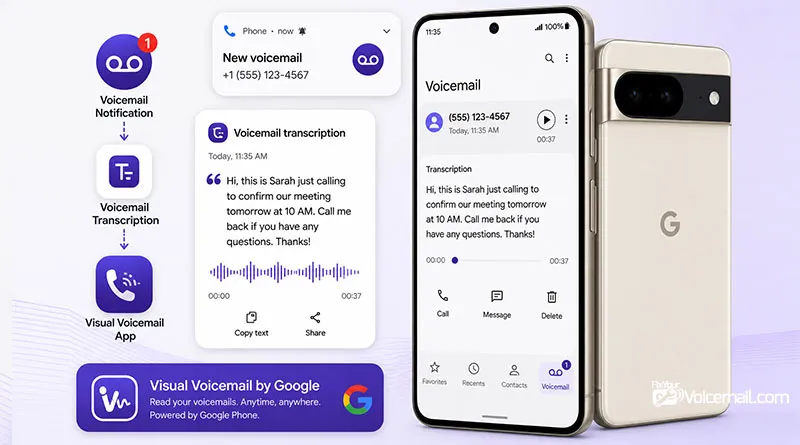
If you own a Google Pixel 6 or newer, you have the most seamless native transcription experience to turn your voicemail to text on Android. Google’s Phone app (sometimes called “Phone by Google”) handles voicemail transcription automatically if your carrier supports visual voicemail.
Step‑by‑step (Pixel 6, 7, 8, 9, 10):
- Open the Phone app (blue icon with white phone handset).
- Tap the Voicemail tab at the bottom right of the screen.
- You’ll see a list of all your voicemails. Tap any message.
- Below the audio player, a text transcription appears automatically.
That’s it. On Pixel phones, transcription works out of the box on major carriers: Google Fi, Verizon, T‑Mobile, and AT&T.
If you don’t see a transcription:
Go to Phone app > three‑dot menu > Settings > Voicemail. Make sure Voicemail transcription is toggled ON. Some earlier Pixel models (Pixel 4/5) lost “Take a Message” AI transcription in early 2026 due to Google policy changes.
2. How do I enable voicemail transcription on my Samsung Galaxy?
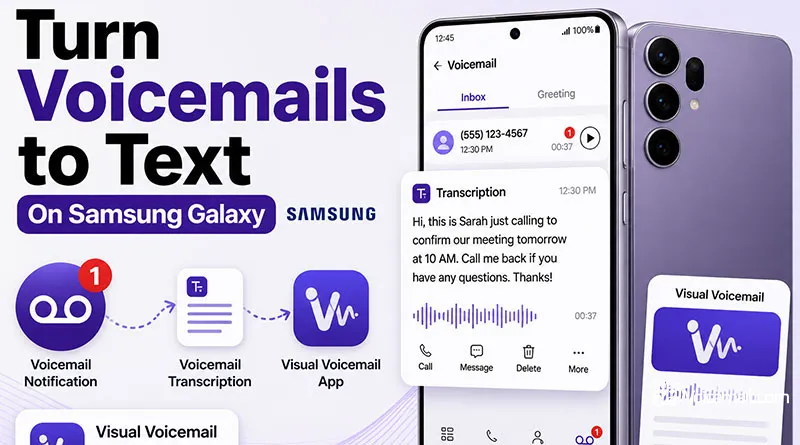
Samsung’s approach is frustrating: it’s inconsistent. Some Galaxy models work perfectly; others show no transcription option at all, even when using identical carrier accounts.
Here’s what I’ve found across dozens of Samsung phones:
- Galaxy S25 Ultra, Z Fold6, Z Flip6: Usually include a “Transcriptions” toggle in Visual Voicemail settings.
- Galaxy S24 Ultra and earlier: Hit or miss. One user reported the S24U lacks the “Transcriptions” setting while his S25U (same carrier, same account) has it.
To check and enable transcription on a Samsung Galaxy:
- Open the Phone app.
- Tap the Keypad tab, then tap the Visual Voicemail icon.
- In the Voicemail screen, tap the three‑dot Menu icon.
- Tap Settings.
- Look for “Transcriptions” or “Voicemail to text” and toggle it ON if available.
If you don’t see a transcription toggle, your Samsung phone may not support native voicemail‑to‑text.
3. How do I use Google Voice for free voicemail transcription?
Google Voice is the best free workaround for Android users whose native transcription fails. It works on any Android phone (Samsung, OnePlus, Motorola, Nothing, etc.) and offers surprisingly accurate transcriptions.
Step‑by‑step setup:
- Download Google Voice from the Play Store.
- Sign in with your Google account and choose a Google Voice number (free).
- Link your existing mobile carrier number.
- Open the Google Voice app > Tap Menu (three lines) > Settings.
- Under Voicemail > Get voicemail via email and toggle this ON to receive transcripts in your email inbox.
What you need: A free Google account and a valid US phone number (Google Voice is currently US‑only for personal accounts).
How to read your voicemail transcriptions in Google Voice:
- Open the Google Voice app > Tap Inbox (or Voicemail tab).
- Each voicemail shows a text preview. Tap any message to read the full transcription.
Limitations: Google Voice transcriptions appear inside the Voice app (or via email) rather on your stock Android Phone app. It’s an extra step, but it’s free and highly reliable.
After the introduction of AI, Google is testing “Gemini Notes” for Google Voice, which will provide call summaries and transcripts via email, likely for enterprise Workspace accounts first.
Advantages of Google Voice Transcription
- High Accuracy: Google’s speech-to-text technology is generally very good, providing accurate transcriptions.
- Email Integration: Transcriptions are often sent to your linked Gmail account, making them easy to search and archive.
- Cross-Platform: Available on both Android and iOS, and accessible via a web browser.
- Free: The core service, including voicemail transcription, is completely free.
4. How To Use Carrier Visual Voicemail Apps For Transcriptions(Voicemail-to-Text Services)?
All three major US carriers offer voicemail‑to‑text, but costs and reliability vary significantly.
AT&T Visual Voicemail-Voicemails to Text
AT&T offers basic transcriptions with most plans without an extra fee. Enhanced premium transcription is available for an upcharge.
To enable transcriptions on AT&T (Samsung):
- Open the AT&T Visual Voicemail app.
- Tap the Menu icon (three dots).
- Tap Settings.
- Tap Voicemail to text and toggle ON
On Google Pixel and other phones using the stock Phone app, AT&T visual voicemail transcriptions appear automatically if your plan supports them.
Known issue: AT&T transcriptions can have accuracy problems. One user noted that the word “team” was transcribed as “Tim” even though the audio was clear.
T‑Mobile Visual Voicemail
T‑Mobile’s “Voicemail‑to‑Text” is not free. It requires a Premium add‑on for a small monthly fee (typically $4/month).
5. How can I manually transcribe a voicemail by exporting the audio file?
Sometimes automated voicemail transcription just isn’t an option. Maybe your carrier doesn’t support it. Maybe the automated transcript is garbled beyond recognition.
In other case, perhaps you’ve received a critical voicemail eg: a legal notice, a medical update, or a client’s detailed instructions, that requires 99%+ accuracy.
In these situations, manual transcription on Android is your fallback. And the best part? It works on every Android phone, with every carrier, for every voicemail ever left.
Voicemail Transcription Troubleshooting
Follow this five‑step diagnostic flow to get it back. Do not skip steps.
Step 1: Check Account‑Level Provisioning
For carrier voicemail (AT&T, Verizon, T‑Mobile):
- Log into your carrier’s website or mobile app.
- Navigate to “Manage add‑ons,” “Services,” or “Plan details.”
- Look for: “Voicemail‑to‑Text,” “Voicemail Transcription,” or “Visual Voicemail Premium.”
- If it’s not listed: You need to add it (may cost extra, especially on T‑Mobile).
- If it’s listed but not working: Toggle it OFF, save, then toggle it ON again. Wait 5 minutes.
For Google Voice:
- Open Google Voice → Menu (three lines) → Settings.
- Under Voicemail, confirm “Get voicemail via email” is toggled ON.
- Also confirm “Transcripts” are enabled (may appear as a separate toggle depending on version).
Step 2: Check Device‑Level Settings
Even if your account has the feature, your phone may have it disabled.
Google Pixel (Phone app):
- Open Phone app → three dots → Settings → Voicemail.
- Confirm “Voicemail transcription” is toggled ON.
- If it’s ON but not working, toggle it OFF, restart the Phone app, then toggle it ON again.
Samsung Galaxy:
- Open Phone app → Visual Voicemail icon → three dots → Settings.
- Look for “Transcriptions” or “Voicemail to text.”
- If the toggle is missing entirely, your carrier is not sending the provisioning signal. Proceed to Step 4.
Third‑party apps (Voxist, YouMail, etc.):
- Open the app → Settings → Transcription.
- Confirm it’s enabled. Some apps require you to re‑authenticate every 30 days.
Step 3: Refresh Network & App State
Sometimes the connection between your phone and your carrier’s voicemail server gets stuck.
- Toggle Airplane Mode ON → wait 10 seconds → toggle OFF. This forces a full network re‑registration.
- Clear the Phone app cache (does NOT delete voicemails):
- Settings → Apps → Phone → Storage → Clear Cache (do NOT tap “Clear Storage” unless you’re okay losing call logs).
- Force stop the Phone app:
- Settings → Apps → Phone → Force Stop → reopen Phone app.
- Restart your phone (the classic IT fix works surprisingly often).
Step 4: Reprovision Voicemail Service (Carrier‑Specific)
If steps 1–3 fail, your carrier needs to “re‑push” the voicemail configuration to your phone.
For AT&T:
- Call 611 from your AT&T phone.
- Say: “My voicemail transcription stopped working. Can you reprovision my Visual Voicemail service?”
- The agent will send a silent activation signal. Wait 10 minutes, then test.
For Verizon:
- Dial *73 from your Verizon phone (this resets voicemail forwarding).
- Wait 60 seconds, then call your own number and leave a test voicemail.
- Alternatively, use the Verizon Messages+ app → Settings → Voicemail → Reset voicemail.
For T‑Mobile:
- This is trickier because transcription is a paid add‑on.
- Log into T‑Mobile app → Support Chat → Type “Reprovision voicemail transcription.”
- If the agent says “it’s active,” ask them to remove and re‑add the feature manually.
Step 5: Last Resort: Switch Methods
If nothing above works after 30 minutes of trying, accept that your native or carrier transcription is unreliable. Do not waste more time.
Switch immediately to one of these 100% reliable alternatives:
| Alternative | Setup Time | Cost |
|---|---|---|
| Google Voice | 3 minutes | Free (US only) |
| Voxist (third‑party) | 5 minutes | Free tier (10 transcripts/month) or $4.99/mo |
| YouMail | 3 minutes | Free basic; Premium $4.99/mo |
Why these work when native fails: They completely bypass your carrier’s voicemail system. Google Voice forwards your missed calls to a Google number, and third‑party apps use call forwarding to their own servers. Your carrier’s broken voicemail toggles become irrelevant.
How does AI voicemail transcription compare to traditional methods?
“Traditional” voicemail transcription (what you’ve been using for years) is powered by older Automatic Speech Recognition (ASR) models. New AI‑based transcription arrived around 2024 and has improved rapidly. Here’s the honest comparison.
Should You Pay for AI Transcription?
- Free AI (Google Voice) is excellent for 90% of users. Stick with it.
- Paid AI (Voxist, Rev) makes sense if you: receive highly technical voicemails, need 99% accuracy for legal/medical reasons, or require non‑English transcription (70+ languages).
- Avoid “AI‑washing”: some apps claim AI but use old ASR. Stick to the names above.
What should I know about privacy and security when using third‑party apps?
This is the question almost no voicemail guide answers honestly. Third‑party transcription apps need access to your voicemail audio to transcribe it. That audio may contain sensitive information: client names, medical details, legal discussions, or personal conversations.
Here’s what you need to check before installing any voicemail app.
How to Protect Your Privacy
If you’re privacy‑sensitive (journalist, lawyer, doctor, business executive):
- Use Google Voice with a dedicated Google account (not your main personal account).
- Use on‑device transcription only: on a Google Pixel, transcription happens locally. No audio leaves your phone.
- Never use free ad‑supported voicemail apps for anything sensitive. The price of “free” is your data.
- Manually delete transcripts and audio after reading.
- In Voxist: Settings → Storage → Delete all older than 7 days.
- Read the privacy policy (yes, actually read it). Look for the phrase “We do not sell your personal information.” If it’s missing, assume they do.
voicemail transcription-Faqs
Why can’t I find “voicemail to text” in my Samsung phone’s settings?
Many Samsung models simply do not have a transcription toggle. The feature depends entirely on your carrier’s implementation of Visual Voicemail. If you don’t see “Transcriptions” in Visual Voicemail settings, Samsung native transcription is not available on your phone. Use Google Voice instead.
Does voicemail‑to‑text work on prepaid Android plans?
Usually no. Most prepaid plans (T‑Mobile Prepaid, AT&T Prepaid, Cricket, Metro, Boost) exclude voicemail transcription. Prepaid users should jump directly to Method 3 (Google Voice), which works regardless of plan type.
How accurate are Android voicemail transcriptions really?
Native Pixel transcriptions: 80–90% for clear speech, lower with accents or background noise. Google Voice: 85–95%. Human transcription services: 99%+. Never trust transcription for critical information without listening to the original audio.
I switched from iPhone to Android. Why don’t I have voicemail text anymore?
iPhone’s Live Voicemail transcribes directly on the device as the caller speaks. Android works differently; transcription happens only after the call ends and varies by manufacturer and carrier. If you miss iPhone‑style transcription, use Method 3 (Google Voice) for the closest experience.
Is Google Voice really free for voicemail transcription?
Yes, for personal use in the US. You pay nothing for the Google Voice number or voicemail transcription. International calls cost extra, but receiving voicemail transcripts is 100% free.
Does voicemail‑to‑text work offline?
No. All methods require an internet connection (cellular or Wi‑Fi) to process speech recognition. However, transcripts you’ve already received remain readable offline.
Is voicemail to text free on Android?
On Pixel and Google Fi, yes. On Samsung and major carriers like Verizon, it depends on your plan also, some charge a small monthly fee for the “Premium” transcription service.
Can I get transcripts in languages other than English?
Yes, Android 16 supports 20+ languages for on-device transcription, including Spanish, French, German, and Mandarin. Ensure the corresponding language pack is downloaded in your Accessibility settings.
Final Words
Turning voicemail to text on Android shouldn’t be a scavenger hunt through carrier menus and manufacturer settings. You now have eight proven methods to get the job done. From Pixel’s one‑tap native solution to Google Voice’s free workaround to premium third‑party apps.
You’re now equipped to do more than just read voicemails. You can act on them, fix them when they break, choose the best transcription technology for your needs, and protect your privacy while doing it.
RELATED POSTS: