

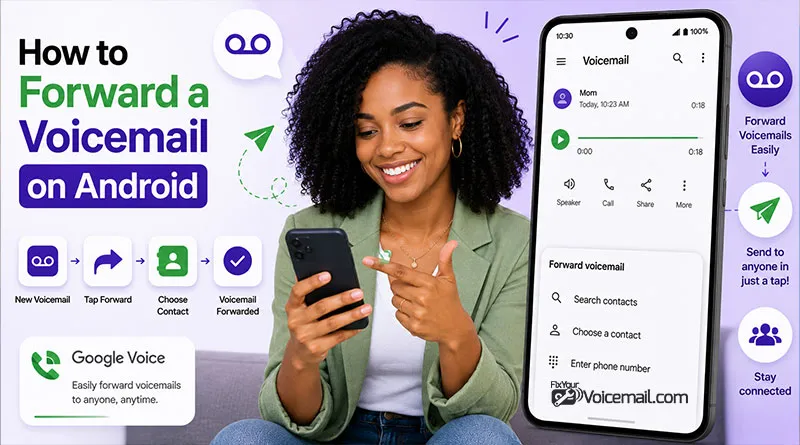
Most Android users know how to listen to a voicemail, but many struggle when it comes to forwarding that voicemail to another person. Some guides assume every Android phone has a share button, while others lump Android together with iPhone and ignore Android‑brand quirks.
Forwarding a voicemail on Android is straightforward when your phone has a share button, but things get tricky when carriers, Android versions, and app brands change the behavior.
This guide gives you several reliable paths: from the Phone app’s share icon to carrier‑specific apps, Google Voice, and manual recording.
4 Methods To Forward A Voicemail on Android:
- The Native Share Button(Visual Voicemail):
- Open the Phone app>Voicemail>Choose the Voicemail to forward>Share> select method(Messages, WhatsApp/Telegram/Signal, Email etc)
- Using Carrier Visual Voicemail Apps:
- Open the carrier voicemail app>voicemail message>Tap the message>choose Email or Messages.
- Use Google Voice to forward voicemail:
- Open Google Voice>voicemail>Enable voicemail to email>Share icon>Share> select method(Messages, WhatsApp/Telegram/Signal, Email etc).
- Record and forward voicemail:
- Open the Voice Recorder App>Play the voicemail>Record>Save>Share.
Forward A Voicemail On Android: What Does it Mean?
On Android, “forwarding a voicemail” usually means one of three things:
- Sending the voicemail audio file (or transcript) to another person via Messages, WhatsApp, Gmail, or another app.
- Using a carrier‑integrated voicemail app to “send to email” or “share” the message.
- Manually recording the audio with a voice recorder app and sharing that file instead of the original voicemail.
Android’s default Phone app usually handles voicemail via your carrier’s system or Google Voice. When you see a voicemail in the Voicemail tab, Android treats it like a media file you can forward, provided the app or carrier supports the share option.
How Voicemail Forwarding Works on Android.
Modern Android phones use Visual Voicemail, which displays messages like emails.
This allows direct sharing of the audio file. If your carrier does not support visual voicemail, you may need workarounds like Google Voice or third-party apps.
The shared file is usually an MP3 or similar audio format that recipients can play easily.
Modern Android phones (Android 16, Samsung One UI 7/8, Pixel, etc.) have two main paths for voicemail:
- Carrier‑integrated visual voicemail
- Google Voice‑based voicemail
On carrier‑integrated phones, the Phone app or a carrier voicemail app shows a list of voicemail messages. Each voicemail is stored on the carrier’s server and, in many cases, downloaded as an audio file to your Android phone’s storage.
On Google Voice‑enabled Android phones, voicemails appear inside the Google Voice app and can be forwarded to email or shared with messaging apps.
Now you are aware of the voicemail and how the forwarding works, let’s head to the methods to forward a voicemail on Android.
Before You Start: Does Your Android Have Visual Voicemail?
Here is the hard truth: you cannot forward a voicemail without visual voicemail.
Traditional dial-in voicemail (where you call your own number and press star to hear messages) has no forwarding capability. The audio stays on your carrier’s server and it never touches your phone as a file you can share.
Check if you have visual voicemail:
- Open your Phone app.
- Look at the bottom tabs: Recents, Contacts, Voicemail (if this tab exists, you have it).
- Tap Voicemail: if you see a list of messages with play buttons, you are ready.
If you don’t see a Voicemail tab, contact your carrier or follow our guide to set up visual voicemail on Android. Visual voicemail is often a free add-on or included in modern plans from Verizon, T-Mobile, AT&T, and Google Fi.
Forward a voicemail with the Android share button.
This is the simplest, Android‑first method when your voicemail has a share or send icon.
Step 1: Open your Android voicemail
- Unlock your Android phone.
- Open the Phone app.
- Tap the Voicemail tab at the bottom (or top, depending on your Android UI).
Wait for the voicemails to load. If you see a carrier‑specific app instead (e.g., “Jio Voice” or “Airtel Voicemail”), open that app and go to the Voicemail section.
Step 2: Find the voicemail you want to forward.
Scroll through the list until you find the voicemail you want to forward.
Tap the voicemail to play it and confirm it’s the right one.
On some Android phones, the voicemail shows a Share icon (three dots, three lines, or an arrow‑out icon) right next to the message; on others, you must tap the voicemail and then tap Share.
Step 3: Tap the Share or Send icon
- Look for the Share / Send / Forward icon (often looks like an arrow‑out or three dots connected by lines).
- Tap it.
- A share sheet appears, listing apps that can receive the voicemail file (e.g., Messages, WhatsApp, Gmail, Google Drive, Dropbox).
Step 4: Choose an app and send
- Select the app you want to use.
- If you choose Messages or WhatsApp, enter the recipient’s number or contact name.
- If you choose Gmail or another email app, enter the recipient’s email address.
- Add a short note if you wish, then tap Send.
On many Android phones, the voicemail is sent as an audio attachment (e.g., .m4a or .wav). The recipient must open the attachment to listen.
Forward Voicemail Using Carrier Visual Voicemail Apps.
If your Android phone does not show the Voicemail tab in the Phone app, you may be using a carrier‑specific voicemail app. These apps often have their own “forward” or “share” options.
Steps for Android carrier voicemail apps
- Open the carrier voicemail app (for example, Verizon Voice or At&T Visual Voicemail).
- Find the voicemail message you want to forward.
- Tap the message to open it.
- Look for a Share, Forward, Send to Email, or Attach to Message option.
- If available, choose Email or Messages and enter the recipient’s details.
- Send the message.
Some carrier apps also let you download the voicemail as a file, which you can then share from your Android Files or Downloads folder.
Visual Voicemail Forwarding Support: Carrier Comparison.
| Carrier | Visual Voicemail | Native Forward Button | Save to Device | Notes |
|---|---|---|---|---|
| Verizon | Included | Yes | Yes | Works on all postpaid plans. |
| T-Mobile | Included | Yes | Yes | DIGITS users may need app. |
| AT&T | Included (select plans) | Yes | Yes | Basic plans may lack. |
| Google Fi | Included | Yes | Yes | Full functionality. |
| Mint Mobile | Add-on | Limited | No | Upgrade required. |
| Cricket | Not available | No | No | Dial-in only. |
| Visible | Included | Yes | Yes | Verizon network. |
| Metro | Add-on | No | No | Limited support. |
Use Google Voice to forward voicemail on Android.
Google Voice offers built‑in options to forward voicemail to email or share it via standard Android apps.
Step 1: Open Google Voice on Android
- Open the Google Voice app on your Android phone.
- Sign in if needed.
Step 2: Go to the voicemail section
- Tap the Voicemail tab at the bottom.
- Find the voicemail you want to forward.
Google Voice often shows both the audio and transcript for each voicemail.
Step 3: Enable voicemail to email (optional but useful)
- Go to Settings → Voicemail → Notifications.
- Turn on Get voicemail via email (if available).
- Confirm your email address.
Now, when someone leaves a voicemail, Google Voice sends a copy to your email, which you can forward from your email app on Android.
Step 4: Share the voicemail directly
- Open the voicemail in Google Voice.
- Tap the Share icon (often next to the playback controls).
- Choose Messages, Gmail, WhatsApp, or another app.
- Enter the recipient’s details and send.
This method works especially well if your Android phone uses Google Voice as the default voicemail handler.
Security warning: Third-party apps request access to your voicemail and contacts. Review privacy policies before installing, especially for work-related or sensitive communications.
Record and forward voicemail on Android manually.
Sometimes your Android voicemail has no share button or the carrier app blocks forwarding. In those cases, you can record the audio and send it as a file.
Step 1: Play the voicemail aloud
- Open your Android Phone app or carrier voicemail app.
- Play the voicemail so the audio comes out of the phone’s speaker.
Step 2: Open the Voice Recorder app
- Open the Voice Recorder or Recorder app on your Android phone.
- Tap Record (often a large red circle).
- Hold the phone near a second device or speaker so the voicemail plays into the recorder.
Step 3: Save and name the file
- Stop the recording after the voicemail finishes.
- Give the file a clear name (e.g., client_call_2026).
- Tap Save.
On Android 15 and 16, the file is usually saved in Recorder → Saved recordings or Files → Downloads.
Step 4: Share the recording
- Open the Files or Downloads app on Android.
- Find the recording file.
- Tap the three dots menu and select Share.
- Choose Messages, WhatsApp, Gmail, or another app.
- Enter the recipient’s details and send.
This workaround lets you forward a voicemail even when the built‑in “share” option is missing, though it may introduce slight audio quality loss.
Forward A Voicemail On Android: Carrier Voicemail Forwarding (No Visual Voicemail)
If visual options are unavailable:
- Dial your voicemail (*86 or carrier-specific number).
- Listen to the message.
- Press the designated key for forwarding (often 4 or follow prompts).
- Enter the recipient’s number and send.
Note: This method is less common in 2026 and may not attach the full audio file.
Saving and Exporting Voicemails Permanently
Before forwarding, save a copy:
- Use the Share option and save to Files or Google Drive.
- Third-party apps like YouMail or InstaVoice offer better export features.
- Record the playback using a screen recorder or external device as a last resort.
How to send a voicemail via text message?
To send a voicemail via text message on Android(AKA voicemail transcription), first save the voicemail as an audio file using your visual voicemail app’s “Save” or “Export” option, then open your default messaging app, attach the saved audio file to a new text message, and send it to your recipient.
For detailed steps on extracting voicemail audio and converting it to text or shareable formats, learn how to manually transcribe and export voicemail on Android for complete control over your messages.
Troubleshooting: Common Issues When Forwarding Voicemail on Android.
- No Share Button: Enable Visual Voicemail in carrier settings or switch to Google Voice. Update the Phone app.
- Voicemail Not Showing: Check signal, clear cache of Phone app, or contact carrier.
- File Too Large: Trim the message or compress audio before sending.
- Recipient Can’t Play: Ensure sent as standard audio (MP3). Avoid proprietary formats.
- Prepaid/MVNO Users: Features may be limited—Google Voice is often the best workaround.
- Android 16 Specific: Permission changes may require granting storage access for saving files.
- Unable to access Visual Voicemail: Improper VM settings or a temporary glitch may cause the visual voicemail to stop working. Wait for a while, or fix the errors with your visual voicemail.
Troubleshooting: Voicemail Forward Button is Grayed Out.
Here are the real reasons forwarding fails:
1. Voicemail is Still on Carrier Server
Some visual voicemail systems stream messages instead of downloading them. The share button only appears after the file is saved locally.
Fix: Tap the message to play it fully. Some apps download automatically on first play.
2. Android Permissions Blocking File Access
Android 14+ introduced stricter file permissions. The Phone app may not have storage permission to save the voicemail as a shareable file.
Fix: Go to Settings → Apps → Phone → Permissions → Files and Media → Allow.
3. Carrier Restriction
Some prepaid and MVNO carriers disable forwarding intentionally to prevent voicemail harvesting.
Fix: Upgrade to postpaid or use Method 3 (third-party app with separate voicemail system).
Voicemail is Too Long
Some carriers limit forwardable messages to 3 minutes.
Fix: Use the file manager method to extract the file directly, then trim using a free audio editor.
Android 16 New Sharing Restrictions
Android 16 (released March 2026) added a notification requirement for audio file sharing from system apps.
Fix: When the share menu opens, grant the “Allow sharing from Phone” prompt. This is a one-time permission.
Best Practices and Privacy Considerations.
- Always listen to the message first for sensitive content.
- Inform the original sender if sharing widely.
- Keep files secure and use encrypted apps like Signal for private shares.
- For business use, ensure compliance with recording and privacy laws.
Sample Use Cases: Sharing a doctor’s instructions with family, forwarding client messages to a team, or saving important reminders.
Forwarding Voicemail on Android-FAQs
Can I forward a voicemail without the sender knowing?
Technically yes, but ethically and legally questionable. Most messaging apps do not notify the original caller when you forward their message.
Why does my forwarded voicemail sound like a robot?
The file is likely in .amr format (Adaptive Multi-Rate), which some apps compress heavily. Convert to .mp3 using a free converter before sharing.
Can I forward a voicemail to a landline?
No. Landlines cannot receive audio files. Call the person and play the voicemail over the phone.
Does Google Voice count as visual voicemail?
Yes. Google Voice provides full visual voicemail with reliable forwarding on Android, iOS, and web.
How to forward a deleted voicemail?
Check your carrier’s website. Many retain deleted messages for 14-30 days. Log into your account online to recover before forwarding.
Final Words:
Forwarding voicemails on Android has never been easier with modern visual tools. Choose the method that fits your device and needs, and you will stay organized while keeping important messages accessible to the right people. Clear communication starts with effective sharing.
If you have visual voicemail, start with the native share button. If that fails, save the file and find it using your file manager. For advanced needs, Google Voice provides the most reliable forwarding across all devices.
RELATED: