

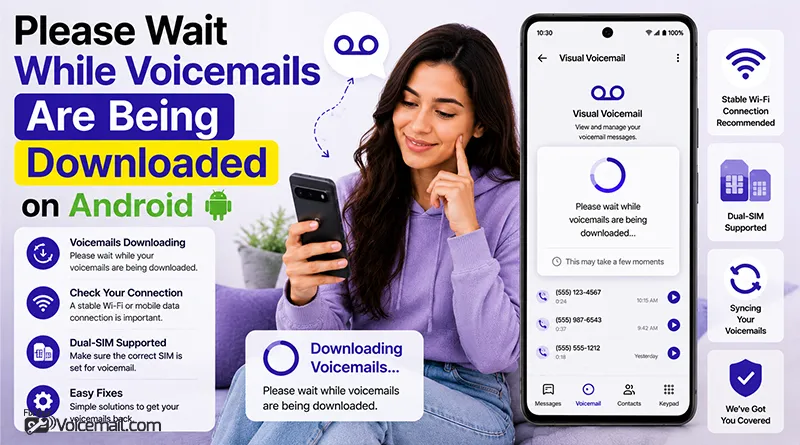
You open your Visual Voicemail, eager to hear an important message. Instead, you’re trapped on a screen that says ‘please wait while voicemails are being downloaded’ and it never changes.
You’ve tried restarting. You’ve tried clearing cache. Nothing works.
Quick Fixes
- Restart Your Phone — Clears temporary glitches.
- Toggle Visual Voicemail — Phone app > Settings > Voicemail > Turn off/on.
- Force Stop and Clear Cache/Data — Settings > Apps > Visual Voicemail or Phone > Force Stop > Storage > Clear Cache, then Clear Data (inbox messages usually preserved.
- Switch Networks — Disable Wi-Fi, use mobile data; toggle Airplane mode. Update Apps and System — Check for Android, Phone, and carrier app updates.
- Listen to Setup Message — Dial voicemail directly; this can trigger proper sync.
This guide reveals the one hidden setting that users discovered actually fixes the problem, plus carrier-specific solutions the generic blogs won’t tell you.
Why Does “Please Wait While Voicemails Are Being Downloaded” Appear?
Before we fix anything, you need to understand what’s actually happening.
Visual Voicemail doesn’t store messages on your phone. They live on your carrier’s servers (Verizon, T-Mobile, AT&T, etc.). When you open the app, your phone sends a request: “Give me all the voicemails.”

That message appears while your phone waits for the carrier’s server to respond. If the server is slow, misconfigured, or your phone can’t reach it properly, you stay stuck on that screen indefinitely.
Common causes:
- Mobile data is off (Wi-Fi alone usually won’t work).
- The Visual Voicemail app is misconfigured for your carrier.
- Your carrier’s voicemail server isn’t responding.
- A recent Android or Samsung update broke the connection.
- Your phone is trying to use Wi-Fi for a connection that requires mobile data.
- You have a dual SIM configuration with a disabled physical SIM.
Voicemails Are Being Downloaded: Is It Your Phone or Your Carrier?-Quick Diagnostic
Run this 30-second test before trying any fixes.
Step 1: Open your Phone Dialer (the green phone icon).
Step 2: Press and hold the number 1 (or dial your own phone number)
Step 3: Does the automated system answer?
- Yes, you can access voicemail by dialing in: Your actual voicemail is working. The problem is the Visual Voicemail app specifically. Try Fixes #1, #2, and #3 first.
- No, you can’t access voicemail by dialing in: Your carrier-side voicemail is broken. Skip to Fix #7 (Carrier Reprovisioning).
7 Easy Fix To “Please Wait While Voicemails Are Being Downloaded” Pop-up on Android.
If your Android Visual Voicemail shows “Please wait while voicemails are being downloaded” and never finishes, it is stuck in initial sync. This common visual voicemail stuck downloading issue often stems from sync errors, corrupted cache, network glitches, or post-update problems.
Here are the working carrier and device specific soultions that works.
Fix #1: The Hidden Data Usage Setting (For Samsung Users)
- Go to Settings > Connections on your Android.
- Tap Data Usage.
- Scroll down and tap Allowed networks for apps.
- Scroll through the list until you find Visual Voicemail.
- Tap on it and select “Mobile data preferred” or “Mobile network only” (even stronger).
- Back out and reopen your Visual Voicemail app.
Why this works:
You’re forcing the Visual Voicemail app to use your cellular connection instead of Wi-Fi. Many carrier authentication servers reject Wi-Fi-based requests for security reasons.
Here’s the problem: Your Samsung phone might be trying to download voicemails over Wi-Fi instead of mobile data. Visual Voicemail requires a direct cellular connection to authenticate with your carrier’s server.
User who found this fix:
“so what the fix was for me was to go to settings, go to connections, go to data usage, go to allowed network for apps, then go to visual voicemail and set it to mobile data preferred. this was the fix for my visual voicemail on my s25 ultra when it was saying something went wrong for visual voicemail”
Fix #2: Clear App Cache and Data (With an Important Warning)
For Samsung users with carrier-specific app:
- Go to Settings > Apps.
- Find Visual Voicemail (or your carrier’s app: T-Mobile Visual Voicemail, Verizon Voicemail, AT&T Visual Voicemail).
- Tap Force Stop.
- Tap Storage.
- Tap Clear Cache (do this first).
- If the problem persists, tap Clear Data (with the warning above in mind).
- Reopen the app.
For Google Pixel / Stock Android users:
Visual Voicemail is built into the Phone app.
- Go to Settings > Apps > Phone.
- Tap Force Stop > Storage and cache.
- Tap Clear Cache.
- Reopen the Phone app and go to the Voicemail tab.
Important Warning: Clearing data (not just cache) may delete your archived voicemails. Your inbox messages should stay safe, but any voicemails you’ve saved or archived could disappear. Save important voicemails first by forwarding them to email or writing down the information.
Fix #3: Check Mobile Data and Toggle Airplane Mode.
Sometimes the issue is temporary and clears up with a simple network refresh.
Check Mobile Data First:
Visual Voicemail is a carrier feature that typically requires mobile data, not Wi-Fi. If your phone is connected only to Wi-Fi, syncing can fail.
- Go to Settings > Network and Internet > Mobile Network.
- Ensure Mobile Data is turned ON.
- Turn off Wi-Fi temporarily.
- Open Visual Voicemail.
Toggle Airplane Mode:
- Swipe down from the top of your screen.
- Tap the Airplane Mode icon.
- Wait 20 to 30 seconds.
- Tap it again to turn it off.
- Open Visual Voicemail.
Read Also: Visual Voicemail Not Working on Wifi? Here is how to resolve it.
Fix #4: Call Your Voicemail the Old-Fashioned Way.
This sounds ridiculous, but it works for many users. Dialing into your voicemail manually can “unstick” the Visual Voicemail sync.
- Open your Phone Dialer.
- Press and hold 1 (or dial your own number).
- Enter your voicemail PIN if prompted.
- Listen to any pending messages especially system messages about Visual Voicemail.
- Hang up.
- Open your Visual Voicemail app.
Why this works: The act of authenticating via the legacy system sometimes resets your Visual Voicemail session on the carrier’s side.
Fix #5: Reset Network Settings or Wipe Cache Partition (Samsung).
If the problem is with your phone’s network configuration, resetting everything to default can help.
Reset Network Settings:
- Go to Settings > General Management (Samsung) or Settings > System (Pixel)
- Tap Reset or Reset options
- Tap Reset Wi-Fi, mobile and Bluetooth
- Confirm the reset
- Restart your phone
Note: You’ll need to re-enter Wi-Fi passwords after this.
Wipe Cache Partition (Samsung only):
Samsung users report this works for Verizon VVM issues.
- Power off your phone completely
- Press and hold Power button + Volume Up simultaneously until the phone vibrates
- Release buttons when you see the bootloader menu
- Use Volume buttons to scroll, Power button to select
- Scroll down to Wipe Cache Partition
- Press Power, scroll to Yes, press Power
- Scroll to Reboot and press Power.
Fix #6: Dual SIM and eSIM Specific Fix (Critical for T-Mobile Users).
If you have two phone numbers on one device (personal SIM + work eSIM, or physical SIM + travel eSIM), Visual Voicemail often binds to the wrong SIM slot.
The T-Mobile specific problem: The T-Mobile Visual Voicemail app (red/magenta icon) does not have a setting to select which SIM it should use. Instead, it defaults to the physical SIM even if that one is disabled.
- Remove any inactive physical SIM card from your SIM tray
- Or switch to “My Visual Voicemail” (blue icon) from the Play Store which handles dual SIM correctly.
- Restart your phone.
- Open Visual Voicemail again.
For other carriers with dual SIM issues:
- Go to Settings > Connections > SIM Manager (Samsung) or Settings > Network and Internet > SIMs (Pixel).
- Turn OFF the SIM that should not receive voicemails.
- Restart your phone with only the primary SIM active.
- Open Visual Voicemail.
- Turn your second SIM back on.
Fix #7: Carrier Reprovisioning (When Nothing Else Works)
If you’ve tried everything and still see “please wait while voicemails are being downloaded” indefinitely, the problem is on your carrier’s end.
Visual Voicemail is a carrier feature. Your phone is just the messenger. If your account loses “provisioning” for VVM common after SIM swaps, plan changes, or system updates the app will hang forever.
What to say to customer support:
“My Visual Voicemail is stuck on ‘please wait while voicemails are being downloaded.’ I have already tried clearing cache, resetting network settings, and toggling the feature off and on. Can you please check if Visual Voicemail is properly provisioned on my line and reprovision it if necessary?”
Voicemails Are Being Downloaded Loop: Carrier-Specific Solutions.
Verizon Users
- Common issue: The Voicemail app gets stuck on “downloading” permanently
- Potential fix: Ask Verizon to disable and re-enable Visual Voicemail on your account via My Verizon or customer support
- Samsung fix: Wipe cache partition (see Fix #5).
Verizon uses a separate Voicemail app (purple icon with a tape reel). It is not available in the Play Store it’s system-integrated.
T-Mobile Users
T-Mobile has two different Visual Voicemail apps in the Play Store.
- T-Mobile Visual Voicemail (red/magenta icon) Version 10.7.0.784442.
- My Visual Voicemail (blue icon) Version 12.5.0.484434.
If the red icon app fails to activate, install the blue icon “My Visual Voicemail” app instead it activates normally and works without issue.
Best fix for T-Mobile: The Data Usage per app setting (Fix #1) plus removing any inactive physical SIM cards.
AT&T Users
AT&T Visual Voicemail requires a cellular data or Wi-Fi Calling connection it does not work on a Wi-Fi only connections.
Requirements:
- A supported Android smartphone (non-AT&T variants may not be compatible)
- An AT&T data plan that includes Visual Voicemail.
Fix: Update to the latest version (4.19.0.10243) which includes updates for Android 16 device.
Fix Voicemail Download stuck on Prepaid and MVNO.
If you use Visible, Mint Mobile, Google Fi, or Cricket, read this section.
Prepaid carriers (MVNOs) often have incomplete Visual Voicemail provisioning.
Visible users: After Android 16 and One UI 8 updates, Visual Voicemail stopped connecting. Support may incorrectly claim Visible doesn’t support VVM even though it worked before.
What works on prepaid:
- The Data Usage per app setting (Fix #1) has worked for Visible users.
- Turning off Wi-Fi and toggling mobile data off/on helps.
- If Visual Voicemail won’t download after troubleshooting, turn it off and use traditional dial-in voicemail (*86).
- Consider a third-party VVM app like YouMail.
Google Fi users: Visual Voicemail works on Pixel phones but may have issues on non-Pixel devices. The Google Phone app politely removes itself from visual voicemail if it detects a carrier’s voicemail app.
Advanced Troubleshooting for Persistent Cases
- Dual SIM: Disable secondary SIM temporarily.
- Wi-Fi Calling: Turn off during download attempts.
- Decision Tree Flowchart: If cache clear fails → network reset → carrier contact.
- Factory reset as last resort (backup first).
The “please wait while voicemails are being downloaded” message appears when your phone can’t reach your carrier’s voicemail server. It’s almost never your fault.
Bottom Line
The “please wait while voicemails are being downloaded” message appears when your phone can’t reach your carrier’s voicemail server. It’s almost never your fault.
Try these fixes in order. The message will disappear, and your voicemails will download as they should.
Voicemail Downloading For Ever-FAQs
Why does Visual Voicemail work on iPhone but not Android?
Carriers often prioritize iOS Visual Voicemail because it uses a different, more mature implementation. Android’s VVM depends on carrier-specific apps or the native Phone app, which varies by manufacturer.
Can I use Visual Voicemail on Wi-Fi only?
In most cases, no. Visual Voicemail requires carrier mobile data for authentication and download. AT&T explicitly states their VVM does not work on a Wi-Fi-only connection. Some carriers allow it over Wi-Fi Calling, but most do not.
Why is my visual voicemail stuck on downloading?
Your phone is waiting for a response from your carrier’s voicemail server that never arrives, usually because the app is trying to download over Wi-Fi instead of mobile data or because your carrier’s VVM provisioning has expired.
Why is visual voicemail not downloading after an update?
System updates often reset network permissions or change how apps request mobile data, causing Visual Voicemail to lose its authentication handshake with your carrier’s server until you re-enable mobile data access for the app.
Final Words
The “please wait” message is almost never your fault. It’s a communication breakdown between your phone and your carrier’s server. Now you know exactly how to fix it whether through the hidden Data Usage setting, a simple *86 call, removing a conflicting SIM card, or asking your carrier to reprovision the feature. Bookmark this guide; you’ll need it after the next system update.
Reference Links: