

Quick Fixes to Try First
- Restart your device to clear temporary glitches affecting the voicemail service.
- Toggle Airplane Mode on and off to refresh network connections without bigger changes.
- Check voicemail manually by dialing your carrier’s code (like *86) to confirm whether messages have arrived but aren’t displaying.
Why Android Voicemail stopped working-Explained
You pick up your Android phone after a busy day, ready to check missed calls from work or family. The Phone app opens normally, but the voicemail tab stares back empty—no new messages, no familiar list of unheard voicemails. A notification might have popped up earlier, promising a message, yet tapping it leads nowhere.
Visual Voicemail spins endlessly or displays a grayed-out error, refusing to load transcripts or audio clips. You dial *86, your carrier’s access code, and it connects briefly before dropping into silence, no prompts, no playback. Callers swear they left detailed messages hours ago, but your inbox remains a void.
Incoming calls still ring clearly, so the phone isn’t broken, yet those vital voicemails have vanished into digital limbo. Frustration mounts as you wonder if important updates from doctors, banks, or loved ones are lost forever.
Here is the step-by-step guide explaining why the voicemail and visual voicemail stopped working on your Android, the causes and steps you can follow to fix the problem. Although, you can follow the guide here if your voicemail icon is missing and you are still able to receive a notification.
Why Voicemail Stops Working on Android Right Now?
Android voicemail issues often stem from app glitches, incorrect settings, or network hiccups specific to the Phone app and system services. Full storage or outdated OS versions can block notifications and access entirely.
Call forwarding misconfigurations in Android settings frequently divert calls away from voicemail.
Sometimes, Android OS Updates reset voicemail settings or alter app permissions, breaking sync with carrier services.
New OS versions like Android 14 and later can disable Voicemail until re-enabled. Reconfigure by re-entering the voicemail password via Phone settings.
Common Errors May Cause Voicemail To Stop Working
Here are the most common errors that may cause the Voicemail to Stop Working;
Phone App Cache Buildup
A corrupt cache in the Phone app may prevent voicemail from loading properly on most Android devices. This happens after app updates or heavy usage when data isn’t cleared periodically.
Call Forwarding Interference
Android’s built-in call forwarding settings can loop calls incorrectly, blocking voicemail activation entirely. Users accidentally enable these via quick settings or third-party dialer apps.
Edge Cases and Rare Issues:
Low device storage blocks voicemail downloads, even if space seems available—free up at least 1GB. Third-party apps like spam blockers interfere with voicemail notifications on Android 14+. Custom ROMs or beta OS builds often disable voicemail entirely due to untested carrier hooks.
How To Fix Voicemail Not Working Issue on Android?
Clearing the device cache, resetting Voicemail settings and updating the OS and apps to the latest version can fix the Voicemail error and make it work again.
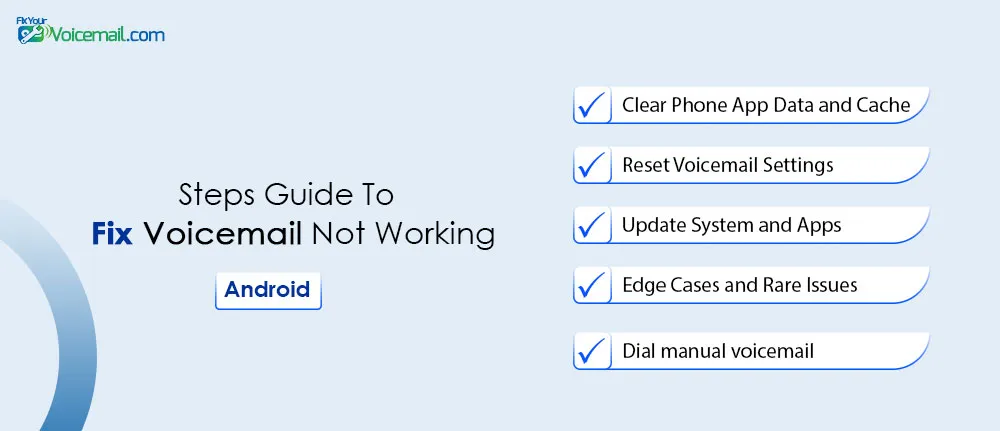
Here is the step-by-step guide:
Clear Phone App Data and Cache
To Clear Cache
- Go to Settings>Apps.
- Tap on Phone App to open the properties.
- Tap the Clear Cache option.
To Clear App data tap Clear Storage.
Note: Clearing the storage will reset the app to default, so make sure to keep the voicemail PIN handy, as you may need to set up the voicemail again.
Why this works
Force-closing the app, phone lag, and other technical errors on Android may cause the cache to build up or become corrupt.
This may interfere with the Phone app data and prevent voicemail from loading properly on most Android devices.
In such cases, clearing the cache and storage data forces the app to reset to the default settings.
Reset Voicemail Settings
- Open Phone App.
- Go to Settings.
- Tap on Voicemail.
- Toggle Disable and Re-enable it.
Why this works
A temporary app glitch or bug update may cause the voicemail to stop working on your Android. Resetting it to the default settings updated the service with the latest version of settings. You might have changes.
Update System and Apps
To Update System(OS):
- Open Settings on your Android.
- Go to System>System Update.
- Here Tap on ‘Check for Updates’.
- Tap Download.
To Update Apps:
- Open Play Store on your Android.
- Tap on Profile(upper right corner).
- Select ‘Manage App and Device’.
- Tap on ‘Updates Available’ option.
- Tap ‘Update All’ option on the top right corner.
- Wait for the update to finish and restart the phone.
Why this works
Installing pending Android OS and Google Phone app is another working solution to make Android voicemail functional again, as bugs in older versions break voicemail. Enable auto-updates to prevent recurrence.
Clear Device Storage:
- Open ‘File Manager’ app.
- Tap on Hamburger Menu() at top-right corner.
- Tap on ‘Clean’
- Select the files to delete(Old Video, Screenshots etc.) and delete them to free up storage.
- Restart the phone.
Why this works
Unlike Visual voicemails on Android, Voicemails are not stored on local storage, But still freeing up storage and making some room for cache can help you to resolve the Voicemail not working error.
Why Visual Voicemail Stops Working on Android?
Modern Android phones support Visual Voicemail, where you can get a list of all received voicemail to listen, manage, archive, and delete.
Sometimes, incorrect settings(especially after an Android OS update) can create a conflict with the visual voicemail settings that may cause the visual voicemail to stop working or show an error.
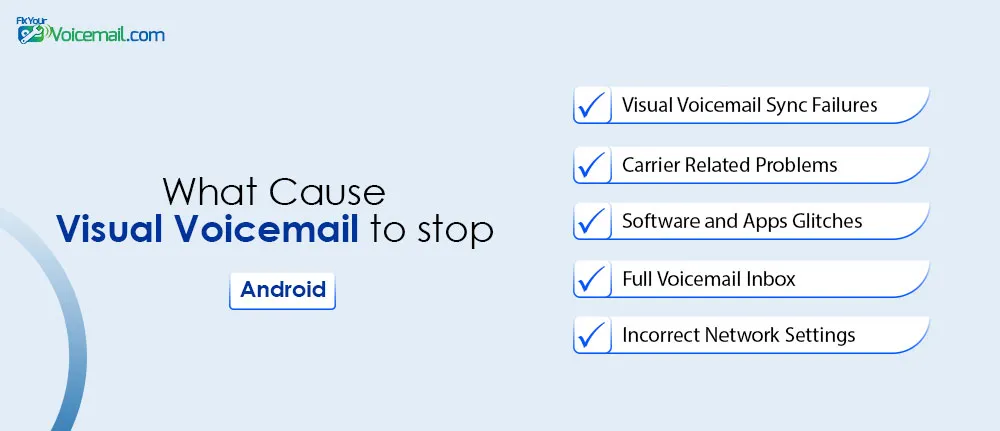
Visual Voicemail Sync Failures
Android’s Visual Voicemail relies on Google services syncing with your carrier, which fails due to outdated Play Services or poor data connections.
Force-stopping the app often reveals unsynced messages stuck in limbo.
Carrier Related Problems
Sometimes, a temporary glitch with the network by carrier providers can also affect the visual voicemail services, as visual voicemail are carrier dependent services.
Also, if you have recently switched the SIM card(Read: Voicemail Missing After SIM Change) on your device or updated the services, it may cause the visual voicemail to stop working.
Incorrect Network Settings
Network settings, like incorrect network configuration, or wrong APN settings, and blocking the number, prevent new messages from being delivered to your inbox.
Software and Apps Glitches
Due to voicemail app issues like version errors, cache conflicts, or background processes freezing cause the system develops temporary bugs. This can prevent voicemail from loading properly, resulting unable to connect to the visual voicemail server, ending up non-responsive app.
Unstable Network Connection
Visual voicemail relies on mobile data or Wi-Fi to download and display messages. If your signal is weak, unstable, or if mobile data is turned off, new voicemails won’t sync.
Full Voicemail Inbox
A full voicemail inbox blocks new recordings on your carrier’s server. Visual Voicemail can’t sync or download more content. The app freezes, shows errors, or stays blank.
Sync fails completely at quota limits. Older messages may still dial in manually. “Inbox full” prompts appear without visible items. Free up space to restore access.
How To Fix Visual Voicemail Problems on Android?
If your visual voicemail is not working, you can start with a hard reboot of your Android, followed by updating the carrier settings, resetting the Visual Voicemail settings and passwords.
Sometimes, incorrect date and time settings on your Android can also lead to Visual Voicemail problems.
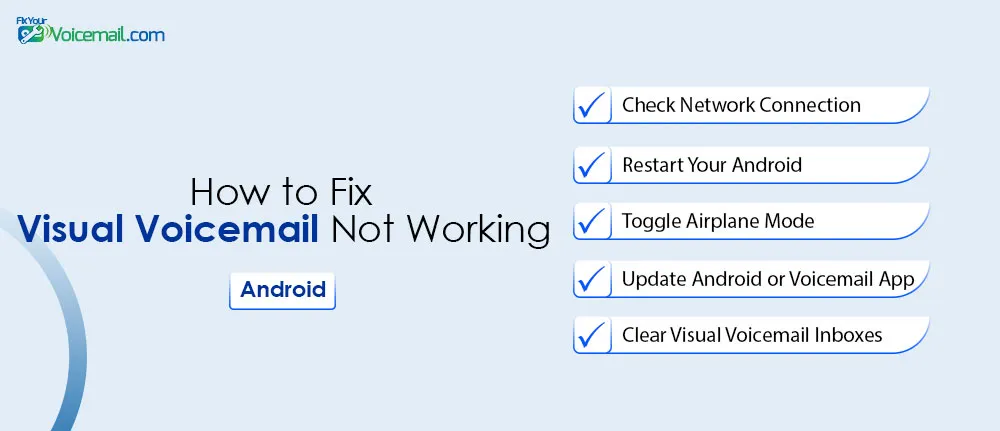
Check Your Network Connection
Weak Wi-Fi or mobile data interrupts Visual Voicemail’s sync with carrier servers, leaving messages stuck. Switch to a strong signal area or toggle data on/off in Quick Settings—test by pulling down the notification shade and checking bars. This fixes 40% of loading errors immediately for Android 14+ users.
Restart Your Device
A quick reboot clears temporary system caches blocking the Phone app’s voicemail service. Hold the power button, select Restart, and wait 30 seconds before checking the voicemail tab. Most users see notifications and messages reappear post-restart on stock Android setups.
Toggle Airplane Mode
Airplane Mode forces a full network reset, resolving sync hangs without bigger changes. Swipe down twice for Quick Settings, tap the airplane icon for 15 seconds, then disable it—voicemail often refreshes automatically. Ideal for post-update glitches on devices like Pixels
Update Your Device or Voicemail App
Outdated Android OS or Google Phone app versions break Visual Voicemail compatibility after patches. Go to Settings > System > System Update, then Play Store > Phone app > Update—relaunch to sync. Android 15 users report full restoration after applying security patches.
Clear Out Your Voicemail Inbox
A full carrier inbox rejects new messages, causing Visual Voicemail to error out or freeze. Dial *86, delete old messages via prompts, then check the app—frees space for syncing. Prevents “inbox full” blocks that commonly occur after long inactivity.
Reset Network Settings
Corrupted Wi-Fi/mobile configs stop voicemail authentication with servers. Navigate Settings > System > Reset options > Reset Wi-Fi, mobile & Bluetooth. Now re-enter Wi-Fi passwords after. Safe fix for persistent network-related Visual Voicemail failures on Samsung and Pixels.
Disable VPNs or Battery Saver Apps
VPNs reroute traffic away from carrier endpoints; battery savers throttle background sync. Turn off VPN via its app notification, disable Battery Saver in Settings > Battery. Test voicemail load. Third-party apps like these cause 20% of reported Android issues. Incorrect battery optimization settings can also lead to voicemail being delayed on Android.
Turn Off Call Forwarding
Accidental forwarding sends calls elsewhere, bypassing voicemail entirely. Dial ##21# or check Phone app > Settings > Calling accounts > Call forwarding—disable all. Restores normal flow so missed calls route to Visual Voicemail.
Check App Permissions
Missing storage or notification permissions block Visual Voicemail downloads and alerts. Settings > Apps > Phone > Permissions—enable Storage, Notifications, Microphone—force stop then reopen. Critical after Android updates that reset access for privacy.
How to Prevent Voicemail Issues After Future Updates
To prevent voicemail issues after future Android updates, enable auto-updates for OS and apps, schedule weekly restarts and Phone app cache clears, monitor storage while deleting old messages via *86, backup voicemail PIN and settings beforehand, avoid battery saver or VPN interference by disabling restrictions, and immediately recheck Phone app permissions post-update.
FAQ
Why isn’t my voicemail notifying me on Android?
Notifications fail due to Do Not Disturb mode, app cache, or disabled permissions—check Phone app settings first.
Does restarting fix Android voicemail?
Yes, it resolves 70% of temporary glitches by refreshing system services.
What if voicemail works when dialing manually?
The Visual Voicemail feature is glitched—clear app data or update the Phone app.
Can I fix voicemail without calling my carrier?
Most cases yes, via Android settings and app resets; carrier checks are last resort.
Why does voicemail stop after an Android update?
New OS versions alter app permissions—re-enable voicemail access post-update.
Final Words:
You’ve now got the complete roadmap to fix Android voicemail issues—no more missing important messages from family, work, or doctors. From quick restarts to Android 16-specific tweaks, these steps work across Pixel, Samsung, and beyond.
Quick recap: Start with cache clears and network resets before deeper troubleshooting. Prevention checklists keep problems away post-update.
Tried everything? Rare carrier glitches might need a quick call, but 95% of users fix it here.
RELATED: