

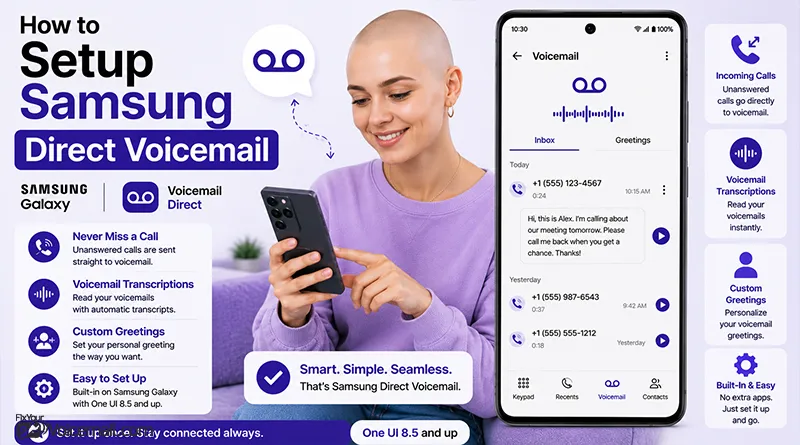
Direct Voicemail is a new One UI 8.5 feature that records and transcribes calls directly on your phone using Galaxy AI, no carrier voicemail service required.
Quick Setup
- Open Phone app.
- Tap 3 dots > Settings.
- Select Direct Voicemail (under Call settings).
- Toggle On.
- Tap Greeting > choose Default, Custom recording, or AI-generated.
- Enable Real-time transcription.
- Choose language.
- Test by calling your phone from another device, let it ring.
Your phone will answer after your set ring time and show live transcription.
Your carrier charges you $3 to $5 every month for visual voicemail. Samsung just made that fee completely optional. You can deactivate the voicemail and use Samsung direct voicemail save this money.
But here’s what Samsung’s official guide won’t tell you: there are actually THREE different voicemail systems on your Galaxy phone, and most people don’t know which one to use. It is available on Galaxy S25 series, S24 series, Z Fold 6, Z Flip 6 and newer running One UI 8.5 or later.
This guide covers setup, the missing greeting instructions, storage management, and why Direct Voicemail might be missing on your phone even after the update.
What is Direct Voicemail? (And Why It Matters)
Direct Voicemail is Samsung’s on-device voicemail system introduced with One UI 8.5 (Android 16). When you can’t answer a call, your Galaxy phone itself records the caller’s message instead of forwarding the call to your carrier’s voicemail system.
Direct Voicemail records incoming calls locally on your device rather than routing through your carrier’s servers.
This means faster access to messages within the Phone app, live transcription during recording, and greater control without needing to dial in.
It complements rather than fully replaces traditional voicemail and works best with an active connection.
Here’s what makes it different:
Runs on your phone, not your carrier’s servers. The call stays on your device. The recording is saved locally. The transcription happens using Galaxy AI on your phone. Your carrier never touches your voicemail.
Live transcription while the caller speaks. You can watch the message appear on your screen in real time as the caller leaves it. This lets you screen calls without picking up.
You can still answer mid-message. If you realize the call is important, just pick up. The caller stops recording and you start talking.
Galaxy AI improves audio quality. Background noise removal and Audio Eraser make messages clearer.
Prerequisites and Compatibility
Ensure your Galaxy device runs One UI 8.5 or higher on Android 16. Update via Settings > Software update. You need sufficient storage, an active SIM, and a stable network. The feature may vary by carrier and model.
Compatible Devices
- Galaxy S26 series (launch devices, feature out of box).
- Galaxy S25 series (with One UI 8.5 update).
- Galaxy S24 series (with One UI 8.5 update).
- Other Galaxy devices that receive One UI 8.5.
How to Set Up Direct Voicemail (Step by Step)
Once you’ve confirmed your phone supports the feature, here’s how to turn it on.
Step 1: Open the Phone App
Open the Samsung Phone app from your home screen or app drawer. This is the green phone icon you use to make calls.
Step 2: Access Settings
Tap the More options icon (three vertical dots) in the top right corner of the screen. From the dropdown menu, tap Settings.
Step 3: Find Direct Voicemail
In the Settings menu, look for and tap Direct voicemail. On some One UI versions, this may be under “Call settings”
Step 4: Enable the Feature
Tap the switch at the top of the page to enable Direct Voicemail. A terms and conditions pop-up will appear.
Step 5: Accept Terms and Conditions
Tap Agree to accept the terms and conditions. Direct Voicemail is now enabled on your phone.
Step 6: Verify Setup Complete
You should see a confirmation that “Direct voicemail enabled successfully.”
That’s the basic setup. For automatic voicemail after a set number of rings, continue to the next section.
How to Set Auto Send to Voicemail (Ring Timer)
With Direct Voicemail enabled, you can now configure calls to automatically go to voicemail after a specific duration. This is the equivalent of setting how many rings before voicemail answers.
Step 1: Open Auto Send Settings
From the Direct Voicemail settings page (Phone app > three dots > Settings > Direct voicemail), tap Auto send to voicemail.
Step 2: Turn It On
Tap the switch to turn Auto send to voicemail ON.
Step 3: Choose Your Timer
Select how long your phone should ring before sending callers to voicemail.
Available option
- 5 seconds (about 1 ring)
- 10 seconds (about 2 rings)
- 20 seconds (about 4 rings)
- Custom (set any duration)
Step 4: Save Your Selection
Your chosen timer is now active. Calls that go unanswered for the selected duration will automatically be sent to Direct Voicemail.
Pro tip: If you frequently miss calls, start with 20 seconds. If you want calls to go to voicemail quickly, choose 5 or 10 seconds. Read here to change number of rings before sending a call to voicemail.
How to Record Your Direct Voicemail Greeting
When someone reaches your Direct Voicemail, what do they hear? Here’s how to set your greeting.
Finding the Greeting Setting
Unlike carrier voicemail, Direct Voicemail greeting settings aren’t in an obvious place. Here’s where to look:
- Open Phone app > three dots > Settings > Direct voicemail.
- Look for Voicemail greeting or Greeting settings.
- If not there, check under Phone app > three dots > Settings > Voicemail > Voicemail greeting.
Recording a Custom Greeting
- Tap Record greeting or Custom greeting.
- When ready, tap the record button and speak your greeting clearly.
- Tap stop when finished.
- Tap save or use as greetings.
What to Say in Your Greeting
“Hi, you’ve reached [your name]. I can’t answer the phone right now. Please leave a message after the tone, and I’ll get back to you as soon as I can.”
Default Greeting
If you don’t record a custom greeting, Direct Voicemail uses a default automated greeting that informs callers they’ve reached your voicemail.
How to View and Manage Direct Voicemail Messages
Once callers leave messages, here’s how to find and manage them.
Finding Your Messages
Direct Voicemail messages appear in your call logs, not in a separate app.
- Open the Phone app.
- Tap the Recent calls tab (clock icon or call history).
- Look for entries with a microphone icon or voicemail indicator next to missed calls.
Listening to a Message
- Tap the call entry with the voicemail indicator.
- Tap the play button to listen to the recording.
- You can pause, rewind, or fast forward as needed.
Reading Transcriptions
While the message plays, or after, you can read the Galaxy AI-generated transcription of what the caller said. This appears on screen below the audio controls.
Note: Transcriptions may not be 100% accurate. Galaxy AI improves over time, but background noise and accents can affect accuracy.
Using Galaxy AI Audio Eraser
If a recording has background noise:
- Open the voicemail message.
- Tap Audio Eraser or the magic wand icon.
- Galaxy AI will process the audio to reduce noise.
Adding Messages to Reminders
To save a message for later follow up:
- Open the voicemail message.
- Tap Add to Reminder or the bookmark icon.
Deleting Messages
- Open the voicemail message.
- Tap the delete or trash can icon.
- Confirm deletion.
Important: Deleted messages are permanently removed. There’s no “recently deleted” folder for Direct Voicemail.
Storage Location for Direct Voicemail Files
Direct Voicemail recordings are stored locally on your phone’s internal storage. They do not sync to the cloud unless you manually back them up.
File location: Internal storage > Voicemail or inside the Phone app’s data directory (not directly accessible without file manager)
Storage impact: Each voicemail recording is small (typically under 1 MB). Unless you receive hundreds of messages, storage isn’t a concern.
Direct Voicemail Limitations (When It Won’t Work)
Direct Voicemail is powerful, but it has limitations you need to understand. Sammy Fans documented these conditions where the feature does not work.
1. Your Phone Is Switched Off
If your phone is powered off, Direct Voicemail cannot answer the call. In this case, the call will go to your carrier’s standard voicemail system instead.
Workaround: None. Keep your phone on for Direct Voicemail to work.
2. You Have No Network Connection
Direct Voicemail requires an active mobile network connection. The call must reach your phone for the feature to work. If you have no signal, calls go to carrier voicemail.
Workaround: Use carrier voicemail as backup. Direct Voicemail is not a replacement when offline.
3. You Are Already on Another Call
Direct Voicemail cannot record a voicemail while you’re already on the phone. The feature needs to answer the incoming call, which isn’t possible when you’re active on another line.
Workaround: Your carrier’s voicemail system will handle the call if you don’t answer or decline it.
4. You Are Roaming Internationally
Direct Voicemail does not work when you’re outside your home country.
Workaround: Use your carrier’s voicemail system while roaming. Check roaming charges with your carrier first.
5. Your Phone Storage Is Almost Full
If your internal storage is nearly full, Direct Voicemail may fail to record or save messages properly.
Workaround: Free up storage space by deleting old messages, unused apps, or moving files to cloud storage.
Read Also: How to Get Rid of Voicemail Notification? Simple Tips
The Call Is a Video Call
Direct Voicemail only works for voice calls. Video calls are not supported.
Workaround: None. Video callers will need to call back or send a message.
Troubleshooting: Direct Voicemail Missing or Not Working.
Problem 1: Direct Voicemail Option Not in Settings.
Possible causes:
- Your phone doesn’t have One UI 8.5 yet.
- Your carrier or region doesn’t support the feature.
- The update hasn’t fully installed.
Solutions:
- Check your One UI version (Settings > About phone).
- Check for system updates (Settings > Software update).
- If you have One UI 8.5 and still missing, your carrier may not support it yet.
Problem 2: Direct Voicemail Enabled But Not. Recording
Possible causes:
- Auto send to voicemail is off (calls ring indefinitely).
- Your phone is on Do Not Disturb mode.
- Network connection issues.
Solutions:
- Verify Auto send to voicemail is ON with a timer set.
- Check Do Not Disturb settings.
- Test by calling your phone from another device.
Problem 3: Voicemails Not Appearing in Call Logs
Possible causes:
- Messages failed to save (storage issue).
- Filter is hiding voicemail entries.
Solutions:
- Check storage space (Settings > Battery and device care > Storage).
- In Phone app > Recents, tap the filter icon and ensure “Voicemail” is checked.
Problem 4: Transcriptions Not Showing
Possible causes:
- Transcript Assist not enabled.
- Galaxy AI services not updated.
Solutions:
- In Direct Voicemail settings, ensure Transcript Assist is enabled.
- Check for Galaxy AI updates in Galaxy Store.
The Three Samsung Voicemail Systems Explained
Your Galaxy phone has three different voicemail systems, and they all serve different purposes.
1. Samsung Visual Voicemail App (Carrier Dependent)
What it is: A graphical interface to browse your carrier’s traditional voicemail service. All messages, greetings, and recordings are stored and handled by your carrier’s network servers.
When to use it: When you want carrier-managed voicemail with visual browsing. Requires carrier support and often a monthly fee.
Limitations: Only works with your carrier’s voicemail system. Won’t work if you cancel voicemail service.
2. Phone App Voicemail (Legacy)
What it is: The traditional voicemail accessed through the Phone app’s small cassette tape icon. This is technically a separate app that registers when opened. It still relies on your carrier’s voicemail system.
When to use it: Basic voicemail functionality without a separate app. Works with any carrier but offers no transcription or visual features.
Limitations: No visual interface. No transcription. Basic carrier voicemail only.
3. Direct Voicemail (AI On Device)
What it is: An on-device AI powered voicemail system that records and transcribes calls locally. Messages are stored on your phone, not on carrier servers.
When to use it: You want free visual voicemail with live transcription. You want to avoid carrier voicemail fees. You want messages stored locally for privacy.
Limitations: Requires One UI 8.5. Won’t work if phone is off or has no signal.
How Direct Voicemail Differs
- Carrier Voicemail: stored on carrier server, requires calling in.
- Visual Voicemail: downloads from carrier, needs mobile data.
- Direct Voicemail: answers on phone, AI transcription on-device, works offline after setup.
Which One Should You Use?
| Your Situation | Recommended System |
|---|---|
| You have One UI 8.5 and want free visual voicemail | Direct Voicemail |
| You pay for carrier visual voicemail and want to keep it | Visual Voicemail app |
| You just need basic voicemail with no frills | Phone app Voicemail (legacy) |
| You travel internationally often | Carrier voicemail (Direct Voicemail limited) |
| You need voicemail when phone is off | Carrier voicemail (Direct Voicemail won’t work) |
Does Direct Voicemail work with any carrier?
Direct Voicemail works independently of your carrier since your phone handles the recording. However, the call must reach your phone, so you need an active mobile network connection. Some carriers may restrict the feature in certain regions.
Do I need a data connection for Direct Voicemail?
Yes and no. The call itself comes through your cellular voice network. The transcription uses on-device Galaxy AI, not cloud servers, so no internet is required for that feature.
Can I use Direct Voicemail with dual SIMs?
The feature works with your active SIM. If you have two active SIMs, Direct Voicemail will work for calls received on the SIM associated with your Samsung account. For full dual SIM support, check your specific phone model.
How long are Direct Voicemail messages stored?
Messages remain in your call logs until you delete them. There’s no automatic expiration. Delete old messages periodically to manage storage.
Can I backup Direct Voicemail messages?
Direct Voicemail messages are stored locally and do not automatically sync to the cloud. To backup messages:
- Play the message on your phone.
- Use screen recorder to capture audio.
- Or use Samsung Smart Switch to backup phone data.
Does Direct Voicemail work with Bluetooth devices?
Yes. When you listen to voicemail messages, audio plays through your connected Bluetooth device (headphones, car, speaker).
Can I answer a call while someone is leaving a Direct Voicemail?
Yes. While the caller is recording, you’ll see a live transcription on your screen. If you decide to answer, just tap the answer button and the recording stops.
Final Words
Setting up Direct Voicemail on your Samsung Galaxy gives you modern, convenient control over missed calls and messages right on your device. Experiment with the settings to match your needs and enjoy the enhanced experience that One UI 8.5 delivers.
The setup process takes less than two minutes. Enable the feature, set your auto send timer (try 20 seconds for a comfortable ring duration), and consider recording a custom greeting. Your voicemail messages will appear in your call logs with transcriptions ready to read.
Your carrier has been charging you for something your phone can now do for free. It’s time to make the switch.
Reference Links: