

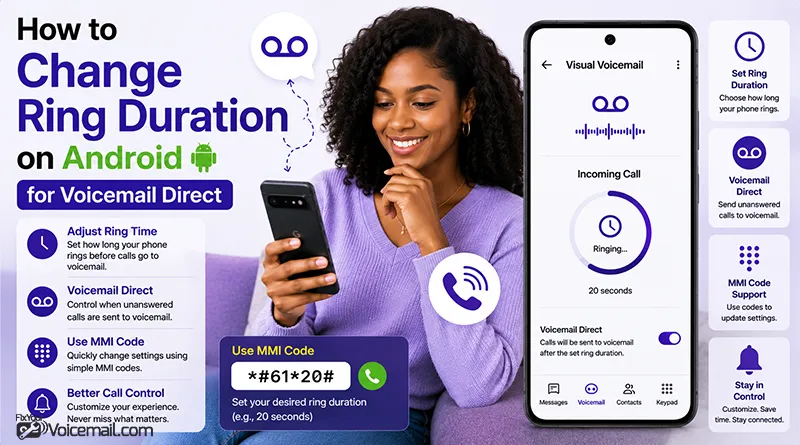
Your phone rings twice and then goes to voicemail. You rush to answer, but you’re always too late. Here’s the frustrating truth Google won’t tell you: You can’t change ring duration in Android settings.
The setting doesn’t exist because ring time is controlled by your carrier through something called conditional call forwarding. But that doesn’t mean you’re stuck.
Fastest Path to Change Ring Time
- Samsung S25/S26 users: Phone app > Settings > Direct voicemail > Auto send > 5 seconds (2 minutes) []]
- AT&T users: USSD code 61*[voicemail]1118 (for 18 seconds = 3 rings) + restart (5 minutes) []]
- T-Mobile users: USSD code 61*[voicemail]1120 (for 20 seconds) (5 minutes) ]
- Verizon users: Cannot change (30 seconds preset). Use Samsung Direct Voicemail override or manually decline calls (10 minutes to get Samsung) [][]]
There are three ways to change it:
- universal MMI codes (works on most carriers).
- carrier-specific apps.
- Samsung’s new One UI 8.5 feature.
This guide covers all three, including the VoLTE fix that makes conditional forwarding work on modern networks.
Steps To Change Number of Rings on Android: Quick Method
Step 1: Find Your Voicemail Number
Open Phone app > Settings > Voicemail > Voicemail number. Write it down.
Common numbers:
- AT&T: +1-805-637-7243.
- T-Mobile: +1-805-637-7243.
- Public Mobile Canada: +1-647-580-4001.
- Kogan Australia: +61-414-121-000.
Step 2: Dial the Code
- Open Phone dialer.
- Enter: *61[voicemail number]11#[seconds]
- Example for T-Mobile to set 4 rings (20 seconds):
- **611805637724311*20#
- Press Call. You will see “Call forwarding – voice – unanswered – enabled.”
Step 3: Test
Call your phone from another number. Count rings. It should go to voicemail after your chosen time.
If Code Fails
- “Connection problem or invalid MMI”: your carrier blocks changes (Verizon, Sideline, some prepaid). You cannot change it.
- Check if you used correct voicemail number with country code.
- Turn off Wi-Fi Calling; try again on mobile network.
- Some carriers use *94 instead of *61 (Bell MTS).
Reset to Default
Dial *#61# then Call. This removes custom timing and returns to carrier default (usually 20-25 seconds).
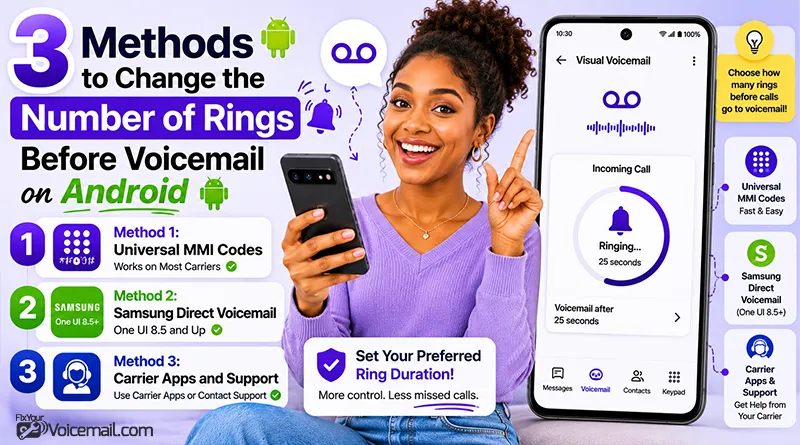
3 Methods to Change the Number of Rings Before Voicemail on Android
You hear the first ring. Then the second. You reach for your phone, but by the third ring, it’s too late. The call goes to voicemail. Again.
You’ve searched through Android settings. You’ve looked under Sound, under Calls, under Accessibility. Nothing. There’s no slider for ring duration, no toggle for ring count.
Here’s the truth that Google’s own support page won’t tell you: The setting doesn’t exist because ring time is controlled by your carrier, not your phone.
When a call comes in, your carrier’s network decides how long to ring your device before diverting to voicemail. This is called conditional call forwarding, and it happens on the network side.
But that doesn’t mean you’re stuck with whatever default your carrier gave you.
There are three ways to change how many times your phone rings before voicemail answers:
- Universal MMI codes (works on most carriers)
- Samsung Direct Voicemail (One UI 8.5 and up, May 2026)
- Carrier apps and support (when other methods fail)
Method 1: Universal MMI Codes (Works on Most Carriers)
MMI codes are star and hash codes you dial like a phone number. They send commands directly to your carrier’s network.
Before You Start: Find Your Voicemail Access Number.
The MMI code needs your carrier’s voicemail number. Here’s how to find it:
On Samsung phones:
- Open Phone app.
- Tap the three dots > Settings.
- Tap Voicemail.
- Look for “Voicemail number.”
On Google Pixel / Stock Android:
- Open Phone app.
- Tap the three dots > Settings.
- Tap Voicemail.
- Look for “Advanced” or “Voicemail number.”
On Motorola:
- Open Phone app.
- Tap the three dots > Settings.
- Tap Calls > Voicemail.
- Find your voicemail number.
Write this number down. It usually starts with your area code or a short code like +1 (805) 637-7249 for T-Mobile.
The MMI Code Format
The universal format for changing ring duration is:
61*[voicemail number][seconds]#Then press the call button.
Let me break down what each part means:
**61*– The code for “conditional call forwarding on no reply.”[voicemail number]– Your carrier’s voicemail access number.**– Separator between number and time.[seconds]– How many seconds to ring before forwarding.#– End of command.
Example: To set your phone to ring for 20 seconds (4 rings) on T-Mobile:
**61*+18056377249**20#.
Step-by-Step Instructions
- Open your Phone app (the same one you use to make calls).
- Carefully type the MMI code with your voicemail number and desired seconds.
- Tap the call button (green phone icon).
- Wait 2-3 seconds for a pop-up message.
- You should see: “Call forwarding successful” or similar.
To check your current ring time, dial:*#61# and press call.
To reset all conditional forwarding to carrier defaults (clears your custom ring time), dial:##002# and press call.
What If You Don’t See Your Carrier?
- Find your voicemail number (Phone app > Settings > Voicemail).
- Use this format:
**61*[that number]**20#. - Test by calling your phone.
- If it works, save this article for reference.
Method 2: Samsung Direct Voicemail (One UI 8.5 and Up)
If you have a Samsung Galaxy phone running Android 16 with One UI 8.5 or higher, you’re in luck. Samsung added a native feature in May 2026 that lets you control ring duration without MMI codes.
This is the first time any Android manufacturer has built this into the OS.
Requirements
- Samsung Galaxy device (S22 through S26 series supported).
- One UI 8.5 or higher (Android 16).
- Carrier must support the feature.
Step 1: Enable Direct Voicemail on Samsung
- Open the Phone app.
- Tap the three vertical dots (More options).
- Tap Settings.
- Tap Direct voicemail (may be under “Call settings” on some versions).
- Tap the switch at the top to enable Direct voicemail.
- Tap Agree to accept terms and conditions.
Step 2: Set your ring duration
- Tap Auto send to voicemail and turn it ON.
- Tap to set the desired time before sending calls to voicemail.
- Choose your preferred duration.
Step 3: Test it
- Have someone call your phone.
- Count the rings before voicemail answers.
- Adjust if needed.
Method 3: Carrier Apps and Support
If MMI codes don’t work and you don’t have a new Samsung phone, you have two options.
Option A: Use Your Carrier’s App
Some carriers include ring duration settings in their official apps:
- T-Mobile: Check the T-Mobile app under “Profile Settings” > “Calling Features.”
- Verizon: My Verizon app > “Manage features” > “Call Forwarding.”
- AT&T: myAT&T app > “Settings” > “Call Forwarding.”
Option B: Call Technical Support
Call your carrier and ask for the “no-answer ring time” or “conditional call forwarding timer” to be changed.
What to say:
“I need to change the number of seconds my phone rings before calls go to voicemail. Can you adjust my conditional call forwarding timer to [15/20/25/30] seconds?”
If the first agent says no, ask for Technical Support. Not all customer service representatives know this setting exists.
Option C: Third-Party Voicemail Apps
If you use Google Voice or YouMail, ring settings work differently:
Google Voice: Ring settings are in the Google Voice app, not controlled by your carrier. Open Google Voice > Settings > Calls > “Ring my device” settings.
YouMail: YouMail uses your carrier’s conditional call forwarding. You must change ring time through your carrier, not YouMail.
Critical: VoLTE Must Be Enabled for MMI Codes to Work.
This is the hidden issue that breaks MMI codes for thousands of users.
The Discovery
A Public Mobile user discovered that conditional call forwarding (the system that controls ring time) stopped working when carriers introduced VoLTE (Voice over LTE).
Here’s why: Older networks handled call forwarding differently. On VoLTE networks, conditional forwarding requires VoLTE to be properly provisioned on your account and enabled on your phone.
If VoLTE is disabled or not working, MMI codes will fail silently. You’ll dial the code, get no error, but your ring time won’t change.
How to Enable VoLTE on Your Android Phone.
Samsung Galaxy:
- Settings > Connections.
- Tap Mobile networks.
- Toggle VoLTE calls ON.
Google Pixel:
- Settings > Network & internet.
- Tap your SIM card.
- Toggle 4G calling or VoLTE ON.
Motorola:
- Settings > Network & internet.
- Tap Mobile network.
- Tap Advanced.
- Toggle VoLTE ON.
OnePlus and other Android:
- Settings > Wi-Fi & network > SIM & network.
- Look for VoLTE or HD calling toggle.
How to Verify VoLTE Is Working.
Make a phone call. Watch your signal indicator:
- If it stays on LTE or 5G → VoLTE is working.
- If it drops to H, H+, or 3G → VoLTE is NOT working.
If VoLTE isn’t working:
- Restart your phone.
- Check for carrier settings updates.
- Contact your carrier to ensure VoLTE is provisioned on your account.
Change Ring Duration: Why You Can’t Find This Setting in Android?
Let me save you hours of searching through menus. There is no “ring duration” setting in stock Android, Samsung One UI, Pixel UI, or any other Android skin.
Here’s why.
- Your carrier’s network receives the call.
- The network sends a ring signal to your phone.
- A timer starts on the carrier’s end.
- If you don’t answer before the timer expires, the network diverts the call to your voicemail number.
Your phone doesn’t control that timer. Your carrier does. The phone just plays the ringtone for as long as the network tells it to.
The technical name for this is “conditional call forwarding” or “call forwarding on no reply.” Your carrier has a setting that says: “If the recipient doesn’t answer within X seconds, forward to this voicemail number.”
This conditional call forwarding thing can also make incoming calls go directly to voicemail without ringing as well.
This is why Google’s official support page simply says: “consult your phone carrier.”
The good news is that many carriers let you change this setting using special codes you dial from your phone app. These are called MMI codes (Man-Machine Interface codes).
Troubleshoots: Can’t Change Ring Duration Using MMI Code.
Problem 1: “Call forwarding failed” error.
- Verify your voicemail number is correct (find it in Phone app > Settings).
- Check that VoLTE is enabled (see section above).
- Ensure you have cellular signal (MMI codes don’t work over WiFi).
- Try the shorter format without
*11*:**61*[number]**[seconds]#.
Problem 2: Code dials but ring time doesn’t change.
- Enable VoLTE (most common fix).
- Restart your phone after entering code.
- Test with
*#61#to see your current settings. - Reset with
##002#and try again.
Problem 3: Works for a few days then resets.
- Your carrier may have pushed a network update.
- Some carriers reset conditional forwarding periodically.
- Use Samsung Direct Voicemail if available (sticks through updates.)
Problem 4: Code works but rings still go to voicemail early.
- You may have multiple forwarding rules conflicting.
- Dial
##002#to reset ALL call forwarding rules. - Then re-enter your ring time code.
Problem 5: Different behavior on WiFi Calling.
Note: Some carriers handle conditional forwarding differently when WiFi Calling is active. Test with WiFi off to isolate the issue.
Number of Rings Vs Ring Duration: Understanding the Maths.
Before we dive into methods, understand the conversion between seconds and rings:
| Seconds | Number of Rings |
|---|---|
| 5 seconds | 1 ring |
| 10 seconds | 2 rings |
| 15 seconds | 3 rings |
| 20 seconds | 4 rings |
| 25 seconds | 5 rings |
| 30 seconds | 6 rings (maximum on most carriers) |
RELATED:
- How to Fix Voicemail Ring and Notification Delays.
- Stop Spam Calls From Leaving Voicemail on Android.
- Methods To Fix If Calls Going Straight To Voicemail?
- Fix Conditional Call Forwarding Is Blocking Take a Message.
Change the Number of Rings-FAQs
How Can I Change The Number of Rings Before Call Is Sent To Voicemail?
You can use MMI codes to change the ring duration. Most of the carirer providers allow this using the format [MMI code]-[voicemail number]-[number of rings], where 1 ring=5 seconds.
What’s the maximum ring time I can set?
Most US carriers allow up to 30 seconds (6 rings). Some international carriers like NTT Docomo allow up to 120 seconds (24 rings)
Will this affect visual voicemail?
No. Changing ring time only affects how long your phone rings before diverting to voicemail. Visual voicemail works independently.
Why did my ring time change back to default?
Carriers sometimes reset conditional forwarding during network updates. Some also reset when you change SIM cards or update your carrier settings. Just re-enter your MMI code.
Summary
You want to change the number of rings before calls go to voicemail on Android, but there’s no settings menu option. Ring time is controlled by your carrier, not Android.
This guide explains how to use the USSD dial codes for AT&T, T-Mobile, and Samsung’s built-in Direct Voicemail settings for S25/S26. Verizon locks ring time to 30 seconds and won’t change it. All methods were tested on Samsung S25/S26 and Pixel Android phones.
Now you know the truth: ring duration is controlled by your carrier, but you have options.
Start with the MMI code method. Find your voicemail number in Phone app settings, dial 61*[that number]20# (for 20 seconds), and press call. You’ll see “Call forwarding successful” and your phone will ring longer before voicemail.
If that doesn’t work, check that VoLTE is enabled in your network settings. This is the hidden requirement that breaks conditional forwarding on modern networks.
Reference Links: