

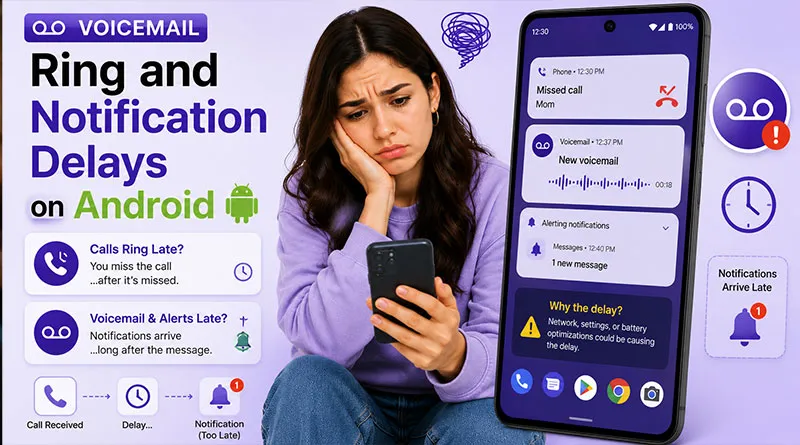
Your phone rings twice, then voicemail. Or you get a voicemail notification an hour after the caller hung up. Same problem names. “voicemail delay”, but completely different causes.
Voicemail delay is actually two separate problems. One is about how LONG your phone rings before voicemail picks up. The other is about how FAST you get notified after a voicemail arrives. Mix them up, and you’ll waste hours on the wrong fixes.
In this guide, we’ll identify which delay you have in 30 seconds using our diagnostic flowchart, then follow the specific fix, MMI codes for ring delay, and battery settings for notification delay.
Also, we shall discuss how the March 2025 Android voicemail broadcast bug that’s still affecting millions of devices.
Voicemail Delay on Android: Let’s diagnose.
Let’s begin by breaking down the term “Voicemail Delay”. Some of the users are concerned about the notification reaching their devices hours after receiving a voicemail.
While others have raised concerns about calls going too early to voicemail or taking too many rings/1-2 rings before going to voicemail. Here is the breakdown of both scenarios:
Delay Type 1: Phone Rings Too Briefly Before Voicemail (Ring Delay)
What users report: “My phone rings once or twice, then voicemail picks up before I can answer.” “Callers tell me it barely rings on their end.”
What’s actually happening: Your carrier’s network is redirecting calls to voicemail after a very short “unanswered” timer. This timer is controlled by your phone’s conditional call forwarding settings.
Delay Type 2: Voicemail Notifications Arrive Late (Notification Delay)
What users report: “I get a voicemail notification an hour after the call.” “No notification at all until I open the Phone app.”
What’s actually happening: Android’s battery optimization and background process limits are preventing your voicemail app from checking for new messages in real time.
Why Voicemail Delays Happen on Android?
Common causes include:
- Network sync issues between carrier and phone.
- App cache, battery optimization, or Do Not Disturb.
- Wi-Fi calling interference.
- Post-Android update glitches.
- Conflicts with Google Phone app features like Take a Message.
Delayed Voicemail on Android: Quick Fixes That Work.
Step 1: Restart Your Device A simple reboot often forces immediate sync of pending voicemails.
Step 2: Clear Phone App Cache: Go to Settings → Apps → Phone → Storage & cache → Clear cache (then Clear data if needed).
Step 3: Check Background Data & Notifications: Go to Settings → Apps → Phone → Battery → Allow background usages → Unrestricted. Ensure Phone and carrier apps have unrestricted background data.
Step 4: Toggle Airplane Mode Turn on for 15 seconds, then off to refresh connections.
Voicemail Notification Delay (Voicemail Arrives, Alert Comes Hours Later)
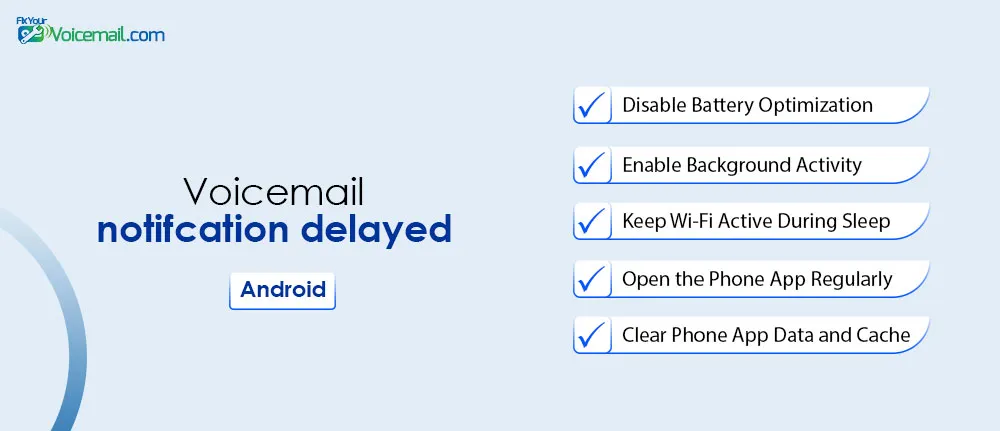
This is the most common complaint in 2025-2026. The voicemail is sitting on your carrier’s server, but your phone either never alerts you or takes hours to do so.
Root Cause
Android’s aggressive battery optimization and background restriction systems are the primary culprits. When your phone is idle, the system puts apps to sleep — including the Phone app that handles voicemail notifications.
Additional causes:
- Wi-Fi disconnects during sleep.
- Network mode (5G vs. LTE) issues.
- Android 16’s new Doze mode (more aggressive than Android 15).
Fix Voicemail Notification Delay on Android.
If you’re receiving voicemails that appear in your Phone app but don’t trigger a notification until hours later, you’re dealing with Android’s aggressive background restrictions rather than a carrier issue.
The fixes below target the root cause: system-level battery optimization and doze mode settings that put your Phone app to sleep.
Start with the first fix, as it resolves notification delays for the majority of users across all Android versions from 12 through 16.
Fix 1: Disable Battery Optimization for Phone App
This is the single most effective fix for notification delays.
On stock Android (Pixel, Motorola, Nokia):
- Open Settings → Apps → See all apps.
- Scroll to and tap Phone (or “Phone by Google”).
- Tap Battery.
- Select Unrestricted (not “Optimized” or “Restricted”).
On Samsung Galaxy (One UI):
- Settings → Apps → Phone.
- Tap Battery.
- Turn OFF “Put unused apps to sleep”.
- Tap Background usage limits → Never sleeping apps → Add Phone.
On OnePlus (Oxygen OS):
- Settings → Apps → Phone.
- Tap Battery usage.
- Select “Don’t optimize”.
Why this works: “Unrestricted” allows the Phone app to fetch voicemail notifications in real-time, even when your phone is idle. This setting overrides Android’s Doze mode for this specific app.
Fix 2: Enable Background Activity
Some Android versions separate “battery optimization” from “background activity.”
- Settings → Apps → Phone.
- Look for “Allow background activity” or “Background data”.
- Toggle ON.
If you’ve disabled background activity for multiple apps (common for power saving), this can block voicemail notifications entirely.
Fix 3: Keep Wi-Fi Active During Sleep
If you rely on Wi-Fi for data (not mobile network), your phone may disconnect from Wi-Fi when idle, delaying notifications.
- Settings → Wi-Fi → Advanced (or three-dot menu).
- Look for “Keep Wi-Fi on during sleep”.
- Select “Always” (not “Only when plugged in” or “Never”).
Fix 4: Open the Phone App Regularly (Yes, Really)
Android’s app priority system learns which apps you use frequently. If you rarely open the Phone app, it gets deprioritized in background processing.
- Open the Phone app at least once per day.
- Check your voicemail tab manually every few days.
- Avoid force-closing the Phone app from recents.
Fix 5: The Pixel “Take a Message” Workaround
This is a game-changing fix discovered in a Google Pixel support thread.
The problem with carrier voicemail: Your carrier’s voicemail system handles notifications. If your carrier is slow (Verizon and T-Mobile users report this frequently), you’re stuck.
The workaround: Enable “Take a Message” — a Pixel-exclusive feature that answers missed calls on your phone, transcribes the message, and notifies you instantly. It completely bypasses your carrier’s voicemail system.
How to enable:
- Open the Phone app → three-dot menu → Settings.
- Scroll to “Take a Message” (between “Caller ID & spam” and “Assistive calls”).
- Toggle ON.
Test:
- Have a friend call you. Decline the call.
- Within 2 seconds, you should see a silent notification: “Taking a Message.”
- The transcript appears instantly in your Phone app → Home tab.
Real user feedback: “I just tried this and it works great! I’ll keep this enabled, for now, until the VM issue gets sorted.” — Pixel 9 Pro XL user, September 2025.
Note: Take a Message works on Pixel 6 and higher in the US, UK, Ireland, and Australia.
Here is the complete guide to setup and use Take A Message on your Pixel phone.
Fix 6: Switch from 5G to LTE (Network Mode Fix)
Discovered in a Public Mobile community thread: A Pixel 6 Pro user on Android 16 had voicemail arriving 6+ hours late. Switching from 5G Auto to LTE/4G fixed the issue.
Why this works: Some carriers’ 5G implementations have issues with IMS registration, which is required for voicemail notifications. LTE is more stable.
How to change (stock Android):
- Settings → Network & internet → SIMs (or “Mobile network”).
- Tap your active SIM.
- Tap “Preferred network type”.
- Select LTE (or “4G”) — NOT “5G” or “5G Recommended”.
For Samsung: Settings → Connections → Mobile networks → Network mode → LTE/3G/2G (auto connect).
For OnePlus: Settings → Mobile network → SIM 1 → Preferred network type → LTE.
Voicemail Ring Duration Delay (Phone Rings Too Long or Too Short Before Voicemail)
Voicemail ring duration delay (also called “call forwarding no reply timer” or “voicemail pickup time”) is the number of seconds your phone rings before the call is automatically sent to voicemail.
When someone calls you, this timer determines how long they hear ringing before your carrier’s system says “the person is unavailable” and plays your voicemail greeting.
Root Cause
Voicemail ring duration delay is a carrier-level network setting that determines how many seconds your phone rings before the call is unconditionally forwarded to your voicemail system. This is not a phone setting; rather, it’s programmed on your carrier’s servers. Follow the guide How To Change Number of Rings on Android, to configure the ring duration before an incomming call lands to voicemail.
When someone calls you, the following sequence happens:
- Your phone rings for a predetermined number of seconds.
- If you don’t answer within that time window, the carrier’s network automatically diverts the call to your voicemail.
- The caller hears either ringing or a ringback tone during this period.
Additional causes:
Beyond the carrier-default setting, several factors can make ring duration feel too long or too short:
- MMI Code Blocking.
- International Roaming Complications.
- Conditional Call Forwarding Conflicts.
- Carrier-Specific Implementation Differences.
- Network Technology Differences.
Head to the solution if calls are going straight to Voicemail on Android without a ring on Samsung or Pixel phones.
How To Fix Voicemail Ring Duration Delay on Android?
When someone calls you, this timer determines how long they hear ringing before your carrier’s system says “the person is unavailable” and plays your voicemail greeting.
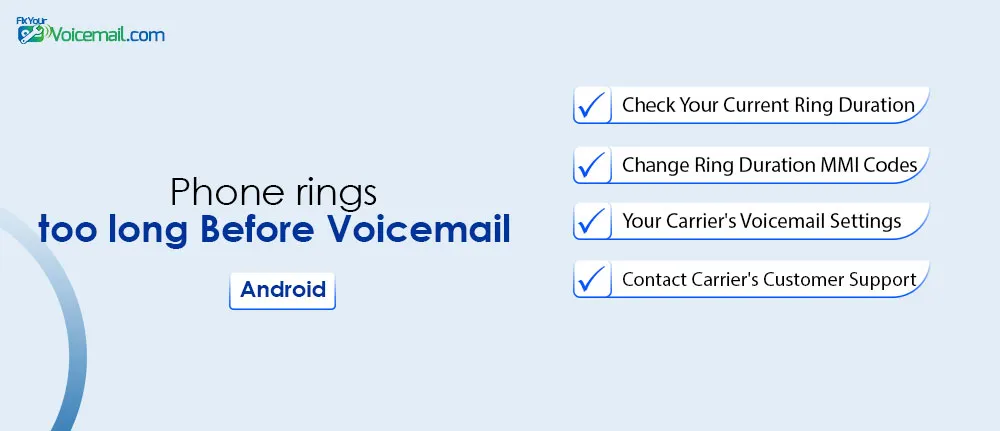
This is a carrier-level setting that determines how many seconds your phone rings before the call is forwarded to voicemail.
Fix 1: Check Your Current Ring Duration.
Before making any changes, you need to see what your current setting is.
Step 1: Open your Phone app and go to the keypad/dialer.
Step 2: Dial exactly: *#61#.
Step 3: Tap the call button. After a few seconds, a pop-up screen will appear showing:
- Your voicemail forwarding number.
- The current delay time in seconds (e.g., “after 25 seconds” or “after 30 seconds”).
Step 4: Write down the voicemail number exactly as it appears. You will need this number in the next step.
Fix 2: Change Ring Duration Using MMI Codes.
If your carrier supports it, you can change the ring duration yourself using an MMI (Man-Machine Interface) code. Delay options are typically in 5-second increments: 5, 10, 15, 20, 25, or 30 seconds
Step 1: In your Phone app dialer, enter the following code pattern:
**61*[voicemail number]*11*[seconds]#
Step 2: Replace [voicemail number] with the number you wrote down from Method 1.
Step 3: Replace [seconds] with your desired delay (5, 10, 15, 20, 25, or 30).
Real example: If your voicemail number is +12345551234 and you want 20 seconds of ringing:
**61*+12345551234*11*20#
Step 4: Tap the call button. You should receive a confirmation message: “Setting was successful” or “Call forwarding activated.”
Step 5: Restart your phone to ensure the change takes effect.
Why MMI Codes Might Not Work
Several factors can prevent ring duration changes from working on your Android device.
- Carrier blocking: Some carriers, notably Verizon, block consumer-facing MMI codes entirely. When you dial the code, you may receive an error message like “Connection problem or invalid MMI code.”
- VoLTE compatibility issues. On some modern devices like the Samsung S25 Ultra, users have reported that MMI codes appear to be accepted with a confirmation message, but dialing
*#61#afterward still shows the original 30-second delay. - Incorrect voicemail number format. The voicemail number must be entered exactly as it appears when you dial
*#61#. Some carriers require the number to start with a country code (e.g.,+1for the US), while others may use a short code like555or121. - SIM card age. SIM cards older than three years may not support modern call forwarding signaling protocols, preventing MMI codes from working correctly.
- Third-party dialer apps. Apps like Truecaller can intercept MMI codes before they reach your carrier. Try using the stock Google Phone app instead.
Fix 3: Using Your Carrier’s Voicemail Settings.
Some carriers offer a simpler way to adjust ring duration through their voicemail settings menu rather than entering codes.
Step 1: Open your Phone app and tap the three-dot menu (⋮) → Settings.
Step 2: Tap Calling accounts or Voicemail (varies by device).
Step 3: Select your mobile provider/SIM.
Step 4: Tap Call forwarding → Voice → When unanswered.
Step 5: Here you can toggle the setting on or off. However, note that this menu often does not allow you to adjust the specific number of seconds.
It only lets you enable or disable forwarding when unanswered. The timer value itself remains controlled by your carrier .
Fix 4: Contact Your Carrier’s Customer Support.
If MMI codes don’t work for your carrier, contacting support directly is often the most reliable solution. This is especially true for Verizon customers, as Verizon has historically blocked consumer-facing MMI codes and no longer allows customer service agents to change ring duration.
What to say to your carrier:
“I need to change my voicemail ring duration. I want the phone to ring for XX seconds before forwarding to voicemail. Can you adjust the ‘no reply call forwarding timer’ on my line?”
Carrier-specific notes as of May 2026:
- AT&T, T-Mobile, Google Fi: MMI codes generally work. Use Method 2.
- Verizon: Codes are typically blocked. Contact support, though be aware agents may no longer have the ability to change this setting.
- Public Mobile and some MVNOs: Reports indicate that even when MMI codes appear to be accepted, the setting may not actually change. A community forum user with a Samsung S25 Ultra reported that while the code returned a confirmation message, dialing
*#61#still showed 30 seconds
Why is my voicemail notification delayed by hours on Android 16?
Android 16’s Doze mode is more aggressive. Apply Fix 1 (Unrestricted battery for Phone app) and consider the Take a Message workaround.
Android 16’s aggressive battery-saving features are putting the Phone app to sleep before it can receive voicemail notifications. Until Google releases a patch that adjusts how Doze treats the Phone app, affected users are relying on workarounds:
- setting the Phone app’s battery usage to “Unrestricted.”
- switching to LTE instead of 5G.
- Enabling the “Take a Message” feature to bypass carrier voicemail entirely(only for Pixel).
Does battery optimization delay voicemail notifications?
Yes, battery optimization is the primary cause of delayed voicemail notifications on Android devices. When battery optimization is enabled for the Phone app, Android’s Doze mode prevents the app from waking up to receive the carrier’s signal that a voicemail has arrived.
The voicemail itself is sitting on your carrier’s server, but your phone never gets the notification because the app is in a deep sleep state.
Voicemail notification not showing up until hours later?
This is almost always caused by Android’s aggressive battery optimization and Doze mode, not your carrier. When your phone is idle, the system puts apps to sleep—including the Phone app that processes voicemail notifications.
The voicemail audio arrives on your carrier’s server immediately, but your phone never receives the alert because the app isn’t running.
Users on Android 16 report this is significantly worse than previous versions, with notifications delayed by six hours or more.
The fix is to set the Phone app’s battery usage to “Unrestricted” (Settings → Apps → Phone → Battery → Unrestricted), which allows it to run in the background even when the phone is idle.
This can also resolve the Voicemail sync error on your Android.
Why does my phone ring for 30 seconds before voicemail?
This is a carrier network setting called the “no reply call forwarding timer,” not something you can change on your phone.
When someone calls you, your carrier’s network controls how many seconds the call rings before forwarding it to voicemail. Most US carriers default to 25 or 30 seconds as the maximum, and AT&T uses a fixed 30 seconds that cannot be reduced at all.
The timer starts counting from the moment the call connects to the carrier’s network, not from when your phone starts vibrating, which is why callers sometimes perceive even longer delays.
You can check your current settings by dialing *#61# in your Phone app. If your carrier supports changes, you can reduce the delay using an MMI code: **61*[voicemail number]*11*[seconds]# (replace seconds with 5, 10, 15, 20, or 25).
Final Words:
Delayed voicemail on Android is fixable in most cases once you separate notification problems from sync problems and check carrier, battery, and app settings in the right order.
Most voicemail delay problems on Android are caused by battery optimization restrictions, carrier synchronization delays, Visual Voicemail failures, or Wi-Fi Calling conflicts rather than hardware problems.
Once you refresh voicemail provisioning, disable aggressive battery restrictions, and update Carrier Services, voicemail notifications usually return to normal timing.
VOICEMAIL TROUBLESHOOTING: