


You blocked the number. Your phone didn’t ring. But you still see that red voicemail notification, another spam message, filling your voicemail inbox. Blocking a call is not the same as blocking the voicemail.
Standard Android blocking only prevents your phone from ringing. It doesn’t actually stop the caller from reaching your carrier’s voicemail server.
In 2026, as AI-generated robocalls become more sophisticated, we need a more aggressive strategy.
This guide covers how to stop spam calls from leaving voicemail on Android once and for all.
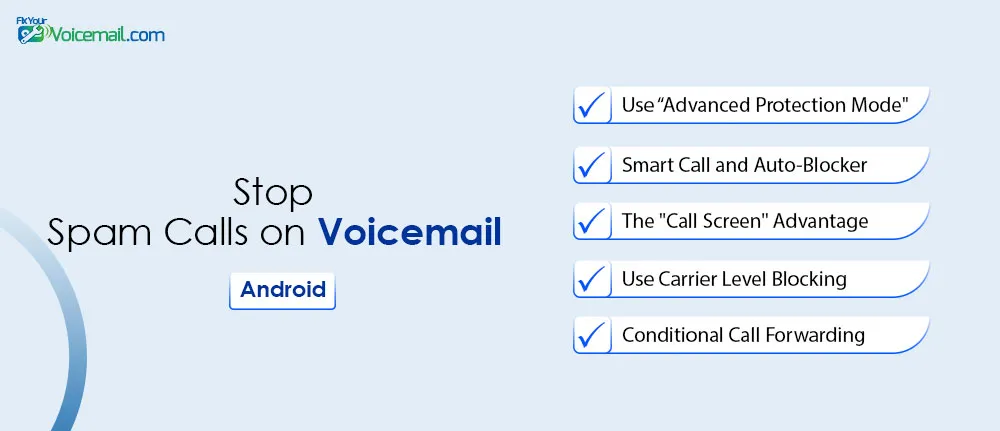
5 Ways to Stop Spam Voicemail on Android
- Phone brand’s spam filter (Samsung Smart Call, Pixel Call Screen)
- Carrier spam‑blocking app (Verizon Call Filter, AT&T ActiveArmor, T‑Mobile Scam Shield)
- Android’s built‑in ‘Filter spam calls’
- Third‑party call‑blocking app (Call Control, YouMail)
- Do Not Disturb + Contacts Only
Why Blocked Calls Still Go to Voicemail on Android?
When you block a number in the Phone app, your device rejects the call before it rings. However, the carrier network often still forwards unanswered or blocked calls to voicemail.
Spammers know this and exploit it to deliver their message anyway, filling your inbox and triggering notifications.
Ringless or “drop” voicemails bypass ringing entirely by interacting directly with the voicemail server. Standard blocking offers little protection here.
Understanding this limitation helps you choose the right layered approach: device filters + carrier tools + smart automation.
Read also: Android Calls Going Straight To Voicemail? Here Are The Methods To Fix It Fast.
Methods To Stop Spam Calls From Leaving Voicemail on Android.
Android’s Do Not Disturb (DND) mode can be configured to block calls from everyone except your contacts, and with one setting, those blocked calls do not go to voicemail.
Blocking Spam Calls on Voicemail on Android 10 through Android 16 and Later
- Open Settings.
- Go to Sound & vibration>Do Not Disturb (or Notifications>Do Not Disturb).
- Tap Calls (or People → Calls).
- Under “Allow calls from,” select Only contacts (or Starred contacts only).
- Critical step: Look for “Calls from anyone else”.
- Choose “Don’t ring and don’t allow voicemail” (wording varies, but it’s there on stock Android and most skins).
- Turn on DND permanently (or schedule it for all hours you want peace).
Result: Your phone never rings for unknown numbers. The call is terminated before voicemail picks up. The spam caller hears silence or a fast busy signal. Your voicemail inbox stays completely clean.
Caution: This method also blocks legitimate callers not in your contacts (delivery drivers, doctor’s offices). Keep your contacts list up‑to‑date, or whitelist important numbers manually.
Using Android 16’s “Advanced Protection Mode” to Block Robo Calls on Voicemail
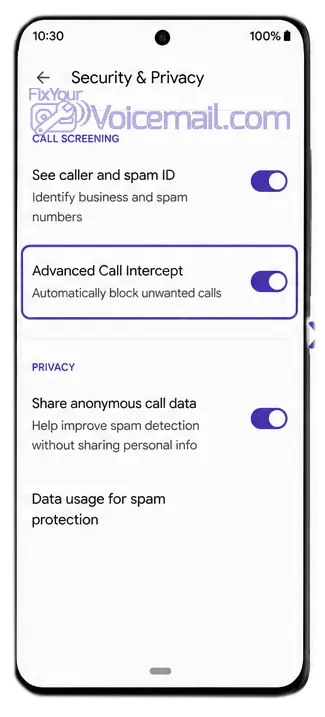
If you are running the 2026 Android 16 update or later, you have access to Advanced Protection Mode. Unlike previous iterations of Call Screen, this version uses on-device AI to handle the “handshake” between the caller and the network.
How to enable it:
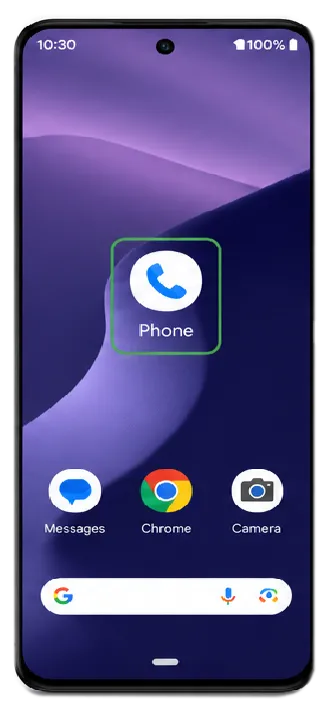
1. Open the Phone App.
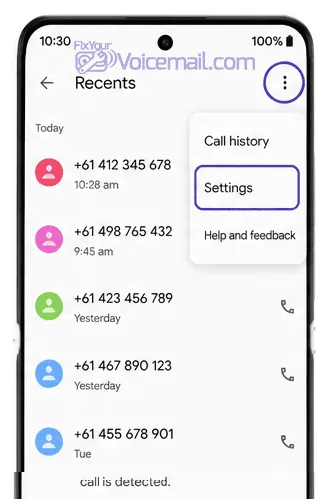
2. Tap the three dots (More) > Settings.
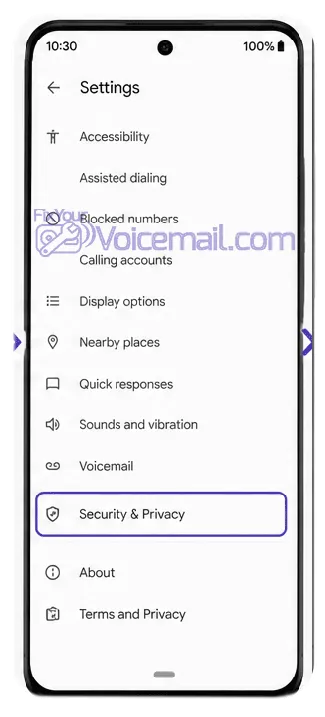
3. Select Security & Privacy.
4. Toggle on Advanced Call Intercept.
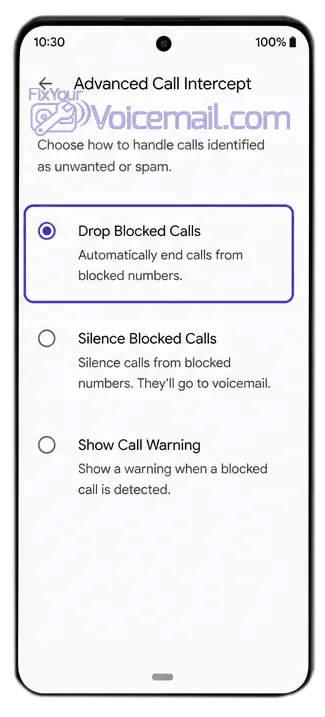
5. Select “Drop Blocked Calls” (This ensures the line is disconnected rather than forwarded).
Samsung Galaxy: Smart Call and Auto-Blocker
Samsung’s One UI 8.0 (released for 2026) has integrated “Smart Call” directly into the system’s Auto Blocker.
To block spam calls from going to voicemail:
- Go to Settings.
- Open Security and Privacy > Auto Blocker.
- Enable Messaging App Protection and Call Guard.
- Under Call Guard, select “Instant Disconnect for Spam.”
Read Also: How To Setup Samsung Direct Voicemail? The AI-Voicemail For Samsung.
Google Pixel: The “Call Screen” Advantage
If you own a Pixel 7 or newer, you have the “Max” protection setting. In 2026, Google added “Silent Intercept.”
How to enable it:
- Open the Phone App.
- Tap the three dots () > Settings.
- Select Spam and Call Screen.
- Select Maximum protection.
This automatically screens unknown numbers and declines known spam, and those declined calls do not go to voicemail. For Pixel 8 and later, ‘Take a Message’ is the best alternative.
Use Call Screen On Pixel Phones
Google’s Call Screen lets Assistant answer unknown calls, transcribe them live, and let you decide. Because Assistant “answers,” the call often doesn’t proceed to voicemail if you decline.
- Open Phone app Settings.
- Go to Spam and Call Screen.
- Under Call Screen → Choose categories like Spam or First-time callers.
Use Carrier‑Level Voicemail Blocking To Stop Spam.
Your mobile carrier can stop spam calls before they ever reach your voicemail. All three major US carriers offer free tools with an option to terminate calls completely, no forwarding, no voicemail.
Verizon – Call Filter:
Verizon’s Call Filter app comes pre‑loaded on most Android devices. During setup, you can choose whether blocked calls go to voicemail or are terminated so the caller cannot leave a voicemail. Navigate to the guide Block Spam Voicemail on Verizon.
AT&T – ActiveArmor:
AT&T users should dial *61* followed by a non-existent number (like 000-000-0000) for conditional call forwarding if they want to get creative, though using the ActiveArmor app’s “Block” feature is more stable after 2026.
AT&T’s ActiveArmor app gives you direct control over call routing and blocks spam calls from going to AT&T voicemail.
T‑Mobile – Scam Shield:
T-Mobile’s Scam Block is industry-leading. Dialing #662# from your Android dialer, activate a network-level block. When a known spammer calls, T-Mobile drops the call entirely. They never hear your voicemail greeting.
T‑Mobile’s Scam Shield (free for postpaid customers) blocks verified scam IDs automatically and calls are terminated, not forwarded to spam voicemail on T‑Mobile.
Note: Carrier tools work only for numbers that their databases already recognize as spam. They don’t catch every single spoofed number. That’s why you need the next layer.
Use “Conditional Call Forwarding” as a Final Shield
- Find a “disconnected” or “busy” number (or a service like YouMail).
- Open your Phone app > Settings > Supplementary Services.
- Select Call Forwarding.
- Change “Forward when busy” and “Forward when unanswered” to your chosen dead-end number.
- Now, when a spammer calls and you “ignore” it, they are sent to a “Number Not in Service” tone instead of your inbox.
Troubleshooting: Spam Voicemail Still Getting Through? 5 Things to Check

If you followed the methods above and spam voicemail still appears, work through this checklist:
1. Are you using overlapping methods? Combining carrier filtering + Android filtering + an app can confuse the call flow. Stick with one primary method (carrier OR DND OR app).
2. Did you restart your phone? Some carrier services need a fresh network registration after changing call‑blocking settings.
3. Check your voicemail greeting. If you recorded “Hello, you’ve reached [your name]…”, spammers hear that and log your number as active. Change it to the carrier’s default generic greeting (no voice). This alone can reduce spam over time — spammers hang up when they hear a dead line.
4. Did you report repeated numbers? In the Phone app → Recents → tap the number → Block/report spam. This feeds Android’s spam database and helps future blocks.
5. Are you using a prepaid plan from a smaller carrier? Some prepaid carriers don’t support the conditional call forwarding required for Google Voice or YouMail. In that case, the DND workaround (Method 4) is your best bet.
Spam Calls On Voicemail – FAQs
Why do blocked numbers still go to voicemail on Android?
Because Android’s default “block” declines the call and declined calls are routed to your carrier’s voicemail server. You need a method that terminates the call (carrier‑level block, DND workaround, or Call Control).
How to stop spam calls from leaving voicemail without an app?
Enable Do Not Disturb with “only contacts” allowed. This requires no third‑party app and works on every Android phone.
Does the National Do Not Call Registry stop spam voicemail?
No. It only affects legitimate telemarketers, not scammers. You still need the technical methods described above.
What’s the most effective method overall?
Combining carrier scam blocking (free) + Call Control (paid) gives you ~99% protection. The free DND method is almost as good and costs nothing.
Does Android 16 change anything?
Yes, Android 16’s Advanced Protection adds enhanced scam call detection and malicious website blocking.
How to delete all spam voicemails at once on Android?
Open Phone app → Voicemail tab → ⋮ (three dots) → “Delete all” or “Delete all blocked messages.” In carrier visual voicemail apps, look for a “Spam” folder with a bulk delete option.
Can I disable voicemail entirely?
Yes. For many users, voicemail is more of a liability than a tool. You can contact your carrier and ask them to “Remove the Voicemail Feature” from your account. This is the only 100% foolproof way to stop spam voicemails.
Is there a way to block “Unknown” callers?
Yes. In the Phone app settings, go to Block Numbers and toggle “Block calls from unknown numbers.”
Note: This also filters out doctors and delivery drivers, so use it with caution.
Final Words:
The war against robocalls is no longer just about silence; it’s about storage and security. By moving your blocking strategy from your device to the carrier network, you can finally reclaim your inbox.
Stop letting spammers leave their mark; start dropping the line.
Start with your carrier’s free tool. If you still see spam voicemail, layer in Call Control or use the DND workaround.
And if something goes wrong, the troubleshooting section above has you covered.
Stopping spam calls from leaving voicemails on Android requires a layered strategy: enable every built-in filter, add carrier protection, use targeted apps or automation where needed, and stay vigilant with reporting.
No single button fixes everything in 2026, but combining these methods can reduce unwanted voicemails by 80-95% for most users.