

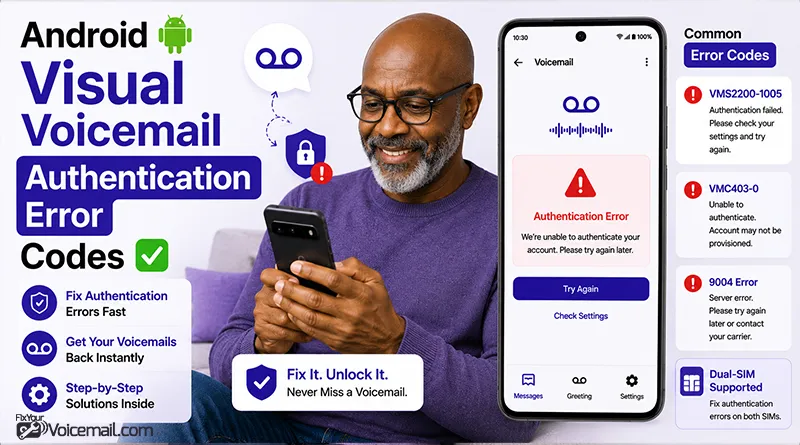
You see the error: ‘Visual Voicemail cannot be authenticated due to cellular data mode being turned off.’ But your mobile data is ON. You’ve restarted. You’ve toggled Airplane mode. Nothing works.
Here’s what T-Mobile forum users discovered after months of frustration: The problem isn’t your data, it’s what’s blocking it. A disabled physical SIM card. Follow the guide if your Android shows “Can’t activate visual voicemail error.”
A VPN running in the background. Even DuckDuckGo’s tracker blocker.
This guide documents every authentication error code (VMS2200-1005, VMC403-0, and more) with carrier-specific fixes tested on Android 13-16. Read How To Fix Visual Voicemail Unable To Authenticate for a general solution (no error code).
Quick Fixes for Most Users
- Restart and Toggle Connections: Power cycle your phone and toggle Airplane mode. Force Stop and Clear Cache/Data:
- Settings > Apps > Phone or Visual Voicemail > Force Stop > Storage > Clear Cache (then Clear Data if needed)
- Toggle Visual Voicemail: In Phone app > Settings > Voicemail > Turn off/on. Check Mobile Data: Ensure a strong cellular signal; test without Wi-Fi.
Visual Voicemail Authentication Error: Why This Happens?
Why Authentication Fails
A disabled physical SIM card sitting in your phone. A VPN running silently in the background. Even DuckDuckGo’s App Tracking Protection. These are the real culprits behind Android visual voicemail authentication errors.
Methods To Fix Android Visual Voicemail Authentication Error.
If your Android shows “Authentication failed,” or “Visual voicemail cannot be authenticated followed by error code” your phone failed the one-time carrier check.
In 2026, Android 15 and 16 enforce stricter security: only the active Phone app package can request authentication, and carriers require mobile data (not Wi-Fi) for the initial SMS handshake.
Authentication Error Code Quick Reference
Before diving into detailed fixes, use this table to identify your specific error:
| Error Code / Message | Most Likely Cause | Quick Fix |
|---|---|---|
| “Cellular data mode being turned off” | Privacy app blocking connection. | Disable DuckDuckGo/AdGuard for Phone app. |
| VMS2200-1005 | VPN or network filter active. | Enable split tunneling or pause VPN. |
| VMC403-0 | Account provisioning issue. | Request carrier voicemail reset. |
| “Account cannot be authenticated” | Dual-SIM conflict (physical SIM). | Remove inactive physical SIM cards. |
| 9004 error | Phone app version issue. | Roll back Google Phone app updates. |
| “Activation failed” (no code) | Carrier app vs. stock app conflict. | Switch visual voicemail apps. |
Now let’s fix your specific error.
Error 1: “Visual Voicemail Cannot Be Authenticated Due to Cellular Data Mode Being Turned Off”
This is the most frustrating error because the message is literally wrong. Your cellular data IS turned on
Why This Happens
Your visual voicemail app tries to authenticate with your carrier’s servers. But something on your phone is blocking that specific connection.
The app receives a “connection refused” signal and incorrectly assumes cellular data is off.
The actual blockers are almost always:
- Privacy apps (DuckDuckGo App Tracking Protection, Blokada, AdGuard).
- VPN services (NordVPN, ExpressVPN, PIA, ProtonVPN).
- DNS filters (NextDNS, Cloudflare Gateway, AdGuard DNS).
- Battery optimizers that kill background connections.
DuckDuckGo Fix (Works for T-Mobile, Verizon, AT&T)
A T-Mobile user discovered that DuckDuckGo’s App Tracking Protection was the culprit:
“I found that DuckDuckGo App Tracking Protection was causing the activation issue. Pausing protection or adding the visual voicemail app to the allowed list resolved the authentication error immediately.”
Step-by-step fix for DuckDuckGo:
- Open DuckDuckGo app
- Tap the three dots or settings gear
- Select App Tracking Protection
- Find your Visual Voicemail app (T-Mobile Visual Voicemail, My Visual Voicemail, or Phone)
- Tap the toggle to pause protection for this app only
Alternative: Disable App Tracking Protection entirely while activating voicemail, then re-enable it afterward.
The General Privacy App Fix
For any privacy app blocking your visual voicemail authentication:
- Open your privacy/security app
- Look for network filtering, tracking protection, or VPN settings
- Find the exclusion list or allowed apps section
- Add your visual voicemail app to the exclusion list
- If that doesn’t work, temporarily pause the entire protection to test
Apps known to cause authentication errors:
- DuckDuckGo App Tracking Protection.
- Blokada.
- AdGuard.
- NextDNS.
- Cloudflare Gateway.
- NetGuard.
- RethinkDNS.
- TrackerControl.
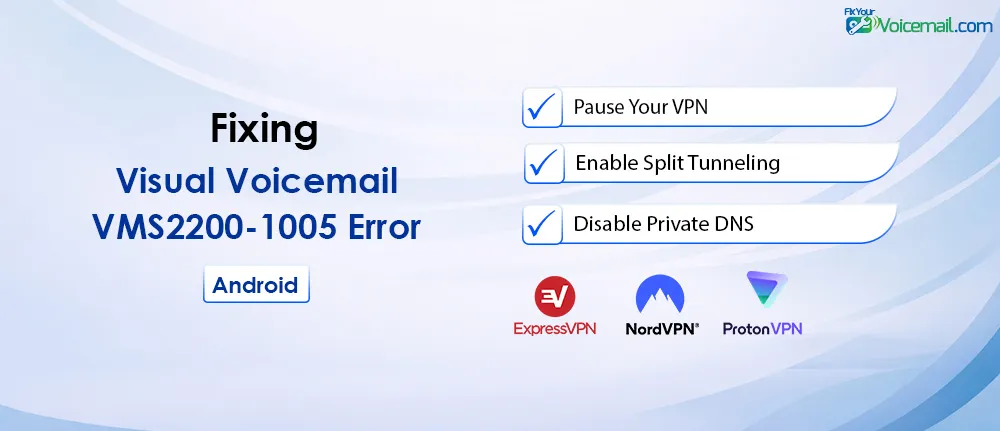
Error 2: Visual Voicemail VMS2200-1005 (VPN or Network Blocker Active)
This specific error code appears on T-Mobile’s visual voicemail app when something is interfering with the authentication handshake.
How to Fix VMS2200-1005
Fix A: Pause Your VPN
- Open your VPN app.
- Disconnect or pause the VPN connection.
- Open your visual voicemail app and complete activation.
- Reconnect VPN after voicemail works.
Fix B: Enable Split Tunneling (Better Long-Term Solution)
Split tunneling lets your visual voicemail bypass the VPN while everything else stays protected.
For NordVPN:
- Settings > Split Tunneling.
- Enable Split Tunneling
- Select “Apps that will not use VPN.”
- Add your visual voicemail app.
For ExpressVPN:
- Options > Split Tunneling.
- Choose “Don’t use VPN for selected apps.”
- Add visual voicemail app.
For Private Internet Access (PIA):
- Settings > Split Tunnel.
- Select “Bypass VPN” for visual voicemail app.
For ProtonVPN:
- Settings > Split Tunneling.
- Enable “Exclude apps from VPN tunnel.”
- Add visual voicemail.
Fix C: Check Your Network Filter
If you’re not using a VPN but still get VMS2200-1005:
- Disable Private DNS (Navigate Settings > Connections > More connection settings > Private DNS > set to Off)
- Check for carrier data saver settings (Settings > Connections > Data usage > Data saver)
- Ensure cellular data is enabled for visual voicemail specifically (Navigate Settings > Apps > Visual Voicemail > Mobile data > Allow background data usage).
Error 3: Visual Voicemail VMC403-0 (Account Provisioning Error)
This error means your carrier’s system hasn’t properly provisioned visual voicemail on your account.
What Users Are Reporting
“Keep getting an error VMC403-0. Can’t get it fixed. Tech support says everything is fine on their end.”
This is a carrier-side issue, not your phone.
How to Fix VMC403-0
Step 1: Request a Carrier Voicemail Reset
Call your carrier’s technical support and say exactly this:
“I need you to reset my visual voicemail provisioning on the network side. I’m getting error code VMC403-0. Please reprovision my voicemail box and refresh the IMS registration for my device.”
- For T-Mobile: Call 611 and ask for “voicemail box reset” or “VMA reset.”
- For Verizon: Request “visual voicemail feature toggled off and on” or “voicemail reprovisioning.”
- For AT&T: Ask for “feature reset for visual voicemail” or “voicemail box refresh.”
Step 2: Remove and Re-add Visual Voicemail Feature
If you have access to your carrier account online:
- Log into your carrier account.
- Remove the Visual Voicemail feature from your line.
- Save changes and wait 5 minutes.
- Re-add the Visual Voicemail feature.
- Restart your phone.
Step 3: Clear Carrier Services App Data
- Navigate to Settings > Apps > Carrier Services on your Android phone.
- Tap Storage & cache.
- Tap Clear storage (this resets carrier provisioning on your device).
- Restart your phone.
Error 4: “Account Cannot Be Authenticated” (Dual-SIM Physical Card Conflict)
This is the hidden issue that affects thousands of Android users. A T-Mobile community user discovered the root cause:
“My T-Mobile Visual Voicemail app would not activate. Every time it failed with an authentication error. I discovered that I had a disabled physical SIM card from Spectrum still installed. The app was defaulting to the physical SIM slot even though that SIM was disabled. The moment I removed the physical SIM card, the app activated normally.”
Why This Happens
Visual voicemail apps, especially carrier-branded ones, often default to the physical SIM slot regardless of which SIM is active. If you have an old, inactive, or disabled physical SIM in your phone, the app tries to authenticate through that dead connection.
This affects:
- T-Mobile Visual Voicemail app (red/magenta icon).
- My Visual Voicemail (blue icon).
- AT&T Visual Voicemail.
- Some carrier apps on Samsung and Motorola devices.
How to Fix Visual Voicemail Dual-SIM Authentication Errors
Fix A: Remove Inactive Physical SIM Cards (Most Effective)
- Power off your phone.
- Use the SIM ejector tool to remove the SIM tray.
- Remove any physical SIM cards that are not your active carrier.
- Reinsert the tray with only your active SIM.
- Power on and retry visual voicemail activation.
Fix B: Change Default SIM for Visual Voicemail (Samsung)
If you need both SIMs active:
- Go to Settings > Connections > SIM manager.
- Find “Preferred SIM for” settings.
- Look for “Data service” or “Mobile data.”
- Set your active carrier SIM as default.
- Also check Settings > Apps > Visual Voicemail > Mobile data > Select your active SIM.
Fix C: Use eSIM Instead of Physical SIM
If you’re experiencing this issue repeatedly:
- Convert your physical SIM to an eSIM (available from T-Mobile, Verizon, AT&T, and most MVNOs).
- Request eSIM conversion through your carrier’s app or website.
- Remove the physical SIM card entirely.
- Activate visual voicemail on eSIM.
Fix D: Switch to Stock Android Phone App
The stock Android Phone app (Google Phone) handles dual-SIM configurations more gracefully than carrier apps.
- Settings > Apps > Default apps.
- Change Phone app to Google Phone (if available).
- Open Google Phone app > Settings > Voicemail.
- Select your active SIM for visual voicemail.
Error 5: 9004 Error (Google Phone App Version Issue)

This error appears in the Google Phone app’s visual voicemail tab, typically accompanied by “Activating Visual Voicemail” that never completes.
The Discovery
A Google Phone app user documented this in May 2024:
“Under Phone app version 127 I would get a 9004 error. In version 128 it would simply say it was Activating Visual Voicemail but would never actually activate. If I uninstalled all updates to the Phone app to revert back to stock version 100, the issue completely disappeared.”
How to Fix Visual Voicemail 9004 Error
Step 1: Check Your Google Phone App Version
- Go to Settings > Apps > Phone (or Google Phone).
- Scroll to the bottom to see App version.
- If version is 127, 128, or early 129, proceed to rollback.
Step 2: Disable Auto-Updates in Google Play Store
- Open Google Play Store.
- Tap your profile picture > Settings.
- Network preferences > Auto-update apps > Don’t auto-update apps.
Step 3: Uninstall Phone App Updates.
- Go to Settings > Apps > Phone.
- Tap the three dots in top right > Uninstall updates.
- Confirm you want to revert to factory version.
Step 4: Verify Version Rollback.
- Return to App info for Phone.
- Confirm version is now 100.x (not 127+).
- Open Phone app > Voicemail tab.
- 9004 error should be gone.
Important: Some carriers force Phone app updates through system updates. If this happens, you’ll need to use the privacy app exclusion method above as your primary fix.
Carrier-Specific Authentication Error
Different carriers authenticate visual voicemail differently. Here’s what you need to know for each.
T-Mobile
T-Mobile has two different visual voicemail apps:
| App | Icon Color | Best For | Known Issues |
|---|---|---|---|
| T-Mobile Visual Voicemail | Red/Magenta | Most T-Mobile users | Dual-SIM conflicts, VPN blocks |
| My Visual Voicemail | Blue | Users with authentication errors | VMC403-0, VMS2200-1005 |
T-Mobile Fix Priority:
- Remove inactive physical SIMs.
- Pause VPN/DuckDuckGo protection.
- Try the blue My Visual Voicemail app instead of the red one.
- Request voicemail reset via 611.
Verizon
Verizon visual voicemail is integrated into the stock Phone app on many devices.
Verizon-specific authentication requirements:
- Mobile data settings must be always on (Settings > Network & internet > Mobile network > Mobile data always active).
- No VPN or ad blocker on Verizon’s visual voicemail servers.
- Visual voicemail feature must be active on your account.
Verizon Fix Priority:
- Enable “Mobile data always active.”
- Disable any VPN or privacy app.
- Remove and re-add visual voicemail feature online.
- Call *611 for voicemail reset.
AT&T
AT&T visual voicemail is separate from WiFi Calling and requires direct carrier data connection.
AT&T Fix Priority:
- Ensure mobile data is ON (WiFi alone won’t work).
- Disable any AT&T “ActiveArmor” privacy features temporarily.
- Clear AT&T Visual Voicemail app cache.
- Call customer service for “voicemail box reset.”
MVNOs (Visible, Xfinity Mobile, Cricket, Metro, Boost)
MVNOs inherit authentication systems from their parent carriers but add their own complexity.
Visible (Verizon network):
- Use the Samsung “Allowed networks for apps” method.
- Set visual voicemail to “Mobile data preferred.”
Xfinity Mobile (Verizon network):
- Same fix as Visible (Allowed networks for apps).
Cricket (AT&T network):
- Must use Cricket Visual Voicemail app (stock Phone app may not work).
- Disable any ad blockers.
Metro (T-Mobile network):
- Try both red and blue T-Mobile apps.
- Dual-SIM fix applies.
Boost (T-Mobile or AT&T network depending on region):
- Check your SIM type to determine carrier backend.
- Apply corresponding carrier fix.
Resolving Visual Voicemail authentication errors restores convenient access to your messages. Apply these targeted fixes, and your Android voicemail should work reliably again. Share your results below for community help.
Final Words:
An Android visual voicemail authentication error feels like a dead end. You’ve checked your data connection. You’ve restarted your phone. Nothing works. But as the T-Mobile community discovered, the real culprit is rarely what you expect.
Now you know exactly where to look. Start with the privacy app checklist. Then check for inactive SIM cards.
If you see VMS2200-1005, pause your VPN. If you see VMC403-0, call your carrier. And if you’re on the Google Phone app with version 127 or 128, roll back those updates.