

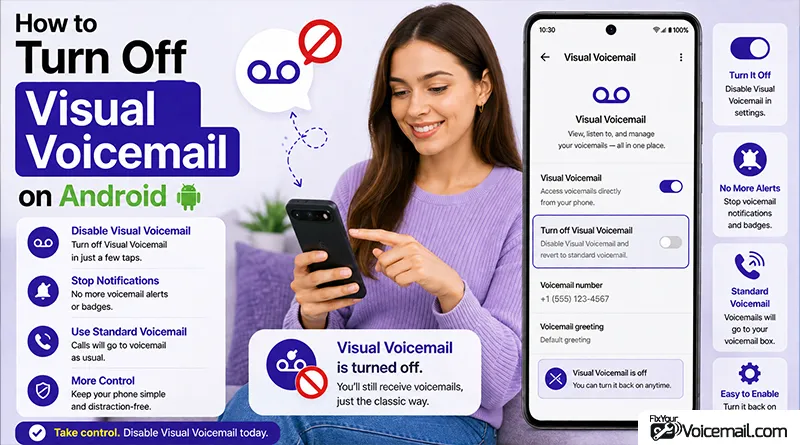
Visual voicemail promised to make your life easier. Instead, you’re dealing with constant notifications, inaccurate transcriptions, data you never wanted to use, and an interface that seems to have a mind of its own.
Whatever your reason, turning off visual voicemail on Android should be straightforward. But it’s not always as simple as flipping a toggle.
Your carrier controls whether visual voicemail works at all, and your phone brand determines where the settings are hidden.
Turn Off Visual Voicemail on Android:
You can turn off visual voicemail on Android using one of these methods:
- Phone App Settings: Open Phone app > 3-dot menu > Settings > Voicemail > Toggle Visual Voicemail off.
- Carrier App: Open your carrier’s app, find voicemail settings, and toggle visual voicemail off.
- Disable App: Go to Settings > Apps > Visual Voicemail > Disable or Uninstall.
- Contact Carrier: Call customer service and request visual voicemail removal.
Choose the method that works best for your situation.
This guide covers seven proven methods to disable visual voicemail on your Android phone.
Whether you’re on Verizon, AT&T, T-Mobile, Google Fi, or an international carrier, you’ll find a method that works for you.
You’ll also learn what happens when you disable it, how to troubleshoot issues, and how to re-enable it if you change your mind.
Follow the guide to get rid of traditional voicemail on Android if you want to completely give up voicemail services on your Android.
Method 1: Turn Off Visual Voicemail in Your Phone App Settings
Open your Phone app, tap the three-dot menu, go to Settings > Voicemail, and toggle Visual Voicemail off. This stops the visual interface immediately.
This is the easiest and fastest method. It works on most Android devices, though the exact path may vary by manufacturer.
Google Phone App (Pixel, Android One, and many others)
- Open the Phone app (the default app you use for calls).
- Tap the three-dot menu (⋮) in the top-right corner.
- Select Settings from the dropdown.
- Tap Voicemail.
- Toggle Visual Voicemail off.
Note: Turning off visual voicemail in the Phone app deletes the recordings from your Phone app, but your carrier may still keep a copy of the recording
Samsung Galaxy Phones
- Open the Phone app.
- Tap the three-dot menu (⋮).
- Select Settings > Voicemail.
- Toggle Visual Voicemail off.
OnePlus / OxygenOS Phones
- Open the Phone app.
- Tap the three-dot menu (⋮).
- Select Settings > Call Settings > Voicemail.
- Toggle Visual Voicemail off.
What If the Toggle Is Greyed Out?
If the Visual Voicemail toggle is greyed out or missing, your carrier may not allow disabling it through the Phone app. Move to Method 2 or Method 4.
Method 2: Use Your Carrier’s App to Disable Visual Voicemail
Open your carrier’s app, find voicemail settings, and toggle off visual voicemail. This is the most reliable method because it disables the feature at the network level.
Verizon (My Verizon App)
- Open the My Verizon app.
- Tap Account at the bottom.
- Select Settings.
- Tap Voicemail.
- Toggle Visual Voicemail off.
AT&T (myAT&T App)
- Open the myAT&T app.
- Go to Profile.
- Select Settings.
- Tap Voicemail.
- Uncheck Visual Voicemail.
- Tap Save.
T-Mobile
Option A – T-Mobile Visual Voicemail App:
- Open the Visual Voicemail app.
- Tap More (three dots or menu icon).
- Select Settings.
- Toggle Visual Voicemail off.
Option B – T-Mobile App:
- Open the T-Mobile app.
- Go to Account > Settings.
- Find Voicemail settings.
- Toggle off Visual Voicemail.
Boost Mobile
- Go to Settings > Apps on your phone.
- Find the Visual Voicemail app in your app list.
- Tap on it and tap Disable.
Google Fi
Visual voicemail for Google Fi is controlled through the Phone app settings (Method 1). Google Fi does not have a separate carrier app for this purpose.
Method 3: Disable or Uninstall the Visual Voicemail App
Go to Settings > Apps, find the Visual Voicemail app, and tap Disable or Uninstall. This removes the visual interface from your phone.
This method works well when the visual voicemail is provided by a separate app, rather than being built into the Phone app.
How to Disable the App
- Open Settings on your Android device.
- Tap Apps or Apps & Notifications.
- Find the Visual Voicemail app in your app list. It may be called “Voicemail,” “Visual Voicemail,” or named after your carrier (e.g., “T-Mobile Visual Voicemail”).
- Tap the app.
- Tap Disable.
How to Uninstall the App
- Follow steps 1-4 above.
- Tap Uninstall.
Difference Between Disable and Uninstall
| Action | What Happens | Can You Re-Enable? |
|---|---|---|
| Disable | The app is turned off, removed from your app menu, and stops storing messages. The app remains on your device. | Yes, easily. |
| Uninstall | The app is completely removed from your device. | Yes, but you’ll need to reinstall from the Play Store |
Things to Know
- When to use Disable: The app is a carrier system app that you can’t uninstall.
- When to use Uninstall: The app is a third-party app you installed separately.
What Happens After Disabling/Uninstalling
When the visual voicemail app is disabled or uninstalled, you’ll need to use traditional voicemail access to hear your messages.
This means dialing your voicemail number and navigating through audio prompts.
Method 4: Contact Your Carrier to Disable Visual Voicemail
Call your carrier’s customer service and ask them to remove visual voicemail from your account. This is the guaranteed method when on-device options fail.
When phone settings and carrier apps don’t work, or when the toggle is greyed out, carrier customer service is your surefire solution.
The representative can disable visual voicemail at the network level.
| Carrier | Number | US Dial |
|---|---|---|
| Verizon | 1-800-922-0204 | 611 |
| AT&T | 1-800-331-0500 | 611 |
| T-Mobile | 1-877-453-1304 | 611 |
| Boost Mobile | 1-833-502-6678 | *2 |
| Google Fi | 1-844-825-5234 | 611 |
What to Say to the Representative
- State clearly: “I want to remove visual voicemail from my account completely.”
- Provide account verification: Account number, PIN, or other verification details.
- Confirm: Ask the representative to confirm that visual voicemail has been removed.
- Ask for confirmation number: For your records.
Important: Some carriers may require written confirmation to remove certain services. If the first agent can’t help, ask to speak with a supervisor.
Method 5: Use Dialer Codes to Disable Visual Voicemail
Dial specific codes in your Phone app to send direct commands to your carrier’s network, disabling visual voicemail instantly.
Dialer codes are hidden commands that communicate directly with your carrier’s network.
While not all carriers support them for visual voicemail specifically, they can be effective for carriers that do.
Common Dialer Codes for Voicemail
| Code | Function | When to Use |
|---|---|---|
| 004# | Disable conditional call forwarding | Bypasses voicemail entirely. |
| 002# | Disable all call forwarding | If ##004# doesn’t work. |
| *#61# | Check voicemail forwarding status | To see if visual voicemail is active. |
Note: These codes affect call forwarding, not visual voicemail directly. They can bypass visual voicemail by preventing calls from being forwarded to the voicemail system.
How to Use Dialer Codes
- Open your Phone app and go to the dialer.
- Enter the code (e.g.,
##004#). - Tap the call button.
- Wait for confirmation that your call forwarding settings have been updated.
Carrier-Specific Code Variations
Dialer codes vary by carrier. If ##004# doesn’t work, search for “[Your Carrier] voicemail disable code” or contact customer service for the correct code.
Method 6: Clear Visual Voicemail Data and Cache
Go to Settings > Apps > Visual Voicemail > Storage & cache and tap Clear cache and Clear storage. This removes corrupted data that may be causing issues.
If visual voicemail is acting up and you can’t turn it off normally, clearing the app’s data and cache can reset it.
This often resolves issues where the toggle is greyed out or the app keeps re-enabling itself.
Step-by-Step Instructions
- Open Settings on your Android device.
- Tap Apps or Apps & Notifications.
- Find the Visual Voicemail app in your app list.
- Tap the app.
- Tap Storage & cache.
- Tap Clear cache first.
- Then tap Clear storage (or Clear data).
- Restart your phone.
What Is Cleared
- Cache: Temporary files that may be corrupted
- Storage/Data: All app settings, saved messages, and configuration.
Warning: Clearing storage will delete downloaded voicemail recordings from your device, though carrier-stored copies may remain.
Method 7: Adjust Call Forwarding to Bypass Visual Voicemail
Configure call forwarding to send unanswered calls to a different number, bypassing your visual voicemail system entirely.
This is an indirect method. Instead of disabling visual voicemail, you redirect calls so they never reach your voicemail system.
This works if you want to completely avoid voicemail but don’t care about disabling the service itself.
Conditional Call Forwarding
Conditional call forwarding redirects calls based on specific conditions:
- When busy: You’re already on a call
- When unanswered: You don’t pick up
- When unreachable: Your phone is off or out of range
How to Set Up Call Forwarding
- Open your Phone app.
- Tap the three-dot menu (⋮).
- Select Settings > Call Forwarding.
- Configure forwarding options:
- Forward when busy.
- Forward when unanswered.
- Forward when unreached.
Call Forwarding Code Table
| Action | Code Example | Purpose |
|---|---|---|
| Set conditional forward | 004[number]# | Forward calls under all conditions |
| Disable conditional forward | 004# | Restore default behavior |
| Check forwarding status | *#004# | See current settings |
Limitations of This Method
- Doesn’t disable visual voicemail: It only bypasses it
- Requires a forwarding number: You need somewhere to send calls
- May incur charges: Some carriers charge for call forwarding
- Complex to manage: Multiple settings to configure.
What Happens When You Disable Visual Voicemail?
When you disable visual voicemail, your phone reverts to traditional call-in voicemail access. Recordings in your Phone app may be deleted, but your carrier may still store copies.
Caller Experience
When visual voicemail is disabled, callers will:
- Hear your phone ring normally.
- Be redirected to your voicemail after the ring cycle.
- Hear a standard voicemail greeting.
- Leave a message as usual.
Notification Changes
- No visual interface: You won’t see a list of messages.
- Standard notification: You’ll get a notification to call your voicemail number.
- No transcriptions: You won’t receive transcribed message texts.
Data Usage
Disabling visual voicemail stops the background data usage associated with downloading and transcribing messages. This can be significant if you receive many voicemails.
Existing Recordings
Turning off visual voicemail deletes the recordings from your Phone app, but your carrier might keep a copy of the recordings.
If you re-enable visual voicemail later, your carrier may restore your messages, or you may need to re-download them.
Troubleshooting: Why Visual Voicemail Won’t Turn Off
Even after following these methods, you might still see visual voicemail. Here’s why and what to do.
“The visual voicemail toggle is greyed out”
- Your carrier requires it: Some carriers don’t allow disabling visual voicemail through phone settings.
- Your plan includes it: Visual voicemail may be bundled with your plan.
- Solution: Use Method 2 (Carrier App) or Method 4 (Contact Carrier).
“I disabled it but it came back”
- Carrier reset: Your carrier may have reset your voicemail settings.
- App update: A system or carrier app update may have re-enabled it.
- Solution: Re-apply your chosen method and verify with your carrier.
“I can’t find the visual voicemail setting”
- Different Android version: Settings paths vary by device manufacturer.
- Carrier customization: Your carrier may have hidden or moved the setting.
- Solution: Use the search function in Settings, or try Method 4.
“I uninstalled the app but still get visual voicemail”
- Built into Phone app: Some phones have visual voicemail built into the default Phone app, not a separate app.
- Carrier integration: Visual voicemail may be provided at the network level.
- Solution: Use Method 1 (Phone App Settings) or Method 4 (Contact Carrier).
How do I turn visual voicemail back on if I change my mind?
To re-enable, simply reverse the method you used to disable it. Toggle it back on in Phone app settings, carrier app, or app settings.
- Reverse Method 1: Phone App Settings
Go back to Phone app > Settings > Voicemail and toggle Visual Voicemail on. - Reverse Method 2: Carrier App
Open your carrier app and toggle Visual Voicemail back on. - Reverse Method 3: Re-enable App
Go to Settings > Apps > Visual Voicemail and tap Enable (if disabled) or reinstall from Play Store (if uninstalled). - Reverse Method 4: Contact Carrier
Call your carrier and ask to re-add visual voicemail to your account. - Reverse Method 5: Dialer Codes
Dial **004# (instead of ##004#) to re-enable conditional call forwarding. - Reverse Method 6: Data Re-population
Once re-enabled, visual voicemail will download messages from your carrier’s servers again. - Reverse Method 7: Call Forwarding
Go back to Phone app > Settings > Call Forwarding and restore default forwarding settings.
Disable Visual Voicemail: Quick Recap
- Phone App Settings for the Easiest Solution.
- Carrier App for the most reliable option.
- Disable/Uninstall the App for system-level control.
- Contact Carrier for guaranteed results.
- Dialer Codes for a quick network-level fix.
- Clear Data and Cache for troubleshooting issues.
- Call Forwarding for an indirect bypass.
Final Verdict:
- Best Overall: Phone App Settings (Method 1) for speed and simplicity.
- Most Reliable: Contact Carrier (Method 4) for guaranteed results.
- Best for System Apps: Disable in App Settings (Method 3)
Frequently Asked Questions
Will disabling visual voicemail delete my messages?
Turning off visual voicemail deletes recordings stored in your Phone app, but your carrier may keep a copy on their servers.
Why is the visual voicemail toggle greyed out on my phone?
Your carrier may not allow disabling visual voicemail through phone settings. Try using your carrier’s app or contacting customer service directly.
Can I disable visual voicemail without calling my carrier?
Yes. Use Method 1 (Phone App Settings), Method 3 (Disable/Uninstall App), or Method 5 (Dialer Codes)
What’s the difference between disabling and uninstalling the visual voicemail app?
Disabling turns the app off but keeps it on your device; uninstalling removes it completely. Disabling is often the only option for carrier system apps.
Does disabling visual voicemail stop spam voicemails?
No. Disabling visual voicemail stops the visual interface, but callers can still leave traditional voicemails. To stop spam voicemails entirely, consider blocking specific numbers.
Will I still receive calls if I disable visual voicemail?
Yes. Disabling visual voicemail only affects how you access voicemail messages, not your ability to receive calls.
References:
- https://help.smartlessmobile.com/Network_and_connectivity/Visual_Voicemail
- https://mobilevikings.be/fr/support/visual-voicemail
Final Words
Turning off visual voicemail on Android doesn’t have to be complicated. You have seven different methods to choose from, depending on your carrier, device, and technical comfort level.
For most users, using Phone App settings is the fastest and simplest approach. If the toggle is greyed out or missing, move to Method 2 or Method 4.
Whichever method you choose, you’ll have control over your voicemail experience once again—without the constant notifications, data usage, and frustration that visual voicemail can bring.