

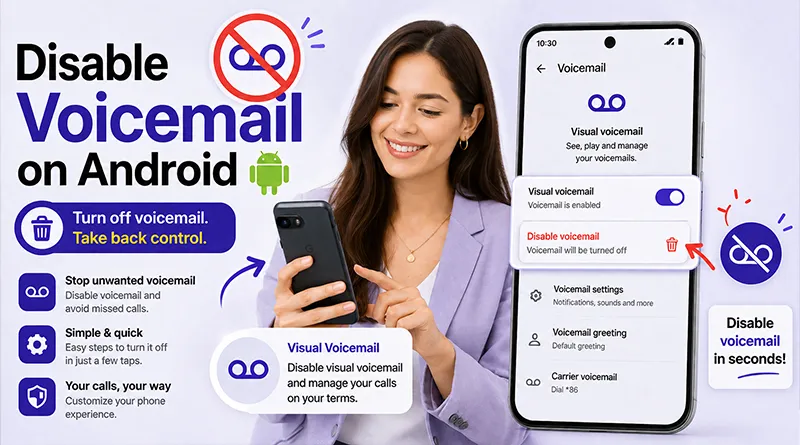
Tired of voicemail spam? Worried about international roaming charges every time a voicemail is left? Or maybe you just prefer text messages and find voicemail intrusive.
Whatever your reason, you can disable voicemail on your Android phone. And you don’t always need to call your carrier to do it.
You’ll also find carrier-specific details, troubleshooting advice, and instructions to re-enable voicemail if you change your mind.
6 Easy Methods To Disable Voicemail on Android: Deactivate Android Voicemail.
You can turn off voicemail on Android using one of several methods. You can turn off call forwarding, contact your carrier’s customer support, or fill your voicemail box artificially to prevent further messages from being routed to your voicemail.
Here are the most common methods for disabling your Android voicemail completely.
Disable Voicemail on Android: Quick steps
You can disable voicemail on Android using one of these methods:
- Call your carrier: Dial 611 (US carriers) and request voicemail deactivation. This is the most reliable method.
- Dial an MMI code: Enter
##004#in your Phone app to turn off conditional call forwarding and disable voicemail for most carriers. - Adjust call forwarding: Navigate to Phone > Settings > Call Forwarding and disable all forwarding options.
- Use your carrier’s app: Verizon, T-Mobile, AT&T, and other carriers let you disable voicemail in their apps or online accounts.
- Fill your voicemail box: Leave yourself 20–30 messages to fill the mailbox, preventing new messages.
- Disable notifications only: Stop receiving voicemail alerts without disabling the service itself.
If you have tried to disable voicemail on your Android phone and failed, you are not alone. The process to get rid of voicemail services has become more complex than simple settings toggles.
The challenge is that “voicemail” on modern Android devices can actually be three separate services:
- Carrier voicemail is the traditional voicemail service managed by your mobile network provider. This is what answers calls when your phone is off, out of range, or on another call.
- Visual voicemail is a modern interface that shows you voicemail transcripts and lists of messages within your phone app. Follow the guide Disabling Visual Voicemail on Android for instructions.
- Device-level voicemail features include Google Pixel’s “Take A Message” and Samsung’s Direct Voicemail feature, which acts like an answering machine built into the phone itself, completely bypassing your carrier’s voicemail system.
To completely disable voicemail on your Android, you need to address all three layers. This guide covers every method, every phone brand, and every possible failure point.
This guide covers six proven methods for disabling voicemail, from the most reliable carrier contact to fast MMI codes and settings-based approaches.
Method 1: Contacting Your Mobile Carrier Directly To Disable Voicemail.
Calling your carrier is the only guaranteed way to permanently disable voicemail on your Android device.
Your mobile carrier controls your voicemail service at the network level. When you request deactivation through customer support, they disable voicemail completely.
Callers will hear a message that your voicemail is not set up or unavailable.
How to Contact Your Carrier
- Open your Phone app and go to the dialer.
- Dial your carrier’s customer support number:
- AT&T, Verizon, T-Mobile (US): Dial
611 - Sprint (US): Dial
*2 - EE (UK): Call
150 - O2 (UK): Call
202 - Vodafone (UK): Call
191 - Telstra (Australia): Call
132200 - Optus (Australia): Call
133937
- AT&T, Verizon, T-Mobile (US): Dial
- Follow the automated prompts or request to speak with a representative.
- Ask the agent to disable your voicemail service. They will typically ask for account verification.
- Confirm deactivation before ending the call.
Disable Voicemail Through Carrier Apps
Most major carriers also offer voicemail deactivation through their apps:
- Verizon (My Verizon app): Tap Account > Settings > Voicemail > Toggle off.
- T-Mobile (Visual Voicemail app): Tap More > Settings > Voicemail > Toggle off.
- AT&T (myAT&T app): Go to Profile > Settings > Voicemail > Uncheck “Voicemail” > Save.
This is the most reliable method. It works regardless of your phone model, Android version, or technical skill level.
Method 2: Use MMI Codes to Disable Voicemail
Dialing ##004# disables conditional call forwarding, which turns off voicemail for most carriers.
MMI (Man-Machine Interface) codes are special codes you dial directly from your Phone app. They send instructions to your carrier’s network.
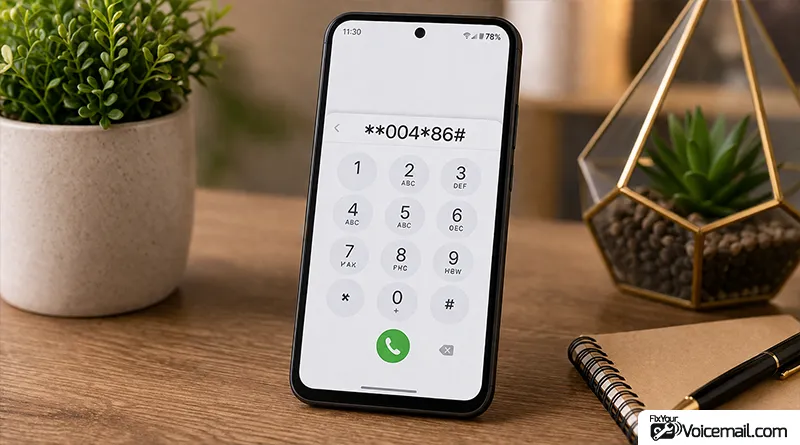
The Master Code: ##004#
- Open your Phone app and go to the dialer.
- Dial
##004# - Tap the call button.
- Wait for confirmation that your call forwarding settings have been disabled.
This code disables conditional call forwarding—the feature that forwards unanswered calls to your voicemail. When it’s disabled, your carrier has nowhere to route calls when you don’t pick up, so they simply disconnect.
Other MMI Codes to Try
| Code | Function | When to Use |
|---|---|---|
| 004# | Disable conditional call forwarding. | First method to try. |
| 002# | Disable all call forwarding. | If ##004# doesn’t work. |
| 004[number]# | Set conditional forward number. | For advanced users. |
| 61# | Check voicemail forwarding status. | To see if voicemail is active. |
What if ##004# Doesn’t Work?
Some carriers use different code standards. If ##004# doesn’t work for you:
- Try
##002#instead - Search for “[Your Carrier] MMI code disable voicemail”
- Contact your carrier directly (Method 1)
The code ##004# cancels all conditional call forwarding settings. This includes forwarding when your phone is busy, unanswered, or unreachable.
When you dial ##004# and press call, your phone sends a request to your carrier to stop forwarding calls to your voicemail number under any condition.
Important: MMI codes change the settings on the carrier side. If you dial the wrong code, you could change other settings. Only use codes you’ve verified for your carrier.
Method 3: Turn Off Voicemail Through Call Forwarding Settings
Disabling call forwarding in your Android settings stops calls from being redirected to voicemail.
This method works on many Android phones but may not be available on all devices or carriers.
Generic Android Instructions
- Open your Phone app (the default app that came with your phone).
- Tap the three-dot menu (⋮) in the top-right corner.
- Select Settings from the dropdown.
- Look for Call Forwarding. You may find it under Advanced, More Settings, or Supplementary Services.
- Disable all forwarding options:
- Forward When Busy
- Forward When Unanswered
- Forward When Unreached
- Always Forward (if present)
Samsung Galaxy Specific Path
- Open the Phone app.
- Tap the three-dot menu (⋮).
- Select Settings > Call Settings.
- Select Supplementary Services > Call Forwarding.
- Turn off all options listed.
Google Pixel Specific Path
- Open the Phone app (Google Phone app).
- Tap the three-dot menu (⋮).
- Select Settings > Calls > Call Forwarding.
- Disable all options listed.
For Pixel, this method works only if you are using the native voicemail on Pixel phones.
OnePlus / OxygenOS Specific Path
- Open the Phone app.
- Tap the three-dot menu (⋮).
- Select Settings > Call Settings > Call Forwarding.
- Disable all options.
Note: Not all Android phones have this setting. If you can’t find call forwarding in your settings, use Method 1 or Method 2 instead.
Method 4: Use Your Carrier’s App to Deactivate Voicemail Feature
Major carriers like Verizon, T-Mobile, and AT&T allow voicemail deactivation directly in their apps.
This method is convenient if you already have your carrier’s app installed. The exact steps vary by carrier.
Verizon (My Verizon App)
- Open the My Verizon app.
- Tap Account at the bottom.
- Select Settings.
- Tap Voicemail.
- Toggle Voicemail off.
- Confirm the action.
T-Mobile (T-Mobile Visual Voicemail App)
- Open the Visual Voicemail app (pre-installed on T-Mobile phones).
- Tap More (three dots or menu icon).
- Select Settings.
- Toggle Voicemail off.
AT&T (myAT&T App)
- Open the myAT&T app.
- Go to Profile.
- Select Settings.
- Tap Voicemail.
- Uncheck Voicemail.
- Tap Save.
| Carrier | App Name | Method |
|---|---|---|
| EE (UK) | My EE app | Settings > Voicemail > Toggle off |
| Vodafone (UK) | My Vodafone | Settings > Voicemail > Disable |
| Telstra (AU) | Telstra 24×7 | Services > Voicemail > Deactivate |
| Optus (AU) | My Optus app | Services > Voicemail > Turn off |
Method 5: Fill Your Voicemail Box to Block New Messages
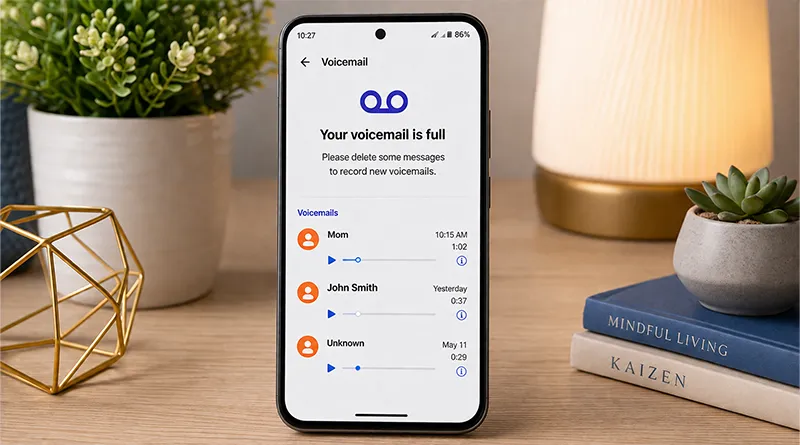
Filling your voicemail box to capacity prevents new messages from being left.
This is a temporary workaround, not a permanent solution. It tricks the system into thinking your mailbox is full, so callers hear a “mailbox full” message instead of leaving a voicemail.
Step-by-Step Instructions
- Enable Airplane Mode on your Android phone. Swipe down from the top of the screen and tap the airplane icon. This forces all calls to go directly to voicemail.
- Call your own phone number from a different phone. Use a landline, a friend’s phone, or an internet calling service like Google Voice.
- Leave a short message. You don’t need to say anything specific—just leave a few seconds of silence.
- Repeat this process until your voicemail box is full.
- You’ll receive a notification when the mailbox reaches capacity.
You can delete the voicemail you received to resume service and start receiving new voicemails.
Important Warnings
- This is temporary. Most carriers clear old voicemails after 14-30 days. You’ll need to repeat this process monthly.
- Existing voicemails remain. This only prevents new messages, but old messages stay in your inbox.
- Your carrier may still charge for missed calls. Disabling voicemail doesn’t prevent call charges.
- This method is best as a short-term solution while you decide which permanent method to use.
Method 6: Stop Voicemail Notifications (Without Disabling Service)
If you want to stop alerts but keep the service active, you can disable voicemail notifications in Android settings.
Many users don’t actually need to disable voicemail entirely. They just want to stop the constant notifications. This method preserves the service while muting alerts.
Read more about removing voicemail notifications on Android to manage them.
How to Disable Voicemail Notifications
- Open Settings on your Android device.
- Tap Apps or Apps & Notifications.
- Select Phone (or the app you use for calls).
- Tap Notifications.
- Look for Voicemail in the notification categories.
- Toggle off Voicemail notifications.
Why Choose This Instead of Disabling Service?
- You won’t miss important messages from contacts you don’t have in your address book
- You can check voicemail manually when you’re ready
- You avoid carrier interaction or complex MMI codes
- Easily reversible by toggling notifications back on
This is the best choice if you just want peace from alerts but still want the safety net of voicemail.
What do callers hear when voicemail is disabled?
Callers typically hear one of the following:
- “This mailbox is full and cannot accept messages”.
- “The subscriber has not set up voicemail”.
- A busy signal.
- Your phone rings until the call is disconnected.
How to Re-Enable Voicemail on Android
Re-enabling voicemail typically involves reversing the method you used to disable it.
Reverse Method 1: Re-enable with Carrier- Call your carrier and ask to reactivate voicemail service. They’ll handle it on their end.
Reverse Method 2: Re-enable with MMI Codes- Dial **004# (instead of ##004#) to re-enable conditional call forwarding.
Reverse Method 3: Re-enable Call Forwarding: Go back to Phone > Settings > Call Forwarding and enable the forwarding options again.
Reverse Method 4: Re-enable via Carrier App- Open your carrier app and toggle Voicemail back on.
Reverse Method 5: Clear Voicemail Box- Delete messages from your voicemail box to free up space.
Reverse Method 6: Re-enable Notifications- Go back to Settings > Apps > Phone > Notifications and toggle Voicemail notifications on.
After re-enabling, test by calling yourself from another phone to confirm voicemail is working.
Troubleshooting: Why Voicemail Won’t Disable
Even after following these methods, you might still receive voicemails. Here’s why and what to do.
“I used ##004# but still get voicemails”
- Your carrier doesn’t support universal MMI codes. Some carriers use proprietary codes. Try
##002#instead. - The code was rejected. Check that you dialed the code correctly, including the # symbols.
- Call forwarding is active elsewhere. Some phones have forwarding set at the network level. Call your carrier to fully reset forwarding.
“Call Forwarding Settings isn’t in my menu”
- Your phone model doesn’t support this option. Not all Android phones include call forwarding in settings.
- Your carrier has hidden this feature. Some carriers block call forwarding settings on the phone level.
- Try a different method (Method 1 or 2).
“I called my carrier but voicemail is still active”
- Ask to speak with a supervisor. First-level agents may not have the authority to disable voicemail.
- Follow up in writing. Some carriers require written confirmation for deactivation.
- Check if voicemail is bundled with a service. If you have a premium voicemail service (like visual voicemail), disabling it may require a separate process.
“Voicemail came back after a few days”
- Your carrier reset the service. Some carriers automatically re-enable voicemail after a certain period.
- You accepted a carrier update that reinstated the feature.
- Re-apply the MMI code or call your carrier to have it permanently disabled.
- Some carriers have a maximum storage time that is shorter. If you have used the voicemail full method, chances are you will start receiving the voicemails once the old voicemails are deleted automatically(typically after 14-30 days, depending on carrier and region.
What to Do When Nothing Works
If you have tried MMI codes, phone settings, and carrier contact without success, follow this troubleshooting path:
- Step 1: Check for Device-Level Voicemail (Pixel Only): If you have a Pixel, ensure “Take A Message” is disabled. This feature can override carrier voicemail settings and may be the reason callers can still leave message.
- Step 2: Confirm with a Second Phone: After trying a method, call your phone from another number. Listen to what happens:
- If you hear a generic carrier greeting: Carrier voicemail is still active.
- If you hear a personal greeting you recorded: Device-level voicemail (Take A Message) is active.
- If the phone rings indefinitely: Voicemail has been successfully disabled.
- Step 3: Verify Call Forwarding Settings: Open your Phone app > Settings > Call Forwarding. Confirm all forwarding options (When Busy, When Unanswered, When Unreached) are disabled. Some phones may cache these settings even after MMI code use.
- Step 4: Remove SIM and Reinsert: Some users report that removing and reinserting the SIM card forces the phone to refresh network settings, which can clear persistent forwarding settings.
- Step 5: Escalate with Carrier: If a standard customer service representative cannot disable your voicemail, ask to speak with a technical support supervisor. Explain that you have tried all methods and need voicemail removed at the account level. Some carriers require a supervisor to make this change.
- Step 6: Test with Visual Voicemail Disabled: If visual voicemail is enabled, it may still accept messages even after carrier voicemail is disabled. Toggle visual voicemail off in your phone app settings.
Deactivate Voicemail: Quick Recap
- Best Overall: MMI Codes (
##004#) for speed and simplicity. - Most Reliable: Contacting your carrier.
- Easiest for Samsung/Pixel Users: Call Forwarding Settings.
- Best Temporary Workaround: Fill your voicemail box.
- Best for Privacy: Disable Notifications only.
Frequently Asked Questions
Will disabling voicemail affect my ability to receive calls?
No. Disabling voicemail only prevents callers from leaving messages. Your phone still rings for incoming calls, and you can answer normally.
Can I temporarily disable voicemail without a permanent change?
Yes. Use Method 5 (fill your mailbox) or Method 6 (disable notifications) for temporary solutions that don’t permanently alter your service.
Can I re-enable voicemail later?
Yes. Reversing these methods is usually simple. Dial ##004# again to re-enable conditional forwarding on most carriers, or toggle voicemail settings back on in your phone app.
Why do some methods work on one carrier but not another?
Carriers implement MMI code standards differently. Some networks fully support ##004# and ##002#, while others have customized their systems. Additionally, some carriers require account-level changes that only support representatives can perform.
What happens to existing voicemails when I disable the service?
Existing voicemails typically remain in your mailbox. If you re-enable later, they’ll still be there. However, some carriers may clear your mailbox upon deactivation. Ask your carrier about their policy.
I have a prepaid plan. Can I disable voicemail?
Prepaid carriers often have different policies. Contact your carrier directly, as voicemail may be a core feature of your plan that cannot be removed. The ##004# and ##002# codes may still work, but carrier contact is your best option.
Final Words:
Disabling voicemail on Android requires understanding the three layers of voicemail services. The carrier voicemail you want to disable, the visual voicemail interface that shows your messages, and device-level features.
Start with the MMI code method: dial ##004# and restart your phone. If the call still goes to voicemail, disable visual voicemail in your phone settings. If nothing works, contact your carrier with the specific request to remove voicemail from your account permanently, not suspend it.
References: