

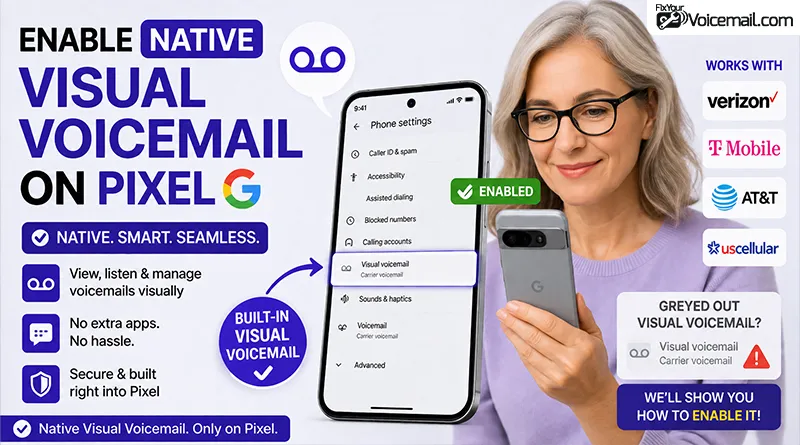
Visual voicemail on Google Pixel phones transforms how you handle missed calls. Instead of dialing a clunky voicemail system and listening to messages in sequential order, you see your messages as a list with timestamps, caller information, and even text transcriptions on supported carriers.
This guide covers everything about native visual voicemail on Pixel, from initial setup and carrier requirements to troubleshooting common issues.
To Setup Native Visual Voicemail on Pixel
For most users on supported carriers, enabling visual voicemail is a straightforward toggle:
- Open the Phone app on your Pixel
- Tap the three-dot menu (⋮) in the upper-right corner
- Select Settings from the dropdown
- Scroll down and tap Voicemail
- Find the Visual voicemail toggle and turn it ON
The toggle is greyed out. You tap it and nothing happens. Or worse, you enable Visual Voicemail, but no messages ever appear.
Before you blame your Pixel, there is something you need to understand: Visual Voicemail on your Pixel is not a phone feature. It is a carrier service.
This distinction changes everything about how you troubleshoot and fix it.
This complete guide explains exactly how to set up native Pixel visual voicemail, which carriers support native Pixel Visual Voicemail, why the toggle stays greyed out, and what to do when nothing works.
Let’s start with a short intro to native visual voicemail on Pixel before diving into the setup process and troubleshooting common problems associated with it.
What Is Native Visual Voicemail on Pixel?
Native Visual Voicemail refers to the built-in voicemail functionality within the Google Phone app on Pixel devices.
When you open the Phone app and tap the Voicemail tab at the bottom, you see a list of your messages with caller information.
Some users also see transcriptions of their voicemail messages displayed directly in the app.
A Google support expert explains: “Visual Voicemail (VVM) is not part of any phone’s operating system. It belongs to neither iOS nor Android. VVM is a collection of APIs for voicemail services provided by and dependent upon the carrier’s voicemail service. Smartphones do not do voicemail. Carriers do”
This means every Pixel user has a different experience based solely on their carrier.
How to Enable Native Visual Voicemail on Pixel?
You can use native phone app to enable or set up visual voicemail on your Pixel if your carrier supports the feature.
Method #1: Using Phone App
- Open the Phone app on your Pixel
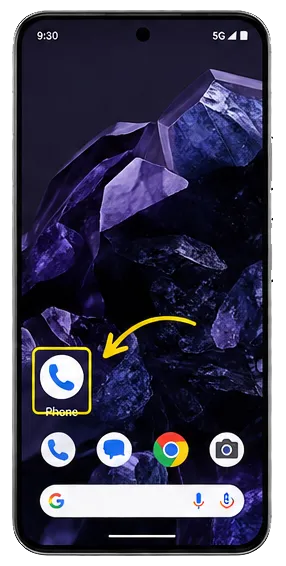
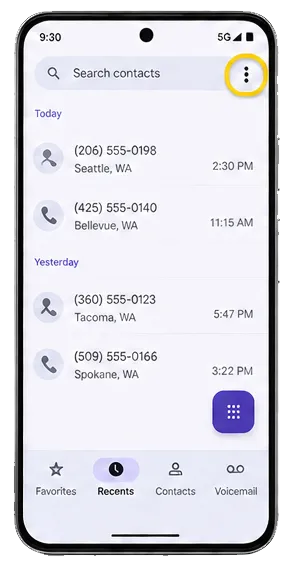
- Tap the three-dot menu (⋮) in the upper-right corner
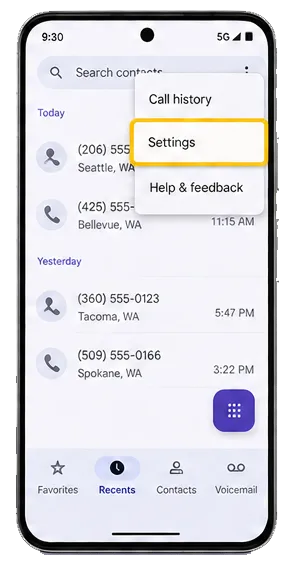
- Select Settings from the dropdown
- Scroll down and tap Voicemail
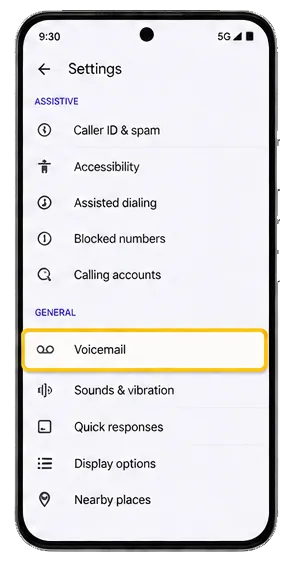
- Find the Visual voicemail toggle and turn it ON.
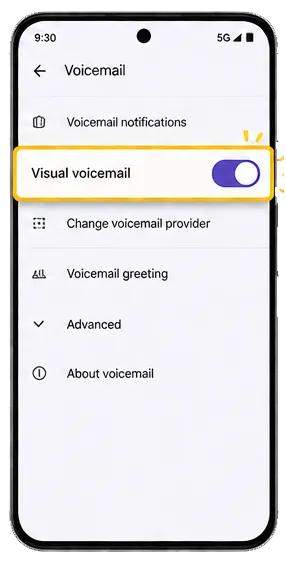
When you turn this on, the Phone app will display a Voicemail tab at the bottom of the screen (or as a tab option). This is where your visual voicemails will appear.
Alternative Method: Press and Hold 1
You can also initiate voicemail setup by pressing and holding the 1 key on the dialpad within the Phone app.
This connects you to your carrier’s voicemail system to set up your mailbox, greeting, and PIN if you haven’t done so already.
After setting up the traditional voicemail box, the visual voicemail toggle in settings should become active.
Once you have visual voicemail activated, it’s time to enable transcriptions, so that you can read the received voicemail insted of listeing to it.
Follow the guide Turn Your Voicemails to Text on Android on non-Pixel Android phones.
Enabling Voicemail Transcriptions
If you want text transcriptions of your voicemails (where supported by your carrier):
- Go to Phone app > three-dot menu > Settings > Voicemail
- Turn on the Voicemail transcription toggle
When transcription is enabled, you’ll see a text preview of each voicemail’s content below the caller information in the Voicemail tab.
Enable Native Visual Voicemail on Pixel: Carrier-Specific Configuration
Things to Know
The Phone app is just a client that connects to your carrier’s voicemail server. If the carrier doesn’t support VVM or hasn’t properly provisioned it for your line, no amount of phone tinkering will fix it.
Enable Native Pixel VM on AT&T
On AT&T, the setup follows the standard method:
- Open the Phone app > three-dot menu > Settings > Voicemail
- Toggle Visual voicemail ON
- If you see the “Introducing visual voicemail” prompt, select OK, got it
Alternative: Press and hold 1 on the dialpad. If prompted, enter your voicemail password and follow the prompts to set up voicemail.
If you’ve forgotten your existing voicemail password, you’ll need to reset it with AT&T before you can access voicemail.
Enable Native Pixel VM on T-Mobile
T-Mobile’s visual voicemail setup may require:
- Ensure the Visual Voicemail app is installed on your device
- On the home screen, swipe up to open the app menu
- Select Visual Voicemail (may appear as “Visual Voicemail”)
- Tap START and follow the prompts
- Grant any permission requests that appear
Note: On some T-Mobile Pixel devices, visual voicemail works natively through the Phone app without needing a separate carrier app. The carrier’s app may be present as a fallback or alternative.
Verizon’s visual voicemail situation is more nuanced. Here’s what you need to know:
If you have Basic Visual Voicemail:
You’ll see the Voicemail tab in the Phone app, but you’ll only get audio messages—no floating text transcriptions.
The Phone app functions as a convenient interface for your traditional voicemail, but you don’t get the full visual experience.
If you have Visual Voicemail Enhanced (Premium):
You’ll get full visual voicemail with transcriptions appearing directly in the Phone app. This is a paid add-on.
If your Verizon-branded Pixel doesn’t show the feature:
Pixel devices do not come preloaded with Verizon apps. The Google Phone app is the default and provides the visual voicemail interface.
Open the Phone app > three-dot menu > Settings > Voicemail and enable your preferred settings. Then return to the Phone app main screen and select the Voicemail tab.
Important: Verizon is known for not permitting visual voicemail unless subscribers opt for their premium plan. This applies even to MVNOs using the Verizon network like Visible, Spectrum, and other.
Enable Native Pixel VM on Visible and US Mobile
Visible and US Mobile users report significant issues. Both carriers operate on Verizon’s network as Mobile Virtual Network Operators (MVNOs). Problems with Pixel native VVM are widespread.
You can use traditional and Phone app method to enable it on Visible and US Mobile carriers.
Enable Native Pixel VM on International Carriers
France – Free Mobile: Free Mobile users have reported needing to activate visual voicemail through their online account first:
- Log into your Free Mobile account (Espace Abonné)
- Under “My Mobile Plan” (Mon Forfait Mobile), click “My Options” (Mes Options)
- Find “Visual Voicemail” (Messagerie Vocale Visuelle) and click “Activate” (Activer)
- Restart your smartphone
If the option doesn’t appear in the Phone app settings, ensure your carrier is selected in Advanced Settings > Service.
This was the complete guide to activating the native visual voicemail on your Pixel phone.
Let’s know a bit about the basic difference between the traditional voicemail and native visual voicemail.
Native Visual Voicemail vs Traditional Voicemail
| Feature | Traditional Voicemail | Native Visual Voicemail |
|---|---|---|
| Access method | Call your number, press 1, enter PIN | Open Phone app > Voicemail tab |
| Message visibility | Audio only, in chronological order | List with caller, time, and length |
| Playback control | Must listen in order | Tap any message, play instantly |
| Transcription | Not available (audio only) | Text transcription available on many carriers |
| Return calls | Must write down or remember number | Tap caller ID to return call |
| Deletion | Navigate menu system | Tap delete |
| PIN required | Yes, to access mailbox | No PIN needed within the Phone app |
Visual Voicemail toggle Is Greyed Out
This is the most common frustration. You open the Phone app, navigate to Settings > Voicemail, and the Visual voicemail toggle appears greyed out.
You cannot tap it. Below the toggle, you may see a message: “This carrier may not support visual voicemail.”
Why This Happens
The toggle is greyed out because your carrier is not sending the signal to enable the feature.
This happens for three main reasons:
- Your carrier does not support native VVM on Pixel.
- Your current plan does not include Visual Voicemail.
- Your carrier requires you to use their proprietary app instead.
The Phone app detects your carrier configuration. If the carrier settings do not support VVM, the toggle remains inactive.
No amount of tapping or restarting changes this. The solution requires addressing the carrier side of the equation.
What to Do When the Toggle Is Greyed Out
First, verify with your carrier whether they support Visual Voicemail on Pixel. Some carriers only support VVM through their own apps. Others support it but require specific plan tiers.
Second, if your carrier supports VVM but the toggle remains greyed out, ask them to reprovision your account.
This resets the carrier settings on their side. After reprovisioning, restart your Pixel and check the toggle again.
Third, confirm that your Phone app is up to date through the Play Store. Outdated versions may have compatibility issues with carrier configurations.
Visual Voicemail that previously worked can suddenly stop functioning. Multiple reports document this exact scenario.
Phone App Version 148 Bug
A significant bug appeared in Phone app version 148. Users with Pixel 8 devices reported that updating to version 148 broke Visual Voicemail entirely.
Rolling back to version 125 restored functionality immediately. This indicates that some Phone app updates introduce compatibility issues with certain carriers .
To roll back the Phone app:
- Open the Play Store
- Search for Google Phone
- Tap Uninstall updates if available
- Restart your device
- Check the Voicemail settings
Disable automatic updates to prevent the buggy version from reinstalling until a fix is confirmed.
eSIM vs. Physical SIM
Visible users report that switching from physical SIM to eSIM caused their Visual Voicemail to stop working.
The activation process would hang indefinitely. The carrier escalated the issue but could not resolve it .
If you recently switched to eSIM and lost VVM, consider requesting a physical SIM from your carrier.
Some users report that physical SIMs work more reliably for Visual Voicemail on Pixel.
Android 15 and 16 Compatibility
Android updates can affect VVM functionality. A Pixel 8 Pro user with Android 15 reported that Visual Voicemail transcription stopped working while the basic listing still functioned.
Another user noted that notification sounds changed after updating to Android 15, and the Visual Voicemail settings became greyed out and non-configurable.
Android 16 users on newer devices like the Galaxy S26 are covered by carrier tutorials, but Pixel users on Android 16 should expect carrier-level compatibility to remain the determining factor.
Call Forwarding Conflicts
Call forwarding can disrupt Visual Voicemail. If you have call forwarding enabled, your carrier may route calls differently, preventing the VVM system from capturing messages.
Turn off call forwarding temporarily and test whether VVM resumes.
The Workaround: YouMail and Google Voice
When your carrier does not support native Pixel Visual Voicemail, third-party services provide excellent alternatives.
Both YouMail and Google Voice offer visual voicemail with transcription without requiring carrier support.
Now you know everything about enabling native VM on Pixel, it’s time to fix some common errors that can come to the surface while enabling it.
Pixel Native VM Setup: Common Problem Troubleshooting
“Activating Voicemail” Never Completes
Problem: You turn on the Visual voicemail toggle, but it stays stuck on “Activating” indefinitely.
Why this happens: This is almost always a carrier provisioning issue. Your carrier hasn’t properly set up visual voicemail on your line.
Solutions:
- Contact your carrier’s support and specifically ask them to provision visual voicemail on your line. General support agents may not understand what you’re asking—be persistent and specific.
- If you’re on a Verizon MVNO (like Visible or Spectrum), you may need to escalate to higher-level support.
- Try restarting your phone after enabling the toggle.
- Check if your carrier requires a separate app to be installed. If so, the Phone app’s visual voicemail will turn itself off to avoid conflict.
Visual Voicemail Notification Not Working
Problem: You receive voicemails but don’t get notifications, or the notification sound is wrong.
Solutions:
- Go to Phone app settings, not system notification settings. The key is to understand that you’re dealing with a Phone app notification setting, not a carrier issue.
Mentioning “visual voicemail” to support will send you down the wrong path—clarify that you’re having trouble with Phone app notification settings. - Open Phone app > three-dot menu > Settings > Voicemail > Notifications. You should see a range of options here.
- Try changing the notification sound to a different one and test again.
- If everything is greyed out in Visual Voicemail settings, try clearing the Phone app’s cache and storage, then set up Visual Voicemail again.
- Test in Safe Mode to rule out third-party app interference.
Visual Voicemail Stopped Working After an Android Update
Problem: Visual voicemail worked fine on Android 14 but stopped after updating to Android 15.
Why this happens: This isn’t the first time this issue has occurred with an Android version update.
There appears to be something that goes awry between carriers and the Google Phone app/Pixel phones when there’s an Android version change.
Solutions:
- This is often temporary—wait for an update from either Google or your carrier.
- For some users on Google Fi, visual voicemail continues to work without issues through Android updates.
- Check if the problem resolves after the next monthly security update.
Visual Voicemail Transcription Not Working
Problem: Visual voicemail works (audio messages appear), but transcriptions don’t show up.
Why this happens: You can only see or use as many voicemail features as your carrier provides.
The phone can only add extra features in the voicemail app—the carrier ultimately controls what’s available.
Solutions:
- Verify with your carrier that you’re subscribed to a plan that includes visual voicemail with transcription.
On Verizon, you may need “Visual Voicemail Enhanced” or a premium plan. - Check that Voicemail transcription is enabled: Phone app > Settings > Voicemail > toggle on Voicemail transcription.
- If you’re using a carrier-branded voicemail app, the Phone app’s transcription feature will turn off to avoid conflicts.
“My Carrier Says Everything Is Fine on Their End”
Problem: After contacting your carrier, they claim nothing is wrong, but visual voicemail still doesn’t work.
What’s happening: This is surprisingly common. Remember: voicemail is a feature provided and supported by your mobile carrier. The Phone app is just a client.
However, there’s an interoperability component too—a lot of voicemail provisioning on Pixel phones involves Google, not just the carrier.
Solutions:
- Escalate with your carrier. Basic-level support often can’t diagnose provisioning issues.
Ask to speak to someone at a higher level who understands how to properly set up Visual Voicemail. - Try the “Take a Message” feature in the Phone app as a temporary workaround (more on this below).
- If you recently switched to an eSIM, this can trigger provisioning issues—ask your carrier to reprovision your line.
- Some users report that waiting for a monthly update eventually resolves the issue.
KEY TAKEAWAYS
- Visual voicemail is carrier-dependent. Always check with your carrier first.
- Enable it through: Phone app > three-dot menu > Settings > Voicemail > Visual voicemail toggle.
- Transcriptions require carrier support and sometimes a premium plan.
- Use “Take a Message” as a carrier-independent alternative.
- The Phone app disables VVM if it detects a carrier-specific voicemail app.
- For troubleshooting, know what you’re actually dealing with: carrier service vs. Phone app interface.
PIXEL GUIDE TO EXPLORE
- Take a Message Not Working? 9 Fixes for Pixel
- Take A Message Not Showing on Your Pixel?
- Conditional Call Forwarding Is Blocking Take a Message?
- How to Set Up “Take a Message” on Google Pixel
Frequently Asked Questions
Why is Visual Voicemail not working on my Pixel?
Visual Voicemail is controlled by your carrier. If your carrier does not support native VVM, the toggle remains greyed out. If your carrier supports it but the configuration is incorrect, you may see an endless activation spinner.
Does Verizon support native Pixel Visual Voicemail?
Yes, but with a tiered approach. Basic VVM shows message lists without transcription. VVM Enhanced provides transcription for an additional fee.
Why can’t I find the Visual voicemail toggle in settings?
If the toggle doesn’t appear, it could mean:
1. Your carrier doesn’t support visual voicemail on your line
2. The Phone app isn’t recognizing your carrier’s VVM compatibility
3. A carrier-branded visual voicemail app is already installed and has disabled the native option.
Can I use native visual voicemail with a carrier app installed?
No. When you use your mobile carrier’s voicemail app, the visual voicemail feature on Google’s Phone app turns off automatically to avoid potential conflict.
Final Words
Native visual voicemail on Pixel delivers the cleanest possible voicemail experience—no carrier-branded apps, no outdated phone-tree navigation. However, its success hinges almost entirely on your carrier. The Google Phone app provides the interface, but the carrier provides the service.
References