

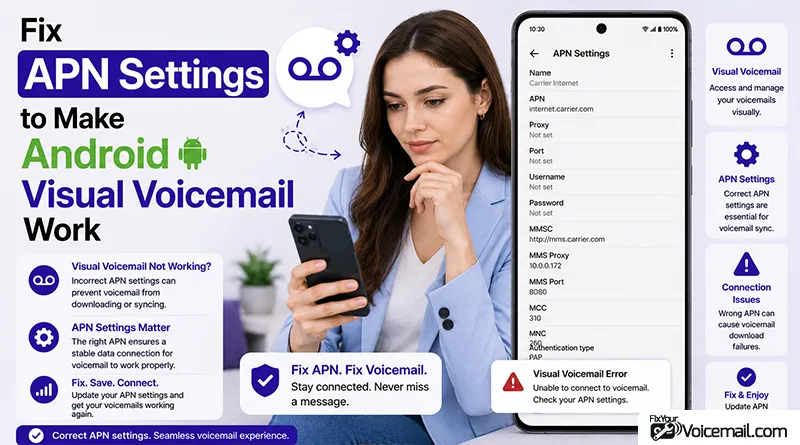
Visual voicemail was working fine on your Android phone, then a system update ran overnight, or you swapped in a new SIM card(read Android Voicemail Missing After SIM Change), and now the inbox is blank, messages won’t load, or the voicemail tab has disappeared entirely.
You’ve cleared the app cache, restarted the phone, and checked your signal. Nothing changed.
Visual Voicemail shows “Can’t Update” or just says “Call Voicemail” even though your plan includes it. You’ve cleared cache, restarted, updated Android – still broken.
The culprit is almost always your APN settings, especially if you switched carriers, use Mint Mobile or Visible, or recently updated to Android 15/16.
Quick Fix First
- Open Settings on your Android device.
- Tap Network and Internet (on Samsung, tap Connections instead).
- Tap SIMs or Mobile Network, then select your active SIM if prompted.
- Tap Access Point Names.
- Tap the three-dot menu() in the upper right corner and select Reset to Default.
- Restart your phone.
- Open your voicemail app or the Phone app’s voicemail tab and test with a new message.
Address the real frustration, visual voicemail was working, then an update broke it, or a new SIM card changed everything. Promise the carrier table, the APN type explanation, and eSIM paths, all in one place.
What Is an APN and Why Does It Control Visual Voicemail?
APN stands for Access Point Name. It’s a configuration profile stored on your Android device that tells your phone how to connect to your carrier’s data network for different types of traffic.
Your phone doesn’t use a single connection for everything. It uses separate data channels for general internet browsing, MMS picture messages, IMS (which handles VoLTE calling), and visual voicemail.
The APN type field in your configuration is what tells Android which channel to use for each traffic type.
When the APN type field doesn’t include the voicemail tag, your phone has no designated path to reach your carrier’s voicemail server.
The app may still open, but it can’t authenticate with the server or download message metadata, so the inbox stays blank.
This is also why a system update can break visual voicemail without touching the app at all.
Android updates can reset APN type fields back to factory values, stripping out carrier-specific flags like the voicemail designation that were previously added either by your carrier during provisioning or manually by you.
The internet still works, calls still work, and the visual voicemail app opens fine. But the data path to the voicemail server is gone.
Major Voicemail Errors Caused by APN
Why APN break Visual Voicemail?
Visual Voicemail relies on proper network provisioning, data connectivity, and carrier-side setup.
Common triggers include software updates overwriting settings, SIM changes, incorrect APN, weak mobile data, or conflicts with Wi-Fi calling.
APN settings define how your phone connects to the carrier’s data network, directly impacting voicemail data exchange.
Without the right APN, your device may connect for calls and basic data but fail VVM-specific provisioning, leading to “activating” messages or no inbox.
Quick Check: Is APN Your Problem?
- Visual Voicemail worked before carrier switch? Likely APN.
- Using Mint Mobile, Visible, US Mobile? Almost certainly APN.
- Error “Can’t Update Visual Voicemail”? APN.
- Works on Wi-Fi calling but not mobile data? APN.
Reset APN to Defaults – All Versions
Pixel / Stock Android 15/16:
- Go To Settings > Network & internet > SIMs > select SIM.
- Open Access Point Names.
- Tap 3-dot() menu > Reset to default.
- Restart phone.
Samsung One UI 6:
- Go to Settings > Connections > Mobile networks > Access Point Names.
- Tap 3-dot() menu > Reset to default.
- Restart phone.
OnePlus OxygenOS:
- Go to Settings > Wi-Fi & Network > SIM & Network > APN.
- Tap Reset.
- Restart phone.
After reset, remove SIM and reinsert – this forces carrier to push APN again.
How to Manually Edit the APN Type Field?
The APN type field is a comma-separated list that tells Android what kinds of data traffic this APN profile handles. A standard consumer APN type might read: default,supl,mms. For visual voicemail to work, the word voicemail needs to be in that list.
Here’s how to check and add it.
Step 1: Navigate to your APN settings.
- On Samsung: Settings, then Connections, then Mobile Networks, then Access Point Names.
- On Pixel and stock Android: Settings, then Network and Internet, then SIMs, then Access Point Names.
- On older Android builds: Settings, then More Networks or Wireless and Networks, then Mobile Networks, then Access Point Names.
Step 2: Open your active APN profile.
Tap the profile that has a filled circle or dot next to it. That’s the one currently in use.
Step 3: Find the APN Type field.
Scroll down through the profile fields until you see APN Type. It will contain a string like default,supl or default,supl,mms.
Step 4: Add voicemail to the string.
Tap the APN Type field. Add voicemail to the end of the existing string. The result should look like: default,supl,mms,voicemail
Do not add spaces after the commas. Spaces will break the field.
Step 5: Save the profile.
Tap the three-dot menu in the upper right and select Save.
Step 6: Restart your phone.
APN changes don’t take effect until the device re-registers on the network, which a restart handles cleanly.
Step 7: Test visual voicemail.
Open the voicemail app or the Phone app’s voicemail tab. Leave yourself a test voicemail from another phone and wait 30 seconds to see if it appears.
Carrier Specific APN Settings
If your APN profile is missing or has incorrect values beyond just the type field, use this table to verify or recreate the correct settings for major US carriers.
AT&T
| Field | Value |
|---|---|
| Name | AT&T |
| APN | phone |
| MCC | 310 |
| MNC | 410 |
| APN Type | default,supl,mms,voicemail |
| APN Protocol | IPv4/IPv6 |
For Cricket Wireless (which runs on AT&T’s network), the APN is phone and the MNC is 150. The voicemail APN type applies the same way.
T-Mobile
| Field | Value |
|---|---|
| Name | T-Mobile |
| APN | fast.t-mobile.com |
| MCC | 310 |
| MNC | 260 |
| APN Type | default,supl,mms,voicemail |
| APN Protocol | IPv4/IPv6 |
Metro by T-Mobile uses the same APN (fast.t-mobile.com) with MNC 260. Voicemail type applies identically.
Verizon
| Field | Value |
|---|---|
| Name | Verizon |
| APN | vzwinternet |
| MCC | 311 |
| MNC | 480 |
| APN Type | default,supl,mms,voicemail |
| APN Protocol | IPv4/IPv6 |
APN Settings: Samsung vs Pixel Differences.
Samsung hides APN under Connections, not Network & internet. Also, Samsung’s Phone app uses separate Visual Voicemail settings: Phone app > 3 dots > Settings > Voicemail > Visual voicemail – toggle off/on after APN fix.
Test Your Fix
- Open Phone app > Voicemail – should show inbox not “Call Voicemail”.
- Dial *86 – should not be required anymore.
- Turn off Wi-Fi, ensure mobile data on – Visual Voicemail should update.
Advanced Troubleshooting and Error Fixes.
- Call Forwarding Errors: In Phone app > Settings > Calling accounts > [SIM] > Call Forwarding. Set busy/unanswered/unreachable to your voicemail number (from Advanced Voicemail Setup).
- Wi-Fi Conflicts: Set Voicemail app to “Mobile data only” in app data usage settings. Disable Wi-Fi temporarily during activation.
- eSIM / Dual SIM: Ensure correct SIM is default for data.
- Reset network settings: Settings > System > Reset options > Reset Wi-Fi, mobile & Bluetooth.
- After OS Update: Re-provision by toggling VVM and re-entering APN.
Test by having someone leave a voicemail and checking for notification and inbox update.
Final words
Getting Visual Voicemail working transforms how you manage messages. With the right APN and steps tailored to your setup, you can enjoy seamless access. Test thoroughly and maintain your settings for reliability. If issues persist, your carrier can often reprovision quickly.
References: