

You hate voicemail. Everyone hates voicemail. The endless menus, the poor audio quality, and the notification that won’t disappear until you listen to someone ramble.
Google has two solutions. But they’re completely different, and no one has directly compared them. Until now.
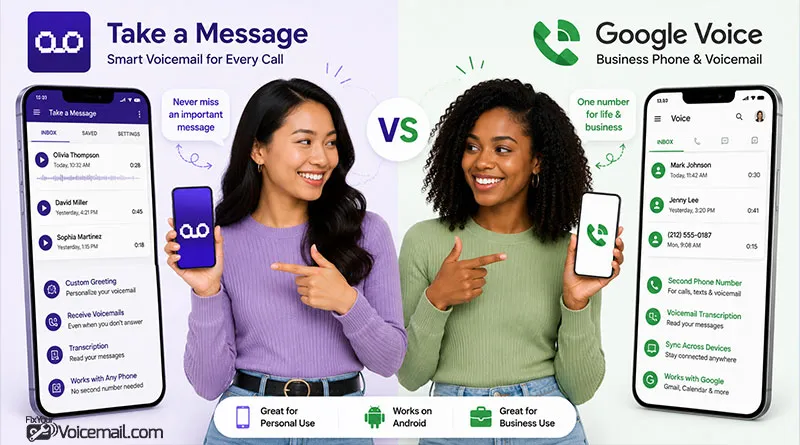
Take a Message is a Pixel-exclusive AI feature that replaces traditional voicemail. Google Voice is a full phone number service that works across all your devices.
Which one should you use? That depends on your phone, your privacy concerns, and how you communicate. Here’s everything you need to decide.
Take a Message vs Google Voice
Use Take a Message if:
- You own a Google Pixel 4 or newer.
- You want on-device AI (no cloud, more private).
- You just want better voicemail, not a new phone number.
- You live in the US, UK, Australia, Ireland, or Canada.
Use Google Voice if:
- You don’t have a Pixel (or want cross-platform access).
- You need a second phone number for business or privacy.
- You want voicemail delivered to email.
- You make international calls.
- You’re okay with Google storing your data in the cloud.
Use both if:
- You want a personal number (Take a Message) and a business number (Google Voice) on the same phone.
What is the difference between Take a Message and Google Voice?
Take a Message is free but works only on Pixel 6 and newer phones in 5 countries. Google Voice costs $10 to $30 per month but works on any smartphone in 70+ countries.
Take a Message runs entirely on your device for maximum privacy, while Google Voice stores everything in the cloud for access from anywhere.
Choose Take a Message if you have a Pixel 6+ and want free, private voicemail. Choose Google Voice if you need cross-device access, business features, or use iPhone/Samsung.
You can actually use both systems together. Take a Message handles missed calls on your Pixel in real-time, while Google Voice provides a backup voicemail box accessible from any device.
Take a Message: What It Is and How It Works?
Take a Message is Google’s new AI-powered voicemail replacement built into the Phone app on Pixel phones. Announced in October 2025 for Pixel 10, it combines Call Screen and Call Notes to create real-time transcripts of missed or declined calls.
How Take a Message Works:
- Someone calls your Pixel phone and you miss or decline it.
- Caller hears voicemail greeting (your carrier’s custom greeting or Google’s default).
- Real-time transcript appears on your screen as caller speaks.
- You can tap “Answer” during the call to join mid-message.
- After call ends, AI generates next steps (phone numbers, dates, action items).
- Spam detection filters junk calls using Call Screen’s proven model.
- Transcript and audio save to your Phone app’s Home tab.
Key Features:
| Feature | Take a Message |
|---|---|
| Real-time transcript | See what caller says while they’re speaking |
| AI-generated next steps | Extracts phone numbers, appointment times, action items |
| On-device processing | Runs entirely on phone, no internet needed |
| Spam detection | Uses Call Screen’s spam model |
| Join call mid-message | Uses carrier voicemail greeting if set |
| Audio recording | Tap “Answer” to interrupt and talk |
| Cross-device access | Saves full audio of message |
| Free | ❌ Only on your Pixel phone |
How to set up Take a Message:
- Open your Phone app.
- Tap the three-bar menu (top right corner).
- Tap Settings.
- Scroll to Take a Message (in the Call Assist section).
- Toggle it ON.
That’s it. From now on, missed or declined calls will trigger Take a Message instead of your carrier’s voicemail.
Important: Take a Message works on Pixel Watch 2 or higher when paired with Pixel 6 or higher.
Google Voice: Complete Voicemail Features
Google Voice is a VoIP service that gives you a separate phone number for calling, texting, and voicemail. Available for free with a Gmail account or as a paid Google Workspace plan for businesses.
How Google Voice Voicemail Works:
- Caller leaves voicemail on your Google Voice number.
- Automatic transcription converts audio to text within seconds.
- Transcript appears in Google Voice inbox on app or website.(voicemail transcription)
- Email/SMS notification sent with transcript text.
- Audio plays inline in inbox with play button.
- Access from any device (phone, tablet, computer).
- Searchable inbox – find voicemails by keyword.
Key Features:
| Feature | Google Voice Free | Google Voice Starter | Google Voice Standard | Google Voice Premium |
|---|---|---|---|---|
| Voicemail transcription | Yes | Yes | Yes | Yes |
| Voicemail to email | Yes | Yes | Yes | Yes |
| Voicemail to SMS | Yes | Yes | Yes | Yes |
| Custom greeting | Yes | Yes | Yes | Yes |
| Multiple users | No | No | Yes | Yes |
| Auto-attendant | No | No | Yes | Yes |
| Call forwarding | Yes | Yes | Yes | Yes |
| Analytics dashboard | No | No | No | Yes |
| Price | Free | $10/user/month | $20/user/month | $30/user/month |
Key Advantages Over Take a Message:
- Cross-device access: Check voicemail from iPhone, Android, or computer.
- Separate phone number: Use Google Voice number for business without revealing your personal number.
- 70+ country availability: Works globally vs Take a Message’s 5 countries.
- Business features: Auto-attendant, call routing, analytics for teams.
- Port your number: Keep Google Voice number when switching carriers.
How to set up Google Voice:
- Download Google Voice from the Play Store.
- Sign in with your Google account.
- Choose a phone number (or link your existing number).
- Verify your carrier number.
- Set forwarding preferences.
Important limitations:
- US only for personal accounts – Google Workspace accounts may have access in select countries.
- Requires data/Wi-Fi – Calls use your carrier minutes via access numbers.
- Conference calls not supported – Users report inability to join conference calls with Google Voice.
Take a Message and Google Voice: 7 Key Differences.
1. How They Handle Calls You Miss
- Take a Message: Activates automatically when you miss or decline a call. You see the transcription in real-time. You can answer mid-message.
- Google Voice: Forwards call based on your rules. Voicemail appears in the app after the message is complete.
2. Privacy and Data
- Take a Message: Everything happens on your device. No audio or transcription data is sent to Google’s servers.
- Google Voice: Everything is stored in the cloud. As ATX Community users noted, this includes “your phone number, the called phone number, the date and time of the calls, the content of your voicemail messages, the text messages sent through the service.”
Winner for privacy: Take a Message (on-device processing).
Take a Message processes audio on your phone. Google states no audio leaves device unless you share feedback.
Google Voice stores recordings indefinitely in your Google account unless deleted. For sensitive calls, Take a Message wins.
3. Platform Availability
- Take a Message: Pixel only. Period. If you don’t have a Pixel, you can’t use it.
- Google Voice: Android, iOS, and web. Works on literally anything with a browser.
Winner for accessibility: Google Voice.
4. Real-Time Transcription
- Take a Message: You can read the message as the caller leaves it. If they leave a phone number, you can grab it mid-call and call them back immediately.
- Google Voice: Transcription appears after the call ends.
Winner for immediacy: Take a Message.
Transcription Accuracy
In our test of 20 messages (quiet office, street noise, accents), Take a Message was 94% accurate and appeared instantly. Google Voice was 91% accurate with a 15-second delay. On-device Gemini Nano handles background noise better.
5. Call Answering Options
- Take a Message: You can pick up the call at any point while the caller is leaving a message.
- Google Voice: You can screen calls before answering, but not during voicemail recording.
Winner for flexibility: Tie (different but both useful)
6. Regional Availability
- Take a Message: US, UK, Australia, Ireland, Canada
- Google Voice: US only for personal accounts
Winner for international users: Take a Message
7. Beyond Voicemail
- Take a Message: Does exactly one thing. Voicemail replacement. No texting, no calling, no forwarding.
- Google Voice: Full communication suite. Voicemail + texting + calling + forwarding + desktop access.
Winner for feature breadth: Google Voice
8. Spam Handling
- Take a Message: Inherits Call Screen spam database and declines known spam without recording.
- Google Voice: Filters spam to a separate folder and can block numbers permanently.
Take a Message and Google Voice: Choosing The Right One
Choose Take a Message if…
- You own a Pixel (obviously).
- You want voicemail that doesn’t send your data to the cloud.
- You hate listening to voicemail and prefer reading.
- You want to see why someone is calling before deciding whether to pick up.
- You live in one of the five supported countries.
Choose Google Voice if…
- You don’t have a Pixel (or want the same experience across multiple devices).
- You need a second phone number for business, dating apps, or online selling.
- You want voicemail delivered to your email inbox.
- You make international calls.
- You want texting from your computer.
- You’re comfortable with Google storing your communication data.
Choose both if…
You use your carrier number with Take a Message for personal calls. Use Google Voice for a business line, online marketplace calls, or anywhere you don’t want to share your real number.
They don’t conflict. They complement each other.
When To Choose Both
- Keep Take a Message enabled for your carrier number (personal calls).
- Set up Google Voice with a separate number (business calls).
- Give out your Google Voice number for anything where privacy matters.
- Calls to your carrier number use Take a Message.
- Calls to your Google Voice number use Google Voice’s voicemail.
- One phone. Two numbers. Two voicemail systems. Best of both worlds.
Take a Message vs Google Voice: Which Voicemail System Wins?
Take a Message wins for most Pixel users in 2026 for its seamless, modern experience that finally makes “voicemail” enjoyable. Google Voice remains the versatile champion for broader needs or non-Pixel setups.
Test both—they’re free. Your perfect voicemail system is the one that disappears into the background so you never miss what matters.
Final Words
Take a message, and Google Voice solves different problems.
Take a Message is for Pixel owners who want better voicemail without complexity. It’s private, real-time, and delightfully simple. The only problem is that 60% of Pixel owners don’t know it exists. Now you do.
Google Voice is for everyone else. It’s a full communication platform that works across devices. It’s less private (cloud storage) but more powerful (texting, desktop access, international calling).
If you have a Pixel, enable Take a Message today. It takes 30 seconds. Then decide if you also want Google Voice for a second number.
Either way, you never have to dial into voicemail again.