

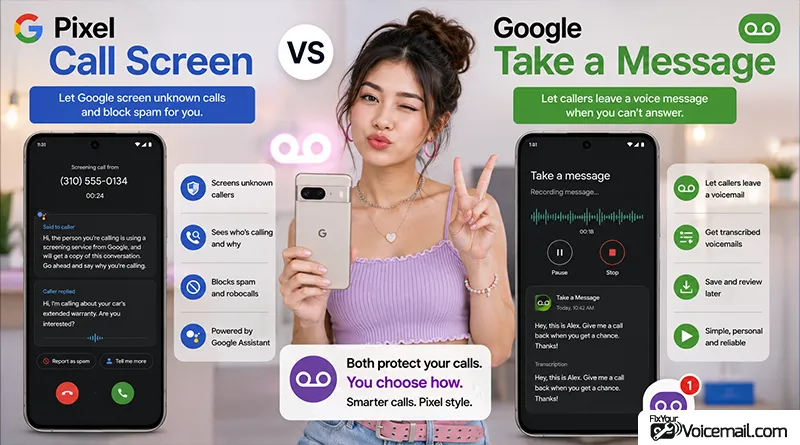
If you own a Google Pixel phone, you’ve probably noticed two powerful call management features: Call Screen and Take a Message. Both help you deal with incoming calls, but they work differently and serve different purposes.
Many people use them without understanding the full picture.
Call Screen vs Take a Message: The simplest difference
- Call Screen = screen the caller first. You interact with the caller through Google before deciding whether to answer.
- Take a Message = let the caller leave a message.
Google handles the missed/declined call, records it, and can show you a live transcript.
Call Screen is for deciding whether to answer. Take a Message is for finding out what you missed.
This guide explains exactly what each feature does, how they compare, when to use each one, and how they work together to create a complete call management system.
By the end, you’ll know exactly which settings to choose for your needs.
What is the difference between Call Screen and Take a Message?
Call Screen actively answers unknown calls, asks the caller for name and reason, and shows you a live transcript so you can decide to answer.
Take a Message answers missed or declined calls like on-device voicemail, creates a real-time transcript with AI next steps, and does not use carrier voicemail.
Pixel Call Screen answers unknown or suspicious calls while they are still ringing so you can decide whether to pick up. Take a Message activates only after you miss or decline a call and records a transcribed message for you.
They are designed to work together, not replace each other. This guide explains the exact differences, shows practical scenarios, and gives you a clear decision framework for 2026.
Call Screen vs Take a Message: Side-by-Side Comparison
Here is the comparison table to understand the difference between Call Screen and Take a Message:
| Feature | Call Screen | Take a Message |
|---|---|---|
| When it activates | During an incoming call, before you answer | After you miss or decline a call |
| Purpose | Decide whether to answer | Get information from missed calls |
| Caller experience | AI asks questions before connecting | Standard voicemail greeting |
| User experience | Real-time transcript during call | Transcript in call history |
| Spam handling | Screens and blocks spam automatically | Filters spam from messages |
| Action options | Answer, decline, or use suggested responses | Call back or view transcript |
| Replaces | Voicemail (optional) | Traditional carrier voicemail |
| Integration | Works with Phone app | Works with Phone app |
The key difference is when they intervene: Call Screen screens calls before you answer; Take a Message handles calls after you’ve missed or declined them. They work together seamlessly, not in competition.
For those who are new to these terms or planning to switch to Google Pixel phone for better call and privacy management. Let me introduce some basic features of Google Call Screen and Google Take a Message in short.
What Is Pixel Call Screen?
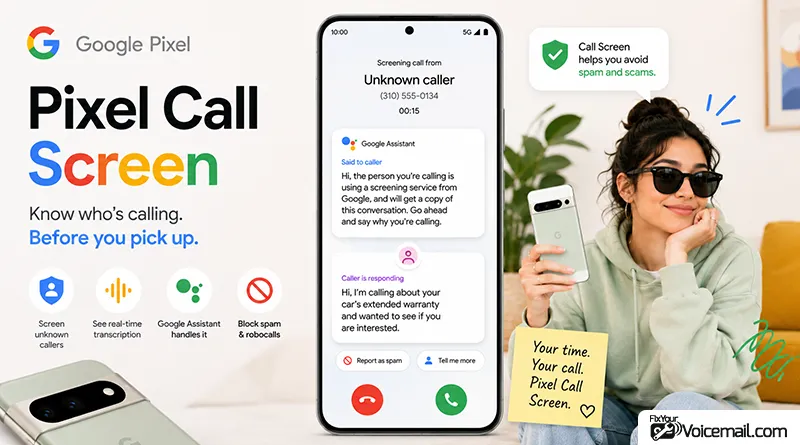
Pixel Call Screen is a Google Assistant-powered feature that answers incoming calls for you, asks the caller for their name and reason for calling, and provides a real-time transcript so you can decide whether to answer, decline, or send the call to voicemail.
Call Screen acts as a digital gatekeeper for your phone calls. When someone calls, you can tap the “Screen call” button instead of answering directly. Your Pixel will answer the call and use Google Assistant to ask questions like “Who’s calling?” and “What’s this about?”
The caller’s responses appear as text on your screen in real time. You can read what they say while they’re still speaking, then decide to pick up, hang up, or choose from suggested responses like “Is it urgent?” or “I’ll call you back.”
How Call Screen Works
Call Screen uses Google Assistant to handle incoming calls. The process is straightforward:
- A call comes in from a number not in your contacts
- You tap “Screen call” on your Pixel screen
- Google Assistant answers the call and asks the caller for their name and purpose
- You see the transcript on your screen as the caller responds
- You decide to answer, decline, or use a suggested response
The feature works entirely on your device and doesn’t use Wi-Fi or mobile data. Calls answered by Call Assist are treated the same as regular incoming calls.
Google Call Screen Levels
Google simplifies Call Screen with three protection levels that determine how aggressively the feature screens calls.
| Protection Level | What It Does | Best For |
|---|---|---|
| Basic | Declines known spam calls only | Most users; blocks obvious spam without interfering with legitimate calls |
| Medium | Declines spam AND screens suspicious calls | Users who want extra protection but don’t want to screen all unknown numbers |
| Maximum | Declines spam AND screens ALL unknown numbers | Heavy spam targets; users willing to risk some legitimate callers hanging up |
What happens in practice: Call Screen became simpler to understand when Google consolidated its settings. Instead of granular controls for each caller type, you now choose your protection level.
Real-world results
A week-long test of Maximum protection showed impressive spam blocking. Spam callers often hung up immediately when asked for their name and purpose. However, some legitimate first-time callers also hung up when faced with the screening prompt.
Where Call Screen Is Available?
Call Screen availability depends on your location:
- Automatic Call Screen: Available on all Pixel phones in the United States.
- Manual Call Screen: Available in Australia, Canada, France, Germany, Ireland, Italy, Japan, Spain, the United Kingdom, and the United States.
- Pixel Watch Call Screen: US only, requires Pixel 6 or newer.
If you’re outside these regions, your Pixel may not support Call Screen at all. The feature requires a SIM card from a supported country.
What Is Take a Message?
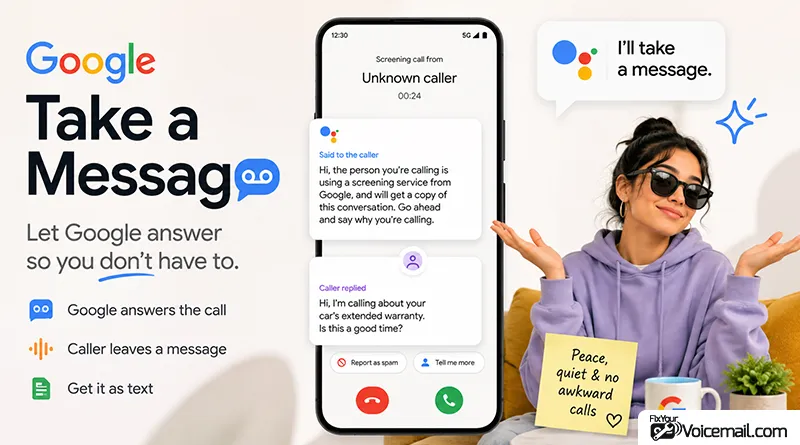
Take a Message is a Pixel feature that replaces traditional voicemail by answering missed or declined calls, taking a voice message, transcribing it in real-time, and displaying the transcript in your call history, with AI-generated next steps summarizing the message.
Take a Message is Google’s modern answer to voicemail. Instead of dealing with clunky carrier voicemail systems, you get a seamless experience integrated into the Phone app. When you miss a call or decline one, Take a Message steps in.
The caller hears a message like “The person you have called is not available. Please leave a message.” As they speak, the phone transcribes their words in real-time.
Follow the guide Setup take a Message on Pixel to know the setup process, set up greetings and check whether the region and Pixel version support the feature.
How Take a Message Works
- You miss or decline an incoming call
- Take a Message answers with a greeting.
- The caller leaves a voice message.
- The message is transcribed in real-time.
- You see the transcript in your call history with a play button to hear the audio.
- AI-generated next steps summarize the message.
Now you know some basics of these call management features on your Pixel phone. Let’s see a detailed comparison and use cases of Google Call Screen and Google Take a Message practically.
Call Screen vs Take a Message: Feature-by-Feature Breakdown
Call Screen advantages:
- Prevents spam calls from reaching you.
- Lets you know who’s calling and why.
- Provides real-time call management options.
- Saves time on unwanted calls.
Take a Message advantages:
- Eliminates carrier voicemail hassles.
- Transcribes messages you can read quickly.
- Shows transcripts in your call history.
- Never miss important information.
Can you use Call Screening and Take a Message at the same time?
Yes, and you should. They form a chain.
Incoming call flow:
- Call arrives > If protection level says screen, you see Screen call button.
- If you tap Screen call > Call Screening handles it.
- If you tap Decline, or don’t answer in 25 seconds > Take a Message takes over instead of carrier voicemail.
- If Take a Message is disabled (Pixel 4 and 5 after privacy bug) > Call falls back to manual and automatic Call Screen options or standard carrier voicemail.
Google confirmed after the mic bug:
“Users can still use manual and automatic Call Screening or their carrier voicemail instead.” The bug affected a very small subset of Pixel 4 and 5 devices under very specific and rare circumstances where mic could stay on. Google disabled Take a Message and next-gen Call Screen features on those devices which no longer receive Android updates.
How Do Call Screen and Take a Message Work Together?
These features form a complete call management system:
- When a call comes in: Call Screen can screen it.
- If you answer: The call proceeds normally.
- If you decline or miss: Take a Message takes over.
- If the caller leaves a message: You see the transcript in your call history.
Call Screen filters out spam before it can even reach Take a Message, making the system more efficient.
The Phone app’s Home tab organizes everything neatly. You can view missed calls, calls from contacts, non-spam calls, spam calls, and call notes.
Which Protection Level Should You Choose?
Choose Basic if you only want spam blocked, Medium if you want spam blocked and suspicious calls screened, and Maximum if you want all unknown numbers screened, understanding that some legitimate first-time callers may be deterred.
Detailed Breakdown
Basic Protection
- What it does: Declines known spam calls.
- Who it’s for: Most users.
- Pros: Blocks obvious spam without interfering with legitimate calls.
- Cons: Less protection against new spam numbers.
Medium Protection
- What it does: Declines spam AND screens suspicious calls.
- Who it’s for: Users getting moderate spam.
- Pros: Extra protection without screening all unknown callers.
- Cons: Some legitimate callers may be screened.
Maximum Protection
- What it does: Declines spam AND screens ALL unknown numbers.
- Who it’s for: Heavy spam targets.
- Pros: Blocks almost all spam.
- Cons: Some legitimate callers may hang up when screened.
Protection Level Recommendations
| User Type | Recommended Level | Reasoning |
|---|---|---|
| Casual user | Basic | Blocks obvious spam, minimal interruption |
| Moderate spam target | Medium | Extra protection, some screening |
| Heavy spam target | Maximum | Maximum protection, but some callers may hang up |
| Business user | Basic or Medium | Critical calls may be lost with Maximum |
| Frequent unknown callers | Basic | Maximum screens all unknown numbers |
Tested performance:
In a week-long Maximum protection test, the system declined confirmed spam numbers, cut off robocallers, and didn’t result in missed appointments or business calls. However, some unknown numbers hung up immediately, so Maximum is best if you can afford to miss occasional calls.
Important:
Call Screen may not work with Bluetooth headsets, during roaming, or when the phone is off. Consider this when choosing your protection level.
Privacy and Data Security
Call Screen and Take a Message process audio and transcripts locally on your device; call content is not sent to Google servers unless you choose to share it, and the audio is not automatically uploaded to the cloud.
Google emphasizes on-device processing for these features. Take a Message runs entirely on your device using the same spam detection model as Call Screen.
Key privacy points:
- Audio and transcripts stay on your phone.
- No automatic upload to Google servers.
- You can delete transcripts and recordings.
- Call Notes (with Gemini Nano) stores data locally.
- Processing happens on-device, not in the cloud.
Call Notes privacy:
Call Notes transcribes and summarizes calls using Gemini Nano. It opens with an audible notification so both parties know recording has started. Recordings stay on your phone, not in the cloud, and you can set auto-delete windows from seven days to a month.
When Should You Rely on Call Screen vs Take a Message?
Use Call Screen as your primary tool when:
- You receive frequent spam or unknown numbers.
- You want maximum interruption protection during work or focus time.
- You prefer to know the caller’s identity and purpose before the phone fully rings.
- You like quick AI or suggested replies without ever speaking.
Use Take a Message as your primary tool when:
- You intentionally decline calls (meetings, driving, quiet hours) but still want the reason.
- You miss calls often and hate traditional voicemail.
- You want real-time transcripts of messages plus AI next steps.
- You value the ability to jump into a message mid-way if it turns out to be important.
Recommendation for most Pixel 6 to Pixel 10 users in US, UK, Canada, Australia, Ireland: Enable Call Screening on Medium protection and Take a Message with custom greeting. This screens spam but captures legitimate missed calls without carrier voicemail.
Best practice for most users: Keep automatic Call Screen on for spam and first-time callers, and leave Take a Message enabled for everything you miss or decline. This combination gives the strongest coverage.
What the Caller Experiences
With Call Screen, the caller hears a polite Google message explaining that a screening service is in use and is asked for their name and reason. Many spam callers hang up at this point.
With Take a Message, the caller hears your greeting (or the default “The person you have called is not available. Please leave a message after the tone”) and can leave a normal message. If you join mid-way, the call continues normally.
Custom greetings are available for Take a Message and make the experience feel more personal.
Google Pixel Call Screen vs. Take a Message: Easy Comparison
Both features help you avoid unwanted interruptions, but they work at different stages of a call. Google describes Call Screen as a way to find out who is calling and why before you answer, while Take a Message handles calls you miss or decline.
| Feature | Google Pixel Call Screen | Google Pixel Call Screen |
|---|---|---|
| Main purpose | Screens a caller before you answer | Takes a message when you miss or decline a call |
| When it works | While an incoming call is ringing | After you miss or decline the call |
| Who talks to the caller? | Google Call Assist screens the caller | Google answers and lets the caller leave a message |
| Real-time transcript | Yes | Yes, in supported regions |
| You can see why they’re calling | Yes | Usually from the message they leave |
| Can you talk to the caller? | You can answer at any time | You can tap Answer while the message is being taken |
| Spam protection | Designed to screen/block spam and suspicious calls | Can detect spam among messages left by non-contact callers |
| Best for | Unknown callers, spam, robocalls, suspicious calls | Calls you don’t want to answer but don’t want to miss |
| Caller leaves a message | Not the primary purpose | Yes |
| Audio recording | Available when recording is enabled | Saved on the phone |
| AI-generated next steps | AI replies are available during supported Call Screen experiences | Available on supported Pixel devices/regions |
| Works without Wi-Fi/mobile data | On-device | On-device |
| Best one-line description | “Tell me who’s calling before I answer.” | “Take a message while I’m unavailable.” |
Frequently Asked Questions
What’s the difference between Call Screen and Take a Message?
Call Screen screens incoming calls before you answer, asking callers for their name and purpose. Take a Message handles calls you miss or decline by taking a voice message with a real-time transcript. Call Screen is proactive; Take a Message is reactive.
Does Call Screen send calls to voicemail?
Call Screen can send calls to voicemail if you choose to decline after screen. If you don’t answer, Take a Message may take over depending on your settings.
Will Maximum protection block legitimate callers?
In testing, Maximum protection didn’t cause missed appointments or business calls, but some unknown callers did hang up. If your job depends on cold calls, use Basic or Medium.
Is Call Screen available on all Pixel phones?
Automatic Call Screen is available on all Pixel phones in the US. Manual Call Screen works in several other countries. Check if your country is supported. Take a Message works on Pixel 4 and newer.
Is Take a Message coming to non-Pixel phones?
Code hints in the Phone app suggest Take a Message may come to non-Pixel Android devices, though it’s not confirmed. The feature likely doesn’t need advanced hardware.
Does Call Screen or Take a Message cost money?
No. Both are free, on-device, and do not use carrier voicemail minutes. They work without mobile data for recording, but transcription improves with internet.
Conclusion:
Enable both Call Screen and Take a Message. Use Call Screen to protect your attention from unknown and spam calls, and let Take a Message capture useful information from the calls you miss or decline. Together they deliver one of the most polished call-handling experiences available on any phone in 2026.
Keep the Phone app updated, review the Home tab regularly, and adjust protection levels to match your tolerance for interruptions. With these two features working in tandem, Pixel call management stays clear, private, and genuinely useful.
Note: This article was last updated in August 2026. Feature availability and functionality may change with software updates. Check Google’s official documentation for the most current information.