

You updated your Android phone last night, and now your voicemail is broken. You can’t see new messages, notifications won’t appear, or the voicemail tab has completely vanished from your Phone app.
A major Android OS or system security update should make your smartphone faster, safer, and more feature-rich.
However, system upgrades frequently disrupt key integrated features like your voicemail system. You’re not alone.
Recent Android 15 and 16 updates have caused widespread voicemail issues, particularly on Pixel devices.
This guide covers eight proven fixes for Android voicemail issues after system updates. We’ll cover Android 14, 15, 16, and later with specific solutions for different carriers and phone models. Check the guide Voicemail not working after Samsung U.I. Update if you are facing the error on your Samsung Android phone.
KEY NOTES
- Voicemail stops working after an Android update primarily because updates can reset app permissions, change call forwarding settings, or conflict with carrier-specific voicemail provisioning.
- Android updates also sometimes require Phone app updates to match the new system version. In many cases, the issue is temporary, like carriers release compatibility fixes within days.
- Always restart your phone after an update, check that the Phone app has all necessary permissions, and contact your carrier if the issue persists.
If you are no longer receiving voicemail notifications, if your Visual Voicemail app is crashing, or if dialer calls to your mailbox fail with network errors, you are dealing with a classic update-related configuration mismatch.
Voicemail issues after Android updates are one of the most common post-update frustrations.
The good news is that you almost certainly don’t need to factory reset your phone, and most fixes take less than five minutes.
Why do Android updates break voicemail?
When you update Android, several things can happen:
- The phone app updates: The Google Phone app is separate from the Android operating system. When the Phone app updates (like version 148.0 that broke voicemail for many users), the connection to your carrier’s voicemail service can break.
- Carrier settings change: Android updates can reset or change how your phone communicates with your carrier, affecting voicemail provisioning.
- The carrier updates their systems: Sometimes it’s not your phone at all. Carriers like Verizon are known for restricting visual voicemail to certain plans.
- Third-party apps interfere: If you have a carrier voicemail app installed alongside the Google Phone app, they can conflict.
- App Permission Revocation: The system Dialer, Carrier Services, or standalone carrier Voicemail apps may lose their permissions to run in the background, draw over other apps, or access phone storage.
Knowing this helps you diagnose the problem faster and avoid wasting time on fixes that won’t work.
Quick Diagnostics #1: Why Did the Update Break Your Voicemail?
Your voicemail isn’t really part of your Android phone. It’s a service provided by your carrier that your phone app connects to.
When Android updates, that connection can break. Understanding this is the first step to fixing the problem.
Voicemail stops working after Android updates because system updates can reset app permissions, change call forwarding settings, or conflict with carrier-specific voicemail provisioning.
Android updates also sometimes create a version mismatch between the operating system and the Phone app itself, which can break Visual Voicemail entirely.
Quick Diagnosis #2: Is It Your Carrier or Your Phone?
Before you start trying fixes, diagnose the problem:
- Check your regular voicemail: Dial your voicemail number (usually *86 or your own number) and see if it works. If it does, your carrier service is working, and the problem is with your phone app or visual voicemail. If it doesn’t work, it’s a carrier issue.
- Ask someone to leave you a voicemail: Test it yourself. If they can leave a message but you don’t get a notification, that tells you something specific about where the breakdown is.
- Check other phones on the same carrier: If you have family members on the same carrier, ask if they’re having issues. This can identify carrier-wide problems.
Which Voicemail Type Is Broken? Standard or Visual?
The fix depends on whether you’re using standard voicemail or Visual Voicemail. Here’s how to tell them apart.
| Feature | Standard Voicemail | Visual Voicemail |
|---|---|---|
| More often | Dial voicemail number (press and hold 1) | View messages in Phone app |
| Uses data? | No | Yes (requires mobile data or Wi-Fi) |
| Shows message list? | No | Yes |
| Transcriptions? | No | Yes (carrier-dependent) |
| Breaks more often? | Less often | More often |
How to Test
- Press and hold 1 in your Phone app.
- If you can hear your old messages and the system works, your standard voicemail is working → The problem is likely with Visual Voicemail or notifications.
- If you cannot access your voicemail at all, standard voicemail is broken → The problem is likely carrier-side or with your voicemail settings.
Follow the guide if standard voicemail is broken on your Android. If standard voicemail works but Visual Voicemail doesn’t, continue reading the guide to fix it.
Once you know which type of problem you have, pick the relevant fix below.
Fix #1: Reset the Phone App: The Most Common Fix
The Phone app stores voicemail settings and cached data. After an Android update, these files can become corrupted and prevent voicemail from working properly.
Clearing this data forces the app to rebuild its configuration from scratch.
Option A: Clear Cache (Fastest)
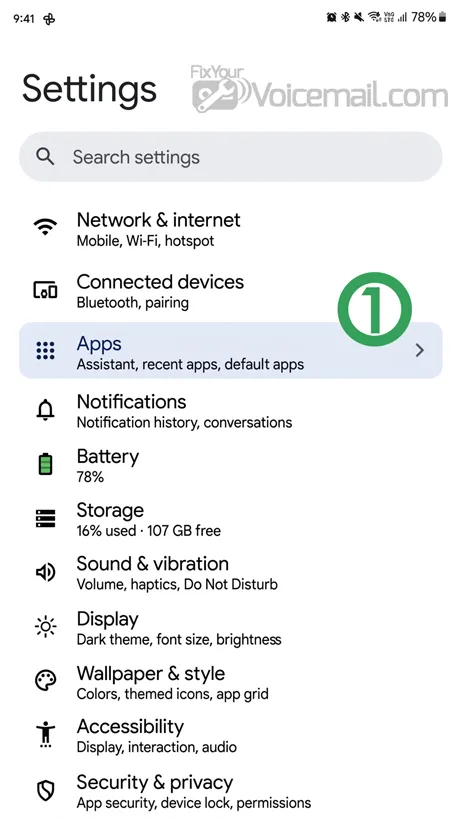
- Open Settings > Apps on your Android.
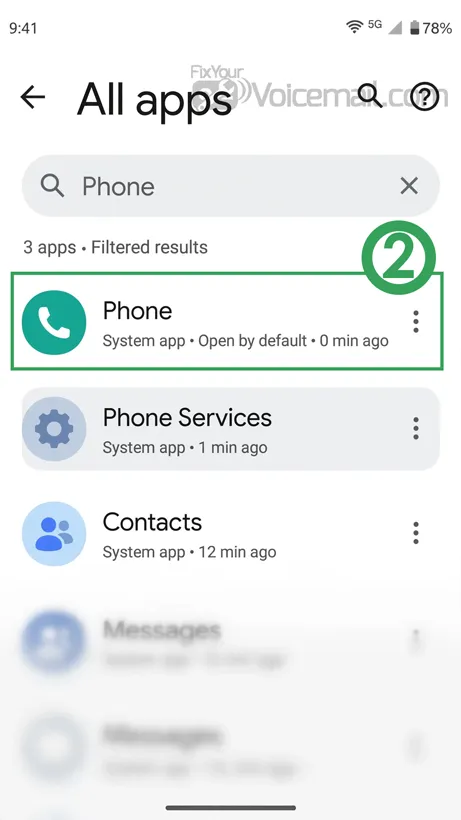
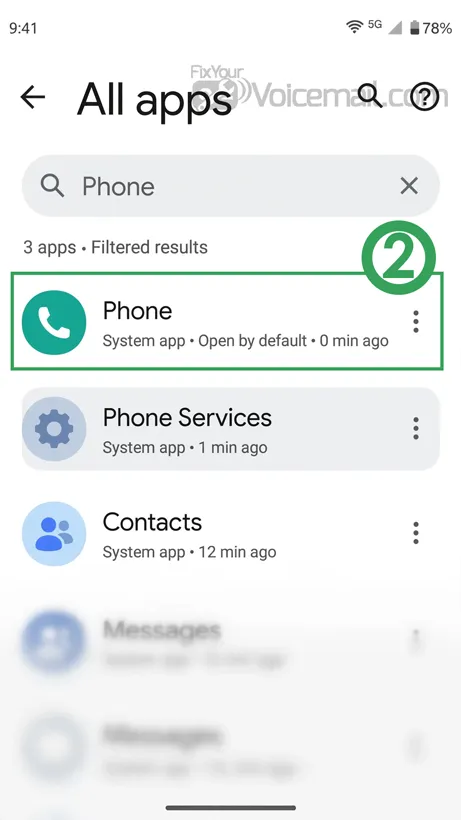
- Find and select Phone (or Dialer).
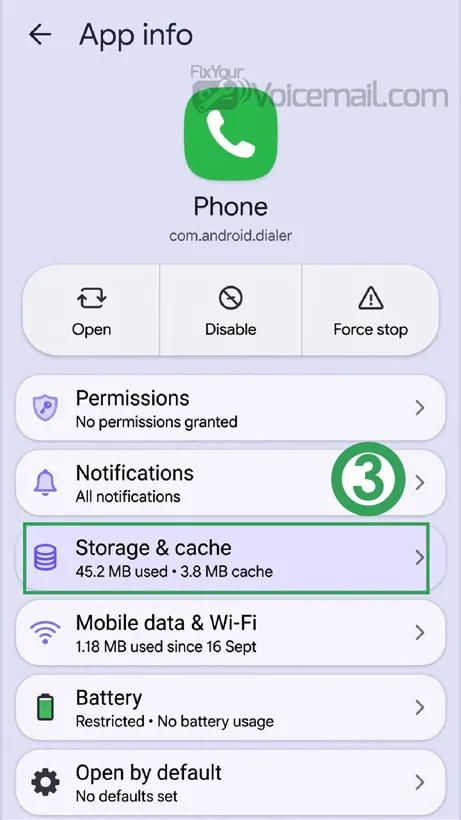
- Tap Storage & cache.
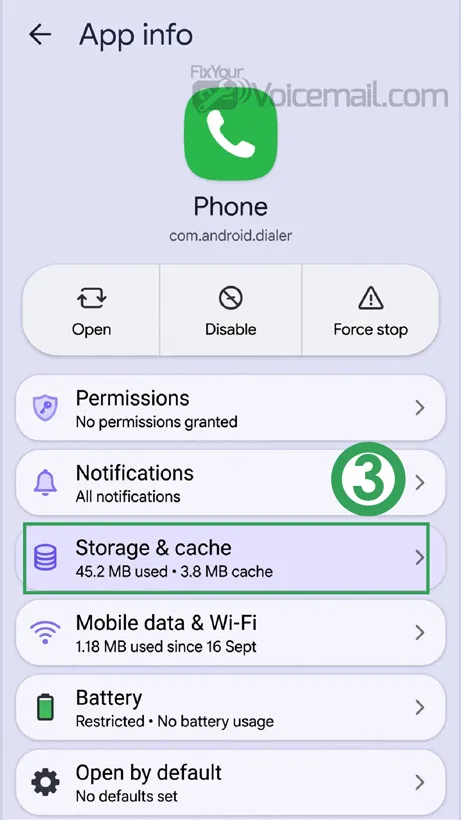
- Tap Clear cache.
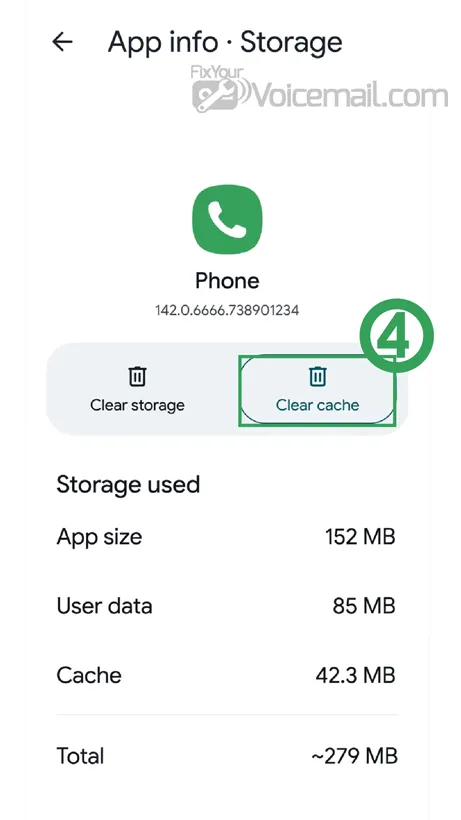
- Restart your phone.
Important:
Clearing data doesn’t delete your contacts or call history—both are stored in your Google Account. However, you will need to reconfigure any custom Phone app settings.
If voicemail works after this, you’re done.
Option B: Clear Data (More Comprehensive)
- Open Settings > Apps on your Android.
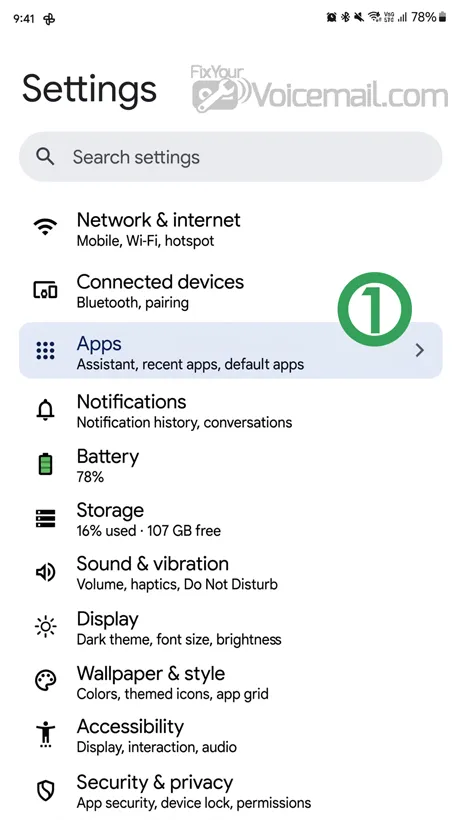
- Find and select Phone (or Dialer)
- Tap Storage & cache.
- Tap Clear storage (or Clear data).
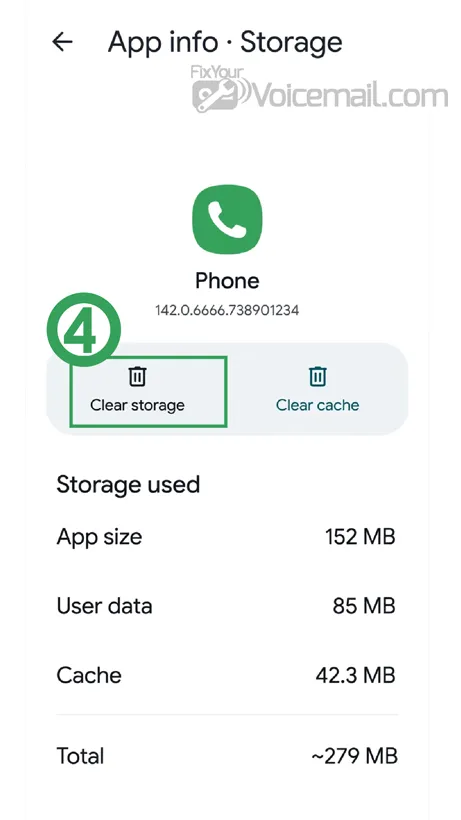
- Confirm the action.
- Restart your phone.
After clearing data, your Phone app will reset to its default state. Open the app, allow any permission prompts, and test your voicemail.
Option C: Uninstall Phone App Updates (Rollback)
If clearing data doesn’t work, the issue may be with the current Phone app version. Rolling back to an older version can restore voicemail functionality.
- Open Settings > Apps.
- Find and select Phone.
- Tap the three-dot menu (top right) and select Uninstall updates (if available).
- Confirm.
- Restart your phone.
- Test your voicemail.
Important:
This only works if “Uninstall updates” is available, as some phones have it disabled. If it works, you can keep using the older version or update again from the Play Store once the issue is fixed.
Fix #2: Check Voicemail Settings That Android Updates Reset.
Android updates can sometimes clear or change the voicemail number or call forwarding settings. This is one of the most overlooked causes of voicemail failure.
Verify the Voicemail Number
- Open the Phone app.
- Tap the three-dot menu (top right).
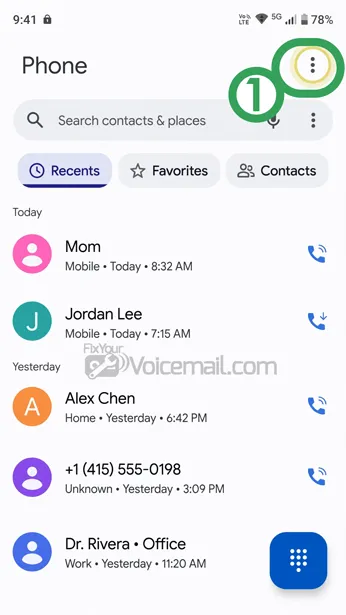
- Select Settings > Voicemail.
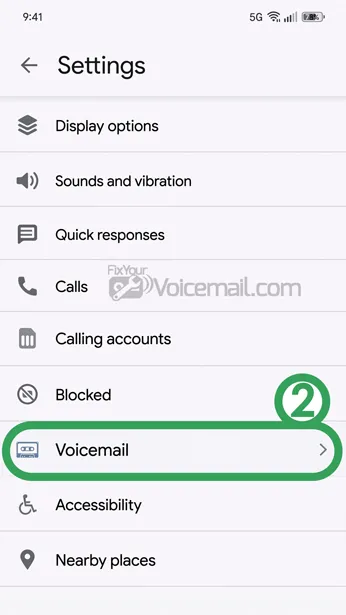
- Look for Voicemail number or Advanced settings.
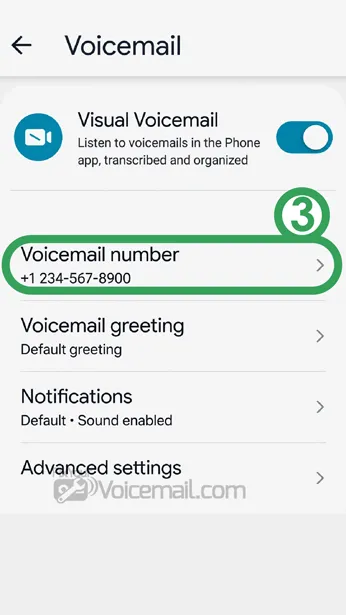
The field should contain your carrier’s voicemail access number. Common numbers include:
- Verizon: *86.
- T-Mobile: 1-805-637-7249 or *86.
- AT&T: *86 or 1-888-288-8899.
- Google Fi: Your own phone number.
- Samsung (carrier default): *86.
If the field is blank or incorrect, your carrier’s voicemail number may have been erased by the update. Contact your carrier’s support or check their website for the correct number and enter it manually.
Check Call Forwarding Rules
Unanswered calls need to be forwarded to your voicemail. The update may have changed these rules.
- Open the Phone app.
- Tap the three-dot menu > Settings.
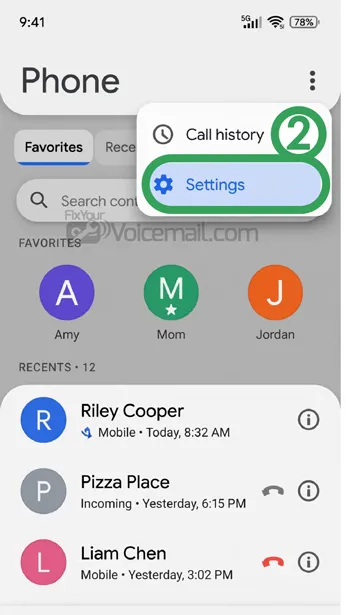
- Look for Call forwarding (may be under Calling accounts or Supplementary services)
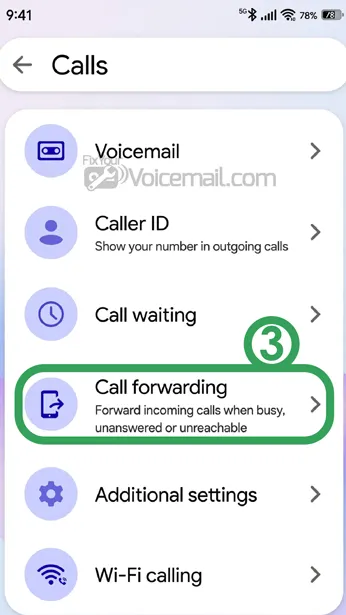
- Check these three rules:
- When unanswered → Should forward to your voicemail number.
- When busy → Should forward to your voicemail number.
- When unreachable → Should forward to your voicemail number.
If any rule is disabled or points to a different number, change it to your voicemail number.
Check SIM/eSIM Configuration
A growing number of users report voicemail issues after switching from physical SIM to eSIM. If you recently changed SIM types and voicemail broke, contact your carrier to confirm provisioning. Head to the Android Voicemail Missing After SIM Change guide for detailed steps.
Fix #3: Force a Network Handshake (Airplane Mode Cycle)
During an operating system update, your phone registers on a temporary cellular band or loses its continuous registration token on the carrier tower. Cycling your network radio forces your phone to complete a fresh hardware-handshake with the nearest tower.
- Swipe down from the top of your screen to open the Quick Settings panel.
- Tap the Airplane Mode icon to enable it. This cuts off all cellular, Wi-Fi, and Bluetooth radios.
- Wait exactly 45 seconds to allow the network registration lease to expire on your carrier’s end.
- Tap Airplane Mode again to disable it.
- Watch your signal bar until it establishes a stable LTE or 5G connection, then test your voicemail by calling your own phone number from a secondary device.
Fix #4: Update Network and Carrier Configuration
If clearing the app cache and cycling your network settings did not restore your voicemail connection, the update has likely disrupted how your phone communicates with your carrier’s external servers.
Update Carrier Services
Carrier Services is a background utility developed by Google that enables mobile networks to support the latest cellular features using the most secure protocols. If this app is outdated relative to your new Android version, features like visual voicemail, MMS, and RCS text messaging will cease functioning.
- Open the Google Play Store on your Android device.
- Tap your profile icon in the upper-right corner and select Manage apps & device.
- Under the Updates available section, check if Carrier Services has a pending update.
- Alternatively, search for “Carrier Services” in the Play Store search bar. If an update button is present, tap it.
- Once updated, restart your smartphone to initialize the new background carrier protocols.
Reset Access Point Names (APN)
Access Point Name (APN) is the system address file your phone uses to connect to your carrier’s IP multimedia subsystem (IMS) network. When an update modifies this file, your cellular data continues to work for standard web browsing, but your dedicated voicemail channels become blocked.
Step-by-Step APN Reset:
- Open the Settings app on your Android device.
- Select Network & Internet (on Samsung devices, tap Connections, then Mobile Networks).
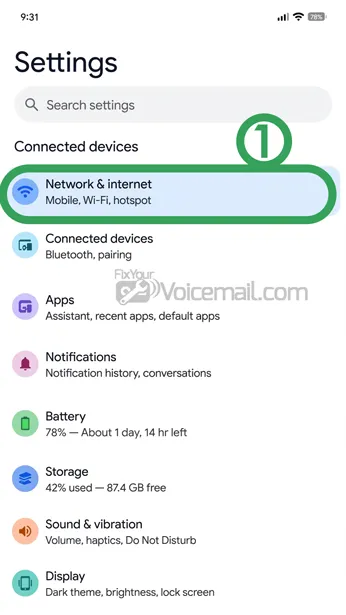
- Tap on Mobile Network.
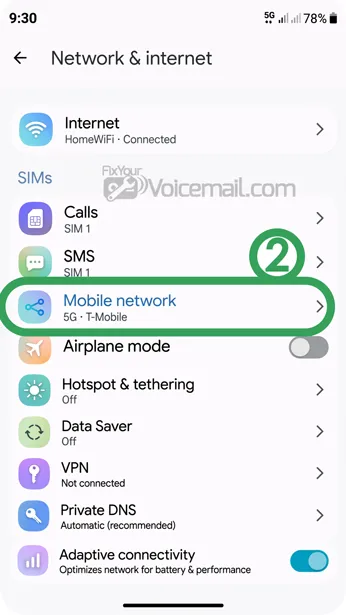
- Scroll down and locate Access Point Names (APN).
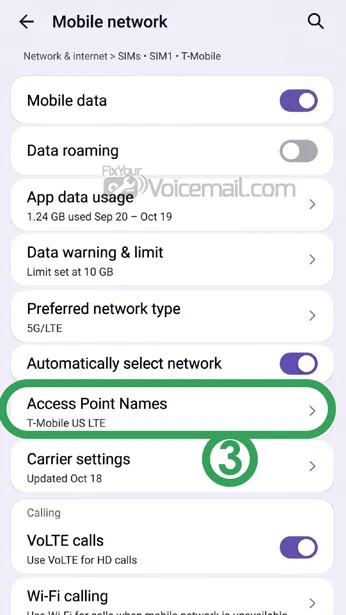
- Tap the three vertical dots menu icon in the top right-hand corner of the APN screen.
- Select Reset to default.
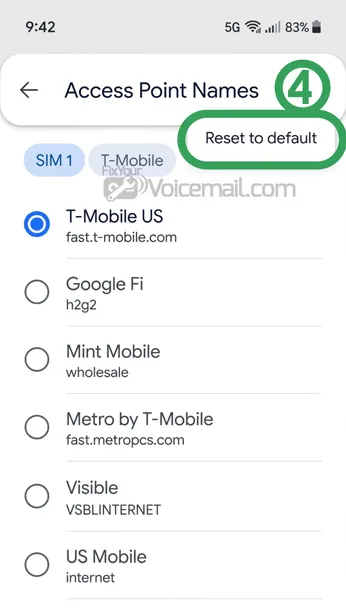
- Your phone will instantly clear custom APN profiles and download the official, certified configuration file directly from your active SIM card. Restart your device to apply.
Read more: How to Fix APN Settings to Make Android Visual Voicemail Work
Fix #4: Notification Issues After Android update
A specific problem users face after updating to Android 15 is incorrect notification sounds. Your visual voicemail notification may play the default notification sound instead of your custom setting.
Why this happens: This appears to be a bug in the Phone app that started after Android 15. The notification setting shows your custom sound selected, but the phone ignores it.
What doesn’t work: Changing the notification sound doesn’t fix it. Clearing the cache doesn’t fix it. The issue persists across multiple attempts.
What does work: Resetting the Phone app to its factory version, then reconfiguring the notification settings:
- Go to Settings > Apps > Phone app.
- Tap the three dots > Uninstall updates.
- Reboot the phone.
- Set your custom notification sound again.
- Turn off automatic updates in the Play Store.
This resolves the notification sound issue in most cases.
Fix #5: Android Version-Specific Fixes
Android 14
Visual voicemail generally works on Android 14. If it stopped working after an update, it’s likely a Phone app update issue rather than an OS issue. Try rolling back the Phone app to a previous version.
Android 15
Several users reported visual voicemail breaking immediately after updating to Android 15. The issue appears to be related to how the Phone app communicates with carriers after the OS update.
For Android 15 users: If you updated from Android 14 and lost voicemail, try clearing the Phone app cache and restarting. If that doesn’t work, roll back Phone app updates or use the Take a Message feature.
Android 16
Android 16 is the latest version, and issues are emerging. Users on Pixel 9 Pro XL with the September 2025 Pixel Drop reported voicemail notification delays of up to 24 hours.
For Android 16 users: The notification delay issue appears to be a carrier-phone handshake problem. Restarting the phone triggers notifications to appear immediately. The Take a Message feature bypasses carrier voicemail entirely and may be your best solution.
VOICEMAIL NOTIFICATION GUIDES:
Fix #6: Check Your Carrier Voicemail Service.
Because voicemail is a carrier service, you need to confirm your carrier hasn’t changed anything on their end.
For Verizon customers: Verizon is known for restricting visual voicemail unless you’re on a premium plan. If you switched plans recently, visual voicemail may have been removed.
For T-Mobile customers: T-Mobile’s visual voicemail generally works well with Pixel phones, but MVNOs (Mobile Virtual Network Operators) like Mint or Google Fi may have different configurations.
For AT&T customers: AT&T often requires its own visual voicemail app rather than the Google Phone app.
For MVNO customers: If you’re on US Mobile, Visible, Spectrum, or other MVNOs, your carrier uses another network’s infrastructure. Spectrum runs on Verizon, and they’ve reported issues with visual voicemail on Pixel phones.
Step to take
Call your carrier and ask them to confirm that visual voicemail is provisioned on your account. If it is, ask them to reset your voicemail service on their end.
Fix #7: Reset the Phone App Connection.
If your carrier confirms voicemail is provisioned but it’s still not working, the phone app may have lost its connection to your carrier’s service.
Open Phone app settings:
- Open the Phone app.
- Tap the three dots in the upper right.
- Select Settings > Voicemail.
- Check if visual voicemail is toggled on. If it says “This carrier may not support visual voicemail,” but you know they do, the app needs to be reset.
- Turn off visual voicemail, exit settings, then turn it back on. This forces the app to re-establish the connection to your carrier.
- Restart your phone after making these changes. A restart after enabling visual voicemail can help the phone reconnect properly.
Fix #8: Carrier-Specific Solutions
Different carriers handle voicemail differently. Here’s a breakdown by carrier:
Verizon and Verizon MVNOs
Verizon is particularly problematic with visual voicemail on Pixel phones. They restrict visual voicemail to certain plans and often require their own app.
Verizon users:
Verizon often doesn’t allow the Google Phone app to access visual voicemail. You need to use the Verizon Visual Voicemail app instead. If that’s not working either, contact Verizon support and ask them to reset your visual voicemail provisioning.
Visible users: One Visible user reported spending over an hour in chat to get their voicemail issue escalated. The rep’s only advice was to manually check voicemail several times a day.
Spectrum users: Spectrum runs on Verizon’s network and has similar issues. One user’s Spectrum support couldn’t find any reason why visual voicemail wasn’t working on their Pixel 8 Pro after update.
Recommendation for Verizon users:
Use the Verizon Visual Voicemail app, not the Google Phone app. If you prefer the Google Phone app, you may need to switch to a premium plan.
T-Mobile and T-Mobile MVNOs (Google Fi, Mint)
T-Mobile generally works better with the Google Phone app’s visual voicemail.
Google Fi users: Google Fi users have had visual voicemail working on Pixel phones since 2016 without problems, even after Android updates.
Recommendation for T-Mobile users: Use the Google Phone app for visual voicemail. If it stops working, try clearing cache and restarting.
AT&T
AT&T often requires their own visual voicemail app rather than the Google Phone app.
Recommendation for AT&T users: Download and use the AT&T Visual Voicemail app. If you want to use the Google Phone app, contact AT&T support to confirm your plan includes visual voicemail access.
US Mobile
US Mobile users have reported issues with visual voicemail on both Verizon and AT&T networks. The issue appears to be related to Phone app version 148.0+.
US Mobile users: Contact US Mobile support and ask them to reset your voicemail provisioning. You can also try the Take a Message workaround.
OTHER TROUBLESHOOTS:
Voicemail Not Working After Android Update-FAQs
Why is my voicemail not working after the Android update?
Android updates can reset app permissions, change call forwarding settings, or create compatibility issues between the Phone app and carrier voicemail servers. In many cases, carriers need to re-provision voicemail on their end.
How do I fix voicemail not working after Android update?
Start with the simplest fixes: restart your phone, toggle Airplane mode, and clear the Phone app cache. If those don’t work, check your voicemail number settings and call forwarding rules. If standard voicemail is still broken, contact your carrier.
Why is Visual Voicemail not working after Android update?
Visual Voicemail requires both carrier support and a working data connection. Android updates often break the connection by resetting permissions or changing carrier settings. Clear the Phone app data, check permissions, and ensure you have mobile data enabled.
Does a factory reset fix voicemail after an update?
Voicemail is provided by your carrier. Your Phone app is simply the “client” that connects to their voicemail servers. If voicemail is broken entirely (you can’t access it by dialing), it’s almost always a carrier issue. If only Visual Voicemail is broken, it’s more likely a phone or app issue.
Final Words:
If Android voicemail stopped working after an update, treat it as a settings and sync problem, not a permanent failure. In most cases, the fix is to restore the voicemail connection between the Phone app, your permissions, and your carrier account.
The best results come from moving in order: check signal, restart, re-enable visual voicemail, clear cache, verify permissions, and only then reset network settings or contact your carrier. That sequence gives you the fastest path to a working inbox without unnecessary risk.
Reference: