

You set up Take a Message on your Pixel, toggled it on, and declined a test call. But instead of seeing “Taking a Message,” the call went straight to your carrier voicemail. You’ve tried restarting your phone. You’ve cleared the Phone app cache. Nothing works.
How to fix conditional call forwarding blocking Take a Message:
1. Dial *#61# to check if conditional forwarding is active.
2. If a number appears under “Forwarded to,” dial ##002# to erase all forwarding.
3. For carrier-specific disable: Verizon (*73), AT&T (*#21# then ##21#), T-Mobile (##002#).
4. Toggle Take a Message OFF and ON in Phone app settings.
5. Test by declining an incoming call — “Taking a Message” should appear.
Why Conditional Call Forwarding Blocks Take a Message?
To understand the fix, you need to understand call routing priority. When you miss or decline a call on your Pixel, Android checks for instructions in this order:
- Take a Message (if enabled) → HIGHEST PRIORITY
- Conditional call forwarding (if active) → INTERCEPTS HERE
- Carrier voicemail (default) → LOWEST PRIORITY
Conditional call forwarding is a carrier feature that forwards calls when:
- Your line is busy (you’re on another call)
- You don’t answer after a certain number of rings
- Your phone is unreachable (no signal)
Here’s the problem: Conditional forwarding activates before Take a Message gets a chance to answer. The call is rerouted to your carrier’s voicemail (or another number you’ve set) immediately after the ring cycle completes, “Take a Message” never sees it.
Bottom line: For Take a Message to work, conditional call forwarding must be disabled. There’s no way to make them coexist means one or the other gets priority.
Quick Check: Is Conditional Call Forwarding Active on Your Pixel?
Before making changes, confirm that conditional forwarding is actually your problem.
Step 1: Dial the MMI Code.
- Open your phone’s dialer (phone app).
- Type *#61# and press the call button.
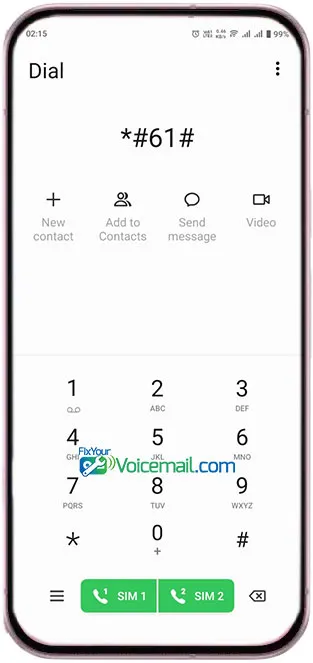
- A message will pop up showing the status.
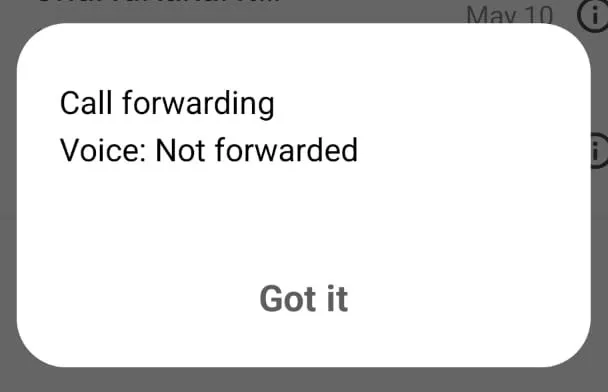
Step 2: Read the Results.
| What you see | What it means |
|---|---|
| Forwarded to: [phone number] | Conditional forwarding is ACTIVE — this is your problem. The number shown is where calls are being forwarded (usually your carrier voicemail). |
| Forwarded to: Not forwarded | Conditional forwarding is INACTIVE — your problem is something else. Skip to the FAQ section. |
| Forwarded to: +1XXXXXXXXXX (a different number) | You’ve set up forwarding to another phone (e.g., business line or Google Voice). |
Step 3: Also Check Unconditional Forwarding.
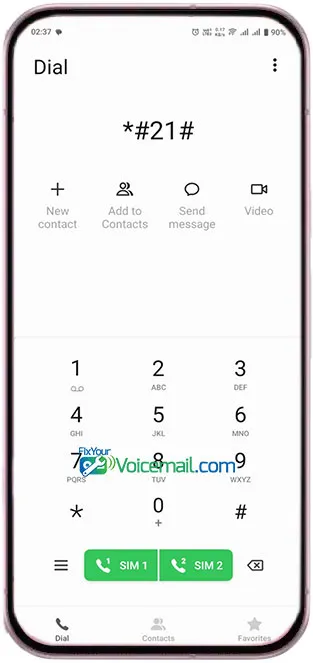
Dial *#21# to check if unconditional forwarding (all calls, no conditions) is active. This also blocks Take a Message. If active, you’ll see a forwarded number.
Screenshot reference: [Image of dialer with *#61# entered and results showing “Forwarded to: +1 (555) 123-4567”]
#1. Conditional Call Forwarding Is Blocking Take a Message: Universal Fix.
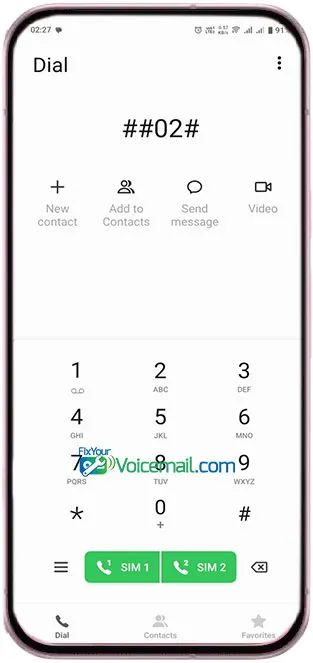
This erases all call forwarding settings, conditional and unconditional, in one command.
- Open your phone’s dialer (phone app).
- Type ##002#. No need to press “Call”, it executes automatically.
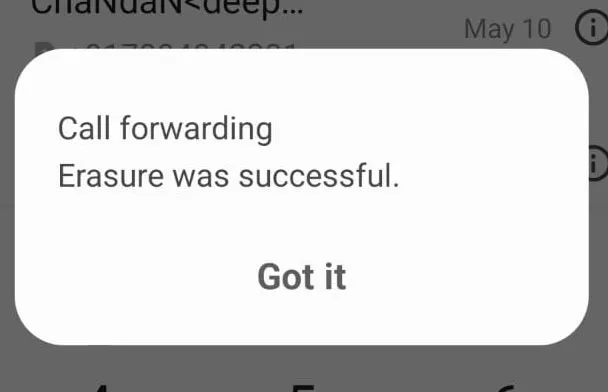
What happens: Your phone sends a reset command to your carrier. All forwarding rules are removed. Your carrier voicemail remains active, but calls will no longer be forwarded before Take a Message can answer.
After Applying:
- Toggle Take a Message OFF then ON (Phone app → Settings → Take a Message)
- Restart your phone
- Test by declining an incoming call
Warning: This removes all forwarding rules. If you had calls forwarding to a business line or assistant, they will stop. Use Method 3 (Temporary Disable) if you need to preserve forwarding settings.
Verification:
Dial *#61# again. You should now see Forwarded to: Not forwarded.
#2. Carrier-Specific Conditional Forwarding Disable.
If ##002# didn’t work (some carriers block it), use your carrier’s specific method.
Carrier Command Center Table(2026)
| Carrier | Conditional Forwarding Check Code | Disable Code | Carrier App Method | Support Script |
|---|---|---|---|---|
| AT&T | *#61# | 21# (unconditional) or ##002 | AT&T Visual Voicemail app → Menu → Call Forwarding → Disable | “Disable conditional call forwarding on my line” |
| Verizon | *#61# | *73 (dials, then hang up) | My Verizon app → Services → Call Forwarding → Off | “Reset my call forwarding to default” |
| T-Mobile | *#61# | 002# | T-Mobile app → Profile → Call Forwarding → Disable | “Remove all conditional forwarding from my line” |
| Google Fi | *#61# | 002# | Google Fi app → Settings → Calls → Call Forwarding → Off | “Reset forwarding via Fi support chat” |
| Cricket | *#61# | 002# | Cricket Visual Voicemail app → Settings → Forwarding → Disable | “Turn off call forwarding on my account” |
| Metro | *#61# | 002# | Metro app → Account → Services → Forwarding → Off | “Disable conditional forwarding” |
| Mint Mobile | *#61# | 002# | Mint app → Account → Call Settings → Forwarding → Off | “Reset my forwarding to default” |
Carrier-Specific Notes:
AT&T users: AT&T is the most aggressive with conditional forwarding. If codes fail, log into your AT&T account online → Manage features → Call Forwarding → Disable all.
Verizon users: The *73 code is a dial-and-hang-up code. Dial *73, wait for the dialer to show “Call Forwarding Deactivated,” then hang up. This disables conditional forwarding without erasing unconditional forwarding.
T-Mobile users: ##002# works reliably. If not, use the T-Mobile app (Profile → Call Forwarding → Toggle off).
Google Fi users: Fi is the most Take a Message-friendly. If codes fail, Fi support chat can reset IMS registration in 2 minutes.
#3. The “Temporary Disable” Workaround (Keep Conditional Forwarding Settings).
For business users who need conditional forwarding (e.g., calls forward to assistant after 4 rings) but want to use Take a Message temporarily.
How It Works
Instead of erasing conditional forwarding (Method 1), you override it with unconditional forwarding, then remove the override.
Step-by-Step:
Step 1: Enable unconditional forwarding temporarily.
- Dial
*21*[voicemail number]#(replace[voicemail number]with your carrier’s voicemail access number) - For most carriers, the voicemail number is your own phone number or
*86
What this does: All calls now forward unconditionally. Conditional forwarding rules are ignored but NOT erased.
Step 2: Use Take a Message.
- Conditional forwarding is now bypassed.
- Take a Message should work normally.
Step 3: Disable unconditional forwarding when done.
- Dial ##21# to remove unconditional forwarding.
- Your original conditional forwarding rules are restored.
Verification: Dial *#61# and your conditional forwarding number should reappear.
When to use this:
You need conditional forwarding for business hours (9-5) but want Take a Message after hours. Set up automation using Tasker or IFTTT to enable/disable unconditional forwarding on a schedule.
Check If Conditional Forwarding Is Really Gone
After applying any fix, follow this 5-step verification:
Step 1: Dialer Code Check
Dial *#61#. You should see: Forwarded to: Not forwarded
If you see a number: Repeat Method 1(Disable Carrier-Specific Conditional Forwarding ) or Method 2(erases all call forwarding).
Step 2: Toggle Take a Message
- Open your phone App.
- Go to Settings.
- Open Take a Message.
- Toggle OFF → Wait 10 seconds → Toggle ON.
Step 3: Force Stop Phone App
- Open Settings on your Pixel phone.
- Go to Apps.
- Tap on Phone → Force Stop.
This clears any cached forwarding state.
Step 4: Restart Your Phone
Critical: some carrier settings only apply after reboot.
Step 5: Live Test
Have a friend call you. Decline the call. You should see a silent notification: “Taking a Message” within 2 seconds.
Success indicator: Open Phone app → Home tab. The call appears with the Take a Message icon and a partial transcript preview.
If you still see carrier voicemail: Conditional forwarding isn’t your problem kindly proceed to the FAQ section.
Advanced Carrier Backend Fix: If What If Nothing Works.
If dialer codes and app settings fail, the problem is on your carrier’s backend IMS registration not your phone.
When to escalate:
##002#shows success but conditional forwarding still active.- Carrier app shows forwarding disabled, but *
#61#shows a number. - You’ve restarted twice and toggled Take a Message multiple times.
Tier 2 Support Escalation Script
Call your carrier’s support line. When you reach an agent, say this exact script:
“I need to escalate to Tier 2 technical support. I’m trying to use Google Pixel’s Take a Message feature, but conditional call forwarding on my line is blocking it. Dialer codes like ##002# are not permanently disabling forwarding. Please check my IMS registration status and reset my conditional forwarding profile on the backend. I do NOT want to disable unconditional forwarding — only conditional.”
Why this works: “IMS registration” and “backend” tell Tier 1 you need Tier 2. Tier 2 can see your carrier’s internal forwarding table and manually reset it.
What Tier 2 will ask:
- Your phone model and Android version (Pixel 6-10, Android 14-16)
- Whether you’ve tried
##002#(say yes) - Confirmation that Take a Message is toggled on (say yes)
After escalation: The agent will send a reset signal to your line. Restart your phone. Test again.
Hybrid Solution: Use Take a Message With Conditional Forwarding
Concept: Use conditional forwarding for your carrier number (business) and Google Voice for personal calls that use Take a Message.
Step 1: Keep conditional forwarding active on your carrier number
- Do NOT disable it
- Business calls continue forwarding as needed
Step 2: Set up Google Voice
- Download Google Voice on your Pixel.
- Get a free Google Voice number.
- Do NOT forward your carrier number to Google Voice.
Step 3: Use Google Voice’s voicemail for personal calls
- Give your Google Voice number to friends and family.
- Google Voice has its own voicemail with transcription (similar to Take a Message).
- It works alongside conditional forwarding because it’s a separate number.
Read Here: Take a Message vs Google Voice: Which Voicemail System Wins?
Step 4: Disable conditional forwarding ONLY for calls to your Google Voice number
- Google Voice calls don’t use your carrier’s forwarding. This happens automatically,
Result:
- Business calls to carrier number → Conditional forwarding active → forwards to assistant
- Personal calls to Google Voice number → No conditional forwarding → Google Voice voicemail with transcription
Limitation: You need to share two numbers. Use a single contact card with both numbers labeled “Business” and “Personal.”
Frequently Asked Questions.
Will disabling conditional forwarding break my regular carrier voicemail?
No. Your carrier voicemail still works for calls when your phone is off, out of network, or you don’t answer after the full ring cycle. Conditional forwarding only intercepts calls before the default voicemail.
What’s the difference between conditional and unconditional forwarding?
Conditional forwarding activates only under specific conditions (busy, no answer, unreachable). Unconditional forwarding forwards every call immediately and Take a Message will never work if unconditional forwarding is active.
Can I disable conditional forwarding for specific contacts only?
No. It’s a line-level setting. All calls are affected equally. Use the “Both” solution (Google Voice) for per-contact separation.
Will this fix work on Pixel 6 with Android 14?
Yes. Conditional forwarding behavior is identical across Pixel 6-10 and Android 14-16. The dialer codes and carrier methods are universal.
Why does ##002# show success but *#61# still shows a number?
Your carrier ignored the reset command. Escalate to Tier 2 using the script in the Advanced Carrier Backend Fix section.
I disabled conditional forwarding, but calls still go to voicemail instead of Take a Message. Why?
Three possibilities:
(1) You have unconditional forwarding active — check with *#21#.
(2) You’re declining calls with a Bluetooth headset — use the phone screen instead.
(3) You’re roaming internationally — Take a Message doesn’t work when roaming.
Does conditional forwarding affect visual voicemail?
Yes. Visual voicemail also depends on conditional forwarding being disabled. The fix above resolves both Take a Message AND visual voicemail issues.
Will factory reset re-enable conditional forwarding?
No. Conditional forwarding is a carrier setting, not stored on your phone. Factory reset won’t change it.
I’m on a prepaid carrier (Cricket, Metro, Mint). Does this work?
Yes, but prepaid carriers sometimes block dialer codes. Use the carrier app method or the support escalation script.
Can I re-enable conditional forwarding after fixing Take a Message?
Yes, but Take a Message will stop working again. They cannot coexist. Choose which feature you need more.
Does Google plan to fix this conflict in a future Android update?
As of July 2026, no. The conflict is inherent in how call routing works. Google’s official stance remains “turn off Take a Message” which is why this guide exists.
Final Words:
Conditional call forwarding, blocking Take a Message is frustrating because it’s invisible. You toggle the feature on, you see it in settings, but calls never route to it. No error message. No warning. Just a silent failure.