

You’re waiting for an important call. Your phone is in your hand, screen on, signal strong. But the call never comes. Later, you see the dreaded notification: “New Voicemail.”
Your Android phone sent another call straight to voicemail without ringing. This isn’t a carrier conspiracy. It’s almost always a setting on your phone. With Android 16 and new AI call screening, those settings have changed. Follow the guide here if the voicemail stopped working after OS update.
Here is the complete, device-specific guide to fixing this for good.
Quick Fixes to Try First
- Restart your phone – Clears temporary system glitches.
- Turn Airplane Mode ON and OFF – Refreshes network connection.
- Disable Do Not Disturb (DND) – Allows calls to come through.
- Check volume and ringer settings – Ensure phone isn’t muted.
- Turn off call forwarding – Prevents calls from being redirected
Android Calls Going Straight to Voicemail- Diagnose Your Problem.
Not sure where to start? Answer these questions to narrow down the cause.
- Do calls go to voicemail for everyone, or just specific people?
- Only specific people: You may have accidentally blocked their number or your spam filter is too aggressive. Check your Blocked numbers list in the Phone app settings.
- Did this start immediately after a system update?
- Yes: Android 16 or One UI 8.5 may have reset your notification permissions for the Phone app or enabled new call screening features.
- Do you use a Samsung Galaxy or a Google Pixel phone?
- Samsung: Your issue is likely related to Smart Call or the new Direct Voicemail feature in One UI 8.5.
- Pixel: Call Screen or Take a Message features are the most common culprits.
- Do you have two SIM cards in your phone?
- Yes: Your phone might be routing calls to the wrong SIM’s voicemail. You may need to set a default “calling” SIM.
Read More: How To Leave Voicemail Without Calling on Android?
How To Fix Android Calls Going Straight To Voicemail?
Here are the easy steps to troubleshoot you can follow to stop incoming calls from going straight to voicemail on your Android phone.
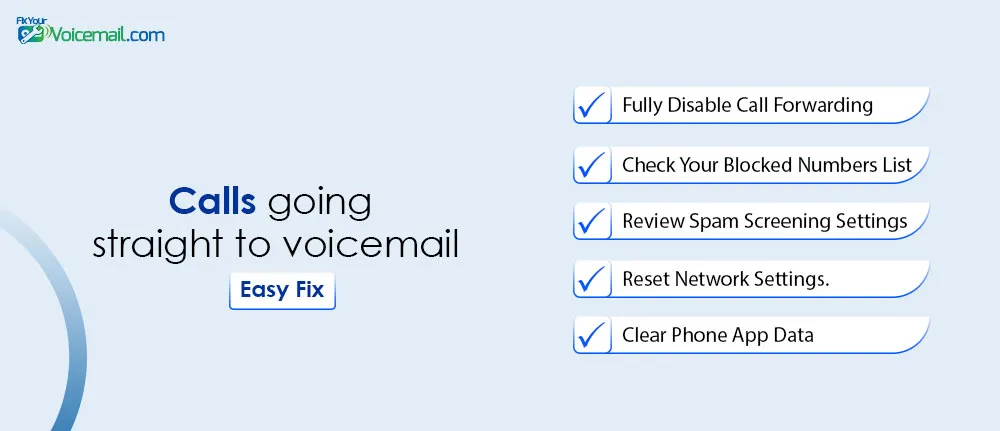
This process is the same for all Android versions and devices, regardless of Android OS version(Android 13) or Android 16 and devices like Samsung or Google Pixel. Do make sure to check methods to change number of rings before sending calls to voicemail.
Fully Disable Call Forwarding (Including Conditional).
- Open the Phone app.
- Tap the three dots (menu) in the top-right corner.
- Go to Settings > Calling accounts.
- Select your active SIM card.
- Tap Call forwarding.
- Turn off every single option: Always forward, Forward when busy, Forward when unanswered, Forward when unreachable.
For a complete reset, open your dialer and type ##002# then press the call button. This is a carrier-level code that instantly erases all conditional call forwarding, including the one sending you to voicemail.
Most people check call forwarding and see it’s “Off.” But there are conditional forwards (like “Forward when unanswered”) that can be active without you knowing. Incorrect conditional forwards can also lead to a missing Voicemail After SIM Change error.
Check Your Blocked Numbers List.
- Open the Phone app.
- Tap the three dots > Settings > Blocked numbers.
- Review the list. If you see any numbers you want to hear from, tap the
Xnext to them to unblock.
It’s easy to accidentally block a contact. Their calls will go straight to voicemail without any notification to you.
Review Spam and Call Screening Settings.
- Open the Phone app.
- Tap the three dots > Settings > Caller ID & spam.
- Turn off “Filter spam calls.”
Test to see if your calls now come through. If they do, you know the filter was the problem. You can turn it back on, but be aware it may send some legitimate calls to voicemail.
Android’s built-in spam protection is great, but it can be too aggressive. In such cases, a genuine call can also be sent to voicemail as well. Disabling the settings can stop calls from going straight to voicemail.
Reset Network Settings.
- Go to Settings > System > Reset options.
- Tap Reset Wi-Fi, mobile & Bluetooth.
- Confirm the reset.
This is a powerful fix for deep-seated connectivity issues.
This will not delete your apps, photos, or files. However, you will need to re-enter Wi-Fi passwords and re-pair Bluetooth devices.
Clear Phone App Data (Last Resort)
- Go to Settings > Apps > Phone > Storage & cache.
- First, tap Clear cache. Test your phone.
- If that fails, tap Clear storage.
This will reset the Phone app to its default state. You will not lose your contacts or voicemails, but you will lose your call history and any app-specific settings.
Dual-SIM & Edge Cases
If you’ve tried everything and calls are still going to voicemail, you may have one of these less common problems.
Dual-SIM Phones:
- Go to Settings > Network & internet > SIMs.
- Make sure your Preferred SIM for calls is set correctly.
- Try disabling one SIM at a time to see if the problem is specific to one line.
If you have two SIM cards, your phone might be routing calls to the wrong voicemail box.
The “Android Update” Glitch
System updates are a common trigger for this problem. Updates can reset app permissions, turn on Do Not Disturb, or enable new features (like Call Screen) without asking. After an update, go through the checklist in this article again.
Third-Party Call Blockers
- Temporarily uninstall any call-blocking or spam-filtering apps.
- If that fixes the problem, you know the app was the cause. Adjust its settings or find an alternative.
Apps like Truecaller, Hiya, RoboKiller, and YouMail are very effective at blocking spam. They can also block calls you want to receive.
Android Calls Going Straight To Voicemail: Device-Specific Solution
Samsung One UI
- Open the Phone app.
- Tap the three dots > Settings.
- Look for Direct Voicemail or Voicemail settings.
- Ensure it is turned off.
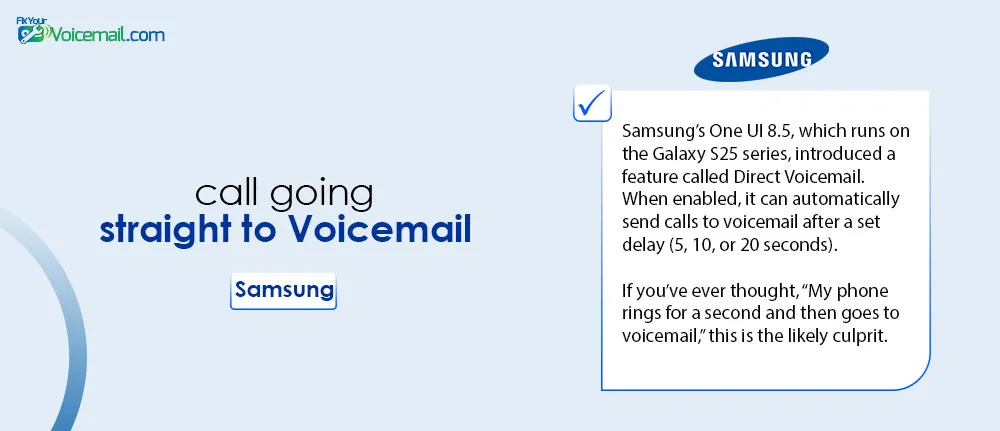
Samsung’s One UI 8.5, which runs on the Galaxy S25 series, introduced a feature called Direct Voicemail. When enabled, it can automatically send calls to voicemail after a set delay (5, 10, or 20 seconds).
If you’ve ever thought, “My phone rings for a second and then goes to voicemail,” this is the likely culprit.
Samsung’s “Smart Call” Feature
This feature identifies spam and business calls. It can sometimes flag personal contacts as spam.
- Tap the three dots > Settings.
- Tap Caller ID and spam protection.
- Toggle it off to test. If your calls come through, the feature was too aggressive.
Google Pixel
Pixel phones are “pure” Android, but Google adds its own powerful call management tools that can inadvertently block calls.
- Open the Phone app.
- Tap the three dots > Settings.
- Tap Call Screen.
- Review your settings for “Unknown callers,” “Private numbers,” and “Spam.” Set them to “Ring (no call screen)” to test if this resolves the issue.
Pixel Call Screen
Call Screen lets Google Assistant answer unknown calls for you. Depending on your settings, it might send callers to voicemail without ever ringing your phone.
Note: This feature is a privacy risk. In 2026, Google confirmed a vulnerability affecting Pixel 4 and 5 devices, where this feature could leak audio. As a result, Google temporarily disabled it on some devices. If your older Pixel phone stopped ringing for calls around late 2025 or early 2026, this is likely why.
Frequently Asked Questions (FAQ)
Why did my calls start going to voicemail after the Android 16 update?
System updates can reset app permissions and re-enable features like Do Not Disturb, Call Screen, or Direct Voicemail. It’s a common trigger. Simply review your settings using the steps in this guide.
How do I clear my Phone app cache without losing my voicemails?
Clearing the cache is completely safe. It only removes temporary files. Your voicemails are stored by your carrier, not on your phone. Go to Settings > Apps > Phone > Storage & cache > Clear cache. Your messages will not be affected.
Will a factory reset delete my voicemails?
No. A factory reset wipes your phone’s internal storage, but voicemails are stored by your mobile carrier. You will still be able to access them by dialing your voicemail number. However, a factory reset is a last resort and you should try all other steps first.
What if Safe Mode fixed the problem?
If the problem disappears when you restart in Safe Mode, it means a third-party app you installed is causing the issue. Uninstall recently added apps one by one to find the culprit. See Google’s guide to Safe Mode for more details.
When should I call my carrier?
You should call your carrier only if you’ve tried all the steps in this guide, the problem happens with multiple different phones, or you suspect an account issue (e.g., an unpaid bill). In 95% of cases, the fix is on your device.
Final Words:
When your Android phone stops ringing and sends calls straight to voicemail, it can feel like something is seriously wrong—but in most cases, it’s just a small setting or software issue. By following the structured steps in this guide, you can quickly identify the cause and fix it without stress. Start with the quick fixes, work through the deeper solutions, and you’ll have your calls working normally again in no time.