

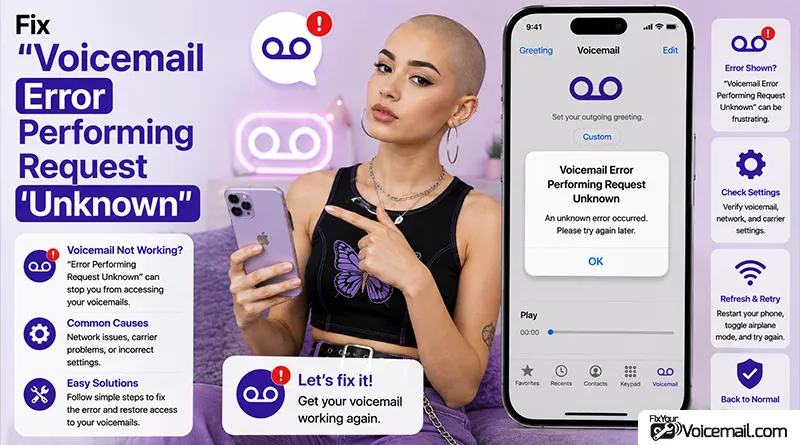
Few things are more frustrating than tapping your Voicemail tab and seeing a cryptic “Error performing request. Unknown error” message instead of your messages.
This error is particularly aggravating because it doesn’t tell you what went wrong or how to fix it. The good news is that this problem has known causes and specific solutions.
This guide shows you exactly why iPhone voicemail shows error performing request unknown, with current iOS 18 troubleshooting methods, carrier-specific voicemail access numbers, 500586 programming codes, and preventive measures that competitors miss.
Quick Fixes
Before diving into more complex solutions, try these simple fixes.
- Restart Your iPhone.
- Toggle Airplane Mode.
- Force Close and Reopen the Phone App.
- Toggle Cellular Data.
- Check Carrier Voicemail Provisioning.
You tap to change your voicemail greeting or open Visual Voicemail and iPhone shows “Voicemail Error – Error Performing Request – Unknown Error” with only an OK button.
You try again, same error. Your voicemail still works when people call, but you cannot update greeting or see messages.
What Does This Error Mean?
The “Error performing request unknown” message appears when your iPhone tries to communicate with your carrier’s voicemail servers but fails to receive a proper response.
When you use Visual Voicemail or access the Voicemail tab, your iPhone sends a request to your carrier’s network.
If the network doesn’t respond correctly or times out, iOS displays this vague “unknown” error.
Common Causes
- Visual Voicemail not provisioned on your carrier account.
- Carrier settings conflict after an iOS update.
- Live Voicemail interfering with standard voicemail functionality.
- eSIM or number porting issues.
- Corrupted network settings.
- Outdated carrier settings profile.
- iOS 17/18 bugs.
- Call forwarding enabled.
Quick check: Is voicemail active?
Before deeper fixes, confirm voicemail is active.
- Open Phone > Voicemail. If you see Set Up Now, tap it and complete setup.
- Press and hold 1 to dial voicemail directly. If it connects, voicemail is active but Visual Voicemail link is broken
- Settings > Phone > Change Voicemail Password – if you see it, voicemail is active
If dialing 1 works but the app fails, the error is Visual Voicemail provisioning, not your account. Read here to setup voicemail on your iPhone from scratch.
Fix 1: Turn off Live Voicemail temporarily.
Live Voicemail in iOS 17 and later intercepts calls on device. When it is on, carrier sometimes locks greeting editing and returns an unknown error.
- Open Settings app on iPhone.
- Scroll down, tap Phone.
- Tap Live Voicemail.
- Toggle Live Voicemail to Off. Screen turns grey.
- Go back to Phone app > Voicemail tab at bottom right.
- Tap Greeting at top left.
- Tap Custom > Record > speak your greeting > Stop > Save.
- If it saves without error, you found the cause.
- Return to Settings > Phone > Live Voicemail > turn back On.
Many users report error disappears after disabling Live Voicemail, changing greeting, then re-enabling.
If it still fails:
Leave Live Voicemail off and continue to Fix 2. You can turn it back on after everything works.
What you should see after success: “Greeting Saved” and new greeting plays when you tap Play.
Fix 2: Reset Network Settings.
Corrupted network settings can cause voicemail authentication issues, so resetting them often fixes error performing request unknown.
- Settings > General.
- Scroll to bottom > Transfer or Reset iPhone.
- Tap Reset.
- Tap Reset Network Settings.
- Enter your iPhone passcode (6-digit screen lock, not voicemail PIN).
- Confirm Reset Network Settings again.
- iPhone restarts automatically, Apple logo appears for 30-60 seconds.
- After restart, unlock iPhone, wait for carrier name to appear top left (AT&T, Verizon, T-Mobile).
- Open Settings > General > About – if carrier update popup appears, tap Update
- Open Phone > Voicemail – wait 20 seconds for inbox to refresh
- Try changing greeting again
What this resets:
- Wi-Fi passwords and networks.
- Cellular settings.
- VPN and APN settings.
- Voicemail authentication token.
If you see “Voicemail Unavailable”: Toggle Airplane Mode on for 20 seconds, then off. Wait for signal return and try again.
Fix 3: Change greeting via old dial-in method.
If app fails, use keypad method that bypasses Visual Voicemail.
- Open Phone App > Keypad > press and hold 1(voicemail dialing number).
- When you hear “Please enter your password”, enter 7-15 digit voicemail PIN + #.
- Press 4 for Personal Options (varies by carrier, listen for prompts)
- Press 1 for greeting, record new greeting.
- Record after beep, press # to stop.
- Press 1 to save.
- Hang up.
After recording via dial-in, open Phone > Voicemail > Greeting – new recording should appear. This confirms carrier server accepts changes now. Try app method again.
This bypasses Visual Voicemail app and talks directly to carrier server. Works even when app shows unknown error.
Fix 4: Ask carrier to reset voicemail provisioning.
The error often needs carrier to re-provision voicemail on their end.
Simply call the carrier and ask for re-provision of your voicemail.
- AT&T: Call 611, say “reset voicemail” – they will delete and recreate Visual Voicemail mailbox (saved messages may be lost, ask first).
- Verizon: My Verizon app > Support > Reset Voicemail.
- T-Mobile: Call 611, ask to reset Visual Voicemail feature.
What to say to support to avoid generic troubleshooting:
“I am getting ‘Voicemail Error Performing Request Unknown Error’ when changing greeting on iPhone 16 iOS 18.5. Dial-in works but Visual Voicemail app fails. Please re-provision Visual Voicemail and reset voicemail feature on my line, not just password.”
For other carriers, check their official website.
Note: Since voicemail is a service provided by your carrier, the issue could stem from an outage, server maintenance, or an error in your account settings. Reaching out to your carrier’s support team will allow you to check for service disruptions or request a reset
After carrier reset:
- Restart iPhone: hold side + volume down > slide to power off, wait 30 seconds, hold side to turn on.
- Wait 5 minutes for carrier to push new settings.
- Phone > Voicemail > Set Up Now > create new PIN.
- Try changing greeting again in app.
Fix 5: Remove and re-add eSIM (for eSIM users).
For iPhone 16 dual eSIM or when you switched from physical SIM to eSIM.
This forces carrier to push fresh provisioning that includes correct voicemail server address.
- Go to Settings > Cellular.
- Tap the line that shows error (e.g., Primary, Business)
- Tap Remove eSIM>confirm Remove.
- Restart iPhone.
- Re-add eSIM:
- If you have QR code: Settings > Cellular > Add eSIM > Use QR Code.
- If via carrier app: open carrier app > activate eSIM.
- Wait for “Cellular Setup Complete”, ensure signal bars return
- Now go to Settings > General > About – install carrier update if prompted.
- Phone > Voicemail > Set Up Now for that line.
As each line can have its own voicemail configuration, follow the guide here to setup voicemail on a dual-line iPhone.
Dual eSIM tip:
You have two voicemail boxes. The error may not tell you which line. Repeat Fix 5 for each line separately. Enable Wi-Fi Calling for both lines: Settings > Phone > Wi-Fi Calling > turn on for each line. This lets Visual Voicemail authenticate over Wi-Fi even when line is not selected for data.
Fix 6: Check VPN, Wi-Fi Calling, and storage.
- Turn off Wi-Fi Calling temporarily: Open Settings > Phone > Wi-Fi Calling > toggle Off. Try greeting change on cellular data only. If it works, turn Wi-Fi Calling back On after.
- Turn off VPN: Settings > General > VPN & Device Management > disconnect. Try again.
- Check storage: Settings > General > iPhone Storage – ensure at least 1GB free. If full, Visual Voicemail cannot download.
- Toggle Cellular Data: Settings > Cellular > Cellular Data > Off for 10 seconds > On. Then Phone > Voicemail > pull down to refresh inbox.
Fix 7: Disable Call Forwarding (Most Common Fix).
Disabling call forwarding is the fastest way to fix voicemail error performing request unknown, as call forwarding conflicts with voicemail routing in most cases.
- Open the Settings app on your iPhone.
- Scroll down and tap Phone (green phone icon).
- Tap Call Forwarding (usually near the top of the list).
- Turn off Call Forwarding toggle (should be green when on, gray when off).
- Restart your iPhone by holding side button + volume button, then sliding to power off.
- Test voicemail to see if error is gone.
Fix 8: Program Voicemail Number via 500586 Code.
If your iPhone has incorrect voicemail number programmed, you can fix it by dialing 500586number# to set the correct carrier voicemail access number.
- Find your carrier’s voicemail access number (see carrier table below).
- Open the Phone app on your iPhone.
- Tap Keypad at the bottom.
- Dial 500586number# where “number” is your carrier’s voicemail access number with country code.
- Example for US/Canada: 500586*+1XXXXXXXXXX# (replace Xs with your 10-digit number)
- Example for India: 500586*+91XXXXXXXXXX# (replace Xs with your 10-digit number)
- Press the call button (green phone icon).
- Wait for screen to flash briefly, confirming the number is programmed.
- Test voicemail to see if error is gone.
To check current voicemail number: Dial #500586# and press call. A pop-up will show currently programmed voicemail number.
Carrier-Specific Voicemail Access Numbers
Different carriers have different voicemail access numbers, which must be programmed correctly using 500586number# to fix error performing request unknown.
| Carrier | Voicemail Access Number | 500586 Code Format |
|---|---|---|
| AT&T (US) | Your 10-digit number | 500586*+1XXXXXXXXXX# |
| Verizon (US) | Your 10-digit number | 500586*+1XXXXXXXXXX# |
| T-Mobile (US) | Your 10-digit number | 500586*+1XXXXXXXXXX# |
| Rogers (Canada) | Area code + 580-4001 | 500586*+1XXX5804001# |
| Public Mobile (Canada) | Area code + 580-4001 | 500586*+1XXX5804001# |
Fix 9: Update Carrier Settings on iPhone.
Outdated carrier settings can cause voicemail sync issues, so updating them often resolves error performing request unknown.
- Open Settings app on your iPhone.
- Tap General > About.
- Wait on this page for 2-3 minutes.
- If carrier update is available, a pop-up will appear.
- Tap Update to install carrier settings.
What this fixes:
- Carrier voicemail server sync issues.
- Visual Voicemail configuration problems.
- iOS-carrier compatibility bugs.
Fix 10: Enable Phone App in iCloud.
If Phone app is disabled in iCloud, voicemail sync can fail, causing error performing request unknown.
- Open Settings app on your iPhone.
- Tap your Apple ID (your name at top.)
- Tap iCloud > Show All (under Apps Using iCloud.)
- Find Phone app in the list.
- Turn on Phone toggle (should be green).
- Restart iPhone.
- Test voicemail.
Also enable FaceTime: Some users report enabling FaceTime alongside Phone app helps voicemail sync.
When and How Should I Contact My Carrier?
Contact your carrier if:
- Traditional dial-in (long-press 1 or calling your own number) still works but the Voicemail tab shows the error.
- You have already tried Airplane Mode, restart, Call Forwarding off, and Reset Network Settings.
- The phone is new or you recently changed SIMs and Visual Voicemail has never worked.
Tell the support agent the exact error message and that Visual Voicemail fails while basic call-in may still work.
Ask them to reset or re-provision the voicemail box on their end. Note that a reset can erase unsaved messages, so save any important ones first if possible.
How Can I Prevent the Error From Returning?
- After any major iOS update, SIM change, or phone upgrade, open the Voicemail tab once to confirm it still works.
- Keep carrier settings up to date.
- Avoid repeatedly toggling Call Forwarding or Wi-Fi Calling if you notice the error returns afterward.
- Maintain a stable cellular connection when first setting up or testing Visual Voicemail.
OTHER IPHONE GUIDES
Voicemail Error Performing Request Unknown: FAQ
Why does it happen only when changing greeting?
Greeting change requires write access to carrier server. If provisioning is read-only after transfer, server rejects with unknown error.
Does this affect Live Voicemail messages?
Live Voicemail messages are stored on iPhone only. This error does not delete them, but you cannot save them to carrier.
Why does the error appear on a gray screen?
The Phone app falls back to a basic interface when it cannot reach the carrier’s Visual Voicemail servers.
Does the error mean my voicemail messages are lost?
Not necessarily. Many users can still retrieve messages by dialing their own number or long-pressing 1. The Visual Voicemail interface is what fails.
Does this happen more on certain carriers?
Reports appear across major carriers and MVNOs.
Some prepaid and smaller carriers show higher rates of the manual-number or backend-reset need.
Most “Error performing request – Unknown error” cases are resolved by the early steps (Airplane Mode, restart, Call Forwarding off, Reset Network Settings).
Work through them in order. If the error remains, a quick carrier reset usually restores Visual Voicemail.
Final Words:
The “Error performing request unknown” on iPhone voicemail is frustrating but solvable. In most cases, it comes down to one of three issues: your carrier hasn’t enabled Visual Voicemail on your account, your Live Voicemail is interfering with GSM codes, or you have a temporary network issue that a restart or network reset can fix.
Start with the quick fixes and work your way through the solutions in order. If you reach the end without success, don’t hesitate to contact your carrier. They have the tools to check and enable Visual Voicemail provisioning on their end.
References: