

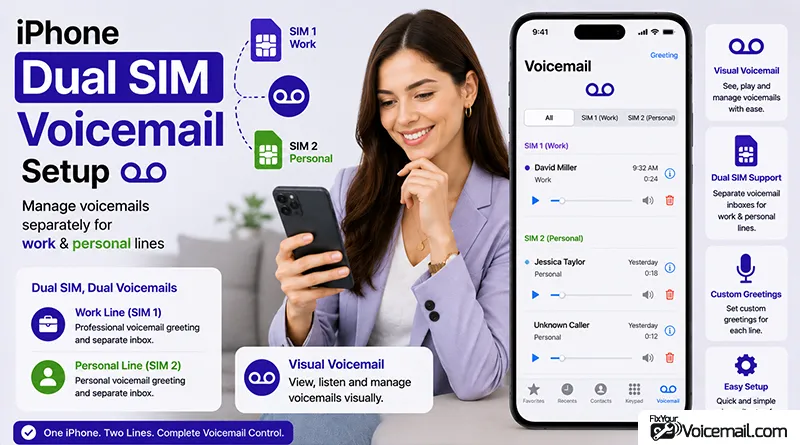
Most dual SIM iPhone users assume voicemail works the same on both lines. It doesn’t. Whether you’re using a physical SIM with an eSIM, or two eSIMs, your voicemail experience differs dramatically between lines – especially for Visual Voicemail and missed call notifications.
We have already discussed the steps to set up and use voicemail on iPhone. This guide, tested on iPhone models from XR through 17 Pro, explains exactly how dual SIM voicemail works, why carriers and iOS settings affect each line differently, and how to set up and troubleshoot voicemail on both numbers.
No more missed messages or digging through forums for answers.
How To Setup Voicemail on Dual SIM iPhone?
Quick setup
- Open the Phone app and choose the correct line.
- Tap Voicemail.
- Tap Set Up Now.
- Create your voicemail password.
- Record your greeting and save it.
- Repeat for the second line if needed.
Understanding Dual SIM Voicemail: What You Need to Know First.
Setting up voicemail on an iPhone with dual SIM capabilities is not as straightforward as you might expect.
Many users assume that because they have two active phone numbers on one device, the voicemail experience will be identical on both lines. This is not the case.
The core issue lies in how iOS handles dual SIM functionality and how carriers provision voicemail services.
When you have two active lines, whether a physical SIM paired with an eSIM or dual eSIMs on newer models, your iPhone uses Dual SIM Dual Standby (DSDS) technology.
Things to Know
Your two SIM lines don’t get two separate voicemail apps, two separate inboxes, or two separate notification badges. They share one unified voicemail list inside the Phone app. Each message is tagged with the line it came in on, and each line gets its own greeting and its own PIN, but you manage it all from one place.
This single-data-line limitation has significant implications for voicemail. Visual Voicemail, which allows you to see a list of messages and play them directly from the Phone app, generally requires an active cellular data connection or Wi-Fi calling to download messages.
Since only one line can be designated as the cellular data line at a time, Visual Voicemail typically only works reliably on your primary data line.
The secondary line can still receive voicemail calls, but accessing those messages usually requires a different approach.
Dual SIM Voicemail on iPhone: Carrier Dependencies
Each line needs voicemail service enabled by its carrier. This is usually on by default for postpaid plans, but some prepaid plans require you to request it, or it may be a paid add-on.
If you’re unsure, a quick check of your account portal or a call to each carrier’s support line confirms it in under two minutes.
You’ll also create a voicemail PIN for each line during setup. These PINs are separate and unrelated to each other and to your iPhone’s passcode.
Pick something you’ll remember for each line, since you’ll need them if you ever need to access your iPhone voicemail remotely or reset your greeting.
Choose the default voice line
If you want outgoing calls and voicemail behavior to stay consistent, set your default voice line first.
Go to Settings > Cellular, then tap Default Voice Line and select the number you want to use most often.
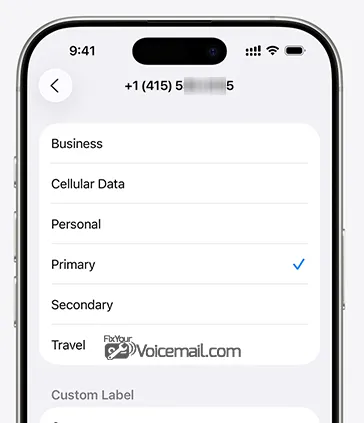
That line usually becomes the one you interact with most in the Phone app.
This does not automatically erase voicemail on the other line. It simply tells iPhone which number should be treated as your main calling identity.
For dual SIM users, that small setting can prevent a lot of voicemail confusion later.
How to Set Up Voicemail on Your Primary iPhone Line?
Setting up voicemail on your primary line is the same as setting it up on any iPhone. The primary line is typically the one you designate as your default voice line during the dual SIM setup process.
Step-by-Step: Set Up Voicemail on Your Primary SIM line.
- Open the Phone app on your iPhone.
- Tap Voicemail in the bottom right corner of the screen.
- If voicemail has not been set up yet, you’ll see a Set Up Now button. Tap it. Create a voicemail password and enter it twice to confirm.
- Tap Done.
- Choose between Default greeting (a generic carrier message with your number) or Custom greeting (your own recorded message).
- If you chose Custom, tap Record and speak your greeting, then tap Stop.
- Tap Play to review it. Tap Save when you’re happy with it.
Your primary line voicemail is now active. Callers who reach voicemail on your primary number will hear your greeting and can leave messages that appear in the visual voicemail list.
How to Set Up Voicemail on Your Secondary iPhone Line?
The secondary line setup is where most people get confused, because the Phone app defaults to your primary line in most taps and menus. The key is switching to the secondary line before initiating voicemail setup.
Step-by-Step: Set Up Voicemail on Your Secondary SIM Line
- Open the Phone app and tap Keypad at the bottom of the screen.
- At the top of the keypad, you’ll see your primary line label (the carrier name or the label you gave it during dual SIM setup). Tap that label.
- A menu appears letting you switch between your two lines. Select your secondary line.
- Once the secondary line is active in the keypad, tap Voicemail in the bottom right corner.
- If voicemail hasn’t been set up for this line yet, you’ll see a Set Up Now prompt. Tap it.
- Create a voicemail PIN for this line and confirm it.
- Tap Done. Choose Default or Custom greeting for this line.
- If you chose Custom, record and save your greeting as described above.
Accessing and Managing Voicemails on both SIMs.
Once you are done with the setup and configurations(voicemail greetings, password) for each SIMs(line), it’s time to learn to access each voicemails sapeartely.
Use the keypad method for reliability:
- Open Phone > Keypad.
- Select the line at the top.
- Long press 1 to connect to voicemail for that line.
- Enter password when prompted.
Things to Know
The voicemail message waiting indicator, represented as a red dot on your voicemail icon, shows that you have an unheard voicemail message from your primary line. The secondary line will not have a voicemail message waiting indicator.
Note: Visual Voicemail shows messages when data is active for that line. Switch cellular data temporarily if needed.
How iPhone Dual SIM Voicemail Actually Works.
Each phone number on your iPhone has its own voicemail box managed entirely by its carrier. The voicemail data is stored on the carrier’s servers, not on your iPhone.
What your iPhone does is download message summaries and audio to display them in the visual voicemail interface.
The visual voicemail tab in the Phone app shows a combined list of messages from both lines, with a small icon next to each message indicating which line it belongs to.
First, setting up voicemail for each line is a carrier-level task. Each line needs to be activated with its carrier’s voicemail system independently.
Your primary carrier doesn’t know or care about your secondary carrier’s voicemail, and vice versa.
Second, whether visual voicemail works at all for each line depends on whether that carrier supports it. AT&T, Verizon, T-Mobile, and most major US carriers support visual voicemail on iPhone.
Some prepaid carriers, regional carriers, and international carriers only support traditional dial-in voicemail.
If your secondary carrier falls into this category, the voicemail button in the Phone app will show a Call button instead of a visual list for that line.
Third, since iOS 17, Apple has introduced Live Voicemail as an on-device layer on top of carrier voicemail.
Live Voicemail works per line, and we cover how it behaves with dual SIM later in this guide.
The key to success with dual SIM voicemail is not fighting the system’s limitations but working within them using the methods outlined in this guide.
Visual Voicemail on Dual SIM/eSIM iPhone.
Visual Voicemail Behavior on Primary Line.
The primary line, which is also designated as your default voice line or cellular data line, should support Visual Voicemail if your carrier offers this service. When Visual Voicemail is active, you will see:
- A list of all voicemail messages in the Phone app.
- Transcriptions of messages (where supported)
- The ability to play messages without dialing in.
- Red badge notifications for new messages.
By understanding exactly how each line behaves and setting up the appropriate access methods in advance, you can avoid missing important calls and effectively manage voicemail on both numbers.
If Visual Voicemail does not appear on your primary line, check that your carrier has provisioned the feature on your account. Sometimes this requires contacting customer support, especially for business lines or newer eSIM activations.
Visual Voicemail Behavior on Secondary Line.
On the secondary line, the experience is often very different. Key limitations include:
- No visual voicemail list in the Phone app.
- No voicemail message waiting indicator (red dot) on the voicemail icon.
- No missed-call notification when you are already on a call.
- No transcription service.
What Users Has TO Say
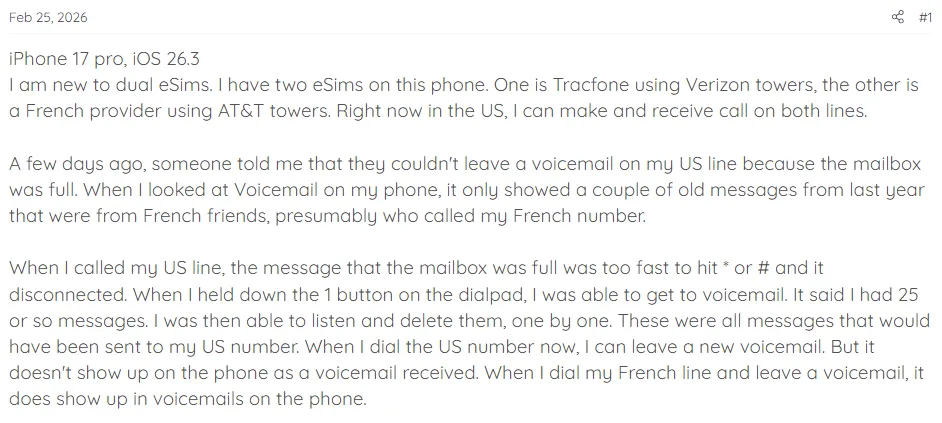
Users on various forums have confirmed this behavior. One iPhone 17 Pro user with dual eSIMs noted that when they called their US line, the message that the mailbox was full occurred too quickly to interact with.
When they held down the 1 button on the dial pad, they were able to access voicemail, which contained messages that did not show up in the visual voicemail list.
Dual SIM iPhone Voicemail: Two eSIMs Without Physical SIM?
On newer iPhone models like the iPhone 16 Pro and Pro Max sold in certain markets (US models are eSIM-only), you may have dual eSIMs with no physical SIM.
The voicemail behavior remains consistent with the principles described above: the line designated for data gets Visual Voicemail, the other line does not.
However, this can be more confusing because there is no physical SIM to easily identify which is “primary.” You must carefully manage which line is designated for cellular data in Settings > Cellular > Cellular Data.
Dual SIM iPhone Voicemail Errors And Troubleshoots.
Problem #1: No Visual Voicemail on Secondary Line.
Expected Behavior: Visual Voicemail may not work on the secondary line by design.
Solution: Use the dial-in method described earlier. Tap the line label in the Phone app keypad, select your secondary line, then press and hold 1 to access voicemail.
If you need to check for secondary line messages regularly, you can temporarily switch your default voice line in Settings > Cellular > Default Voice Line. However, this changes which line is primary, which may affect other functionality.
Problem #2: No Missed Call Notifications on Secondary Line.
Expected Behavior: You will not get missed-call notifications from your secondary number when you are already on a call.
Solution: Consider using call forwarding. You can forward all calls from one number to the other to avoid missing important calls. Check with your carrier for availability and any additional fees.
Problem #3: “Voicemail Is Full” Error.
Expected Behavior: Voicemail boxes fill up independently per line.
Solution: Access the secondary line voicemail via the dial-in method, listen to messages, and delete old ones.
If you cannot access voicemail quickly enough before the call disconnects, try calling your own number from another phone, waiting for the greeting, and pressing # to access the mailbox directly.
Problem #4: Visual Voicemail Missing on Primary Line.
Expected Behavior: If your carrier supports Visual Voicemail, it should work on the primary data line.
Solution: Check that your carrier has provisioned Visual Voicemail on the line. This is not automatic for all eSIM activations. Contact business support if necessary.
Also, verify that you have not disabled Visual Voicemail accidentally – go to Settings > Phone > Visual Voicemail and ensure it is enabled.
Problem #5: Carrier Does Not Support Visual Voicemail on eSIM.
Expected Behavior: Some carriers support Visual Voicemail only on physical SIMs or only on primary lines.
Solution: Contact your carrier to understand their eSIM voicemail support. Some carriers require specific account configurations or settings to enable Visual Voicemail on eSIM lines.
iPhone Dual SIM Voicemail Setup: Carrier-Specific Troubleshooting.
Different carriers handle dual SIM voicemail differently. Understanding your carrier’s approach is essential to resolving issues.
AT&T
AT&T provides comprehensive support for eSIM setup and management but does not explicitly address Visual Voicemail limitations on secondary lines.
Their support articles focus on setup and switching between lines for calls and messages, but note that while on the current line, incoming calls to the other line will route straight to voicemail.
For AT&T users
Ensure your eSIM is properly activated with Visual Voicemail provisioned. If the Voicemail tab shows Call Voicemail instead of a list of messages, the feature may not be provisioned on your account or the line is not the primary data line.
T-Mobile
T-Mobile community guidance confirms that to get Visual Voicemail on the non-primary line, you need to temporarily set that line for cellular data. This allows the line to download its voicemail messages. You can then switch data back to the primary line.
Verizon
Verizon’s official position, as shared in community forums, confirms Visual Voicemail works only on the primary cellular data line. The non-data line does not receive missed call notifications or voicemail alerts.
Other International Carriers.
When using an international eSIM (like a French provider) alongside a US carrier, users have reported additional complications. The secondary line may show voicemail messages that accumulate without notification, and turning off the secondary line may restore Visual Voicemail functionality to the primary line.
If you travel frequently, consider the following strategies:
- Designate your home number as the primary data line for Visual Voicemail access.
- Check international eSIM voicemail periodically via the dial-in method.
- Consider using a third-party voice service like Google Voice for the secondary number.
Read Also: Access iPhone Voicemail Remotely From Other Device.
iOS Versions and Voicemail on Dual SIM.
iOS updates have introduced new voicemail features that affect dual SIM users.
iOS 17 Live Voicemail
For dual SIM users, Live Voicemail applies to your primary line. If you notice changes to your greeting or behavior, check this setting.
iOS 17 introduced Live Voicemail, which shows a live transcription of a caller’s message as they leave it. This can conflict with traditional voicemail greetings.
Virgin Plus notes that if you update to iOS 17, you may find your personal voicemail greeting has been replaced with one of Apple’s generic greetings. You can opt-out of Live Voicemail to resolve this by going to Settings > Phone > Live Voicemail and turning it off.
iOS 18 and RCS Messaging
iOS 18 introduces RCS messaging support for supported carriers. While primarily for messaging, RCS can affect carrier provisioning and data usage. If Visual Voicemail stops working after an iOS 18 update, verify your carrier supports the new RCS standard and that your line’s provisioning is intact.
Future iOS Versions (26.x)
Recent users on iPhone 17 Pro running iOS 26.3 report the same voicemail limitations, indicating that the fundamental architectural constraints of Dual SIM Dual Standby remain unresolved by Apple.
Until Apple changes how dual SIM works at a hardware or OS level, the primary/secondary line voicemail distinction will likely persist.
Advanced: Automate Voicemail Routing with Shortcuts and Focus.
One of the most innovative solutions for business users is using automation to manage voicemail routing on specific lines.
Why Automate?
Many professionals use one number for business and another for personal calls. They may want business calls to go directly to voicemail outside of working hours. iOS does not natively support time-based call forwarding per SIM, but workarounds exist using the Shortcuts app and Focus modes.
Using Focus Modes
Focus modes allow you to control which contacts can reach you and when. To set up a Work Focus that effectively routes business calls to voicemail:
- Open Settings > Focus > Add Focus.
- Select Work (or create a custom focus).
- Under People, add your business contacts.
- Under Apps, allow business-related apps.
- Under Time or Automation, set a schedule for working hours (Monday to Friday, 7:00 AM to 5:00 PM).
Outside these hours, the Work Focus automatically turns off, and calls from business contacts will go to voicemail.
Important:
iOS does not differentiate by SIM in Focus settings. This approach works if you maintain separate contact groups for business and personal. The ringer may still alert you to calls if your phone is not in silent mode, but the call will proceed to voicemail based on your availability settings.
Using Shortcuts for Call Forwarding.
For more precise control, you can use the Shortcuts app with GSM codes to automate call forwarding per line. However, iOS does not allow automatic execution of GSM codes in the background – the code must be confirmed manually.
- Open Shortcuts app > Automation.
- Create a new personal automation for Time of Day.
- Select 5:00 PM (or your end-of-day time).
- Add action: URL (with
tel://*21*[your voicemail access number]#for enabling call forwarding) - Add another action: Open URLs..
- You will be prompted to confirm the call when the automation runs.
For deactivation at 7:00 AM: tel://##21#
The GSM codes for call forwarding are carrier-dependent. The standard codes are:
- Enable unconditional call forwarding:
*21*[voicemail number]#. - Disable unconditional call forwarding:
##21#.
Check with your carrier for the correct codes and voicemail access number. The code must be dialed from the correct line on your dual SIM iPhone for it to apply to that line.
Third-Party Solutions.
Some users recommend using Google Voice for the secondary number. This provides voicemail transcripts, email notifications, and text notifications, regardless of which line is the primary data line.
This can be a practical solution if your secondary line’s voicemail limitations are causing significant issues.
Sources and Further Reading:
For official guidance, refer to Apple’s support documentation on using dual SIM with eSIM and setting up voicemail on iPhone.
Carrier-specific details should be confirmed with your wireless provider, as features vary by plan and region.
Frequently Asked Questions
Can I have Visual Voicemail on both iPhone lines at the same time?
No. iPhone supports Visual Voicemail on one line only. The other line uses standard carrier voicemail accessed by dialing in.
Do I need separate voicemail passwords for each line?
Yes, and you should use different passwords. This prevents confusion and adds security.
What happens to voicemail when I am on a call on the other line?
The incoming call goes to voicemail if voicemail is set up. You will get a missed call notification only if Wi-Fi calling and data switching are enabled.
Can I forward voicemail from one line to the other?
No. Voicemail boxes are tied to their respective phone numbers. You cannot merge or forward them on iPhone.
Does deleting a voicemail on one line affect the other?
No. Each line maintains its own voicemail box independently.
Will resetting network settings delete my voicemail?
No. Voicemail is stored on your carrier’s servers. However, you may need to reconfigure Visual Voicemail after a network reset.
Is Live Voicemail available for both lines?
Yes, if the line receiving the call has voicemail enabled and Live Voicemail is turned on in Settings.
Final Words:
Dual SIM voicemail on iPhone is a feature that works, but with significant limitations that are not well explained by carriers or Apple. The most important takeaway is that your secondary line does not support Visual Voicemail in the same way as your primary data line.