

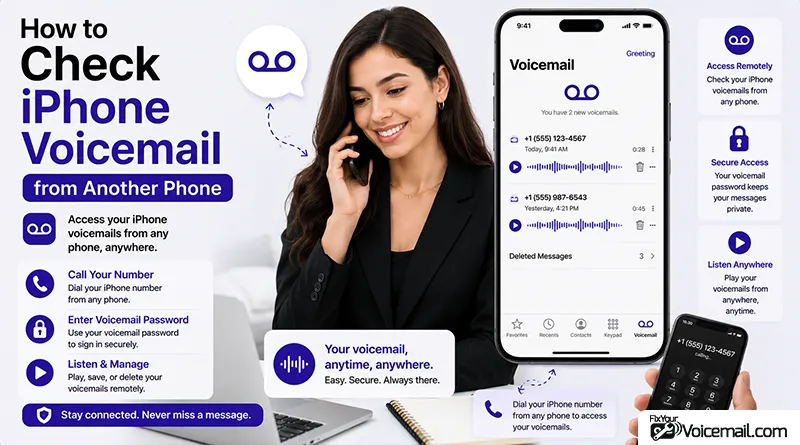
The moment you realize you’ve left your iPhone at home is the moment a critical voicemail arrives. Or perhaps your iPhone is lost, and you need to check messages on a borrowed phone.
While Apple provides the basic instructions, most users get stuck on one critical detail: do you press * or #, and what happens if neither works?
This comprehensive guide answers every question you have about accessing your iPhone voicemail from another phone, with carrier-specific details, visual walkthroughs, and solutions for every scenario.
Quick Steps to Check iPhone Voicemail from Another Phone
- From any phone, dial your own iPhone number.
- Listen to your voicemail greeting.
- During the greeting, press * or # (depending on your carrier) to bypass the message.
- Enter your voicemail password when prompted.
- Follow the voice menu to listen, delete, or save messages.
Need help? Check which carrier prefix applies to you.
Here I consider that you have already set up voicemail services on your iPhone.
Essential Requirements for Remote Voicemail Access on iPhone.
Before you attempt to check your voicemail from another phone, ensure these prerequisites are in place:
A Voicemail Password Must Be Set
- You cannot access your voicemail remotely without a password or PIN.
- This password is separate from your Apple ID or iPhone passcode.
- Typically 4 to 7 digits, depending on your carrier.
Your Voicemail Box Must Be Active
- Voicemail must be set up on your iPhone.
- If you’ve never set up voicemail, you need to do this first.
You Need Your Own Phone Number
- This may seem obvious, but you need to know your own iPhone number.
- If using a borrowed phone, you must remember your number.
Carrier Support for Remote Access
- Virtually all major carriers support this feature.
- Some smaller MVNOs might have different procedures.
- International carriers almost universally support it.
Access iPhone Voicemail from Another Phone: Step-by-Step Instructions
The fundamental process for checking iPhone voicemail from another phone is straightforward, but requires careful attention to the carrier-specific step.
Step 1: Dial Your iPhone Number
From any phone (landline, friend’s smartphone, hotel phone, or any working line), dial your own iPhone’s phone number. This is the number people call to reach you.
Step 2: Wait for Your Voicemail Greeting to Play
Allow your recorded greeting to begin playing. Do not interrupt it before the beep or tone begins. The greeting is your signal that the voicemail system has answered.
Step 3: Bypass Your Greeting
This is where the carrier-specific variation occurs. During your greeting, you must press a key to bypass it and access the voicemail management system rather than leaving a message.
- For most carriers: Press the * (star) key immediately.
- For carriers like Verizon: Press the # (hash) key.
What if you’re unsure? Try * first. If you’re asked for your password, it worked. If you hear your greeting continue and then a beep, hang up and try #.
Carrier Bypass Code Chart: * vs # for 12+ Carriers
Your carrier determines which key bypasses the greeting. Here’s the complete chart:
| Carrier | Bypass Key | PIN Format | Special Notes | PIN Reset Code |
|---|---|---|---|---|
| AT&T | * | 4-6 digits | Prepaid may use # | Call 611 |
| Verizon | # | 4-6 digits | Roaming supported | My Verizon App |
| T-Mobile | * | 4-6 digits | Short code reset available | Dial 611 |
| US Cellular | * | 4-6 digits | Same as AT&T | Contact carrier |
| Spectrum Mobile | # | 4-6 digits | Same as Verizon | Contact carrier |
| Google Fi | # | SMS reset available | Dial #793# | |
| Sprint | * | 4-6 digits | Now T-Mobile | Dial 611 |
| Xfinity Mobile | # | 4-6 digits | Verizon network | Contact carrier |
| Boost Mobile | * | 4-6 digits | T-Mobile network | Contact carrier |
| Visible | # | 4-6 digits | Verizon network | Visible app |
Step 4: Enter Your Voicemail Password
After pressing the bypass key, you will be prompted to enter your voicemail password. This is the same password you use when accessing voicemail directly on your iPhone.
Enter the password using the keypad. If you’re using a touchscreen phone, use the dial pad to enter the digits. Listen for the system to confirm that you’ve entered it correctly.
Step 5: Navigate the Voice Menu
Once you are authenticated, you will hear a voice menu with options. The exact options vary by carrier, but the key commands are standardized for iPhone voicemail account.
Standard Key Commands for Navigation:
- Press 1 – Rewind message (often 10 seconds).
- Press 2 – Pause/Resume playback.
- Press 3 – Fast forward message (often 10 seconds).
- Press 4 – Replay the current message from the beginning.
- Press 5 – Hear message details (date, time, caller).
- Press 7 – Delete the current message.
- Press 9 – Save the current message to your saved folder.
- Press * or 0 – Return to the main menu.
- Press # – Skip to the end of the message.
Step 6: Hang up when finished.
There’s no special exit step. Just end the call once you’re done managing your messages.
How To Check Voicemail via Carrier App or Online Portal?
Dialing in isn’t the only option, particularly if you have internet access but not your phone.
Most major carriers, including AT&T, Verizon, and T-Mobile, offer account apps and web portals that include visual voicemail.
If you’ve previously linked your account, you can often sign in from a browser or a different device’s app store download and reach your messages without dialing anything.
General steps:
- Open your carrier’s official app or website on any available device.
- Sign in using your account credentials, not your voicemail PIN.
- Navigate to the voicemail or messages section of your account dashboard.
- Select a message to play, download, or delete.
This route is especially useful if you’ve forgotten your voicemail PIN but still remember your account login, since the portal typically authenticates you differently than the dial-in method does.
How to Check iPhone Voicemail From Landline?
You can check iPhone voicemail from a landline phone with these steps:
Landline Remote Access Steps
- Dial your iPhone number from landline.
- Wait for voicemail greeting to play.
- Press # (pound key) when greeting starts.
- Enter your voicemail PIN.
- Press 1 to listen to message.
Landline limitations:
- Some older landlines don’t support * or # during calls.
- If # doesn’t work, try * (star key).
- Landlines may not support all message management commands (replay, delete).
- You can only listen to messages, not access Visual Voicemail or transcripts.
International/Roaming: Check iPhone Voicemail From Outside Your Country.
When traveling internationally, remote iPhone voicemail access works but requires specific dialing formats:
International Dialing Format
- Dial your country code + your iPhone number.
- Wait for greeting, press * or # (same as domestic)
- Enter PIN.
- Listen to messages.
Example formats:
- USA to India: +91-XXXXXXXXXX (your Indian iPhone number.)
- India to USA: +1-555-123-4567 (your American iPhone number.)
- UK to India: +91-XXXXXXXXXX.
- Australia to USA: +1-555-123-4567.
Cost Warnings
- International calling fees apply: You’re calling your iPhone from abroad, so standard international rates charge.
- Check with your carrier: Some carriers offer roaming packages that reduce costs.
- Consider alternatives: Use carrier app/web portal to access voicemail online (often free.)
Verizon Roaming Specific Instructions
Verizon offers specialized roaming voicemail access:
- Dial your US number from abroad using +1 format.
- OR call Verizon roaming access number for your country.
- Follow same */# bypass steps.
- Roaming may require activation – check before traveling.
Alternatives When International Calling Is Too Expensive
- Carrier app: Log in to carrier’s app and check voicemail online (free)
- Voicemail forwarding: Set up voicemail to email (if carrier supports.)
- Ask someone: Have someone at home check and text you message summaries.
Dual SIM iPhone: Which Voicemail Line to Access Remotely
If your iPhone has dual SIM (two phone numbers), each line has separate voicemail:
How to Access Specific Line’s Voicemail.
- From another phone, dial the specific iPhone number you want voicemail for.
- Example: If iPhone has Personal (+1-555-123-4567) and Business (+1-555-987-6543), dial the exact number.
- Each number has its own voicemail greeting, PIN, and messages.
On Your iPhone: Check Which Line’s Voicemail You’re Setting Up.
- Open Phone app.
- Tap line selector at top (Personal or Business).
- Tap Voicemail tab.
- This voicemail belongs to selected line only.
Important: You cannot access both lines’ voicemail from one call. Dial each number separately to check each line’s voicemail.
Remote Access: Visual Voicemail vs. Traditional Voicemail.
Visual Voicemail (available on iPhones since iOS 3):
- Displays a list of messages in the Phone app.
- You can choose which message to listen to first.
- Transcriptions are often available.
- Requires data connection (cellular or Wi-Fi).
- Only works on your iPhone, not from other phones.
Traditional Voicemail Remote Access:
- Accessible from any phone.
- Works without data or internet connection.
- Uses the voice menu navigation system.
- Often the only option when your iPhone is unavailable.
Key Difference: Visual Voicemail requires your iPhone and a data connection. Traditional remote access works from any phone and is your backup option when you don’t have your iPhone available.
I can’t Access iPhone Voicemail Remotely: Troubleshoot
Issue 1: You’re Not Asked for Your Password
Possible Causes and Solutions:
- You pressed the wrong key. Try the other prefix (* or #). Some carriers require a specific key during the greeting.
- You pressed the key too early. Wait until the greeting has fully started before pressing the bypass key.
- You pressed it too late. If you wait until after the beep, the system assumes you want to leave a message. Hang up and try again.
- Your carrier requires a different method. Some older systems require pressing * followed immediately by your password. Check with your carrier.
Issue 2: You Enter Your Password and It Doesn’t Work
Possible Causes and Solutions:
- You’ve forgotten your voicemail password. This is common. You need to reset it from your iPhone (see below).
- You’ve entered it incorrectly. Some systems require a # after the password. Try password + #.
- Your password was reset by your carrier. If you recently switched carriers or plans, your voicemail may have been reset.
Issue 3: You Hear a “Invalid Password” Message
Possible Causes and Solutions:
- You may have too many failed attempts. Some carriers lock you out after 3-5 failed attempts. Wait 15-30 minutes and try again.
- Your carrier requires a different format. For example, One NZ requires you to key in your mailbox number (your phone number without the leading 0) followed by # before entering your PIN.
Issue 4: The Call Goes to Your Greeting and Then a Beep
Possible Causes and Solutions:
- You didn’t bypass correctly. Hang up and try again, pressing the prefix earlier in the greeting.
- Your carrier doesn’t support this method. Some carriers require a direct access number rather than calling your own number.
- Your voicemail box is full. A full mailbox sometimes prevents remote access.
Things to Know
If you run into a specific error message or a step that isn’t working the way this guide describes, it’s worth checking your carrier’s current support page directly, since access procedures occasionally shift after network updates.
Frequently Asked Questions
Can I check iPhone voicemail from an Android phone?
Yes. The process is identical from any phone, regardless of operating system. You’re simply calling a phone number and using touch-tone commands.
How do I check someone else’s voicemail?
You cannot check someone else’s voicemail without their password. This is a security feature. If you need to access a family member’s voicemail, they need to provide their password.
Do I need to press * or # before or after the greeting?
During the greeting. Not before (the system hasn’t answered yet) and not after (you’ll leave a message). Wait for the greeting to start, then press the bypass key.
Can I save voicemails when accessing from another phone?
Yes. Press 9 to save current message. Saved messages stay in voicemail box longer.
Does Live Voicemail work when I’m away from my iPhone?
No. Live Voicemail requires iPhone to be on and running iOS 17+. Remote access uses regular carrier voicemail.
What if carrier says remote access is not enabled?
Some carriers require activation. Call support and request “remote voicemail access” or “voicemail from forwarding phone” enabled.
How long are voicemails kept on carrier systems?
Most carriers keep voicemails 30 days. Some keep 14 days, others 60 days. Check your carrier’s policy.
Does this work with eSIM or dual SIM iPhones?
Yes, but each line has its own separate voicemail box and PIN. Make sure you’re dialing the specific number whose messages you’re trying to reach.
Can I check voicemail from another iPhone, or does it need to be an Android?
Either works. The dial-in method isn’t tied to any particular brand of phone, since you’re really just placing a regular phone call to your own number.
Wrapping Up:
Accessing your voice messages remotely is an easy task once you master the specific bypass sequences utilized by your carrier network. By using the correct combination of the star or pound keys during your outbound greeting, you can stay connected to critical communications regardless of where your physical iPhone is located. Protect your personal information by using unique access credentials and disabling automatic login features on your cellular account profile.